
MYHGRC 4b46a893-4c05-483c-b899-c709fb90ce3b
MYHGRC Replacement Apple TV Remote Control User Manual
Model: 4b46a893-4c05-483c-b899-c709fb90ce3b
1. Introduction
Thank you for purchasing the MYHGRC Replacement IR Remote Control for Apple TV. This remote is designed to provide seamless control for various Apple TV models and offers programmable buttons for controlling your television. Please read this manual thoroughly before use to ensure proper operation and to maximize your experience.
2. Safety Information
- Keep the remote control away from water and other liquids.
- Do not expose the remote to direct sunlight or excessive heat.
- Avoid dropping or subjecting the remote to strong impacts.
- Do not attempt to disassemble or modify the remote control. This will void the warranty.
- Dispose of used batteries responsibly according to local regulations.
3. Package Contents
The package includes the following items:
- 1 x MYHGRC IR Remote Control
- 1 x Instruction Manual (this document)
Note: 2 AAA batteries are NOT included and must be purchased separately.
4. Product Overview
Familiarize yourself with the buttons and features of your new MYHGRC remote control.

Image: Front view of the MYHGRC remote control with labels for Power, TV/Home, OK, Navigation, Menu, Play/Pause, Mute, Volume+, and Volume- buttons.
Button Functions:
- Power Button: Controls the power of your TV (programmable).
- TV/Home Button: Switches between TV input and Apple TV home screen (programmable for TV).
- OK Button: Confirms selections.
- Navigation Ring: Up, Down, Left, Right arrows for menu navigation.
- Menu Button: Returns to the previous menu or home screen on Apple TV.
- Play/Pause Button: Controls media playback.
- Mute Button: Mutes/unmutes TV audio (programmable).
- Volume + Button: Increases TV volume (programmable).
- Volume - Button: Decreases TV volume (programmable).
This remote is an IR (Infrared) remote. It is NOT a Siri remote, does NOT have voice control, and does NOT have touchpad functionality. Line-of-sight is required for operation, meaning there should be no obstructions between the remote and your Apple TV or television.

Image: The remote control with a clear indication that it does not support Siri, voice control, or touchpad functions.
5. Setup
5.1 Battery Installation
The remote requires two AAA batteries (not included).
- Locate the battery compartment on the back of the remote control.
- Slide the battery cover downwards to open it.
- Insert two AAA batteries, ensuring the correct polarity (+ and -) as indicated inside the compartment.
- Slide the battery cover back into place until it clicks securely.

Image: The remote's battery compartment with the cover removed, showing where to insert AAA batteries. Also illustrates the line-of-sight requirement for IR operation.
5.2 Apple TV Compatibility
This remote is compatible with the following Apple TV models:
- Apple TV 4K: A1842, MQD22, MP7P2
- Apple TV HD (4th Gen): A1625, MGY52, MLNC2
- Apple TV (3rd Gen): A1427, MD199
- Apple TV (2nd Gen): A1378, MC572
- Apple TV (1st Gen): A1218, MA711, A1294
For Apple TV control, the remote typically works right out of the box without additional pairing, as it uses infrared (IR) signals.
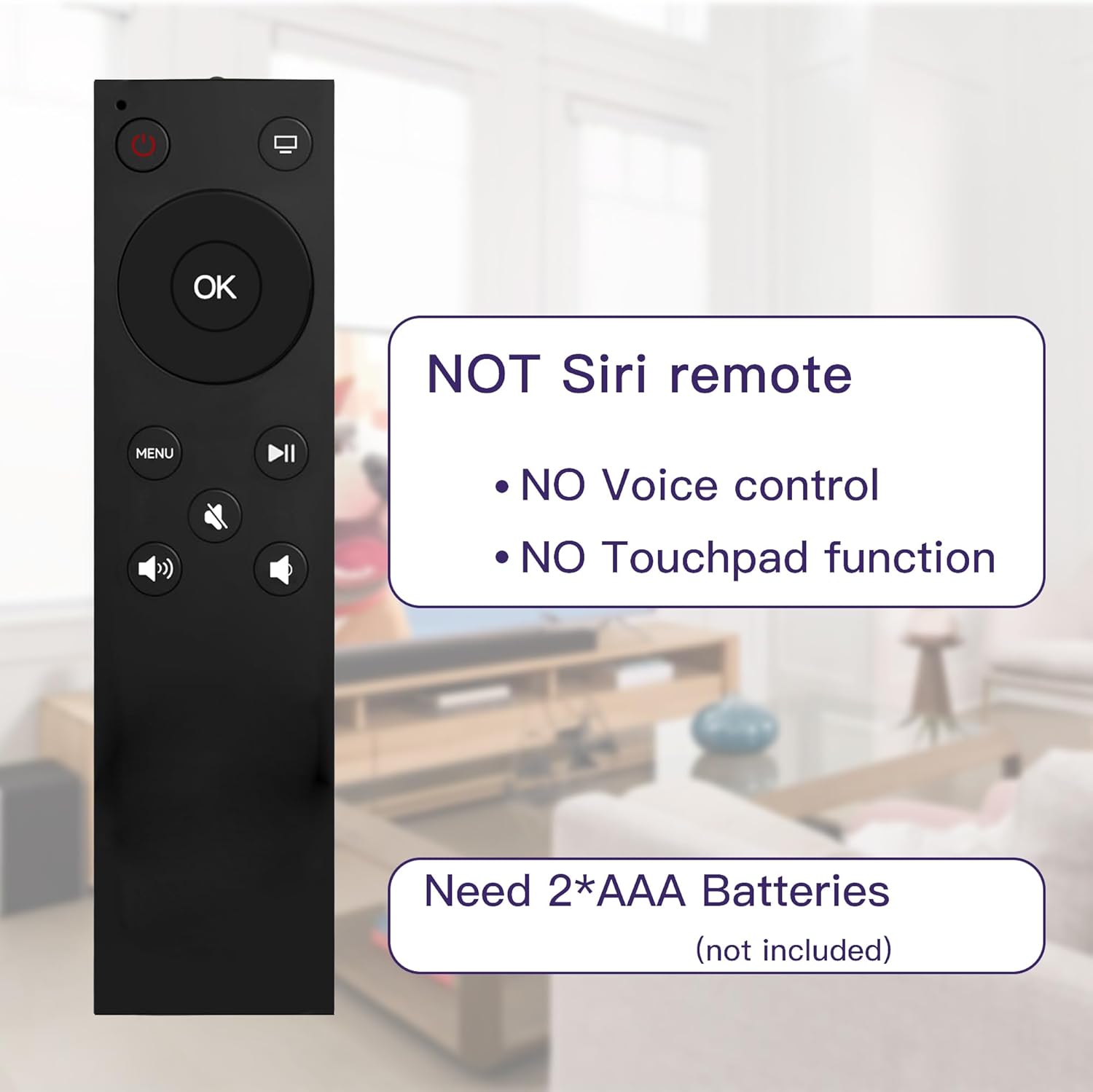
Image: Visual representation of different Apple TV generations (Gen 2, 3, HD, 4K) and their compatible remote types, highlighting the MYHGRC remote's broad compatibility.
5.3 Programming for TV Control (4 Programmable Buttons)
The remote features 4 programmable buttons (Power, TV/Home, Volume+, Volume-, Mute) that can be configured to control your television. This allows you to control basic TV functions like power and volume directly from this remote. The remote is compatible with many TV brands including Samsung, Sony, LG, Sharp, Philips, Hisense, Panasonic, Insignia, Sanyo, Vizio, Toshiba, TCL ROKU, and more.

Image: The remote control positioned next to a graphic displaying logos of various TV brands (Panasonic, Philips, Samsung, TCL, Vizio) that can be controlled using the programmable buttons.
General Programming Steps:
- Ensure your TV is turned on.
- Hold down the desired programmable button on the MYHGRC remote (e.g., Power button for TV power) and the corresponding button on your original TV remote simultaneously.
- Keep holding both buttons until the indicator light on the MYHGRC remote blinks rapidly or changes color, indicating it has learned the signal.
- Release both buttons.
- Test the programmed button. If it doesn't work, repeat the steps.
Specific Example for LG/Vizio TVs (from customer reviews):
- For LG/Vizio TVs, hold the Power and Mute buttons together for approximately 5 seconds until the red light on the remote turns on.
- Then, press the OK button.
- Test the programmed buttons.
Note: Programming steps may vary slightly depending on your TV brand and model. Refer to your TV's manual for specific IR remote programming instructions if the general steps are unsuccessful.
6. Operating Instructions
To operate the remote, point it directly at your Apple TV or television. Ensure there are no obstructions between the remote and the device.

Image: The MYHGRC remote control, illustrating its sleek design and button layout.
6.1 Controlling Apple TV
- Use the Navigation Ring (Up, Down, Left, Right) to move through menus and select items.
- Press the OK button to confirm a selection.
- Press the Menu button to go back to the previous screen or to the Apple TV home screen.
- Use the Play/Pause button to control media playback.
- The TV/Home button will typically take you to the Apple TV home screen.
6.2 Using Programmed TV Buttons
Once programmed, the Power, TV/Home, Volume+, Volume-, and Mute buttons will control your television directly. Point the remote at your TV when using these functions.
- Press the Power button to turn your TV on or off.
- Press Volume+ to increase TV volume.
- Press Volume- to decrease TV volume.
- Press Mute to mute or unmute TV audio.
- The TV/Home button, when programmed, can switch TV inputs or act as a home button for your TV.
7. Maintenance
7.1 Cleaning
Wipe the remote control with a soft, dry cloth. Do not use abrasive cleaners or solvents, as they may damage the surface.
7.2 Battery Replacement
Replace the AAA batteries when the remote's performance diminishes or if it stops responding. Follow the battery installation steps in Section 5.1.
8. Troubleshooting
| Problem | Possible Cause | Solution |
|---|---|---|
| Remote not responding to Apple TV. |
|
|
| Programmable TV buttons not working. |
|
|
| Volume buttons are reversed (e.g., + decreases, - increases). | Programming error or specific TV model behavior. | Re-program the volume buttons. If the issue persists, it might be a characteristic of your TV's IR codes. |
9. Specifications
| Feature | Detail |
|---|---|
| Model Number | 4b46a893-4c05-483c-b899-c709fb90ce3b |
| Brand | MYHGRC |
| Compatible Devices | Apple TV (Gen 1, 2, 3, 4th, 4K), Various TV Brands (programmable) |
| Connectivity Technology | Infrared (IR) |
| Power Source | 2 x AAA Batteries (not included) |
| Dimensions (L x W x H) | 5.91 x 1.77 x 0.75 inches |
| Item Weight | 0.705 ounces |
| Special Features | Ergonomic design, 4 programmable buttons for TV control |
| Limitations | No Siri, No Voice Control, No Touchpad, Line-of-sight required |
10. Warranty and Support
MYHGRC is committed to customer satisfaction. If you encounter any programming issues, require specific setup steps, or need further assistance with your remote control, please contact MYHGRC customer support directly. We will endeavor to provide detailed solutions and resolve any issues to your satisfaction.
For support, please refer to the contact information provided with your purchase or visit the official MYHGRC store on Amazon: MYHGRC Amazon Store.
Ask a question about this manual
Ask about setup, troubleshooting, compatibility, parts, safety, or missing instructions. Manuals+ will review the question and use this page’s manual context to help answer it.