
1. Introduction
Thank you for choosing the RisoPhy Mechanical Gaming Keyboard. This manual provides detailed instructions for setting up, operating, and maintaining your new keyboard. Please read this manual thoroughly before use to ensure optimal performance and longevity of your device.
2. Product Overview
2.1 Key Features
- Responsive Blue Switches: Offers tactile feedback and an audible click for precise and quick key presses.
- Rainbow Backlit RGB: Features 9 different backlight modes, 5 levels of light speed, and 5 brightness levels for customizable illumination.
- 104-Key Full-Size Layout: Includes a numeric keypad and dedicated function keys for comprehensive functionality.
- 100% Anti-Ghosting: Ensures all simultaneous key presses are registered accurately.
- 12 Multimedia Shortcuts: Quick access to media controls, volume, and other functions via Fn key combinations.
- Ergonomic Design: Scientific stair-up keycap design and adjustable rear kickstands reduce hand fatigue.
- Spill-Resistant Design: Equipped with 4 hydrophobic holes to quickly drain accidental spills.
- Durable Construction: Ultra-durable double injection ABS engineered keycaps for long-lasting use.
2.2 Package Contents
- RisoPhy Mechanical Gaming Keyboard (Pink)
- USB Cable (Integrated)
- Keycap Puller
- User Manual
2.3 Keyboard Layout
The RisoPhy Mechanical Gaming Keyboard features a standard 104-key layout, including a full numeric keypad and a row of function keys (F1-F12) that can be combined with the Fn key for multimedia shortcuts.

Figure 1: Top-down view of the RisoPhy Mechanical Gaming Keyboard, showcasing its full 104-key layout and pink color with RGB backlighting.
3. Setup
Setting up your RisoPhy Mechanical Gaming Keyboard is a simple plug-and-play process.
- Unpack the Keyboard: Carefully remove the keyboard and any accessories from the packaging.
- Connect to Your Device: Locate an available USB-A port on your computer (PC, Mac) or gaming console (Xbox). Insert the USB connector of the keyboard into the port.
- Driver Installation: The keyboard is plug-and-play and does not require additional driver installation for basic functionality. Your operating system will automatically detect and configure the device.
- Adjust Ergonomics: Flip out the two strong foldable rear kickstands located on the underside of the keyboard to adjust the typing angle for improved comfort.
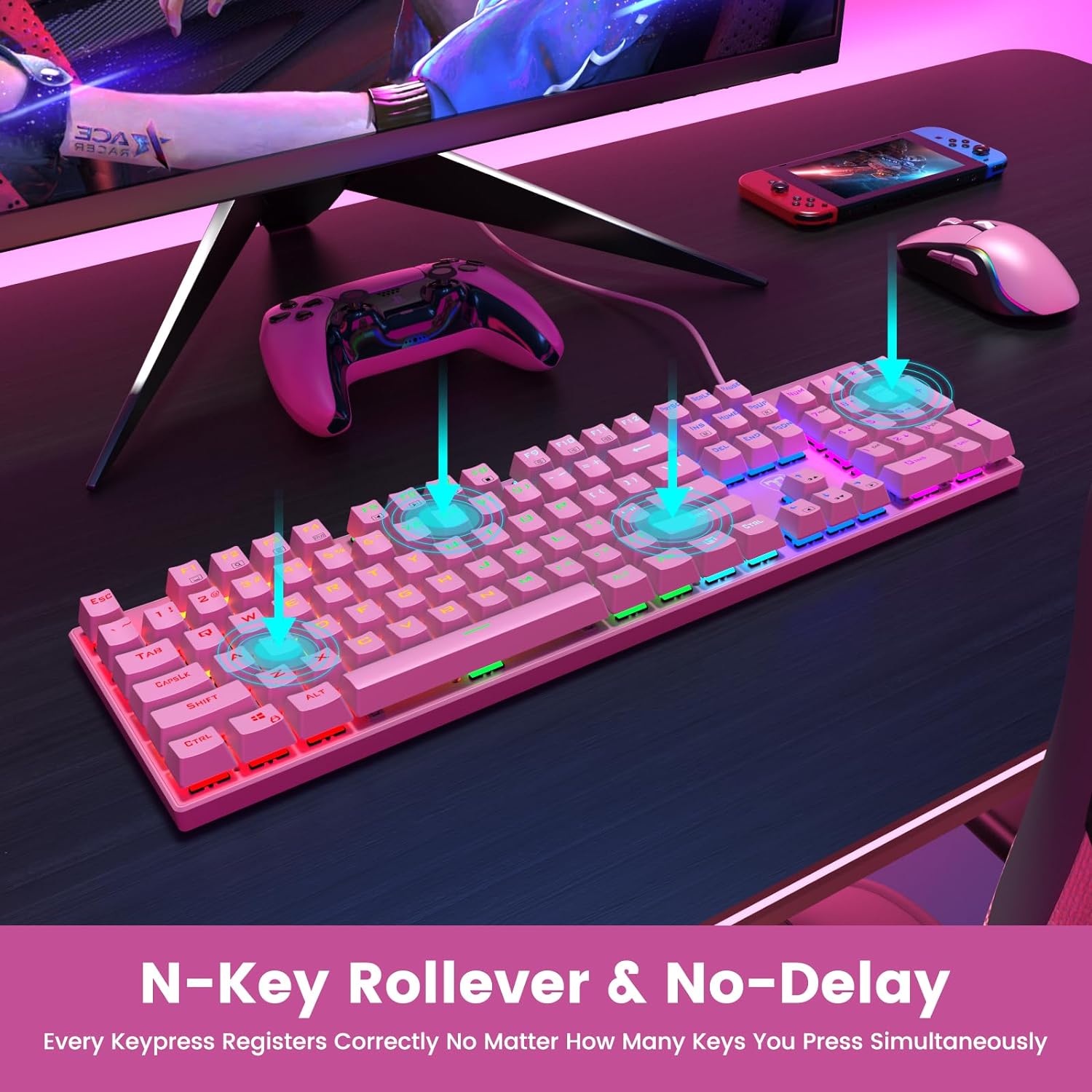
Figure 2: The underside of the RisoPhy keyboard, highlighting the adjustable rear feet that allow users to set a comfortable typing angle.
4. Operating Instructions
4.1 Basic Operation
The RisoPhy keyboard functions as a standard 104-key keyboard. Simply type as you normally would. The blue mechanical switches provide a distinct tactile and audible feedback with each keypress.
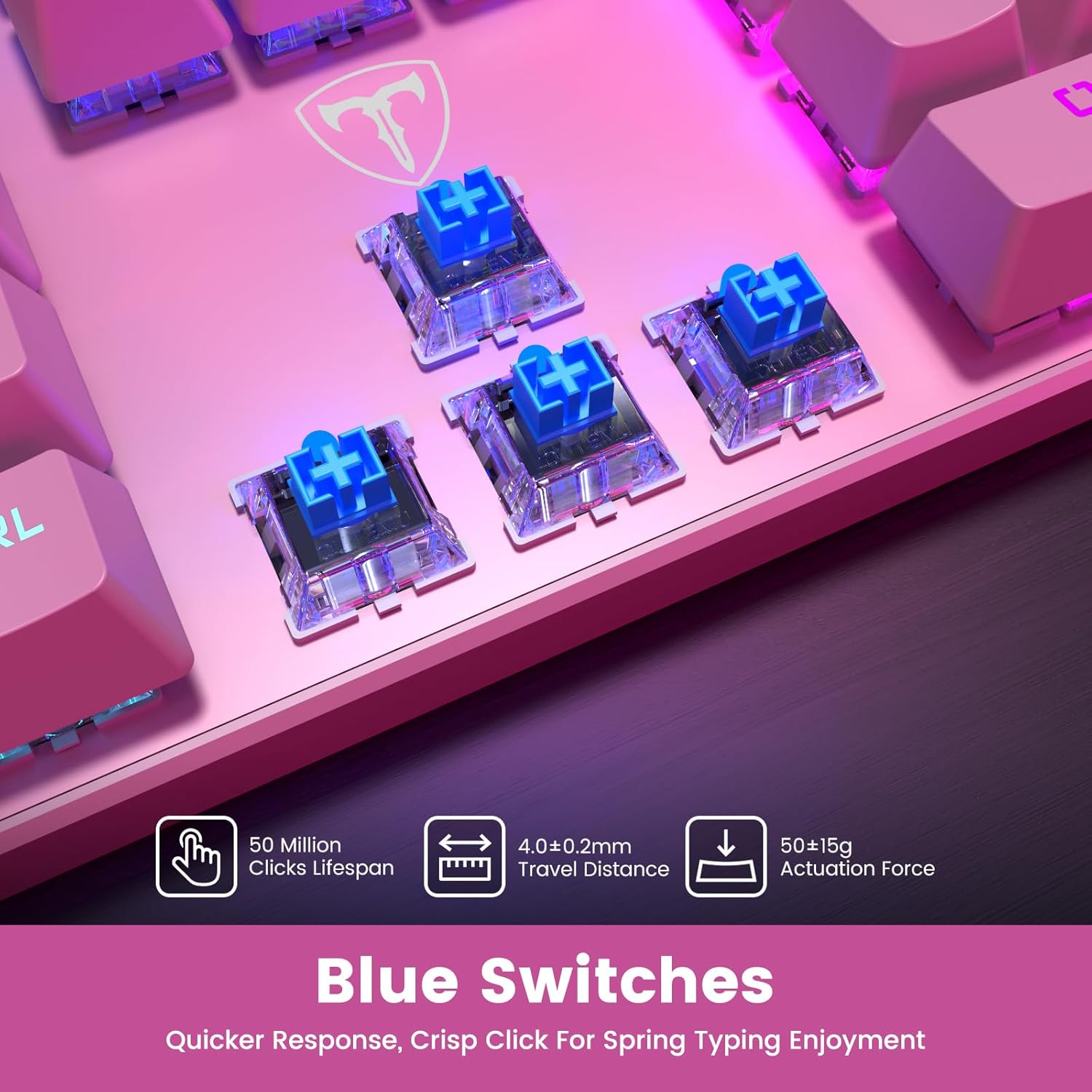
Figure 3: A close-up view of the blue mechanical switches beneath the keycaps, illustrating their design for responsive and clicky feedback.
4.2 Backlight Control
Your RisoPhy keyboard features vibrant rainbow backlighting with multiple customization options:
- Changing Backlight Modes: Use the dedicated backlight mode key (often indicated by a sun or light icon, usually near the arrow keys or F-row) to cycle through 9 different lighting effects.
- Adjusting Brightness: Press Fn + PgUp to increase brightness and Fn + PgDn to decrease brightness (5 levels).
- Adjusting Light Speed: Press Fn + +/- (on the numeric keypad) to adjust the speed of dynamic lighting effects (5 levels).
- Turning Backlight On/Off: Use the dedicated ON/OFF switch if available, or a specific Fn combination (refer to keyboard markings).

Figure 4: The keyboard illuminated with its rainbow RGB backlighting, demonstrating various lighting modes and brightness levels.
4.3 Multimedia and Shortcut Keys
The keyboard includes 12 multimedia shortcut combinations accessible by pressing the Fn key simultaneously with the corresponding F-key (F1-F12).
| Combination | Function |
|---|---|
| Fn + F1 | My Computer |
| Fn + F2 | Search |
| Fn + F3 | Calculator |
| Fn + F4 | Multimedia Player |
| Fn + F5 | Previous Track |
| Fn + F6 | Next Track |
| Fn + F7 | Play/Pause |
| Fn + F8 | Stop |
| Fn + F9 | Mute |
| Fn + F10 | Decrease Volume |
| Fn + F11 | Increase Volume |
| Fn + Win | Win Lock (disables Windows key during gaming) |
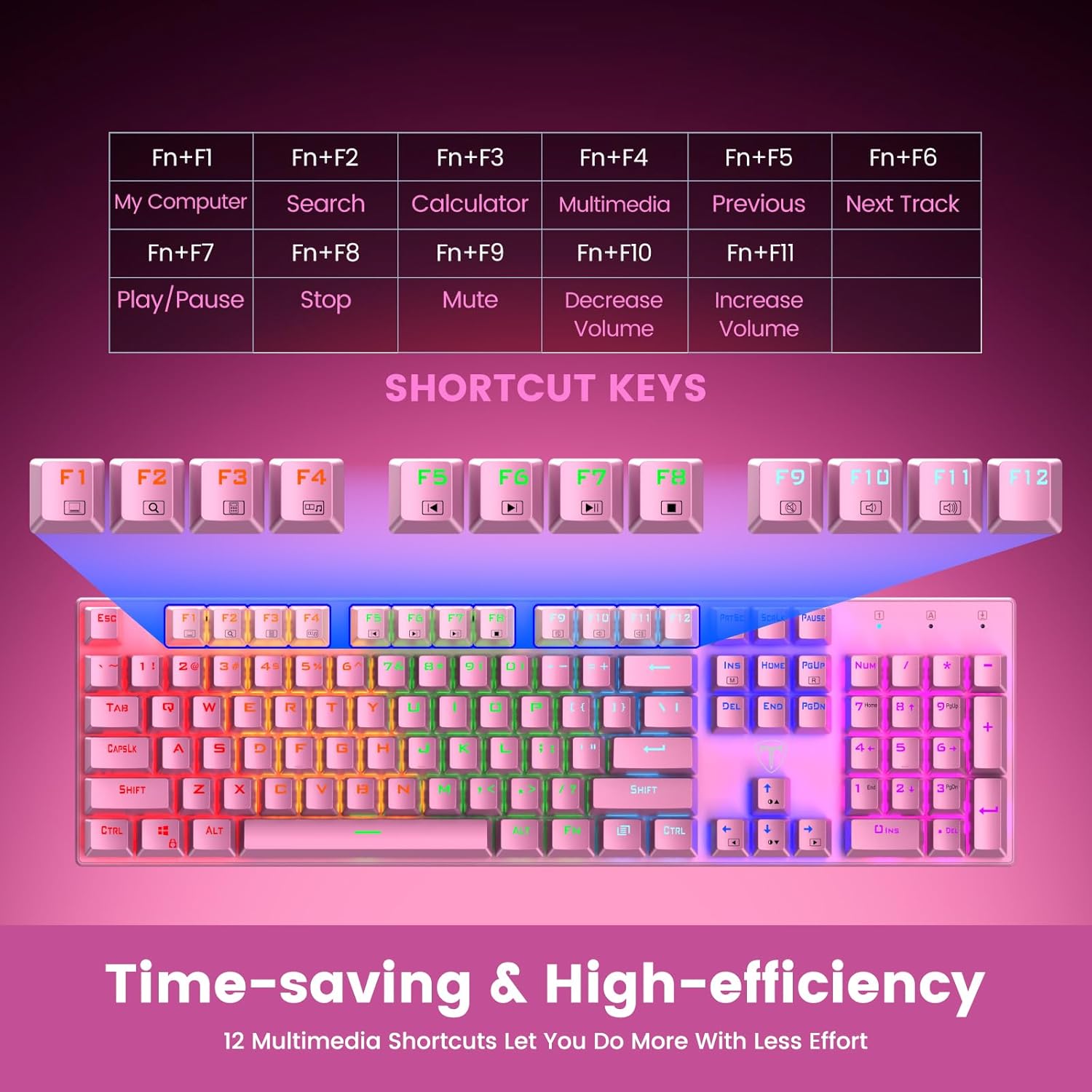
Figure 5: Visual representation of the Fn key combinations for various multimedia and system shortcuts.
4.4 Anti-Ghosting
The 100% anti-ghosting feature ensures that every keypress is registered accurately, even when multiple keys are pressed simultaneously. This is crucial for fast-paced gaming and rapid typing.

Figure 6: An illustration demonstrating the N-Key Rollover capability, ensuring all key presses are registered without delay.
5. Maintenance
5.1 Cleaning Your Keyboard
To maintain the performance and appearance of your keyboard, regular cleaning is recommended:
- Disconnect: Always disconnect the keyboard from your device before cleaning.
- Dust Removal: Use a can of compressed air to blow away dust and debris from between the keycaps.
- Surface Cleaning: Wipe the keycaps and keyboard surface with a soft, slightly damp, lint-free cloth. Avoid harsh chemicals or abrasive materials.
- Keycap Removal (Optional): For deeper cleaning, use the included keycap puller to carefully remove individual keycaps. Gently pull straight up on the keycap. Clean the switch and keycap, then firmly press the keycap back into place until it clicks.

Figure 7: An illustration highlighting the long-lasting and non-fading properties of the double-shot detachable keycaps.
5.2 Spill Resistance
The RisoPhy keyboard is designed with 4 hydrophobic holes to help drain accidental liquid spills. In case of a spill:
- Immediately Disconnect: Unplug the keyboard from your device.
- Drain Liquid: Turn the keyboard upside down to allow liquid to drain through the designated holes.
- Dry Thoroughly: Wipe the surface dry with a cloth and allow the keyboard to air dry completely for several hours (or overnight) before reconnecting.
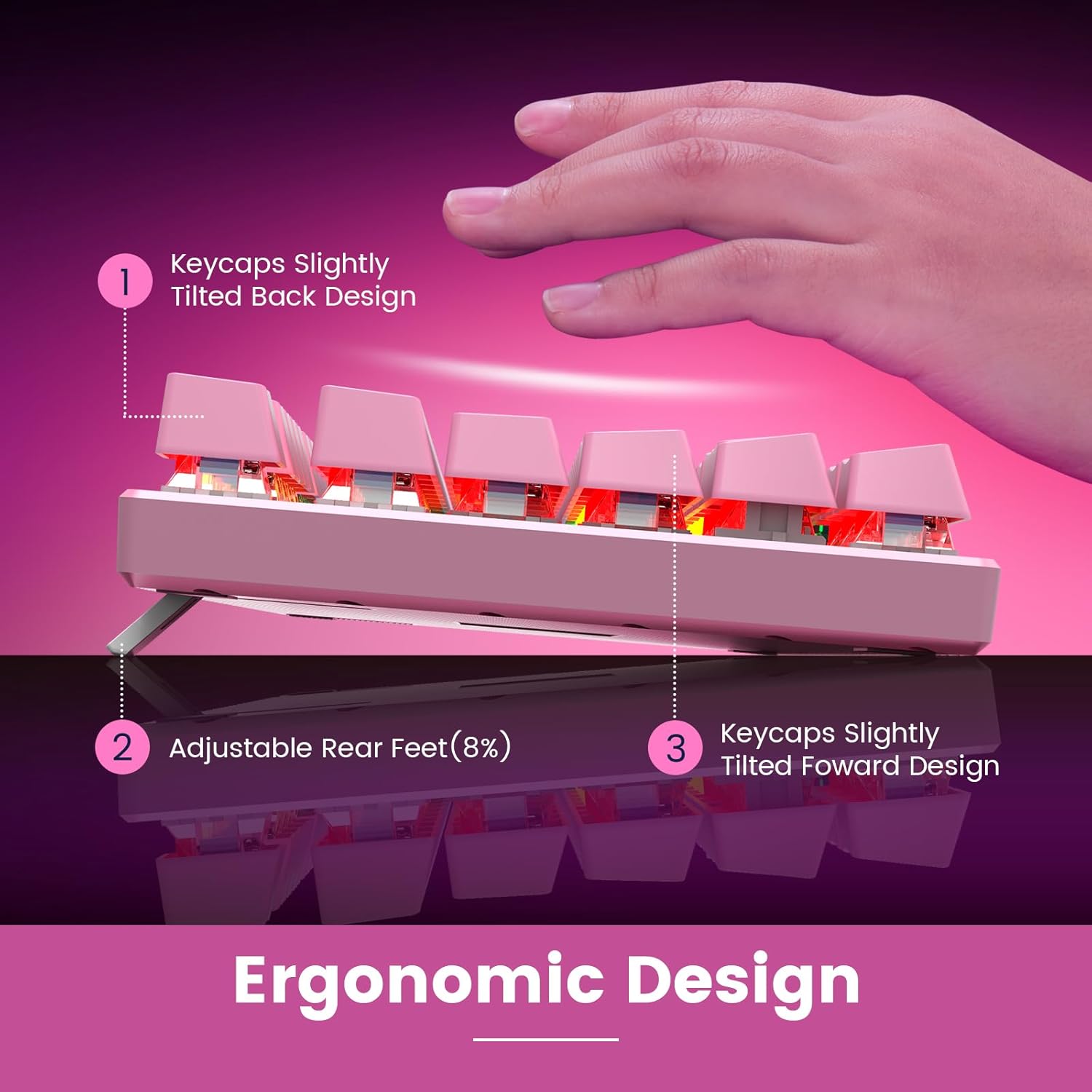
Figure 8: An image depicting water droplets on the keyboard surface, demonstrating its advanced spill-resistant design.
6. Troubleshooting
If you encounter issues with your RisoPhy Mechanical Gaming Keyboard, please refer to the following common solutions:
| Problem | Solution |
|---|---|
| Keyboard not responding |
|
| Backlight not working or flickering |
|
| Keys are sticky or unresponsive |
|
| Multimedia keys not functioning |
|
7. Specifications
- Model: B0C5CV369L
- Brand: RisoPhy
- Key Type: Mechanical Blue Switches
- Number of Keys: 104
- Connectivity: USB-A Wired
- Backlight: Rainbow RGB (9 modes, 5 brightness, 5 speed levels)
- Keycap Material: Double Injection ABS
- Anti-Ghosting: 100% (N-Key Rollover)
- Spill Resistance: Yes, with drainage holes
- Compatible Devices: PC, Mac, Xbox, Gaming Consoles
- Dimensions: 17.48 x 6.38 x 1.81 inches (approx.)
- Item Weight: 1.92 pounds (approx.)
8. Warranty and Support
RisoPhy is committed to providing high-quality products and excellent customer service.
- Warranty: This product comes with a 2-year warranty. Please retain your proof of purchase for warranty claims.
- Customer Support: For any questions, technical assistance, or warranty inquiries, please contact RisoPhy customer service.
- Contact Methods:
- Click on the seller's name on the product page and send messages.
- Click on the store name in your order history and click to send messages.

Figure 9: Information regarding RisoPhy's customer support and warranty details.


