1. Introduction
The ATEN US3311 is a 2-Port USB-C KVM Switch designed to optimize your workspace by allowing two USB-C enabled computers to share a single DisplayPort monitor, a keyboard, a mouse, and other USB peripherals. This device integrates KVM switching with a built-in docking station, offering a streamlined solution for productivity and comfort. It supports high-resolution video up to 8K and 4K at various refresh rates, and provides up to 100W Power Delivery for laptop charging.

Figure 1.1: The ATEN US3311 KVM Switch is suitable for various applications including content creation, small office/home office (SOHO), work-from-home (WFH), and traditional office environments, enhancing efficiency and connectivity.
2. Package Contents
Please check to make sure all the components are present and in good order. If any items are missing or damaged, contact your dealer.
- 1x ATEN US3311 2-Port USB-C KVM Switch
- 2x USB-C Cables (for connecting host devices)
- 1x Power Adapter with Power Cord
- 1x Remote Port Selector (for convenient switching)
- 1x User Instructions (this manual)
3. Hardware Overview
The ATEN US3311 features a compact design with clearly labeled ports for easy setup and operation.
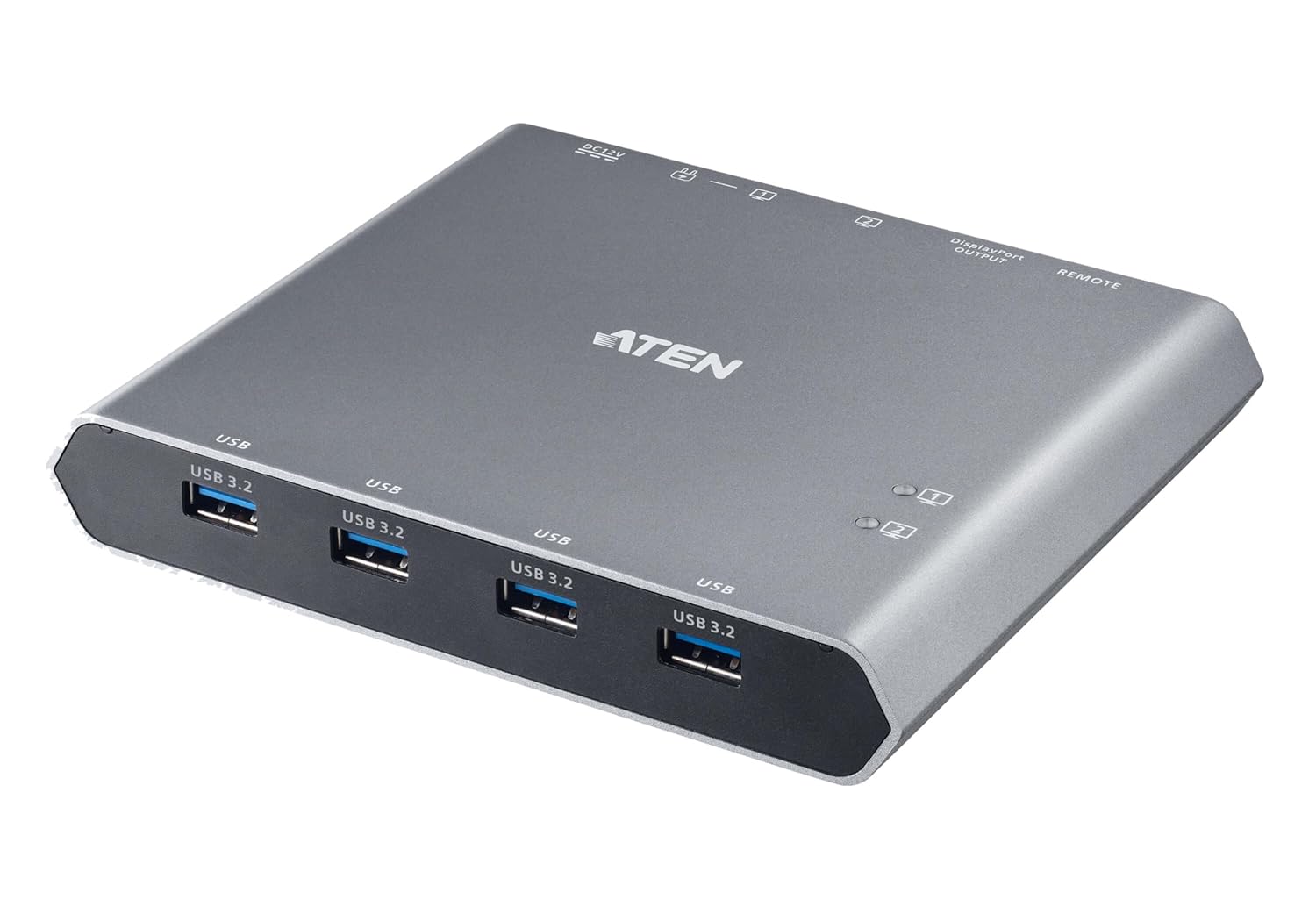
Figure 3.1: Front and top view of the ATEN US3311 KVM Switch, highlighting the four USB 3.2 Type-A ports for peripheral connections.
Front Panel
- USB 3.2 Type-A Ports (x4): For connecting USB peripherals such as keyboard, mouse, webcam, or external storage. These ports support SuperSpeed data transfer up to 5Gbps.

Figure 3.2: The KVM switch provides four USB 3.2 ports for high-speed peripheral expansion, allowing connection of various devices without needing an additional USB hub.
Rear Panel (Conceptual based on typical KVMs)
- USB-C Host Ports (x2): Connect to your USB-C enabled computers/laptops. These ports handle video, data, and power delivery.
- DisplayPort Output: Connects to your monitor for video output.
- USB-C PD Input: For connecting the external power adapter to provide power to the KVM switch and connected laptops (up to 100W).
- Remote Port Selector Port: Connects the included remote button for easy switching between connected computers.
4. Setup Instructions
Follow these steps to set up your ATEN US3311 KVM Switch:
- Power Off Devices: Ensure all computers and the monitor are powered off before making connections.
- Connect Monitor: Connect your DisplayPort monitor to the DisplayPort Output port on the KVM switch.
- Connect Peripherals: Connect your USB keyboard, mouse, and any other USB peripherals to the USB 3.2 Type-A ports on the front of the KVM switch.
- Connect Host Computers: Use the provided USB-C cables to connect your two USB-C enabled computers (e.g., laptops, MacBooks, iPhone 15 Pro, Samsung DeX devices) to the USB-C Host Ports on the KVM switch.
- Connect Power: Connect the included power adapter to the USB-C PD Input port on the KVM switch, then plug the adapter into a power outlet. This provides power to the KVM and can charge your connected laptops.
- Power On Devices: Power on your monitor, then power on your host computers. The KVM switch should automatically detect the active input.

Figure 4.1: Typical setup diagram for the ATEN US3311, illustrating connections for two USB-C laptops, one DisplayPort monitor, and shared USB peripherals.
5. Operating Instructions
The ATEN US3311 allows for quick and efficient switching between your connected computers.
Switching Between Computers
To switch between the two connected USB-C computers, press the button on the remote port selector. The KVM switch will instantly switch the shared monitor, keyboard, mouse, and other USB peripherals to the other active computer.

Figure 5.1: The remote port selector allows for quick and seamless switching between two USB-C host devices.
Fast Switching Technology
The US3311 incorporates ATEN's exclusive fast switching technology, enabling transitions between systems in approximately three seconds. This minimizes downtime and enhances workflow efficiency.

Figure 5.2: Experience rapid switching between connected systems, significantly improving productivity.
Power Delivery
When connected to a suitable power adapter, the US3311 can deliver up to 100W of power to your connected USB-C laptops, allowing you to work and charge simultaneously through a single cable connection.
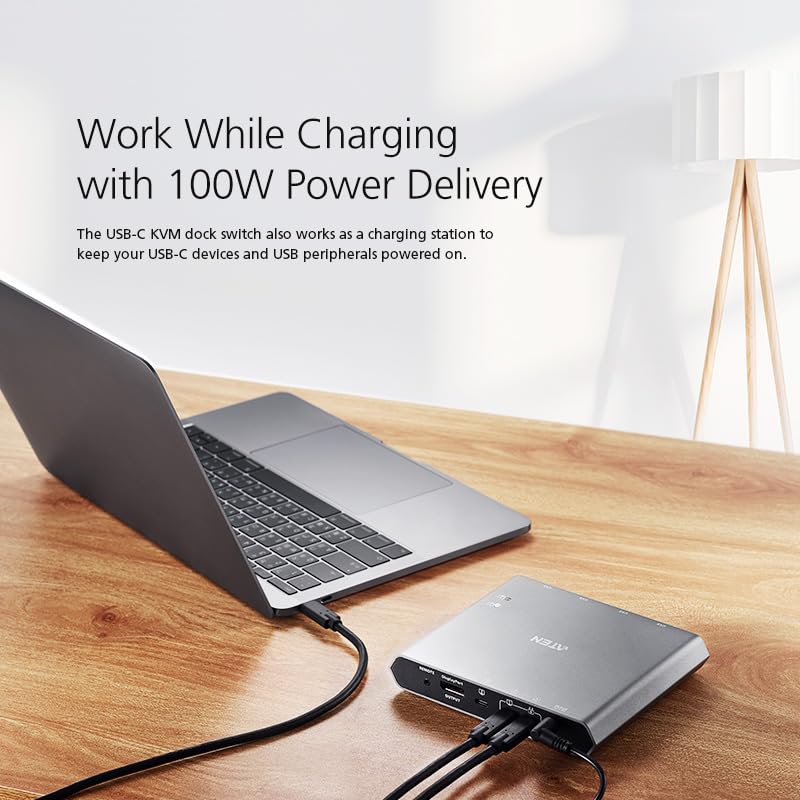
Figure 5.3: The KVM switch acts as a charging station, keeping your USB-C devices and peripherals powered.
6. Maintenance
To ensure the longevity and optimal performance of your ATEN US3311 KVM Switch, follow these maintenance guidelines:
- Cleaning: Use a soft, dry cloth to clean the exterior of the device. Do not use liquid or aerosol cleaners, as they may damage the unit.
- Ventilation: Ensure the KVM switch is placed in a well-ventilated area to prevent overheating. Do not block any ventilation openings.
- Cable Management: Keep cables neatly organized and avoid sharp bends or excessive tension, which can damage the cables or ports.
- Environmental Conditions: Operate the device within its specified temperature and humidity ranges. Avoid extreme temperatures or direct sunlight.
7. Troubleshooting
If you encounter issues with your ATEN US3311, refer to the following common problems and solutions:
No Display or Incorrect Resolution
- Check Connections: Ensure all DisplayPort and USB-C cables are securely connected to both the KVM switch, monitor, and host computers.
- Power Cycle: Disconnect the power adapter from the KVM switch, wait a few seconds, then reconnect it. Restart your computers and monitor.
- Long Press Remote Button: If the display is not recognized or the resolution is incorrect after switching, try pressing and holding the remote port selector button for several seconds. This can force the KVM to re-negotiate the display signal and resolution with the connected computer.
- Video DynaSync: The US3311 features ATEN's Video DynaSync™ technology to ensure correct resolutions and display configurations. If issues persist, ensure your graphics drivers are up to date on your host computers.

Figure 7.1: Video DynaSync™ ensures optimized video output and correct display configurations, preventing issues like shifted windows or incorrect resolutions.
USB Peripherals Not Responding
- Check USB Connections: Verify that your keyboard, mouse, and other USB devices are firmly plugged into the USB 3.2 ports on the KVM switch.
- Try Different USB Port: If a specific peripheral is not working, try connecting it to a different USB port on the KVM switch.
- Power Delivery: Ensure the KVM switch is receiving adequate power from the power adapter, especially if connecting power-hungry USB devices.
No Power Delivery to Laptop
- Check Power Adapter: Ensure the power adapter is correctly connected to the KVM's USB-C PD Input port and plugged into a working power outlet.
- USB-C Cable: Verify that the USB-C cable connecting your laptop to the KVM switch supports Power Delivery.
8. Specifications
| Feature | Detail |
|---|---|
| Model Number | US3311 |
| Input Ports | 2x USB-C (Host) |
| Output Ports | 1x DisplayPort (Monitor), 4x USB 3.2 Type-A (Peripherals) |
| Video Resolution | Up to 8K (7680 x 4320) @ 60Hz, 4K (3840 x 2160) @ 144Hz/120Hz/60Hz |
| USB Standard | USB 3.2 Gen 1 (5Gbps) |
| Power Delivery | Up to 100W (via USB-C PD Input) |
| Compatibility | Windows PC, Mac (including M1/M2 models), iPhone 15 Pro series, Samsung DeX devices, Thunderbolt 4, USB 4.0, DP 1.4 |
| Product Dimensions | 5.63 x 4.69 x 0.94 inches |
| Weight | 12.35 ounces |

Figure 8.1: The US3311 supports high-resolution video output, including 4K DCI, for demanding visual tasks.
9. Warranty and Support
The ATEN US3311 KVM Switch is backed by a 3-year limited hardware warranty in the U.S., demonstrating ATEN's commitment to quality and durability. For technical support, product registration, or more detailed information, please visit the official ATEN website or contact ATEN customer service.
Online Resources:


