
Yoidesu Yoidesunsbd9gaex2
Yoidesu E58 Foldable Mini RC Drone User Manual
Model: Yoidesunsbd9gaex2
Introduction
The Yoidesu E58 Foldable Mini RC Drone is a portable quadcopter designed for users of all skill levels, from beginners to experienced pilots. It features a 4K HD camera for aerial photography, altitude hold for stable flight, and various intelligent flight modes including one-key return and headless mode. Its foldable design makes it easy to transport and store.
Package Contents

Image: The Yoidesu E58 drone, remote control, smartphone holder, battery, propellers, guard frames, screwdriver, charging cable, and storage bag.
Please verify that all items listed below are included in your package:
- 1 x E58 Drone
- 1 x Remote Control
- 1 x Battery
- 1 x Screwdriver
- 1 x Charging Cable
- 4 x Propellers (spare)
- 4 x Guard Frames
- 1 x Instruction Manual
- 1 x Storage Bag
Product Overview
The E58 drone features a compact, foldable design for easy portability. It is equipped with a camera for aerial photography and various sensors for stable flight.

Image: Detailed dimensions of the E58 drone, showing its size when folded (12cm x 7.5cm) and unfolded (28cm x 22cm).
Remote Control Layout

Image: A diagram illustrating the various buttons and joysticks on the remote control, including Headless Mode/One Key Return, Photo/Video, Fine Tuning controls, One Key Take-off/Landing, Speed Switch, 360 Rolling/Emergency Stop, and the ON/OFF Switch.
- Left Joystick: Controls altitude (up/down) and rotation (left/right).
- Right Joystick: Controls forward/backward and left/right side flight.
- One Key Take-off/Landing Button: Initiates automatic take-off or landing.
- Headless Mode/One Key Return Button: Toggles headless mode or initiates one-key return.
- Photo/Video Button: Captures photos or starts/stops video recording.
- Speed Switch Button: Toggles between low, medium, and high-speed modes.
- 360° Rolling/Emergency Stop Button: Performs a 360-degree flip or emergency stop.
- Fine Tuning Buttons: Adjusts drone drift for stable flight.
- ON/OFF Switch: Powers the remote control on or off.
Setup
- Charge the Battery: Connect the drone battery to the charging cable and plug it into a USB power source. The indicator light will turn off when fully charged.
- Install Drone Battery: Insert the fully charged battery into the drone's battery compartment, ensuring it clicks into place securely.
- Install Propellers: Attach the propellers to the motor shafts. Ensure the correct propellers (A and B) are installed on the corresponding motors as indicated in the drone's manual or markings.
- Install Guard Frames: Attach the propeller guard frames to protect the propellers during flight.
- Install Remote Control Batteries: Open the battery compartment on the remote control and insert 3 x AAA batteries (not included), observing polarity.
- Unfold the Drone: Gently unfold the drone's arms until they lock into position.
Operating Instructions
1. Power On and Pairing
- Place the drone on a flat, level surface.
- Press and hold the power button on the drone until the indicator lights flash.
- Turn on the remote control. The remote control will automatically pair with the drone. The drone's lights will become solid once paired.
2. APP Control and FPV (First Person View)

Image: The E58 drone in flight, with the remote control and a smartphone showing the real-time FPV feed from the drone's camera.
- Download the designated APP (refer to the QR code in the included instruction manual or search for "E58 Drone" in your app store).
- Turn on the drone and your smartphone's Wi-Fi.
- Connect your smartphone to the drone's Wi-Fi network (usually named "WIFI-UFO-" followed by numbers).
- Open the APP. You should see the real-time camera feed. You can now control the drone via the APP or use the remote control while viewing the FPV.
3. Calibration
After pairing, push both joysticks down and to the right simultaneously until the drone's lights flash rapidly and then become solid. This calibrates the gyroscope for stable flight.
4. Take-off and Landing
- Manual Take-off: Push both joysticks outwards and downwards to start the propellers. Then, slowly push the left joystick up to ascend.
- One Key Take-off: Press the One Key Take-off/Landing button on the remote control. The drone will automatically ascend to a stable hovering height.
- Manual Landing: Slowly pull the left joystick down to descend.
- One Key Landing: Press the One Key Take-off/Landing button again. The drone will automatically descend and land.

Image: Visual representation of the One Key Takeoff/Landing function and the One Key Return feature, showing the drone's flight path.
5. Flight Modes and Features
- Altitude Hold Function: The drone maintains a stable altitude automatically, making it easier to control and capture clear photos/videos. This is enabled by the six-passband gyroscope and height fixing function.

Image: The drone hovering steadily against a scenic sunset, demonstrating its altitude hold capability.
- Headless Mode: In headless mode, the drone's orientation is relative to the pilot, regardless of the drone's actual front direction. This simplifies control, especially for beginners. Press the Headless Mode/One Key Return button to activate/deactivate.

Image: A split image showing the Trajectory Flight path drawn on a map and the Headless Mode feature with the drone flying over a waterfall.
- One Key Return: When activated, the drone will automatically fly back towards the take-off point. This feature is most effective when used in Headless Mode. Press the Headless Mode/One Key Return button and hold for 2 seconds to activate.
- High/Low Speed Mode: Adjust the drone's flight speed according to your skill level or environmental conditions. Press the Speed Switch button to cycle through speed settings.
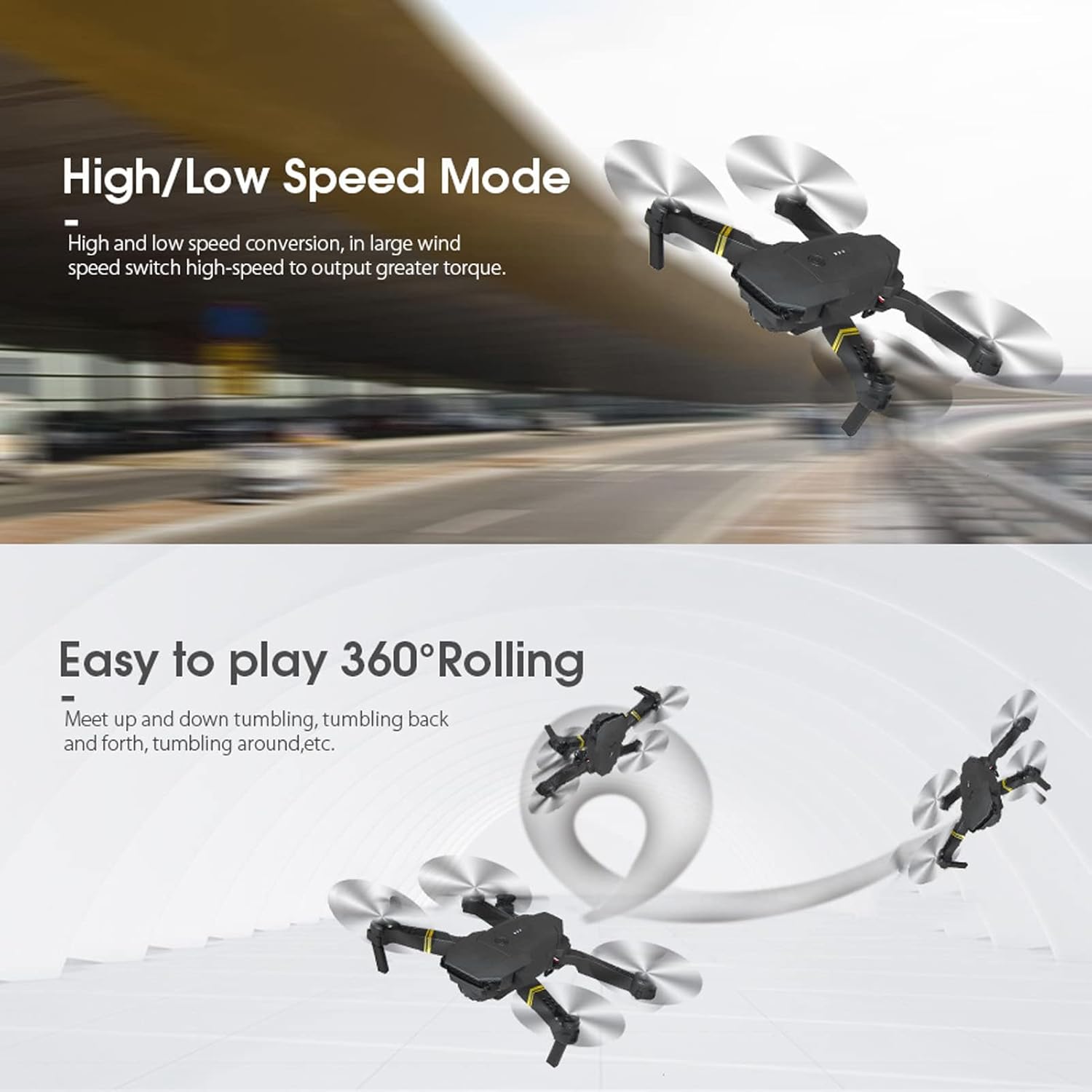
Image: A split image demonstrating the High/Low Speed Mode with a drone flying fast, and the Easy to Play 360° Rolling feature showing the drone performing flips.
- 360° Rolling (Flips): Perform impressive aerial stunts. Fly the drone to a sufficient height, then press the 360° Rolling/Emergency Stop button and push the right joystick in the desired direction to perform a flip.
- Trajectory Flight: Using the APP, you can draw a flight path on your smartphone screen, and the drone will automatically follow that path.
Image: A split image showing the Trajectory Flight path drawn on a map and the Headless Mode feature with the drone flying over a waterfall.
6. Aerial Photography and Video Recording
The E58 drone is equipped with a 4K HD camera capable of capturing 4096x2160 resolution pictures and 2048x1080 resolution videos.
- Taking Photos: Briefly press the Photo/Video button on the remote control or tap the camera icon in the APP.
- Recording Videos: Press and hold the Photo/Video button for 2 seconds to start recording. Press again to stop recording. Alternatively, tap the video icon in the APP.
- Captured media will be saved to your smartphone when using the APP, or to an inserted SD card (if applicable, check drone specifications) when not connected to the APP.

Image: A comparison demonstrating the clarity of images achieved with the drone's pneumatic setting, showing a clear photo versus a blurry one.
Maintenance
- Cleaning: Use a soft, dry cloth to clean the drone and remote control. Avoid using liquids or solvents.
- Propeller Inspection: Regularly check propellers for damage (cracks, bends). Replace any damaged propellers immediately using the provided spares.
- Battery Care: Store batteries in a cool, dry place. Do not overcharge or over-discharge. If storing for extended periods, charge to approximately 50%.
- Storage: When not in use, fold the drone and store it in its original storage bag or a protective case to prevent damage.
Troubleshooting
| Problem | Possible Cause | Solution |
|---|---|---|
| Drone does not respond to remote control. | Not paired; low battery (drone or remote); interference. | Ensure drone and remote are powered on and paired correctly. Charge drone battery. Replace remote control batteries. Fly in an open area away from interference. |
| Drone drifts during flight. | Not calibrated; uneven surface at take-off; wind. | Perform gyroscope calibration on a flat surface. Use fine-tuning buttons to correct drift. Avoid flying in strong winds. |
| Camera feed is blurry or not showing. | Wi-Fi not connected; APP issue; camera lens dirty. | Ensure smartphone is connected to drone's Wi-Fi. Restart APP and drone. Clean camera lens gently. |
| Drone cannot take off. | Low battery; propellers blocked or installed incorrectly. | Charge drone battery. Check for obstructions around propellers. Ensure propellers are installed correctly (A to A, B to B). |
Specifications
| Feature | Detail |
|---|---|
| Brand | Yoidesu |
| Model Name | Yoidesunsbd9gaex2 (E58) |
| Material | ABS |
| Color | Dark Blue |
| Product Dimensions (Unfolded) | 28cm L x 22cm W x 6cm H (approx. 11"L x 8.7"W x 2.4"H) |
| Product Dimensions (Folded) | 12cm L x 7.5cm W (approx. 4.7"L x 3"W) |
| Item Weight | 10.8 ounces (approx. 306g) |
| Video Capture Resolution | 1080p (2048x1080) |
| Effective Still Resolution | 9 MP (4096x2160) |
| Connectivity Technology | Wi-Fi |
| Maximum Range | 150 Meters |
| Battery Capacity | 600 Milliamp Hours (mAh) |
| Skill Level | Beginner |
| Special Feature | Height Fixing Function (Altitude Hold) |
Safety Warnings
Image: A warning sign indicating that users should not attempt to disassemble, modify, or repair the product themselves to avoid personal injury or equipment damage.
- Do Not Disassemble: Do not attempt to disassemble, modify, or repair the product yourself. This can lead to personal injury or equipment damage and will void the warranty.
- Adult Supervision: For younger users, adult supervision is recommended during operation.
- Flight Environment: Fly in open areas, away from people, animals, buildings, and power lines. Avoid flying in strong winds or adverse weather conditions.
- Battery Safety: Use only the provided charging cable and battery. Do not expose batteries to extreme temperatures or puncture them.
- Propeller Safety: Keep hands, face, and loose clothing away from rotating propellers.
- Line of Sight: Always maintain visual line of sight with the drone during flight.
- Local Regulations: Be aware of and comply with all local laws and regulations regarding drone operation.
Warranty and Support
For warranty information, technical support, or service inquiries, please refer to the contact details provided in the original product packaging or visit the official Yoidesu website. Keep your purchase receipt as proof of purchase for warranty claims.
Yoidesu Store: Visit the Yoidesu Store on Amazon
Ask a question about this manual
Ask about setup, troubleshooting, compatibility, parts, safety, or missing instructions. Manuals+ will review the question and use this page’s manual context to help answer it.