
1. Product Overview
The Redragon M690 PRO is a versatile wireless gaming mouse designed for performance and comfort. It offers both 2.4GHz wireless and USB-C wired connectivity, adjustable DPI settings, and programmable buttons to enhance your gaming and productivity experience.

Figure 1: Redragon M690 PRO Wireless Gaming Mouse (Top View)
Key Features:
- Dual Connectivity: Seamless 2.4GHz wireless for up to 10 meters range and USB-C wired mode for zero latency.
- Adjustable DPI: 5 onboard DPI levels (500/1000/2000/3000/8000) for precise control, customizable via software.
- Programmable Buttons: 8 customizable buttons, including a rapid-fire key and two side macro buttons.
- Long-lasting Battery: Rechargeable battery provides up to 87 hours of use in eco-mode.
- Ergonomic Design: Shaped for comfortable use during extended sessions.
- PAW3104 Optical Sensor: Ensures accurate tracking and smooth movement.
2. Setup Guide
2.1 Package Contents
Verify that the following items are included in your package:
- Redragon M690 PRO Wireless Gaming Mouse
- USB Wireless Receiver (Dongle)
- USB-C Charging Cable
- User Manual
2.2 Initial Charging
Before first use, it is recommended to fully charge the mouse. Connect the supplied USB-C cable to the mouse's charging port and the other end to a USB power source (e.g., computer USB port, USB wall adapter).
2.3 Connecting the Mouse
The M690 PRO supports two connection modes: 2.4GHz Wireless and Wired (USB-C).
2.3.1 2.4GHz Wireless Connection
- Locate the USB wireless receiver.
- Plug the USB receiver into an available USB port on your computer.
- Turn on the mouse using the power switch located on the underside. Ensure it is not in 'Eco Off' mode if you wish to use full functionality.
- The mouse should automatically connect to your computer. If not, try moving the mouse closer to the receiver or re-plugging the receiver.

Figure 2: Wireless Connection Setup
2.3.2 Wired Connection
To use the mouse in wired mode, simply connect the USB-C charging cable from the mouse to a USB port on your computer. The mouse will function as a wired device and charge simultaneously.
3. Operating Instructions
3.1 DPI Adjustment
The mouse features 5 default DPI levels: 500, 1000, 2000, 3000, and 8000. Use the dedicated DPI buttons located behind the scroll wheel to cycle through these settings. The current DPI level may be indicated by an LED color change or pattern.

Figure 3: DPI Level Indication
3.2 Programmable Buttons and Macros
The M690 PRO has 8 programmable buttons. These can be customized using the Redragon software. The software allows you to assign various functions, macros, and rapid-fire commands to these buttons.
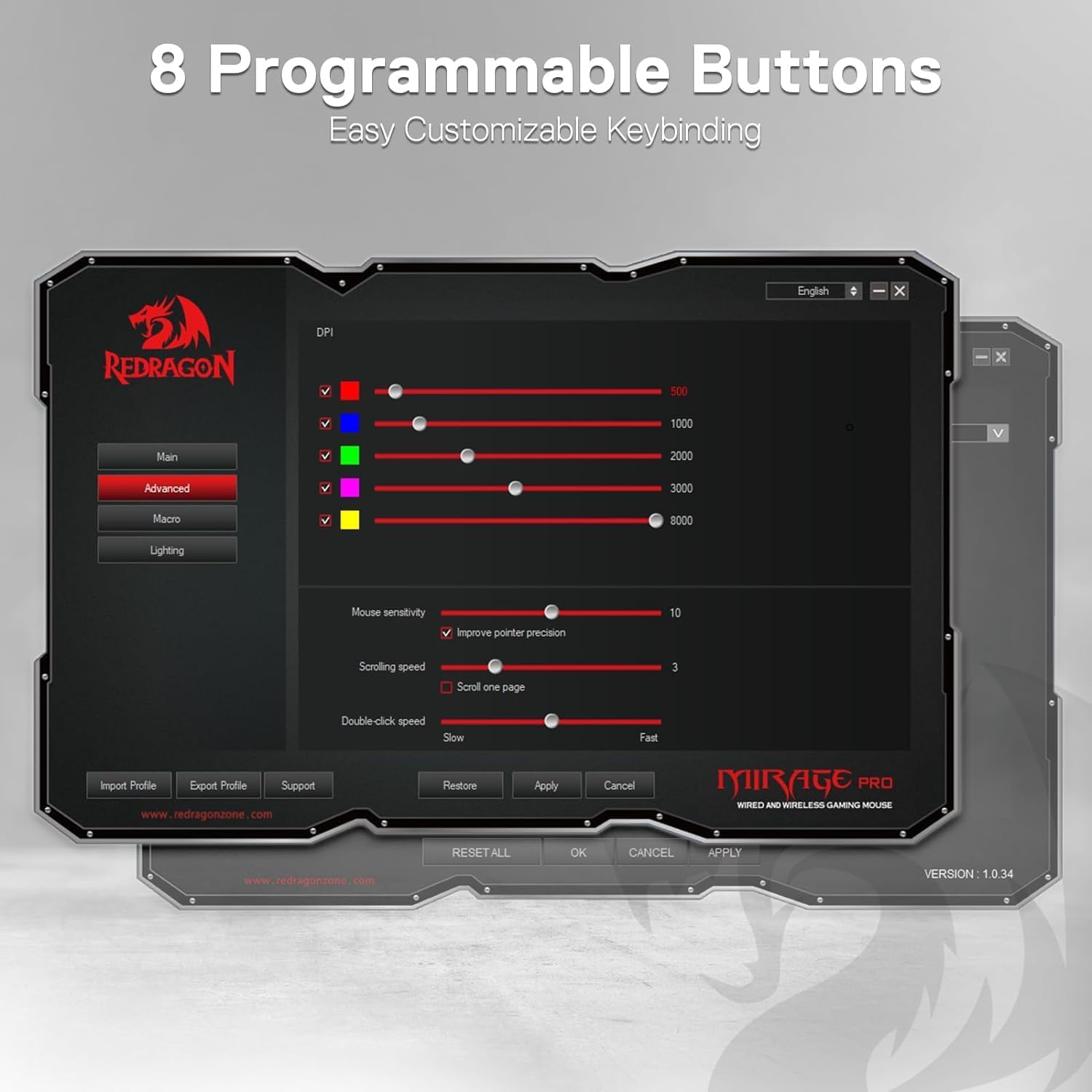
Figure 4: Redragon Software Interface
Download the official Redragon software from the Redragon website for full customization options.
3.3 Eco Mode
To conserve battery life, the mouse features an 'Eco Mode'. This mode typically reduces power consumption by turning off backlighting and optimizing sensor performance. The Eco mode switch is located on the underside of the mouse.

Figure 5: Eco Mode Switch Location
3.4 Compatibility
The Redragon M690 PRO is compatible with Windows 7/8/10/XP/Vista/ME/2000 and Mac10.x operating systems. Note that for Mac OS, the side buttons may not be available for customization or function as intended by default.
4. Maintenance
4.1 Cleaning
To clean your mouse, use a soft, dry cloth. For stubborn dirt, a slightly damp cloth can be used, but ensure no moisture enters the mouse's internal components. Avoid using harsh chemicals or abrasive materials.
4.2 Battery Care
The mouse contains a rechargeable battery. To prolong its lifespan:
- Avoid fully discharging the battery frequently.
- Do not expose the mouse to extreme temperatures.
- If storing the mouse for an extended period, charge it to approximately 50% before storage.
5. Troubleshooting
5.1 Mouse Not Responding
- Check Power: Ensure the mouse is turned on and has sufficient battery charge.
- Wireless Connection: Verify the USB receiver is securely plugged into a working USB port. Try a different USB port.
- Distance: Ensure the mouse is within the 10-meter operating range of the receiver.
- Interference: Move the mouse and receiver away from other wireless devices that might cause interference.
- Wired Mode: Connect the mouse via USB-C cable to check if it functions in wired mode. This can help determine if the issue is with the wireless connection or the mouse itself.
5.2 Lag or Disconnections
- Battery Level: A low battery can affect wireless performance. Recharge the mouse.
- USB Port: Try plugging the USB receiver into a different USB port, preferably a direct port on the motherboard (for desktops) or a port on the front of the computer.
- Interference: Reduce potential interference from other 2.4GHz devices.
- Surface: Ensure you are using the mouse on a suitable surface.
5.3 Buttons Not Functioning Correctly
- Software Settings: If using custom button assignments, check the Redragon software to ensure settings are correctly applied.
- Mac OS: Remember that side buttons may have limited functionality on Mac OS.
6. Specifications
| Feature | Detail |
|---|---|
| Model Number | M690 PRO |
| Connectivity Technology | 2.4GHz Wireless, USB-C Wired |
| Movement Detection Technology | Optical (PAW3104 Sensor) |
| DPI Levels | 500/1000/2000/3000/8000 (Customizable) |
| Programmable Buttons | 8 |
| Battery Life (Eco Mode) | Up to 87 hours |
| Item Weight | 8.1 ounces |
| Package Dimensions | 8.43 x 5.98 x 1.93 inches |
| Compatibility | Windows 7/8/10/XP/Vista/ME/2000, Mac10.x |
7. Warranty and Support
7.1 Warranty Information
Redragon products typically come with a limited warranty. Please refer to the warranty card included with your product or visit the official Redragon website for detailed warranty terms and conditions specific to your region.
7.2 Customer Support
For technical assistance, troubleshooting, or product inquiries, please contact Redragon customer support through their official website. You may find FAQs, driver downloads, and contact information there.


