
Introduction
This manual provides detailed instructions for the installation, operation, and maintenance of your SMONET Smart Lock Y1-BBFHS-S. This keyless entry system offers multiple unlocking methods, including fingerprint recognition, Bluetooth APP control, passcode, and IC cards, enhancing the security and convenience of your home or property. Please read this manual thoroughly before installation and use to ensure proper functionality and safety.

Image: The SMONET Smart Lock Y1-BBFHS-S installed on a modern white front door, showcasing its sleek design and integrated handle.
Key Features
The SMONET Smart Lock Y1-BBFHS-S is equipped with advanced features for enhanced security and user convenience:
- Multiple Unlock Methods: Fingerprint Recognition, Bluetooth APP Control, Anti-peep Passcode, IC Cards, Physical Key.
- Smart Functions: Auto Lock, One-Touch Lock, Passage Mode (keeps unlocked), Emergent Charge (USB-C), Low Battery Alert (below 20%), Wrong Entry Alert.
- Connectivity: Bluetooth connectivity for APP control. Compatible with Alexa/Google Home (requires an extra gateway, sold separately).
- User Management: Generate Permanent, Custom, or One-Time Codes. Supports up to 300 Guest Passcodes and 1000 IC Cards.
- Durability: Operates effectively in temperatures from -4°F to 158°F (-20℃ to 70℃) with IP65 Waterproof Level. Features shock resistance, anti-peep OLED keypad, heavy-duty alloy construction, and long battery life (approx. 20,000 lock/unlock cycles).

Image: An illustration detailing the various methods available to lock and unlock the SMONET Smart Lock, including auto-lock, Bluetooth, key-free, IC card, fingerprint, Type-C backup, touchscreen keypad, and Alexa compatibility.

Image: A visual representation of the SMONET Smart Lock's capacity, indicating support for up to 250 fingerprints, 150 passcodes, 3 physical keys, and 2 fobs, suitable for family, friends, pet sitters, and repairmen.
Installation Guide
The SMONET Smart Lock is designed for easy installation, typically requiring only a Phillips screwdriver. It is compatible with standard wooden doors and can be installed on both left and right-handed doors. Please note that installation methods may vary slightly for left and right-sided doors.
Before Installation:
- Ensure your door meets the required dimensions for installation.
- Gather all components from the package and verify against the parts list.
- Keep the deadbolt in the unlocked position before beginning the installation process.
Installation Steps:
Refer to the detailed video instructions for a step-by-step guide. A Phillips screwdriver is the primary tool required.
- Prepare the door: Remove any existing lock hardware.
- Install the latch and strike plate.
- Install the exterior assembly.
- Install the interior mounting plate.
- Connect the cables and install the interior assembly.
- Install the handle set.
- Test the lock's functionality.
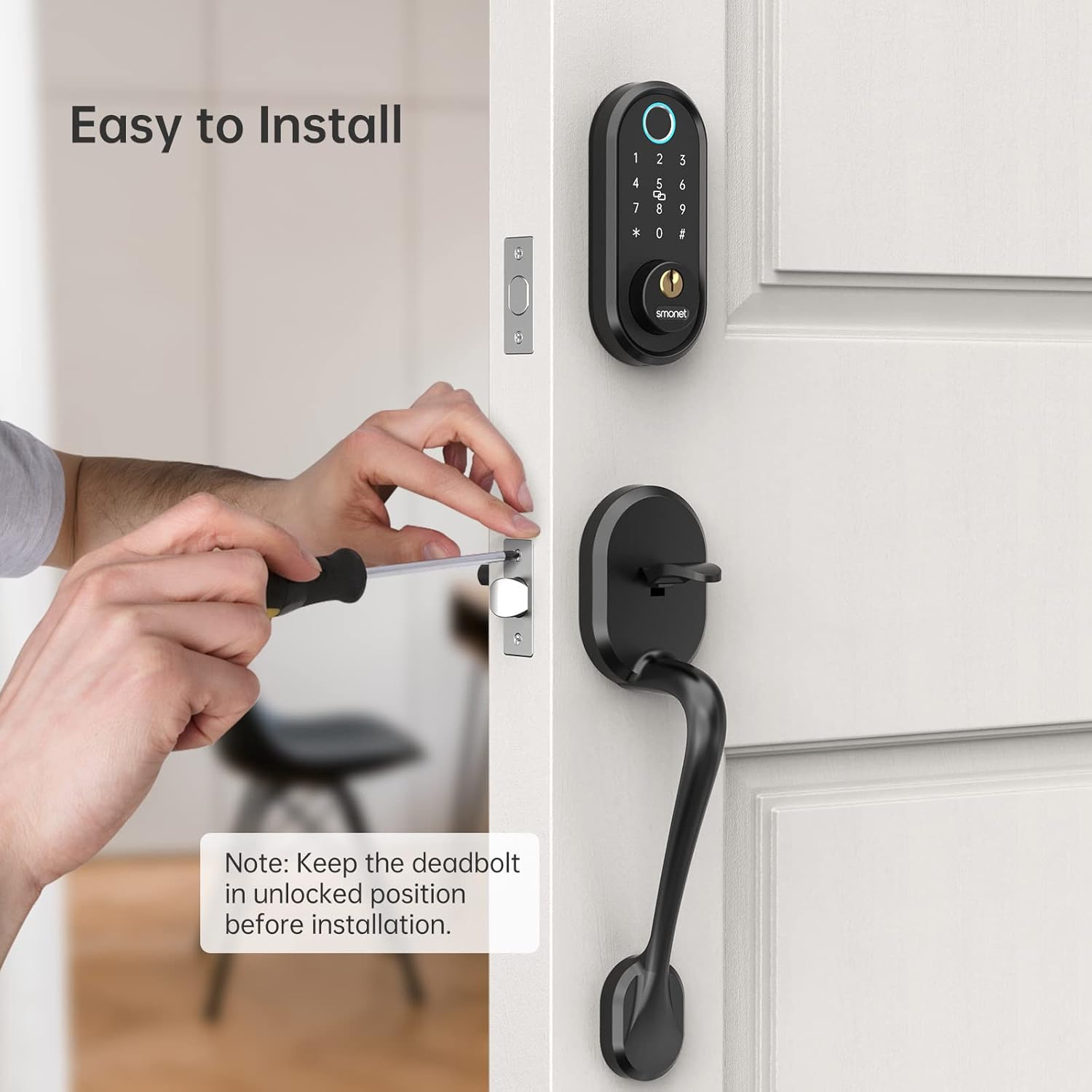
Image: A close-up view of a person using a Phillips screwdriver to install the SMONET Smart Lock, with a note to keep the deadbolt in the unlocked position before installation.
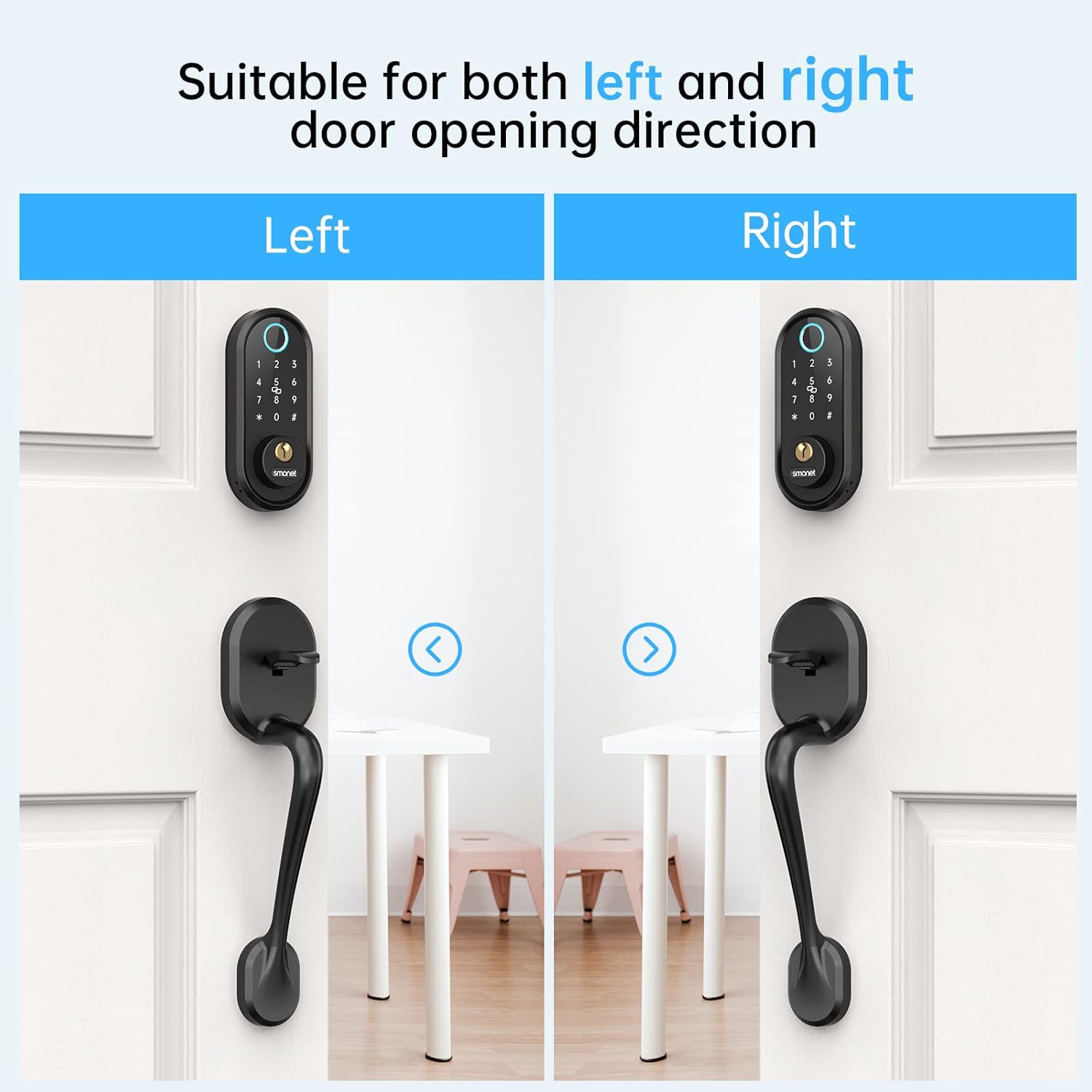
Image: A visual guide illustrating how the SMONET Smart Lock is suitable for both left and right door opening directions, showing distinct installations for each.
Operating Instructions
The SMONET Smart Lock offers various methods for locking and unlocking, along with smart features managed via its dedicated mobile application.
Unlocking Methods:
- Fingerprint: Place your registered finger on the sensor.
- Passcode: Enter your registered passcode on the digital keypad. The anti-peep function allows you to enter random digits before or after your actual code to prevent others from guessing it.
- IC Card: Tap your registered IC card on the designated area.
- Bluetooth APP: Use the SMONET app on your smartphone to unlock the door when within Bluetooth range.
- Physical Key: Use the provided physical key as a traditional backup.
Locking Methods:
- Auto Lock: The lock will automatically engage after a set period (0-15 minutes), configurable via the app.
- One-Touch Lock: Press the '#' button on the keypad to instantly lock the door.
- Bluetooth APP: Lock the door remotely via the SMONET app.
App Features:
- User Management: Add, delete, and manage fingerprints, passcodes, and IC cards.
- Temporary Access: Generate permanent, custom, or one-time codes for visitors.
- Access Logs: View real-time access records to monitor who enters and exits.
- Passage Mode: Set the lock to remain unlocked for a specified period.
- Remote Control (with Gateway): With an optional gateway (sold separately), you can remotely lock/unlock and check access logs from anywhere.
- Smart Home Integration (with Gateway): Connect to Amazon Alexa or Google Home for voice control.

Image: A smartphone displaying the 'Operation Records' screen of the SMONET app, showing a chronological list of lock and unlock events with timestamps and methods used (e.g., 'Unlock with APP', 'Locked', 'Unlock with fingerprint').

Image: A woman wearing headphones, speaking into her smartphone, with an Amazon Echo device and a 'Gateway' box visible. A speech bubble indicates 'Alexa, Unlock the front door!', demonstrating compatibility with Alexa (requires an extra gateway).
Maintenance
Proper maintenance ensures the longevity and optimal performance of your SMONET Smart Lock.
- Cleaning: Wipe the lock's exterior with a soft, damp cloth. Avoid abrasive cleaners or solvents that could damage the finish or electronic components.
- Battery Replacement: The lock will provide a low battery alert when power drops below 20%. Replace batteries promptly to avoid lockout. Use high-quality alkaline batteries.
- Emergency Power: In case of complete battery depletion, use a USB-C cable to provide emergency power for temporary access.
- Environmental Protection: The lock is IP65 waterproof, but avoid direct, prolonged exposure to heavy rain or extreme moisture to prevent potential damage.
- Firmware Updates: Periodically check the SMONET app for any available firmware updates to ensure your lock has the latest features and security enhancements.
Troubleshooting
If you encounter issues with your SMONET Smart Lock, refer to the following common solutions:
- Lock Not Responding:
- Check battery level and replace if low.
- Ensure the lock is properly installed and all cables are connected.
- Try using the physical key for manual override.
- Fingerprint Not Recognized:
- Ensure your finger is clean and dry.
- Try different angles or re-register your fingerprint in the app.
- Clean the fingerprint sensor with a soft cloth.
- Passcode Not Working:
- Verify the passcode is correct and entered within the time limit.
- Check if the lock is in Passage Mode.
- Ensure the anti-peep function is not causing issues (try entering only the correct code).
- App Connectivity Issues:
- Ensure Bluetooth is enabled on your smartphone and you are within range.
- Restart the app or your phone.
- Check for app updates.
- Handle/Deadbolt Malfunction:
- Ensure all screws are tightened correctly during installation.
- Verify that the latch and deadbolt align properly with the strike plate on the door frame.
- If the handle feels loose or slips, re-check the internal assembly and connections.
If these steps do not resolve the issue, please contact SMONET customer support for further assistance.
Specifications
| Brand | SMONET |
| Model Number | Y1-BBFHS-S |
| Special Feature | Auto-Lock, Fingerprint, Fob Unlock, One-Touch Lock, Passcode Unlock |
| Lock Type | Biometric, Deadbolt, Keypad |
| Material | Metal |
| Style | Modern |
| Finish Type | Painted |
| Controller Type | Amazon Alexa, Google Assistant (requires gateway) |
| Control Method | Remote (via app), Keypad, Fingerprint, IC Card, Physical Key |
| Connectivity Protocol | Bluetooth |
| Item Weight | 4.69 pounds |
| Package Dimensions | 17.04 x 7.68 x 3.82 inches |
| Batteries Required? | Yes |
| Operating Temperature | -4°F to 158°F (-20℃ to 70℃) |
| Waterproof Level | IP65 |
Warranty Information
SMONET provides at least a 1-year quality assurance for the SMONET Smart Lock Y1-BBFHS-S. This warranty covers manufacturing defects and ensures the product meets its specified performance standards under normal use. Please retain your proof of purchase for warranty claims.
Customer Support
For any questions regarding installation, app usage, troubleshooting, or further information about the optional gateway, please do not hesitate to contact SMONET professional technical support. Our team is available to assist you at any time.
Contact Information: Please refer to the contact details provided on the SMONET official website or your product packaging for the most up-to-date support channels.


