
Leadfan X5+DVR
Leadfan Double Din Car Stereo User Manual
Model: X5+DVR
1. Introduction
This user manual provides detailed instructions for the installation, operation, and maintenance of your Leadfan Double Din Car Stereo with Dash Cam. Please read this manual thoroughly before using the product to ensure proper functionality and safety.
Package Contents
- Double Din Car Stereo with Dash Cam
- Rear View Camera with Cable
- Harness and Remote
- Brackets and Screws
- User Manual

Figure 1.1: Leadfan Double Din Car Stereo with Dash Cam and included accessories.
2. Setup and Installation
Proper installation is crucial for optimal performance. It is recommended to have the unit installed by a qualified professional.
2.1 Physical Installation
The car stereo is a universal double DIN standard size (173mm L x 98mm W x 65mm H). Ensure your vehicle's mounting slots match these dimensions. Use the provided brackets and screws for secure installation.

Figure 2.1: Dimensions and wiring diagram for the car stereo unit.
Wiring Connections:
- Red wire (ACC): Connect to the vehicle's ignition switch (ACC line) for power control.
- Yellow wire (B+): Connect to the battery's constant current positive for memory function. If connected reversely, the unit may lose settings after power off.
- Black wire: Connect to the negative power supply (ground).
- Rear Camera Wire: Connect the red wire from the camera cable to the vehicle's reverse light wire to enable automatic display when reversing.
2.2 Dash Cam Connection
The dash cam connects via USB. Ensure a firm connection for proper operation. The dash cam supports loop recording and night vision.
Video 2.2.1: Instructions on how to connect the dash cam to the car stereo unit.

Figure 2.2: Overview of Dash Cam and Backup Camera features.
2.3 Initial Settings
Upon first use or after a reset, you may need to configure basic settings such as radio area, language, time, and display preferences.
Video 2.3.1: Guide on how to access and adjust various settings on the car stereo, including radio area, steering wheel control, EQ, brightness, background, language, and time.
Customizing Startup Logo
You can personalize the startup logo of your car stereo. The optimal resolution for custom images is 1024x600 pixels. Create a folder named "LOGO" on a USB disk and place your desired images inside. Insert the USB disk into the radio, navigate to the Logo Settings, select the logo card, and choose your preferred logo picture.
Video 2.3.2: Step-by-step guide on how to set a customized startup logo for the car stereo.
3. Operating Instructions
3.1 Apple CarPlay & Android Auto
Connect your smartphone via a data cable to access navigation, contacts, email, and make calls using Siri or Google voice assistants. This feature allows you to focus on driving safely while accessing essential phone functions.

Figure 3.1: Apple CarPlay and Android Auto in operation.
Video 3.1.1: Demonstration of Apple CarPlay, Android Auto, Bluetooth call, and Mirror Link functionalities.
3.2 Bluetooth Connectivity
The unit features Bluetooth 5.1 for clear voice capture during calls and seamless music streaming. You can pair your phone to make/receive calls and access contacts.
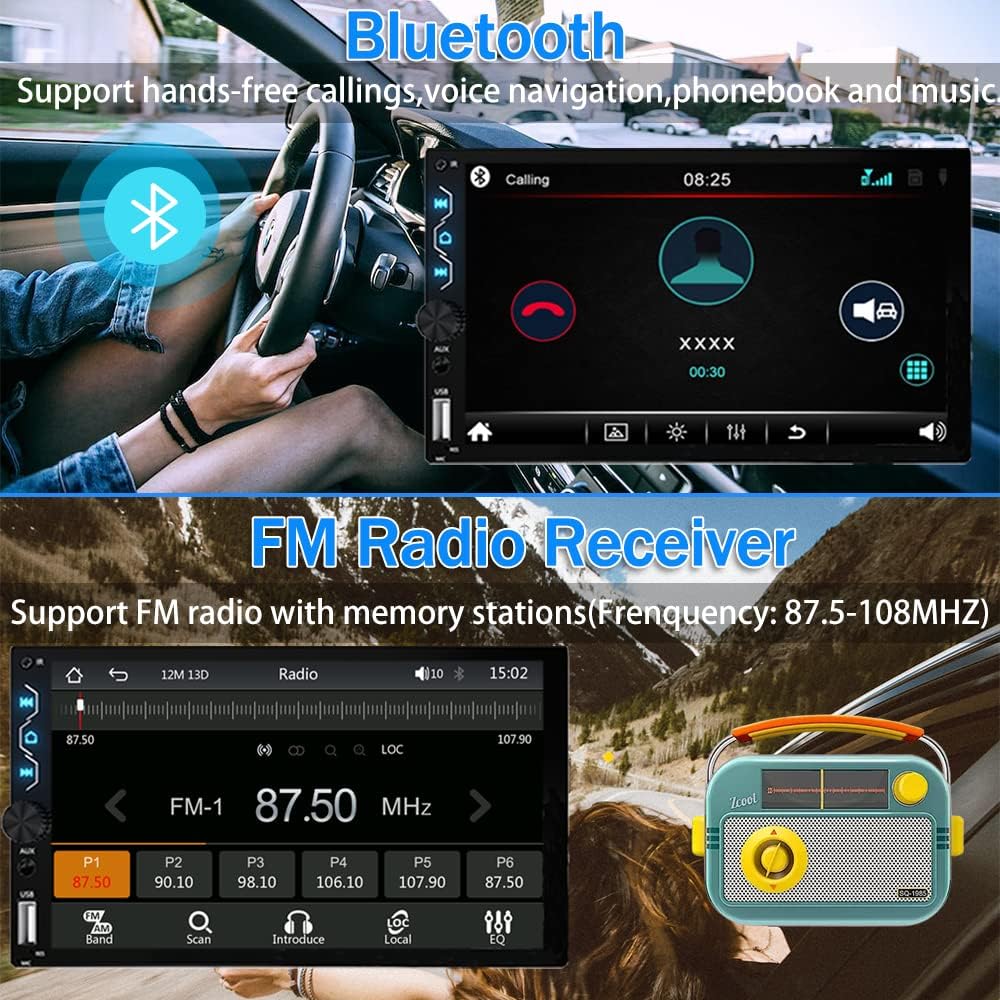
Figure 3.2: Bluetooth calling and FM radio interface.
3.3 Mirror Link Function
Mirror Link allows you to cast your phone's screen content (maps, movies, games) to the car stereo display via the original USB cable. This provides synchronized control between your phone and the stereo.

Figure 3.3: Mirror Link displaying phone content on the car stereo.
3.4 FM Radio Receiver
The unit supports FM radio with memory stations (frequency: 87.5-108MHz), allowing you to save your favorite channels.
3.5 Backup Camera
The included HD 170° viewing angle waterproof backup camera with 12 LED lights provides enhanced night vision. When properly connected, the screen automatically displays the rearview image upon shifting into reverse, aiding in safer parking and reversing maneuvers. Note: Other functions like calls or music are temporarily unavailable in reverse mode.

Figure 3.5: Enhanced view provided by the 1280P HD Backup Camera.
3.6 HD Touch Screen
The 7-inch HD capacitive touch screen offers sensitive and accurate control, supporting 1080P video playback for an enhanced visual experience.

Figure 3.6: The 7-inch HD capacitive touch screen in use.
3.7 Steering Wheel Control
The unit supports steering wheel control, allowing you to manage various functions directly from your steering wheel for convenience and safety. This feature can be configured in the settings menu.

Figure 3.7: Steering wheel control setup interface.
4. Maintenance
To ensure the longevity and optimal performance of your Leadfan car stereo, follow these maintenance guidelines:
- Keep the screen clean using a soft, lint-free cloth. Avoid abrasive cleaners.
- Ensure proper ventilation around the unit to prevent overheating.
- Avoid exposing the unit to extreme temperatures or direct sunlight for prolonged periods.
- Regularly check wiring connections for any looseness or damage.
5. Troubleshooting
If you encounter issues with your Leadfan car stereo, refer to the following common problems and solutions:
| Problem | Possible Cause | Solution |
|---|---|---|
| Unit does not power on or loses settings. | Incorrect wiring of ACC (red) and B+ (yellow) wires. Voltage higher than 16V. | Ensure the yellow wire is connected to constant positive battery current and the red wire to the ignition switch. Verify vehicle voltage is 12V (not for 24V trucks). |
| Backup camera or dash cam not working. | Loose connection, incorrect wiring, or faulty camera. | Ensure all camera connections are firm, especially the USB for the dash cam. Verify the rear camera's red wire is connected to the reverse light. |
| Bluetooth audio cuts out or has poor quality. | Interference, phone compatibility, or unit settings. | Ensure phone is within range. Check Bluetooth settings on both devices. Try adjusting EQ settings on the stereo. |
| Microphone quality is poor during calls. | Internal microphone limitation. | No direct solution for internal microphone. Consider using phone's microphone if possible or an external microphone if supported by the unit (not specified). |
| Volume is too loud at low settings, or subwoofer doesn't activate until high volume. | Audio output settings or amplifier gain. | Adjust the EQ sound settings and loudness options within the stereo's audio setup. Check external amplifier gain settings if applicable. |
6. Specifications
| Feature | Detail |
|---|---|
| Brand | Leadfan |
| Model Number | X5+DVR (US02-2305--X5DVR) |
| Screen Size | 7 Inch HD Capacitive Touch Screen |
| Screen Resolution | 1024x600P |
| Connectivity Technology | Bluetooth 5.1, USB, AUX |
| Special Features | Apple CarPlay, Android Auto, Mirror Link, Dash Cam, Backup Camera, FM Radio, Steering Wheel Control |
| Audio Output Mode | Stereo |
| Surround Sound Channels | 4 |
| Wattage | 240 watts |
| Product Dimensions | 3.94 x 2.56 x 7.01 inches (178mm L x 100mm W x 65mm H) |
| Item Weight | 2.25 pounds |
| Country of Origin | China |
7. Warranty and Support
Leadfan provides comprehensive support for its products:
- After-Sales Technical Support: 24-hour technical support is available to assist with installation and operation problems.
- Money Back Service: 30-day money-back guarantee.
- After-Sales Support: 12 months of after-sales support.
For any questions or assistance, please click "sold by Leadfan" and "ask a question" on the product page.
Related documentsX5+DVR


Ask a question about this manual
Ask about setup, troubleshooting, compatibility, parts, safety, or missing instructions. Manuals+ will review the question and use this page’s manual context to help answer it.