
Rraycom BW4N
Rraycom BW4N Wireless Security Camera User Manual
Model: BW4N-B-4pack
1. Introduction
Thank you for choosing the Rraycom BW4N Wireless Home/Outdoor Security Camera system. This manual provides comprehensive instructions for setting up, operating, and maintaining your security cameras to ensure optimal performance and peace of mind. The Rraycom BW4N offers 5MP resolution, AI motion detection, color night vision, two-way talk, and flexible storage options, designed for both indoor and outdoor surveillance.

Image 1.1: Four Rraycom BW4N wireless security cameras included in the pack.
2. Product Overview
2.1 Key Features
- 5MP 2.7K Resolution: Provides clear and detailed video footage.
- AI Motion Detection: Utilizes infrared sensor technology and cloud image analysis for real-time motion detection and alerts, with customizable detection zones.
- Color Night Vision: Offers full-color night vision and infrared night vision modes with a visible range of up to 33ft.
- Two-Way Talk: Enables real-time communication through the camera.
- Wireless & Battery Powered: Equipped with a 5200mAh rechargeable battery, offering 1 to 6 months of operation on a full charge depending on usage.
- IP66 Waterproof: Designed for outdoor use, resistant to harsh weather conditions.
- Flexible Storage: Supports free 3-day rolling cloud storage and local storage via Micro SD card (up to 256GB, not included).
- Works with Alexa: Compatible with Amazon Alexa for voice control and live view.

Image 2.1: Overview of Rraycom BW4N camera features.
2.2 Package Contents
The Rraycom BW4N-B-4pack includes:
- 4 x Rraycom BW4N Wireless Security Cameras
- 4 x Mounting Brackets
- Mounting Screws and Wall Plugs
- USB Charging Cable
- User Manual
3. Setup
3.1 Charging the Camera
Before initial use, fully charge the camera's 5200mAh battery. Connect the camera to a 5V/2A USB power adapter (not included) using the provided USB charging cable. The charging indicator light will show the charging status. A full charge can take several hours.
Note: Battery life varies based on device settings, actual usage, and environmental factors.
3.2 App Installation and Account Setup
- Download the [O-KAM] APP from the App Store (iOS) or Google Play Store (Android).
- Open the O-KAM app and follow the on-screen instructions to create a new account or log in if you already have one.

Image 3.1: Download the O-KAM app from your device's app store.
3.3 Adding the Camera to the App
- In the O-KAM app, tap the "+" icon to add a new device.
- Select your camera model (BW4N) from the list.
- Follow the in-app instructions to connect the camera to your 2.4GHz WiFi network. (5GHz WiFi is not supported).
- Scan the QR code displayed on your phone screen with the camera lens.
- Once connected, name your camera and complete the setup process.
3.4 Camera Placement and Installation
The Rraycom BW4N camera can be installed almost anywhere, including shops, offices, homes, garages, yards, and both outdoor and indoor locations. It is designed for easy setup, typically taking about 5 minutes.
- Choose a location that provides the desired viewing angle and is within range of your 2.4GHz WiFi network.
- Use the included mounting bracket and screws to securely attach the camera to a wall or other suitable surface.
- Ensure the camera is positioned to capture the area of interest, considering the 120-degree viewing angle.

Image 3.2: Example of camera placement on a home exterior.
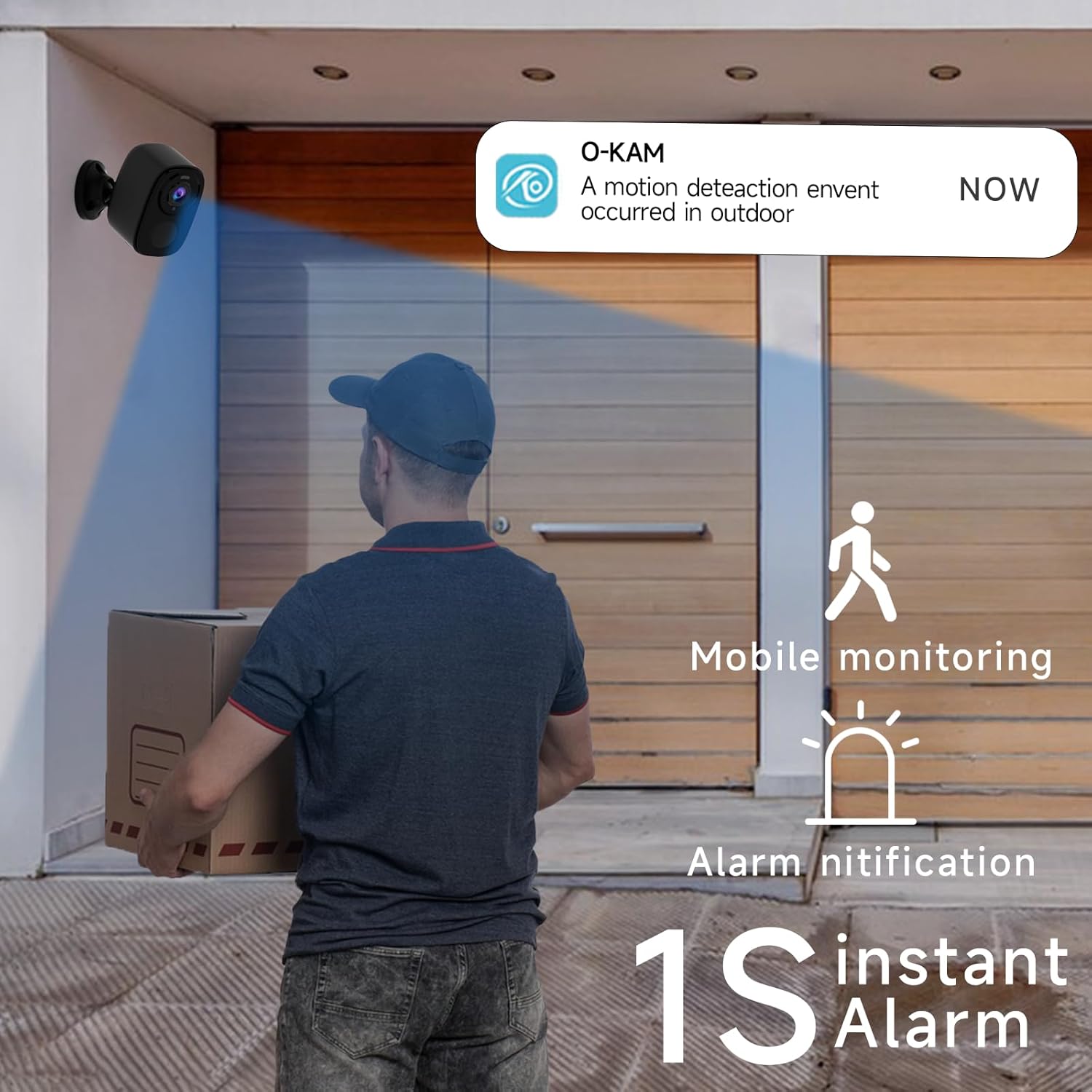
Image 3.3: The camera provides mobile monitoring and instant alarm notifications upon motion detection.
4. Operating the Camera
4.1 Live View and Recording
Access live video streams from your camera anytime through the O-KAM app. You can view real-time monitoring from every corner of your property.

Image 4.1: House security overview in the O-KAM app, allowing real-time monitoring from various locations.
4.2 Motion Detection and AI Recognition
The camera uses advanced PIR motion detection and AI recognition to differentiate between people and objects, reducing false alarms. You will receive instant alerts to your smartphone when motion is detected.
- Customizable Detection Zones: Set specific areas within the camera's view where you want motion to be detected, ensuring you only receive notifications for relevant events.
- Human Filtering: The AI system helps filter out non-human movements, focusing on important activity.

Image 4.2: AI Motion Detection identifies human activity.

Image 4.3: Customize monitoring areas to reduce false alerts.
4.3 Two-Way Audio
The built-in microphone and speaker allow for two-way communication. You can speak to visitors or deter intruders directly through the camera using the O-KAM app.
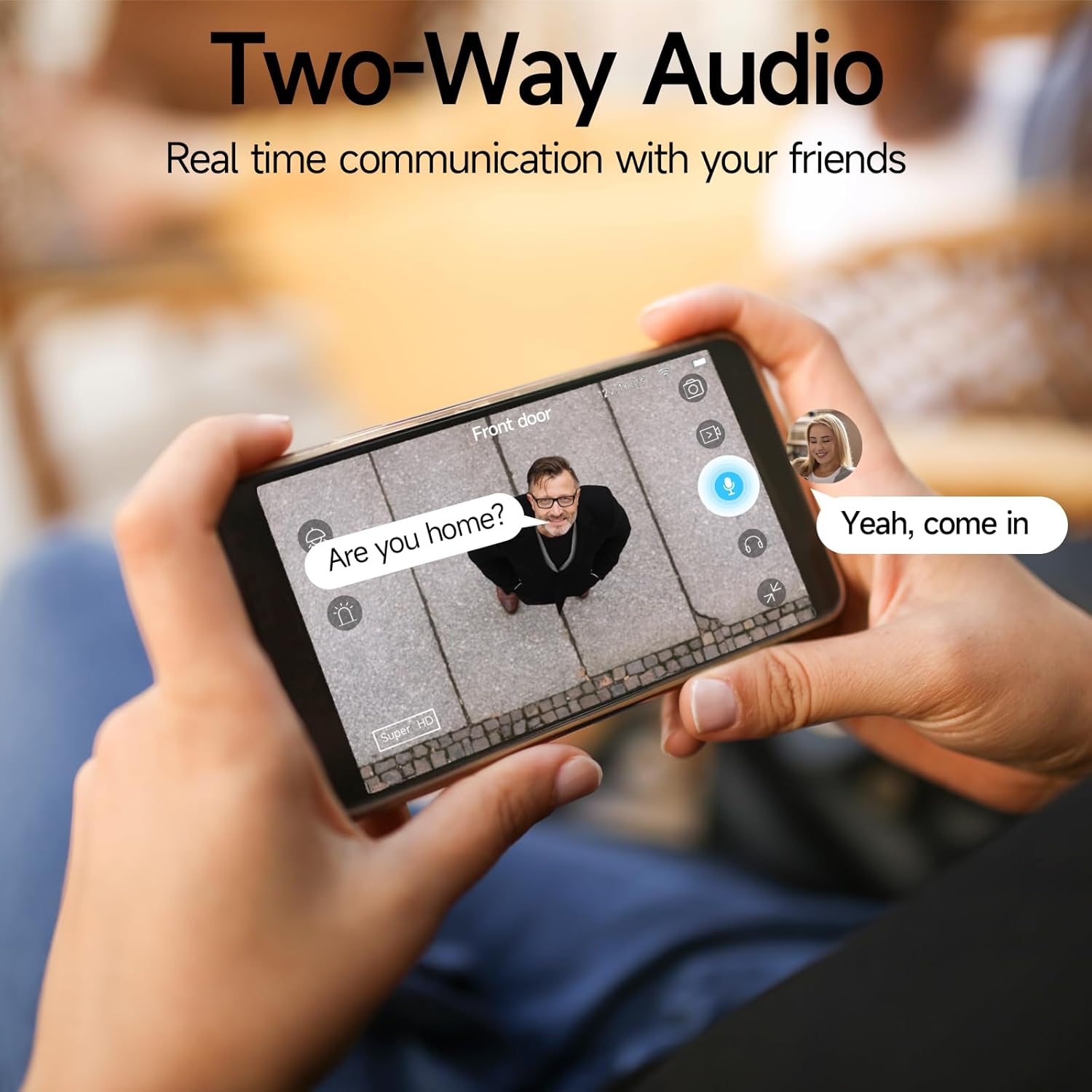
Image 4.4: Engage in real-time communication with two-way audio.

Image 4.5: Multiple users can share and watch the camera feed simultaneously, enabling interactive communication.
4.4 Night Vision Modes
The camera offers two night vision modes to ensure clear visibility in low light conditions:
- Full-Color Night Vision: Provides vivid, color images even in the dark, utilizing the camera's spotlight.
- Infrared Night Vision: Offers clear black-and-white footage in complete darkness.

Image 4.6: Compare 5MP Color Night Vision and Infrared Night Vision for optimal nighttime surveillance.

Image 4.7: The camera supports motion detection, color night vision, and infrared night vision.
4.5 Siren Alarm and Spotlight Warning
The camera features a built-in siren and spotlight that can be activated manually or automatically upon motion detection to deter unwanted visitors.

Image 4.8: Deter intruders with siren and spotlight warnings.
4.6 Storage Options
Your Rraycom camera offers versatile storage solutions:
- Free Cloud Storage: Enjoy free 3-day rolling cloud storage for life, with no subscription needed.
- Micro SD Card Storage: Insert a Micro SD card (up to 256GB, not included) for local video storage.

Image 4.9: Save important moments to cloud or SD card.

Image 4.10: Cloud and local storage options for your recordings.
4.7 Alexa Integration
The Rraycom BW4N camera is compatible with Amazon Alexa, allowing you to view live feeds using voice commands on compatible Alexa-enabled devices.
- Link your O-KAM account with your Alexa account through the Alexa app.
- Use commands like "Alexa, show me the front door camera" or "Alexa, show me the backyard camera" to view live feeds.

Image 4.11: Seamless integration with Amazon Alexa for convenient monitoring.

Image 4.12: View your camera feed on Alexa-enabled devices.
4.8 Video Demonstration
Video 4.1: A demonstration of the Rraycom BW4N wire-free camera's features, including its 5MP resolution, waterproof design, ease of mounting, night vision capabilities, activity zone setup, two-way audio, multi-user sharing, human filtering, Alexa compatibility, and cloud/local storage options.
5. Maintenance
5.1 Battery Management
- Monitor battery levels regularly through the O-KAM app.
- Recharge the camera promptly when the battery is low to ensure continuous operation.
- For optimal battery life, avoid extreme temperatures during charging and operation.
5.2 Cleaning the Camera
- Gently wipe the camera lens and body with a soft, dry cloth to remove dust and smudges.
- Do not use liquid cleaners or abrasive materials, as they may damage the camera.
5.3 Firmware Updates
Periodically check the O-KAM app for available firmware updates. Keeping your camera's firmware up-to-date ensures you have the latest features and security enhancements.
6. Troubleshooting
| Problem | Possible Cause | Solution |
|---|---|---|
| Camera not connecting to Wi-Fi | Incorrect Wi-Fi password; Camera too far from router; Only 5GHz Wi-Fi available. | Ensure correct password. Move camera closer to router. Confirm your Wi-Fi is 2.4GHz. |
| Frequent false alarms | Detection zone too wide; Environmental factors (e.g., moving branches, shadows). | Adjust detection zones in the app. Enable human filtering if available. |
| Poor night vision quality | Obstructions in front of lens; Insufficient ambient light for color night vision. | Clear any obstructions. Ensure adequate lighting for color night vision or switch to infrared mode. |
| Two-way audio issues | Microphone/speaker blocked; App volume too low; Network latency. | Check for obstructions. Adjust volume settings in app. Ensure stable network connection. |
| Battery drains quickly | Frequent motion detection; Live view usage; Extreme temperatures. | Reduce motion detection sensitivity/frequency. Limit live view. Operate within recommended temperature range. |
7. Specifications
| Feature | Detail |
|---|---|
| Model Name | BW4N |
| Video Capture Resolution | 5 MP (2560*1920P) |
| Connectivity Technology | Wireless (2.4GHz Wi-Fi only) |
| Power Source | Battery Powered (5200mAh rechargeable battery) |
| Indoor/Outdoor Usage | Outdoor, Indoor |
| Waterproof Rating | IP66 |
| Viewing Angle | 120 Degrees |
| Night Vision Range | Up to 33 Feet |
| Storage Options | Micro SD Card (up to 256GB, not included), Free 3-day Cloud Storage |
| Compatible Devices | Android & iOS (O-KAM App), Amazon Alexa |
| Material | Acrylonitrile Butadiene Styrene (ABS) |
| Item Weight | 2.68 pounds (for 4-pack) |
| Package Dimensions | 10.47 x 9.17 x 2.95 inches |
8. Warranty and Support
8.1 Warranty Information
Rraycom products come with a standard manufacturer's warranty. Please refer to the warranty card included in your package or visit the official Rraycom website for detailed warranty terms and conditions.
8.2 Customer Service
If you have any questions, encounter issues, or require technical assistance with your Rraycom BW4N security camera, please contact our customer service team:
- Email: aftersale@rraycom.com
- You can also find contact information and FAQs on the Rraycom brand store on Amazon or the official website.

Image 8.1: Contact Rraycom customer service for assistance.
Related documentsBW4N


Ask a question about this manual
Ask about setup, troubleshooting, compatibility, parts, safety, or missing instructions. Manuals+ will review the question and use this page’s manual context to help answer it.