
GreenForest TOMAS-S-SH-1BK
GreenForest Office Desk Instruction Manual
Comprehensive guide for assembly, operation, and maintenance of your GreenForest Office Desk with Power Outlets and Printer Shelf.
1. Introduction
Thank you for choosing the GreenForest Office Desk. This 59-inch computer desk is designed to enhance your home study or working environment with its versatile features, including LED lighting, integrated power outlets, a printer shelf, and a reversible design. This manual provides detailed instructions to ensure a smooth assembly process and proper use of your new desk.
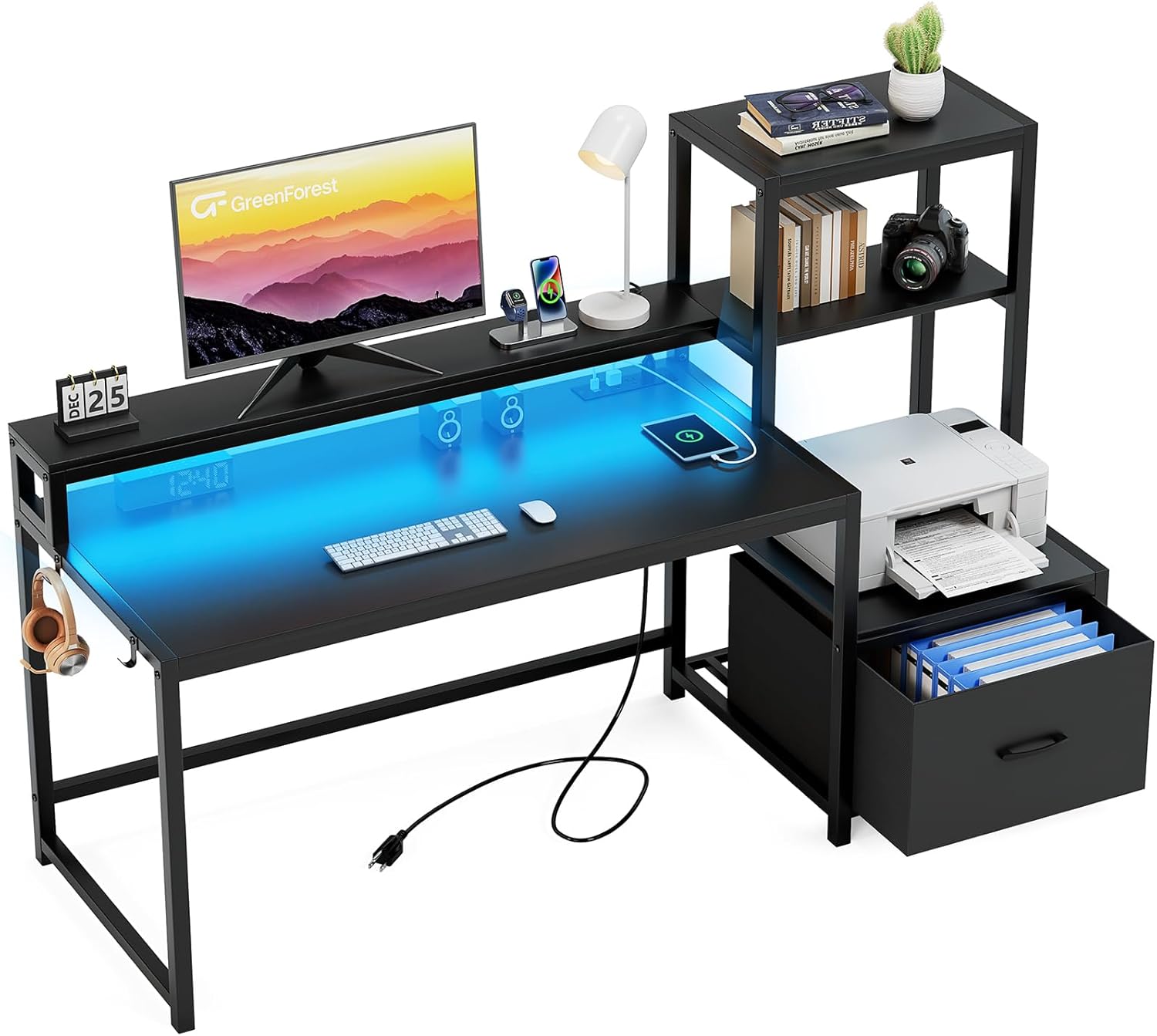
Image 1.1: Fully assembled GreenForest Office Desk, showcasing its LED lighting and integrated storage solutions.
2. Safety Information
Important Safety Precautions:
- Always assemble the desk according to the provided instructions.
- Ensure the desk is stable and secure before use.
- Do not attempt to move or adjust the desk while it is in use.
- Keep all electrical components away from water or damp environments.
- Do not overload the power outlets.
- Keep small children and pets away during assembly to prevent injury or damage to parts.
3. Package Contents
Before beginning assembly, please verify that all components listed below are present and undamaged. If any parts are missing or damaged, please contact customer support.
- Desk Panels (Desktop, Monitor Stand, Shelves)
- Metal Frame Components
- Fabric Drawer
- LED Light Strip with Remote Control
- Integrated Power Outlet Unit (3 AC outlets, 2 USB ports)
- Necessary Tools and Instructions (Included)
- All Required Screws and Fasteners

Image 3.1: Detailed diagram illustrating all parts and dimensions of the desk, including the fabric drawer and shelf unit.
4. Setup and Assembly
Assembly of the GreenForest Office Desk is designed to be straightforward and can typically be completed in about 30 minutes with the provided tools and instructions. All parts are clearly labeled for ease of identification.
4.1. General Assembly Steps
- Unpack all components and verify against the package contents list.
- Identify all labeled parts and hardware.
- Follow the step-by-step instructions provided in the included assembly manual.
- Securely fasten all screws and connections, but do not overtighten until the desk is fully assembled.
- Once assembled, gently tighten all fasteners for stability.
4.2. Reversible Design
The side shelves of the desk can be flexibly adjusted to either the left or right side during assembly, allowing you to customize the layout to fit your room configuration or personal preference. This reversible design ensures versatility and harmony with various spatial needs.

Image 4.1: The desk's reversible design, illustrating how the shelving unit can be positioned on either the left or right side.
5. Operating Instructions
5.1. LED Lights
The monitor stand is equipped with an RGB strip light to enhance your workspace ambiance. Use the included remote control to manage the lighting features:
- Colors: Choose from 20 different static colors.
- Modes: Select from 21 dynamic modes (e.g., flash, jump, fade, constant).
- Brightness: Adjust through 8 levels of brightness.
- Speed: Control the speed of dynamic modes with 8 adjustable speeds.

Image 5.1: The desk featuring its LED light strip and the remote control for various lighting options.
5.2. Integrated Power Outlets
The desk includes a convenient power outlet unit built into the monitor stand, providing easy access to power for your devices. It features:
- 3 AC Outlets (125V/12A)
- 2 USB Ports (5V/2A)
- A 6.5-foot power cord for flexible placement.
These outlets are ideal for charging phones, laptops, PCs, lamps, and smart speakers, helping to keep your workspace tidy and organized by reducing cable clutter.

Image 5.2: A detailed view of the integrated power strip with AC outlets and USB ports.
5.3. Monitor Stand and Storage
The full monitor stand provides an ergonomic height for your monitor, reducing strain on your neck, shoulders, and back, and helping to prevent eye fatigue. The exclusive monitor shelf also frees up valuable desktop space.
The desk is equipped with side shelves offering 4 tiers of storage space, including 1 fabric drawer. This ample storage is perfect for your printer, computer tower, documents, books, and other office items, keeping your workspace organized and efficient.
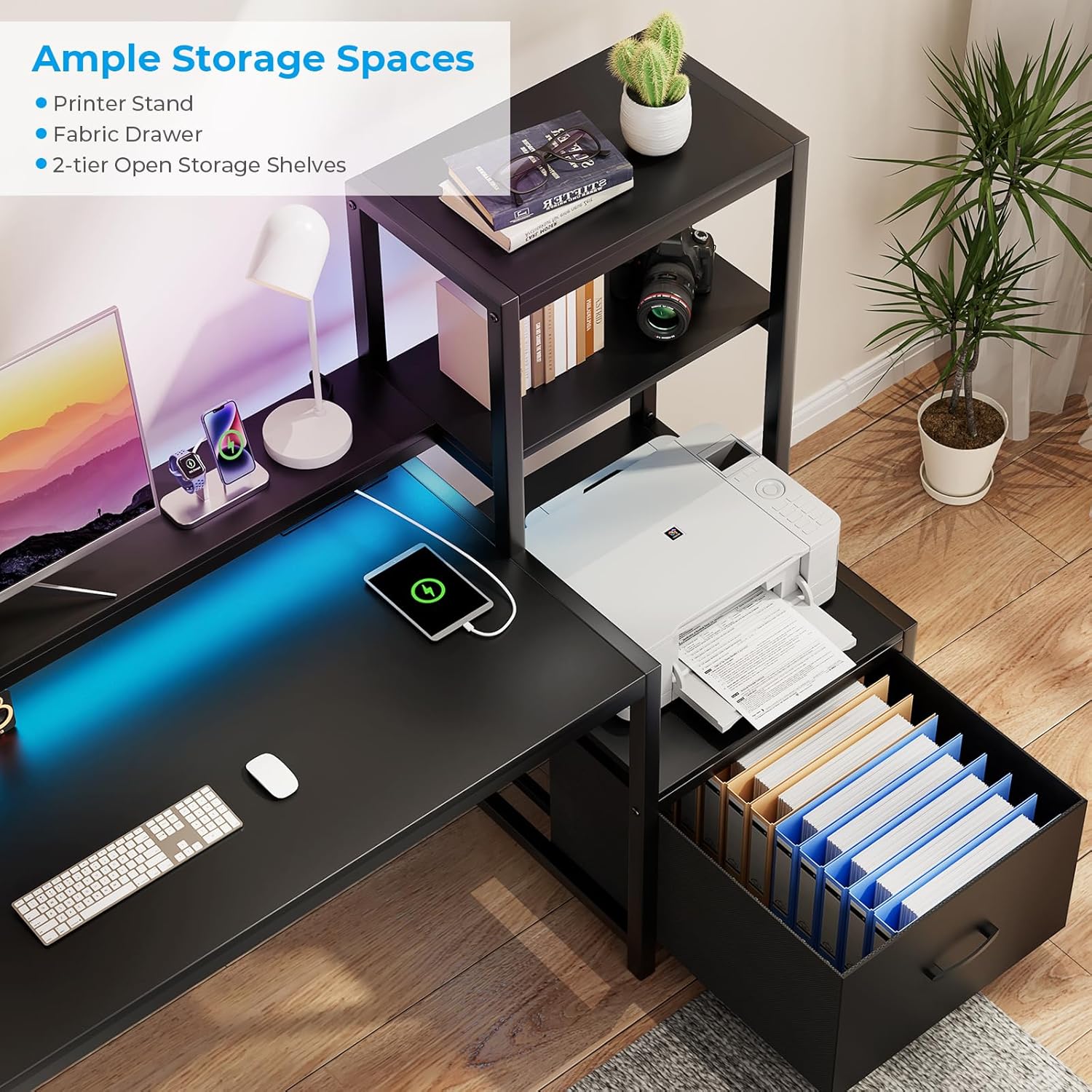
Image 5.3: The desk's storage features, including the printer stand, fabric drawer, and two-tier open storage shelves.
6. Maintenance
To maintain the appearance and longevity of your GreenForest Office Desk, follow these simple care instructions:
- Cleaning: Wipe the desk surfaces with a dry cloth. Avoid using harsh chemicals or abrasive cleaners that may damage the finish.
- Spills: Immediately wipe up any spills to prevent water damage or staining.
- Stability: Periodically check all screws and fasteners to ensure they remain tight. Retighten if necessary to maintain desk stability.
- LED Lights: If the LED lights accumulate dust, gently wipe them with a soft, dry cloth.
7. Troubleshooting
If you encounter any issues with your GreenForest Office Desk, please refer to the following common troubleshooting tips:
7.1. LED Lights Not Working
- Check Power Connection: Ensure the LED light strip is properly plugged into a working power outlet.
- Remote Control Battery: Verify that the remote control battery is not depleted. Replace if necessary.
- Remote Control Line of Sight: Ensure there are no obstructions between the remote control and the LED receiver.
- Reset: Unplug the LED light strip from the power source for a few minutes, then plug it back in to reset.
7.2. Power Outlets Not Functioning
- Check Main Power Cord: Ensure the desk's main power cord is securely plugged into a functional wall outlet.
- Circuit Breaker: Check if the circuit breaker on the power strip (if present) has tripped. Reset if needed.
- Device Compatibility: Ensure the devices you are plugging in are compatible with the desk's power specifications (125V/12A for AC, 5V/2A for USB).
- Overload: Avoid overloading the power strip with too many high-power devices.
7.3. Desk Instability
- Tighten Screws: Re-check and tighten all assembly screws and fasteners.
- Level Surface: Ensure the desk is placed on a flat, level surface. Adjust any leveling feet if available.
- Correct Assembly: Double-check the assembly steps to ensure all parts are correctly installed according to the manual.
8. Specifications
| Feature | Detail |
|---|---|
| Brand | GreenForest |
| Model Number | TOMAS-S-SH-1BK |
| Product Dimensions | 18.9"D x 58.9"W x 49.1"H |
| Color | Black |
| Material | Engineered Wood (Top), Metal (Base) |
| Item Weight | 48.9 Pounds |
| Special Feature | Reversible Design, LED Lights, Power Outlets, Printer Shelf, Monitor Stand |
| Power Outlets | 3 AC Outlets (125V/12A), 2 USB Ports (5V/2A) |
| Assembly Required | Yes (Recommended 1 person) |
| Care Instructions | Wipe with Dry Cloth |
9. Warranty and Support
9.1. Warranty Information
The GreenForest Office Desk comes with a Limited Manufacturer's Warranty. For specific details regarding coverage and duration, please refer to the warranty information included with your purchase or contact GreenForest customer support.
9.2. Customer Support
For any questions, assistance with assembly, troubleshooting, or warranty claims, please contact GreenForest customer support. You can often find support contact information on the product packaging or the brand's official website.
Additional protection plans may be available for purchase, offering extended coverage beyond the manufacturer's warranty. Please check with your retailer for details.
Ask a question about this manual
Ask about setup, troubleshooting, compatibility, parts, safety, or missing instructions. Manuals+ will review the question and use this page’s manual context to help answer it.