
EPOS 1060T
EPOS Impact 1060T ANC Wireless Headset User Manual
Adaptive Noise Cancelling Headset for PC and Mobile
Introduction
The EPOS Impact 1060T ANC is a high-performance wireless headset designed for professionals requiring superior audio clarity and effective noise cancellation in demanding environments. This manual provides essential information for setting up, operating, maintaining, and troubleshooting your headset to ensure optimal performance.
Key features include hybrid adaptive Active Noise Cancellation (ANC), EPOS AI microphones for industry-leading voice pickup, super wideband audio for crystal-clear conversations, and triple wireless connectivity for seamless switching between devices.
What's in the Box
- EPOS Impact 1060T ANC Headset
- USB-C to USB-A Adapter
- Soft Carry Pouch
- Quick Guide
- Safety Guide
- Compliance Sheet

Figure 1: Included components with the EPOS Impact 1060T ANC headset.
Setup
1. Charging the Headset
Before first use, fully charge your headset. The EPOS Impact 1060T ANC supports wireless charging via the included contactless charging stand (if applicable to your model) or via a USB-C cable.
- Wireless Charging: Place the headset on the charging stand, ensuring proper alignment. The LED indicator on the headset will show charging status.
- USB-C Charging: Connect the supplied USB-C cable to the headset's charging port and to a powered USB port (e.g., on your computer or a wall adapter).
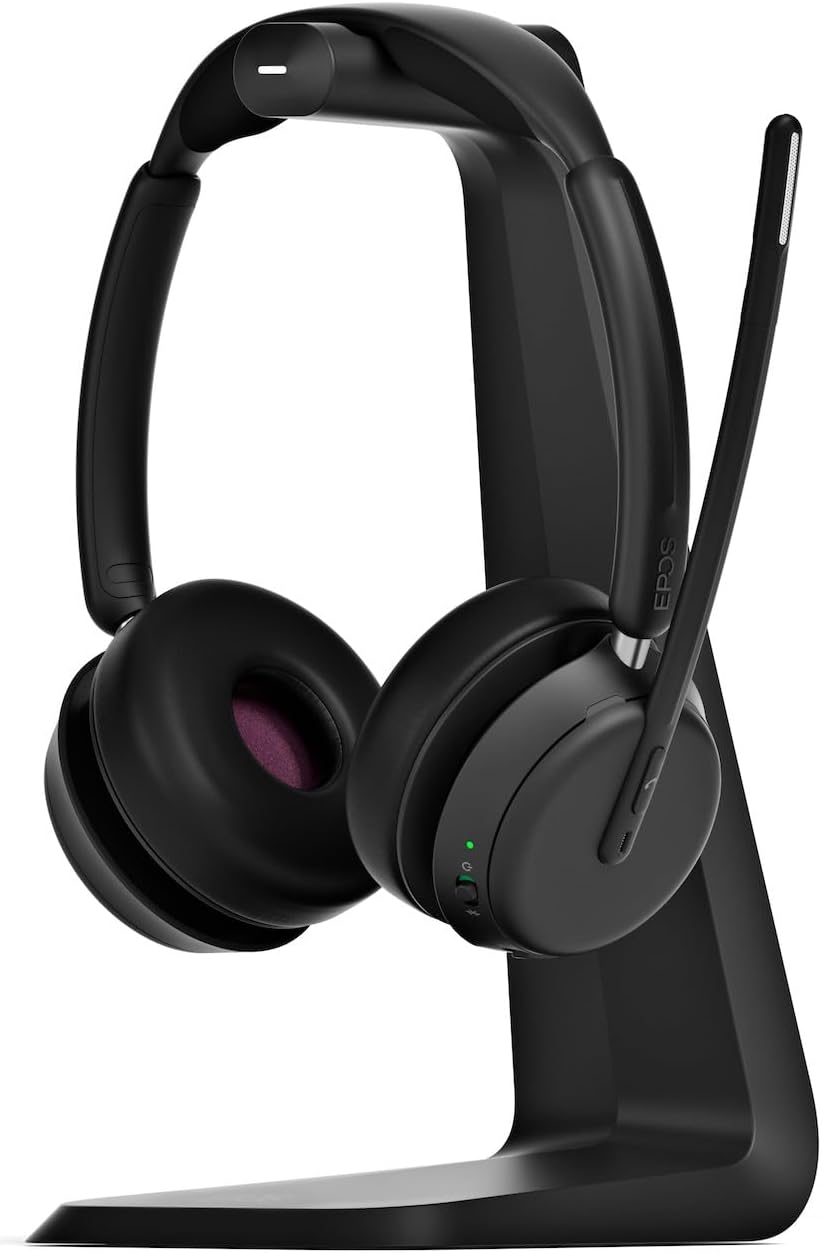
Figure 2: Headset placed on the contactless charging stand.
2. Connecting to Devices
The headset offers triple wireless connectivity, allowing connection to up to three devices simultaneously.
Bluetooth Pairing
- Ensure the headset is powered on.
- Activate Bluetooth pairing mode on the headset (refer to the operating section for specific button presses).
- On your device (PC, laptop, smartphone, tablet), go to Bluetooth settings and select "EPOS Impact 1060T ANC" from the list of available devices.
- Confirm pairing if prompted.
USB-C Connectivity
For direct connection to a PC or laptop, use the supplied USB-C cable or the USB-C to USB-A adapter if your device requires it. This provides plug-and-play functionality.

Figure 3: Headset optimized for Unified Communications platforms.
Operating Instructions
Basic Controls
- Power On/Off: Locate the power button on the earcup. Press and hold to power on or off.
- Volume Control: Use the dedicated volume buttons on the earcup to adjust audio levels.
- Mute Microphone: The microphone can be muted by moving the boom arm upwards. Lower the boom arm to unmute.
- Active Noise Cancellation (ANC): Activate or deactivate ANC using the dedicated button on the earcup to block out background distractions.
- Call Management: Answer/end calls by pressing the call control button. Auto-end calls when removing the headset.
Microphone Usage
The EPOS AI microphones are designed for superior voice pickup and background noise reduction. Position the flexible boom arm close to your mouth for optimal clarity.
Busylight
The 360-degree busylight indicates your availability status to others, helping to minimize interruptions during calls or focused work.
Microsoft Teams Certification
This headset is Microsoft Teams Certified, ensuring seamless integration and optimal performance with the Microsoft Teams platform for calls and meetings.
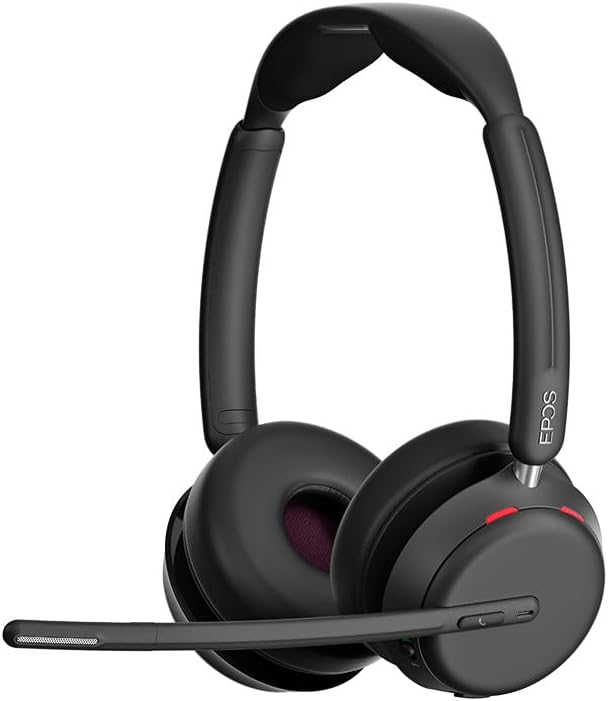
Figure 4: EPOS Impact 1060T ANC headset in use with microphone extended.
Video 1: Demonstrating the powerful sound and comfort features of the EPOS Impact 1060T ANC headset.
Maintenance
Cleaning
- Wipe the headset with a soft, dry cloth.
- Do not use liquid cleaners or sprays directly on the headset.
- Clean ear cushions gently with a damp cloth and mild soap if necessary, then dry thoroughly.
Storage
Store the headset in its soft carry pouch when not in use to protect it from dust and damage. Avoid exposing the headset to extreme temperatures or direct sunlight.
Troubleshooting
No Audio / Poor Audio Quality
- Ensure the headset is powered on and fully charged.
- Verify the headset is correctly paired and connected to your device via Bluetooth or USB.
- Check the volume levels on both the headset and your connected device.
- If using a PC, ensure the EPOS Impact 1060T ANC is selected as the default audio input/output device in your system settings and communication application (e.g., Microsoft Teams, Zoom).
- Move closer to your connected device to improve Bluetooth signal strength.
Microphone Not Working
- Ensure the microphone boom arm is lowered and not muted.
- Check that the headset is selected as the default microphone in your device's audio settings and communication application.
- Test the microphone in a different application or with another device.
Connection Issues
- Restart the headset and your connected device.
- Delete the headset from your device's Bluetooth list and re-pair it.
- Ensure no other devices are interfering with the Bluetooth connection.
Specifications
| Feature | Detail |
|---|---|
| Model Name | IMPACT 1060T ANC |
| Item Model Number | 1001136 |
| Connectivity Technology | Wireless (Bluetooth 5.0) |
| Noise Control | Adaptive Noise Cancellation |
| Microphone Technology | EPOS AI Microphones |
| Audio Quality | Super Wideband Audio |
| Ear Placement | On Ear |
| Item Weight | 181 Grams (6.4 ounces) |
| Product Dimensions | 19.69 x 19.69 x 11.02 inches |
| Battery | 1 Lithium Ion battery (included) |
| Special Features | Adjustable Headband, Lightweight, Noise Cancellation, Volume Control, Wireless Charging |
Warranty and Support
Your EPOS Impact 1060T ANC headset is covered by a manufacturer's warranty. For detailed warranty information, product support, or to access additional resources, please visit the official EPOS website or contact their customer service.
You may also find additional support and protection plans available through your retailer.
Related documents1060T


Ask a question about this manual
Ask about setup, troubleshooting, compatibility, parts, safety, or missing instructions. Manuals+ will review the question and use this page’s manual context to help answer it.