
1. Introduction
Welcome to your EPOS Impact 1061T ANC Headset. This manual provides detailed instructions for setting up, operating, and maintaining your headset to ensure optimal performance in open office environments. The EPOS Impact 1061T ANC is designed for clear communication and concentration, featuring Hybrid Adaptive ANC, AI microphone technology, and multipoint Bluetooth connectivity.
2. What's in the Box
Carefully unpack your EPOS Impact 1061T ANC Headset and verify that all components are present:
- EPOS Impact 1061T ANC Headset
- Wireless Charging Stand
- Bluetooth® USB Dongle
- USB-C Cable
- Soft Carry Pouch
- Safety & Compliance Sheet
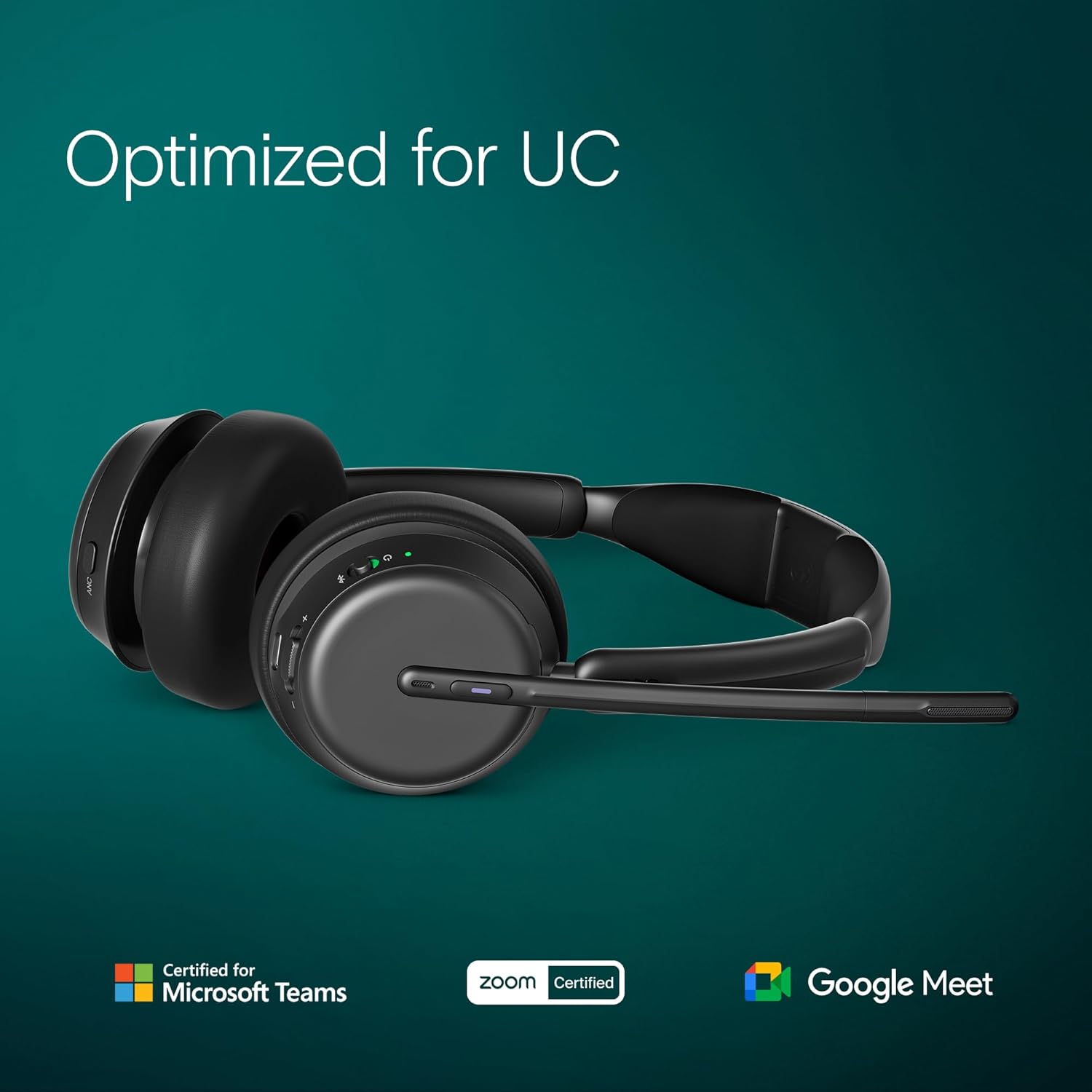
Image: All components included with the EPOS Impact 1061T ANC Headset.
3. Key Features
The EPOS Impact 1061T ANC Headset incorporates advanced technologies for a superior communication experience:
- Adaptive Active Noise Cancelling (ANC) Technology: Dynamically adjusts to ambient noise, providing undisturbed concentration in noisy environments.
- EPOS AI Voice Optimization: Advanced algorithms enhance speech intelligibility by suppressing background noise and highlighting the speaker's voice.
- BrainAdapt Comfort Design: Ergonomically designed for all-day use, reducing pressure points for prolonged wearing comfort.
- Super Wideband Audio Quality: Offers exceptional sound quality for calls and music with a wide frequency range for natural and clear sound reproduction.
- Durable and Long-Lasting Construction: Built with robust materials for daily professional use.
- Multipoint Connectivity: Connects wirelessly to up to three devices simultaneously.
- Microsoft Teams Certified: Optimized for seamless integration and performance with Microsoft Teams.
- Wireless Charging: Convenient charging via the included charging stand.
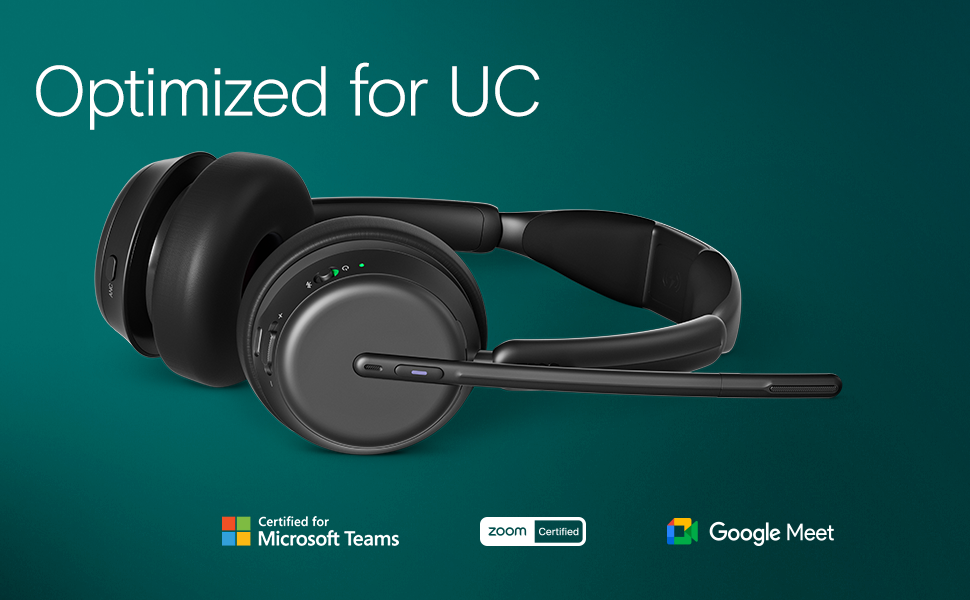
Image: Overview of the headset's design and functional benefits.
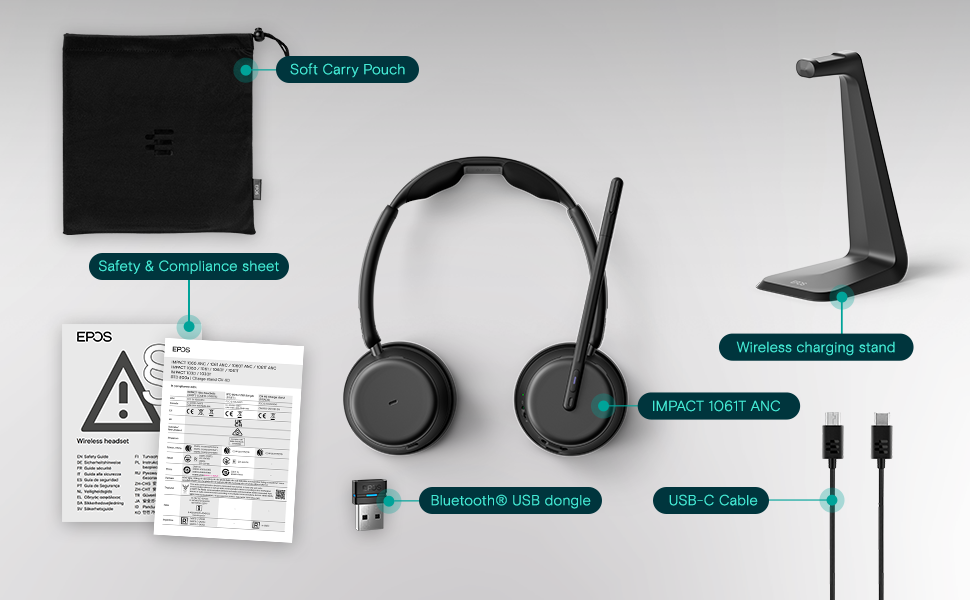
Image: The headset's compatibility and certifications for Unified Communications platforms.
4. Setup
4.1. Charging the Headset
Before first use, fully charge your headset. Place the headset onto the wireless charging stand. The LED indicator on the headset will show the charging status. A full charge typically takes approximately 2 hours.

Image: Headset correctly placed on the charging stand.
4.2. Initial Pairing (Bluetooth)
- Ensure the headset is powered off.
- Press and hold the power button for 5 seconds until the LED indicator flashes blue and red, indicating pairing mode.
- On your device (desktop, laptop, smartphone), navigate to Bluetooth settings and search for new devices.
- Select "EPOS Impact 1061T ANC" from the list of available devices to connect.
- The LED will turn solid blue when successfully paired.
4.3. Using the USB Dongle
For optimal performance and stability with computers, use the included Bluetooth® USB dongle:
- Insert the Bluetooth® USB dongle into an available USB port on your computer.
- Power on your headset.
- The headset will automatically connect to the dongle. The LED on the dongle will turn solid blue when connected.
- Ensure the EPOS headset is selected as the default audio input and output device in your computer's sound settings and communication applications.
5. Operating Instructions
5.1. Power On/Off
To power on the headset, press and hold the power button for 2 seconds. To power off, press and hold the power button for 3 seconds.
5.2. Volume Control
Use the dedicated volume up (+) and volume down (-) buttons located on the right earcup to adjust the listening volume.
5.3. Active Noise Cancellation (ANC)
The ANC feature helps reduce ambient noise. Press the ANC button on the left earcup to toggle Active Noise Cancellation on or off. The LED indicator will confirm the ANC status.
5.4. Microphone Usage and Mute Function
The flexible microphone boom can be positioned for optimal voice pickup. To mute the microphone, simply lift the microphone boom upwards. Lowering the boom will unmute the microphone. A voice prompt or LED indicator may confirm the mute status.

Image: Headset with microphone in active position.
5.5. Multipoint Connectivity
Your headset can be connected to multiple Bluetooth devices simultaneously. It will intelligently switch between devices for calls and audio playback. To manually switch, pause audio on one device and start playback on another.
5.6. Microsoft Teams Integration
For Microsoft Teams certified models, a dedicated Teams button on the earcup allows for quick access to Teams functions, such as answering/ending calls, joining meetings, and raising your hand.

Image: Demonstrating EPOS Voice™ technology for clear communication in a busy office.

Image: Illustrating the headset's wireless range for flexible movement.
6. Maintenance
Proper care ensures the longevity and performance of your headset:
- Cleaning: Gently wipe the ear cushions and headband with a soft, dry, lint-free cloth. Do not use liquid cleaners or abrasive materials.
- Storage: When not in use, store the headset on its charging stand or in the provided soft carry pouch to protect it from dust and damage.
- Environmental Conditions: Avoid exposing the headset to extreme temperatures, direct sunlight, high humidity, or liquids.
7. Troubleshooting
If you encounter issues with your headset, refer to the following common solutions:
7.1. No Audio or Poor Audio Quality
- Ensure the headset is powered on and has sufficient battery charge.
- Verify that the headset is successfully paired and connected to your device via Bluetooth or the USB dongle.
- Check the audio output settings on your computer or smartphone to ensure the EPOS headset is selected.
- Adjust the volume levels on both the headset and your connected device.
7.2. Microphone Not Working
- Ensure the microphone boom is lowered and not in the muted (upright) position.
- Check the microphone input settings on your computer or smartphone.
- Confirm that the EPOS headset is selected as the input device in your communication application (e.g., Microsoft Teams, Zoom).
7.3. Active Noise Cancellation (ANC) Not Effective
- Ensure the ANC feature is activated using its dedicated button.
- Adjust the headset's fit to ensure a good seal around your ears, as this is crucial for ANC performance.
7.4. Headset Not Charging
- Ensure the headset is correctly seated on the charging stand.
- Verify that the charging stand is properly connected to a power source.
- Check the USB-C cable for any damage and try a different USB port or power adapter if available.
8. Specifications
| Feature | Detail |
|---|---|
| Model Name | IMPACT 1061T ANC |
| Noise Control | Adaptive Noise Cancellation |
| Connectivity Technology | Wireless (Bluetooth) |
| Wireless Communication Technology | Bluetooth 5.0 |
| Included Components | Charging Station |
| Compatible Devices | Desktops, Laptops, Smartphones |
| Item Weight | 181 Grams (6.4 ounces) |
| Frequency Range | 20 Hz - 20,000 Hz |
| Control Method | Touch |
| Audio Driver Type | Custom Driver |
| Earpiece Shape | On Ear |
| Special Features | Adjustable Headband, Lightweight, Noise Cancellation, Volume Control, Wireless Charging |
| Manufacturer | Demant Sound Epos Audio A/S |
| Product Dimensions | 19.69 x 19.69 x 11.02 inches |
| Batteries | 1 Lithium Ion battery (included) |
| Date First Available | July 18, 2023 |
| Material | Leather or Synthetic material (ear cushions) |
| Impedance | 20 Ohm |
9. Warranty and Support
For detailed warranty information, technical support, and frequently asked questions, please visit the official EPOS support website. It is recommended to retain your proof of purchase for any warranty claims.
EPOS Support Website: https://www.eposaudio.com/en/us/support


