
ZTE ZXHN H188A
ZTE ZXHN H188A VDSL 4-Port 1200Mbps Router User Manual
Model: ZXHN H188A
1. Introduction
This manual provides detailed instructions for the installation, configuration, operation, and maintenance of your ZTE ZXHN H188A VDSL 4-Port 1200Mbps Router. Please read this manual thoroughly before using the device to ensure proper setup and optimal performance. Keep this manual for future reference.
2. Product Overview
The ZTE ZXHN H188A is a high-performance VDSL router designed to provide reliable internet connectivity. It features 4 Ethernet ports and supports 1200Mbps wireless speeds, making it suitable for home and small office environments. Key features include:
- VDSL Connectivity: Supports high-speed VDSL internet access.
- Wireless AC1200: Dual-band Wi-Fi (2.4GHz and 5GHz) for fast wireless connections.
- 4-Port Ethernet: Multiple LAN ports for wired device connections.
- WPS Functionality: Simplifies secure wireless connection setup.
- Operating System: RouterOS.
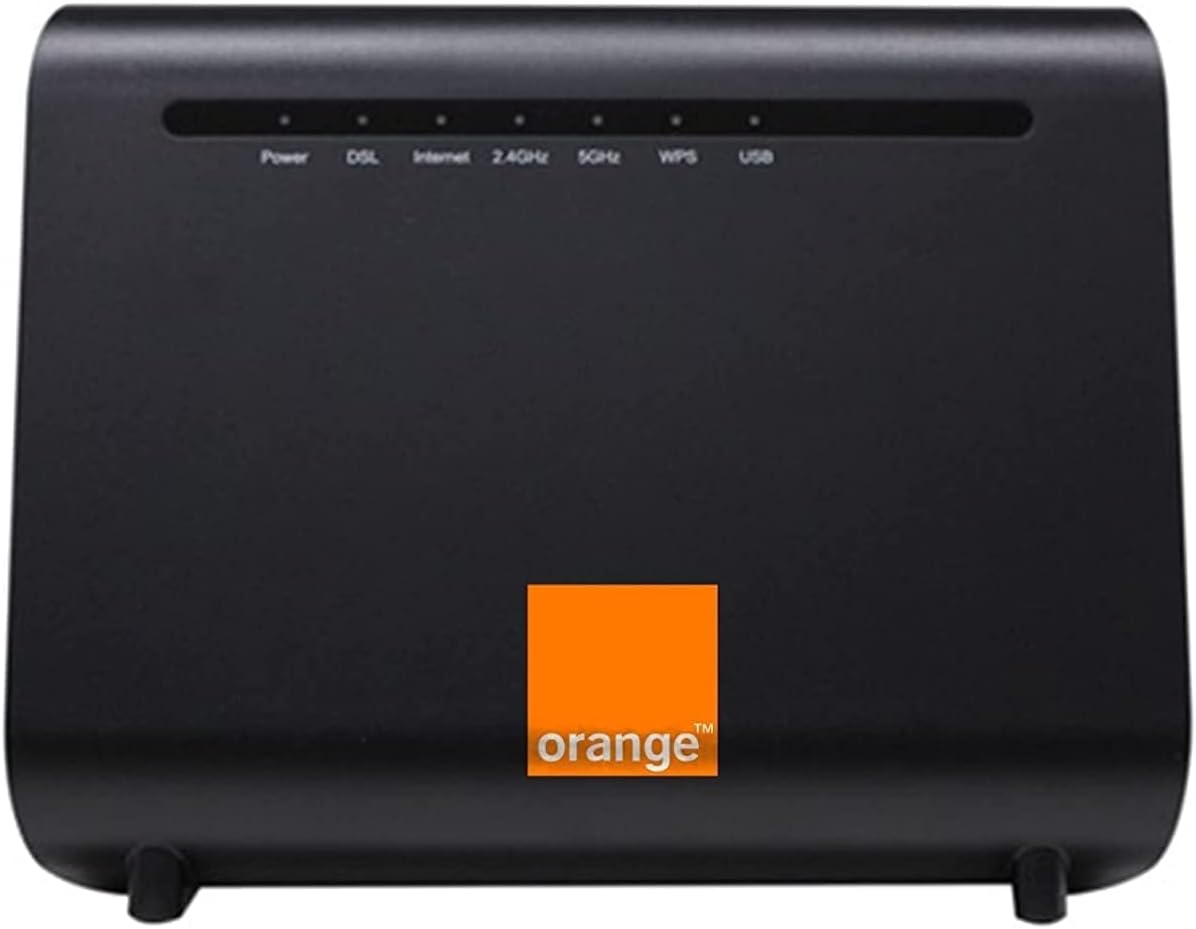
Figure 2.1: Front view of the ZTE ZXHN H188A VDSL Router. This image displays the router's front panel, featuring indicator lights for various functions such as Power, DSL connection status, Internet connectivity, 2.4GHz and 5GHz Wi-Fi activity, WPS status, and USB port activity. The device is black with an Orange branding logo.
3. Package Contents
Please verify that all items are present in your package:
- ZTE ZXHN H188A VDSL Router
- Power Adapter
- Ethernet Cable
- DSL Cable (RJ11)
- Quick Start Guide (if included)
4. Setup
4.1 Hardware Connection
- Connect the DSL Line: Connect one end of the DSL cable to the DSL port on the router and the other end to your wall's DSL jack or splitter.
- Connect Power: Plug the power adapter into the router's power port and then into an electrical outlet. The Power indicator light should turn on.
- Connect Devices (Optional):
- Wired Connection: Connect an Ethernet cable from one of the router's LAN ports to your computer's Ethernet port.
- Wireless Connection: You can connect wirelessly after initial setup.
4.2 Initial Configuration
After connecting the hardware, wait for the DSL and Internet indicator lights to become stable. Then, proceed with the following steps:
- Access Router Interface: Open a web browser on a connected computer and enter the router's default IP address (e.g., http://192.168.1.1 or http://192.168.0.1). Refer to the label on the bottom of your router for the exact IP address and default login credentials.
- Login: Enter the default username and password. It is highly recommended to change these default credentials immediately for security purposes.
- Follow Setup Wizard: The router's web interface usually provides a setup wizard to guide you through basic internet connection settings (e.g., VDSL username/password provided by your ISP) and Wi-Fi network configuration (SSID and password).
5. Operating Instructions
5.1 Indicator Lights
The front panel of the router features several LED indicators that provide information about the device's status:
- Power: Solid Green indicates the router is powered on.
- DSL: Solid Green indicates a stable DSL connection. Flashing indicates synchronization in progress. Off indicates no DSL signal.
- Internet: Solid Green indicates successful internet access. Flashing indicates data transmission. Off indicates no internet connection.
- 2.4GHz: Solid Green indicates the 2.4GHz Wi-Fi is active. Flashing indicates data transmission.
- 5GHz: Solid Green indicates the 5GHz Wi-Fi is active. Flashing indicates data transmission.
- WPS: Solid Green for a short period after successful WPS connection. Flashing during WPS pairing attempt.
- USB: Solid Green indicates a USB device is connected and active. Flashing indicates data transmission.
5.2 Connecting to Wi-Fi
- Find Network Name (SSID): On your wireless device (laptop, smartphone), search for available Wi-Fi networks. The default SSIDs are usually printed on a label on the router.
- Enter Password: Select your network name and enter the Wi-Fi password (also known as network key or passphrase), typically found on the router's label.
- Using WPS: Press the WPS button on the router. Within two minutes, press the WPS button on your wireless device. The devices will automatically connect.
6. Maintenance
6.1 Firmware Updates
Periodically check the ZTE support website for firmware updates. Firmware updates can improve performance, add new features, and enhance security. Follow the instructions provided with the firmware update package carefully.
6.2 Resetting the Router
If you encounter persistent issues or forget your login credentials, you may need to reset the router to its factory default settings. Locate the reset button (usually a small pinhole button) on the router. With the router powered on, use a paperclip or similar pointed object to press and hold the reset button for approximately 5-10 seconds until the indicator lights flash. The router will then restart with factory default settings.
6.3 Cleaning
Clean the router periodically with a soft, dry cloth. Do not use liquid cleaners or aerosols. Ensure the ventilation openings are clear of dust to prevent overheating.
7. Troubleshooting
- No Power:
Ensure the power adapter is securely connected to the router and a working electrical outlet. Check the power outlet with another device.
- No DSL Connection (DSL light off/flashing):
Verify the DSL cable is correctly connected to the router and the wall jack. Ensure your telephone line is active. Contact your Internet Service Provider (ISP) if the issue persists.
- No Internet Access (Internet light off):
Check if the DSL light is solid green. If not, resolve the DSL connection first. Log into the router's web interface and verify your ISP's connection settings (username/password). Restart the router and your modem (if separate).
- Wi-Fi Connection Issues:
Ensure the 2.4GHz and/or 5GHz lights are on. Check your Wi-Fi password. Move closer to the router to improve signal strength. Try restarting the router.
- Slow Internet Speed:
Restart the router. Check for interference from other electronic devices. Ensure your devices are connected to the appropriate Wi-Fi band (5GHz for faster speeds, 2.4GHz for wider coverage). Contact your ISP to check your line speed.
8. Specifications
| Feature | Description |
|---|---|
| Model Name | ZXHN H188A |
| Brand | ZTE |
| Connectivity Technology | Ethernet, VDSL |
| Wireless Speed | Up to 1200Mbps (Dual-Band) |
| Ethernet Ports | 4-Port LAN |
| Special Features | WPS |
| Operating System | RouterOS |
| Compatible Devices | Laptop, Personal Computer, Smart Television, Tablet |
| Frequency Band Class | Dual-Band (2.4GHz and 5GHz) |
| Security Protocol | WPS |
9. Warranty and Support
For warranty information and technical support, please refer to the documentation included with your product or visit the official ZTE website. Support resources typically include FAQs, troubleshooting guides, and contact information for customer service.
Related documentsZXHN H188A


Ask a question about this manual
Ask about setup, troubleshooting, compatibility, parts, safety, or missing instructions. Manuals+ will review the question and use this page’s manual context to help answer it.