Introduction
This manual provides comprehensive instructions for the Zyerch Stylus Pen 2nd Generation. This smart pen is designed to enhance your interaction with compatible iPad models, offering features like magnetic wireless charging, tilt sensitivity, and palm rejection for a seamless digital experience.
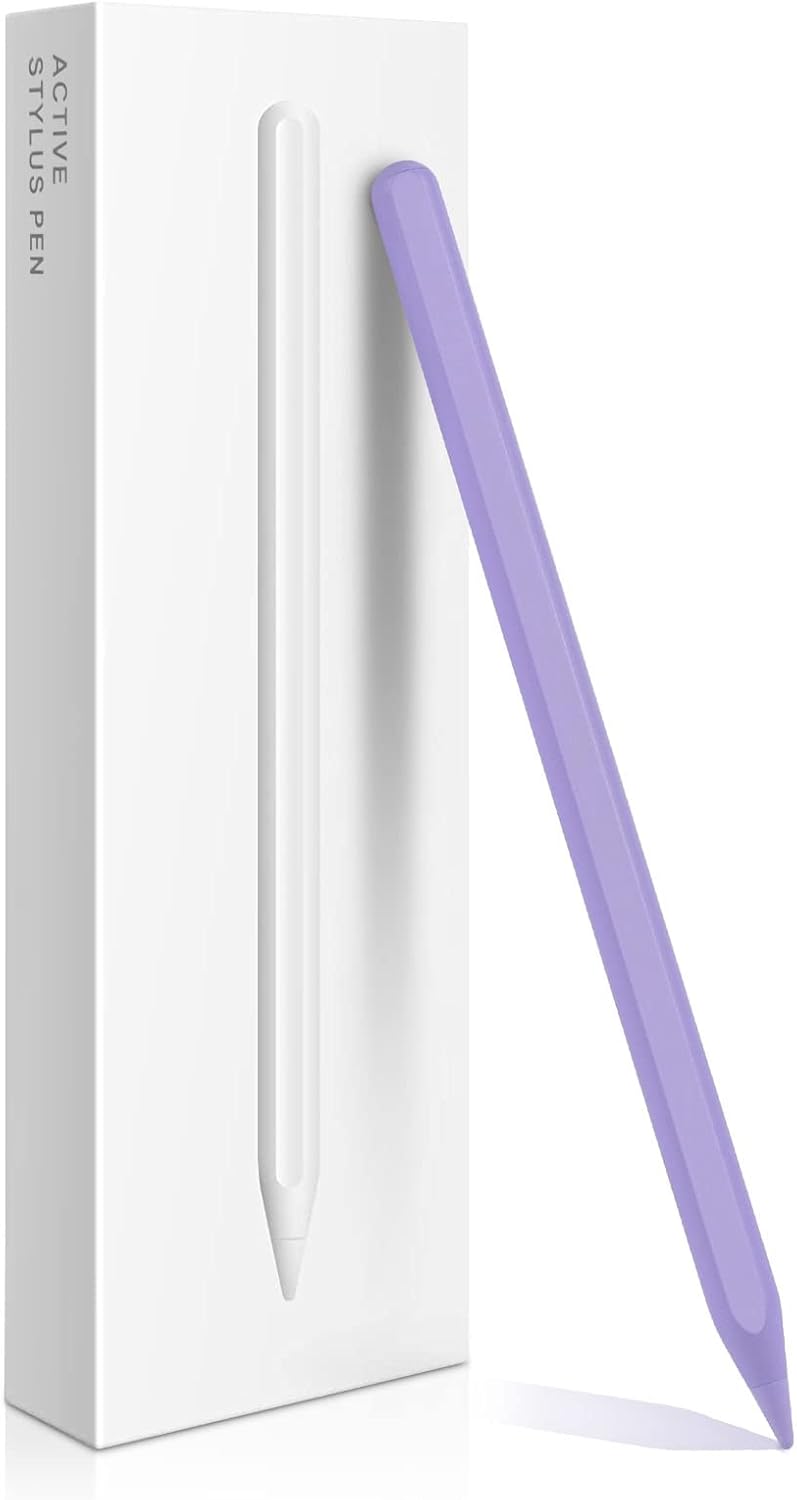
Image: The Zyerch Stylus Pen 2nd Generation in purple, presented alongside its white product packaging, highlighting its sleek design.
Compatibility
The Zyerch Stylus Pen 2nd Generation is compatible with specific iPad models. Please verify your iPad model before use to ensure full functionality.
Compatible iPad Models:
- iPad Pro 11-inch (1st, 2nd, 3rd, and 4th Generation)
- iPad Pro 12.9-inch (3rd, 4th, 5th, and 6th Generation)
- iPad Air (4th and 5th Generation)
- iPad mini (6th Generation)
Non-Compatible iPad Models:
- iPad (1st, 2nd, 3rd, 4th, and 5th Generation)
- iPad mini (1st, 2nd, 3rd, and 4th Generation)
- iPad Air (1st and 2nd Generation)
- iPad Pro 12.9-inch (1st and 2nd Generation)
To identify your iPad model, go to Settings > General > About > Model Name, or find the model number (A+5 digits, e.g., A2766) on the back of your iPad.

Image: A visual guide detailing compatible iPad models and their corresponding model numbers for the stylus pen.
Product Features
- Magnetic Wireless Charging: Effortlessly charge the stylus by attaching it to the side of your compatible iPad.
- Tilt Draw Sensitivity: Adjust line thickness by tilting the pen, providing precise control for drawing and writing.
- Palm Rejection: Rest your palm comfortably on the screen without interfering with your writing or drawing.
- Shortcut Button: Single-click for home page shortcut, double-click to open the task manager.
- Bluetooth Power Display: Monitor the pen's battery level directly on your iPad.
- Replaceable Pen Tips: Includes 2 additional tips for extended use.

Image: An illustration highlighting the key new features of the stylus pen, such as magnetic charging and shortcut functions.
Setup and First Use
- Initial Charge: For first use, ensure the stylus pen is fully charged. Attach the pen magnetically to the side of your compatible iPad. The iPad will display the charging status.
- Bluetooth Connection: The stylus pen connects via Bluetooth. Once attached to the iPad, it should automatically pair. If not, ensure Bluetooth is enabled on your iPad and check for the pen in the Bluetooth device list.
- Battery Level Check: After connection, the battery level of the stylus pen will be displayed on your iPad's screen, typically in the widgets section.

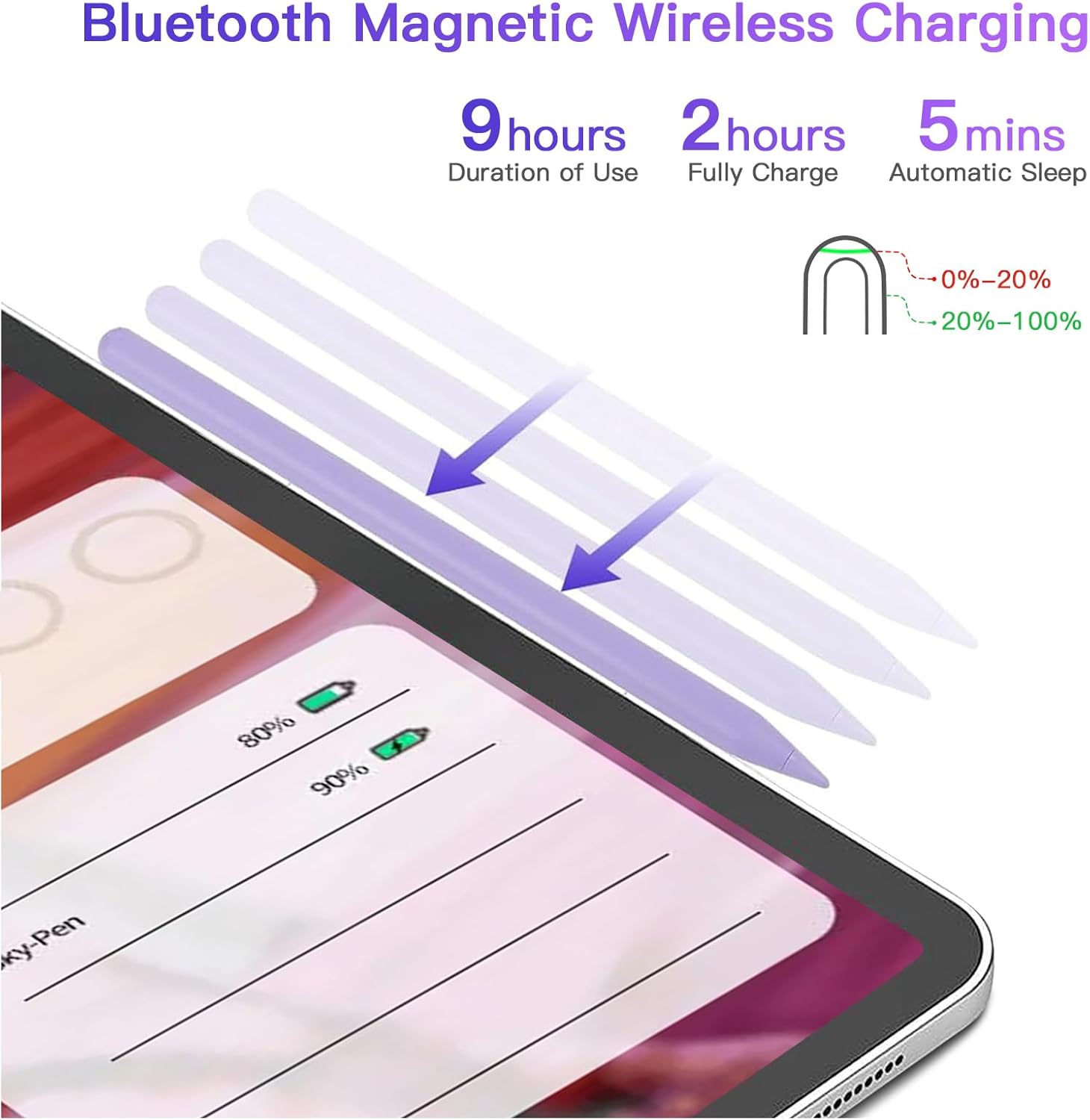
Image: Visual representation of the stylus pen charging magnetically on an iPad, along with battery status display and charging time information.
Operating Instructions
Using the Shortcut Button:
- Single Click: Press the button once to return to the iPad's home screen.
- Double Click: Press the button twice to open the task manager, allowing you to switch between open applications.

Image: An illustration demonstrating the shortcut functions of the stylus pen's button.
Drawing and Writing:
- Palm Rejection: You can rest your hand naturally on the iPad screen while writing or drawing without creating unintended marks.
- Tilt Sensitivity: The pen supports tilt sensitivity, allowing you to vary line thickness by changing the angle at which the pen tip touches the screen. This feature is ideal for shading and artistic effects.
- Precision: The stylus provides accurate tip placement with no noticeable lag or offset, ensuring a smooth and precise experience for all tasks, from detailed drawing to note-taking.

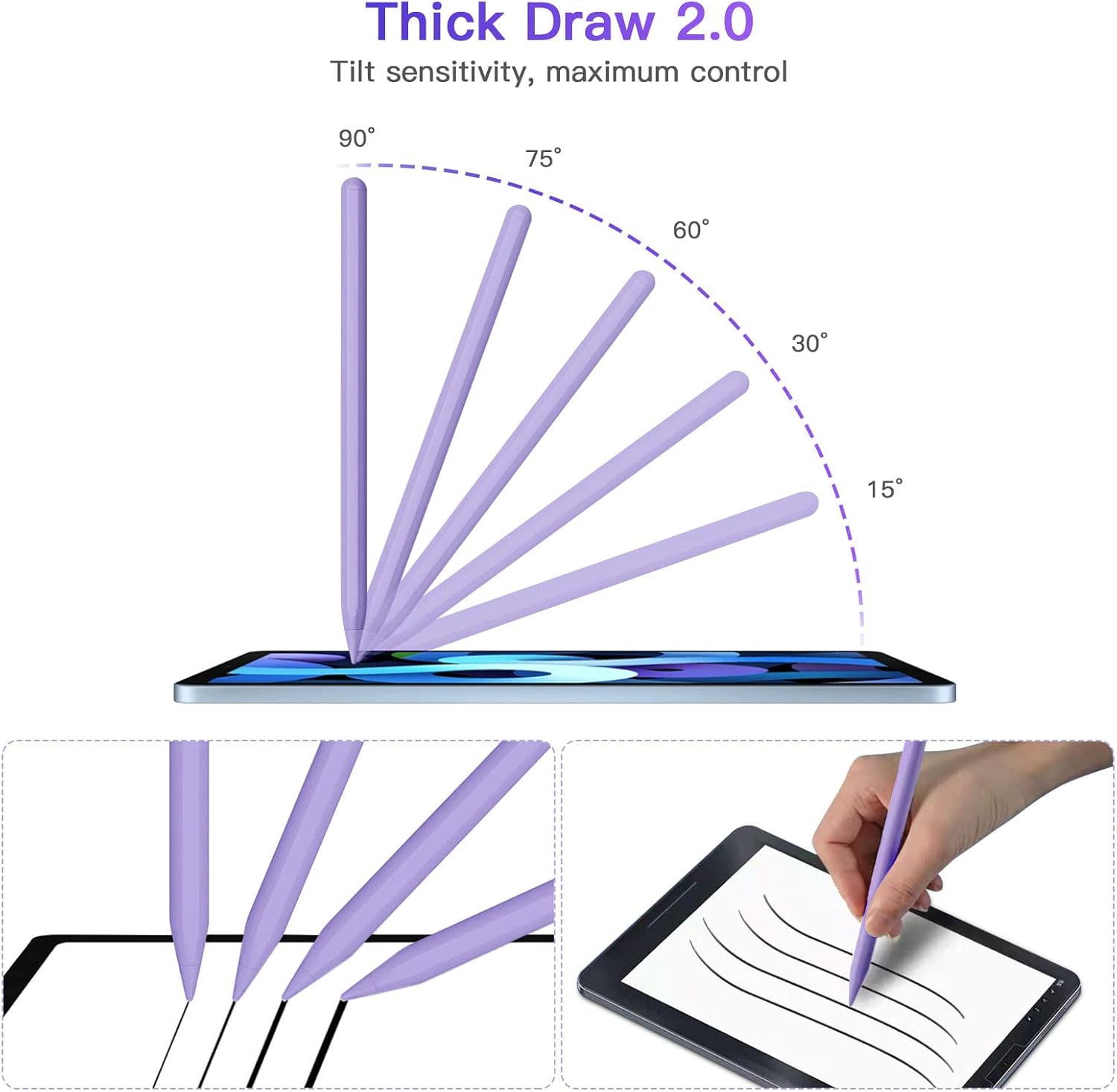
Image: Demonstrations of palm rejection, no offset, and tilt sensitivity features during use.

Image: Examples of the stylus pen's precision in various applications such as drawing, design, and note-taking.
Maintenance
Replacing Pen Tips:
The Zyerch Stylus Pen comes with two additional replaceable tips. If the tip becomes worn or damaged, follow these steps to replace it:
- Gently twist the old tip counter-clockwise to remove it from the pen.
- Align the new tip with the pen's end and twist it clockwise until it is securely fastened. Do not overtighten.

Image: Instructions for replacing the stylus pen tip.
Cleaning:
Wipe the stylus pen with a soft, dry, lint-free cloth. Avoid using abrasive materials or harsh chemicals.
Troubleshooting
| Issue | Possible Cause | Solution |
|---|---|---|
| Pen not connecting to iPad. | Incorrect iPad model, Bluetooth off, low battery. |
|
| Pen not charging. | Not properly aligned on iPad, iPad not charging. |
|
| Inaccurate or unresponsive tip. | Worn tip, screen protector interference, software glitch. |
|
| Palm rejection not working. | Incompatible app, iPad settings. |
|
Specifications
| Model Number | CX60400 |
| Brand | Zyerch |
| Color | Purple |
| Material | Aluminum |
| Item Weight | 2.08 ounces (0.06 Kilograms) |
| Battery Type | Lithium Metal |
| Battery Life (Usage) | Up to 9 hours |
| Charging Time | Approximately 2 hours for full charge |
| Automatic Sleep | After 5 minutes of inactivity |
| UPC | 850052859015 |
Warranty and Support
Warranty Information:
The Zyerch Stylus Pen 2nd Generation comes with a 1-year warranty from the date of purchase. This warranty covers manufacturing defects and issues related to the pen's functionality. It does not cover damage caused by misuse, accidents, or unauthorized modifications.
Customer Support:
For any questions, technical assistance, or warranty claims, please contact Zyerch customer support through the retailer's platform where you purchased the product. You may also refer to the official Zyerch brand store on Amazon for additional resources: Zyerch Store.
A PDF version of this user manual is also available for download: Download User Manual (PDF).
