
1. Introduction
The YOOPAI Mole 3D Scanner is a high-precision device designed for capturing detailed three-dimensional models of objects. Featuring an accuracy of up to 0.05mm and a resolution of 0.1mm, it is suitable for a wide range of applications from industrial design to artistic creation. This manual provides comprehensive instructions for setting up, operating, and maintaining your Mole 3D Scanner to ensure optimal performance and longevity.

Figure 1.1: The Mole 3D Scanner setup, including the scanner unit, tripod, turntable, and a laptop running the scanning software.
2. Product Features
- High Accuracy and Resolution: The Mole 3D scanner offers an accuracy of up to 0.05mm and a resolution of 0.1mm, enabling the capture of intricate details and precise dimensions.
- Fast Scanning Speed: With a scanning speed of up to 10 frames per second (fps), the device can quickly scan medium-sized objects, streamlining the 3D modeling process.
- Dual Scanning Modes: Supports both turntable scanning for automated, precise captures and handheld scanning for flexible, on-the-go applications.
- Advanced Optical System: Equipped with upgraded high-precision and high-resolution lenses, along with optical anti-shake modules, ensuring stable and smooth scanning with minimal distortion.
- Powerful JM Studio Software: The accompanying JM Studio software features one-click auto-alignment, denoising, simplification, repair, and texture mapping, simplifying the post-processing workflow.
- Black Object Scanning: Utilizes Near Infrared (NIR) technology for excellent optical compatibility, allowing for clear and accurate scanning of black objects.

Figure 2.1: Illustration of the Mole scanner's 0.1mm accuracy in recreating object dimensions.
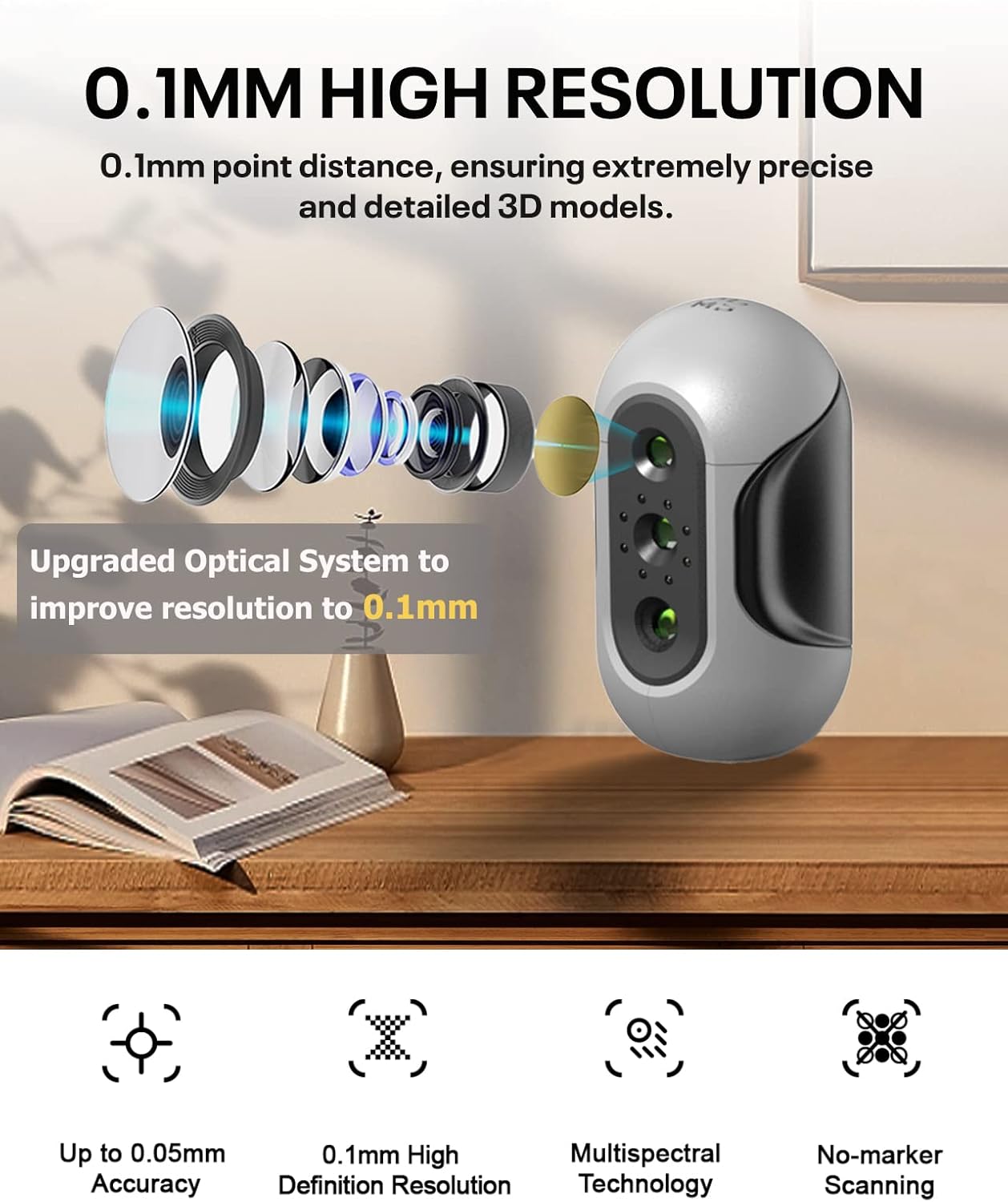
Figure 2.2: Visual representation of the upgraded optical system for enhanced resolution.
3. Package Contents and Setup
Upon unboxing your Mole 3D Scanner, verify that all components listed below are present. The package is designed for secure transport and easy assembly.

Figure 3.1: Contents of the Mole 3D Scanner Premium Version package.
3.1. Product List:
- Mole Scanner Unit
- Turntable Kit
- Tripod
- Plaster Sculpture (for practice)
- Data Cable
- Power Kit
- User Manual
- USB Flash Drive (containing software and resources)
3.2. Initial Setup:
- Software Installation: Insert the provided USB Flash Drive into your computer. Install the JM Studio software compatible with your operating system (Windows 10 or macOS). Follow the on-screen instructions.
- Hardware Connection:
- Connect the Mole scanner to your computer using the provided data cable.
- Assemble the tripod and attach the Mole scanner if using the turntable or stationary scanning mode.
- Connect the turntable to the power kit and then to the computer, if applicable.
- Power On: Ensure all connections are secure and power on the scanner and turntable (if used).
- Software Configuration: Launch JM Studio. In the software settings, select "Mole scanner" as your device profile. Refer to the software's built-in tutorial for initial configuration.
4. Operating Modes
The Mole 3D Scanner supports multiple operating modes to accommodate various scanning needs and object types.

Figure 4.1: Overview of the dual scanning modes available with the Mole 3D Scanner.
4.1. Turntable Scanning Mode:
This mode is ideal for small to medium-sized objects requiring high precision and automated capture. The turntable rotates the object, allowing the scanner to capture data from all angles systematically.
- Place the object centrally on the turntable.
- Position the Mole scanner on its tripod, ensuring it has a clear view of the object.
- In JM Studio, select the "Turntable Scan" option.
- Adjust scanning parameters such as brightness and sensitivity as needed.
- Initiate the scan. The software will guide the turntable's rotation and data acquisition.
4.2. Handheld Scanning Mode:
For larger objects or situations requiring flexibility, the handheld mode allows you to move the scanner around the object. This mode benefits from the optical anti-shake modules for stable tracking.
- Hold the Mole scanner firmly.
- In JM Studio, select the "Handheld Scan" option.
- Begin scanning by moving the scanner smoothly around the object, maintaining a consistent distance.
- The software provides real-time feedback on tracking and coverage. Ensure sufficient overlap between scanned areas for accurate model reconstruction.
- For mobile phone scanning, a separate PTZ phone holder (connector) is required and sold separately.
4.3. JM Studio Software Usage:
JM Studio is the primary software for controlling the Mole 3D Scanner and processing scan data. It offers a user-friendly interface with powerful features.

Figure 4.2: JM Studio software interface demonstrating its one-click optimization features.
- One-Click Optimization: After scanning, utilize the software's automated algorithms for model optimization, including multi-positional auto-alignment, auto-noise removal, auto-model simplified topology, auto-hole filling, and auto-texture mapping.
- Export Formats: Scanned models can be exported in common 3D file formats such as OBJ, STL, and PLY for compatibility with other 3D modeling software or 3D printing.
- System Compatibility: JM Studio is compatible with Windows 10 and macOS. Mobile versions are available for iOS and Android when used with the optional connector.
5. Maintenance
Proper maintenance ensures the longevity and optimal performance of your Mole 3D Scanner.
- Cleaning: Use a soft, dry, lint-free cloth to clean the scanner's exterior. For lenses, use a specialized lens cleaning cloth and solution. Avoid abrasive materials or harsh chemicals.
- Storage: Store the scanner and its accessories in the provided carrying case in a cool, dry place, away from direct sunlight and extreme temperatures.
- Software Updates: Regularly check for and install the latest JM Studio software updates to benefit from performance improvements, new features, and bug fixes.
- Cable Care: Handle data and power cables carefully. Avoid sharp bends or excessive pulling that could damage the connectors or internal wiring.
6. Troubleshooting
This section addresses common issues you might encounter and provides solutions.
| Problem | Possible Cause | Solution |
|---|---|---|
| Scanner not recognized by software. | Incorrect driver installation, loose cable connection, wrong software profile selected. |
|
| Poor scan quality or noisy models. | Insufficient lighting, object movement during scan, incorrect scanning distance, reflective surfaces. |
|
| Software crashes or freezes. | Outdated software, insufficient system resources, conflicting software. |
|
| Difficulty tracking in handheld mode. | Rapid movement, lack of distinct features on object, poor lighting. |
|
7. Specifications
| Attribute | Detail |
|---|---|
| Model Name | Mole - Premium Version |
| Brand | YOOPAI |
| Accuracy | Up to 0.05mm |
| Resolution | 0.1mm |
| Scan Speed | Up to 10fps |
| Connectivity Technology | USB |
| Color Depth | 24 bpp |
| Minimum System Requirements | Windows 10, macOS (Premium Version) |
| Item Weight | 5.21 pounds |
| Package Dimensions | 11.73 x 11.54 x 5.24 inches |
| Manufacturer | 3DMakerpro |
| UPC | 850075053049 |
8. Warranty and Support
For any quality-related issues or technical assistance, please contact the manufacturer or authorized seller. They are committed to providing support and will respond to inquiries within 24 hours.
Please refer to the official product packaging or the manufacturer's website for specific warranty terms and conditions, as these may vary.
Manufacturer: 3DMakerpro
For support, visit: YOOPAI Store on Amazon


