
Product Overview
The ORICO CD3510 is a network-attached storage (NAS) and private cloud solution designed for 3.5" SATA HDDs. It offers a secure and convenient way to store and access your digital content, including pictures, videos, and documents, from various devices.
Key features include APP connectivity for easy management, a VPN exclusive channel for secure remote access using SDVN encryption, and support for Samba and DLNA protocols for seamless integration into your home network. This device provides a permanent, free private cloud experience, eliminating the need for subscription fees.

Figure 1: ORICO CD3510 NAS and Private Cloud Enclosure with App Interface
This image displays the ORICO CD3510 NAS device, highlighting its magnetic lid design and the intuitive app interface on a smartphone, illustrating how data can be accessed and managed.
Package Contents
Upon opening the package, ensure all components are present:
- ORICO MetaCube Mini CD3510 Unit
- Network Cable
- USB-A to Type-C Cable
- User Manual (this document)
Setup Guide
Follow these steps to set up your ORICO CD3510 NAS enclosure:
- Insert the Hard Drive: Open the magnetic lid and align a 3.5-inch SATA hard drive with the SATA interface. Gently insert the hard drive into the enclosure. Rotate the direction knob to securely fix the hard disk in place.

Figure 2: Hard Drive Installation
This image demonstrates the process of inserting a 3.5-inch SATA hard drive into the ORICO CD3510, highlighting the tool-free installation.
- Connect Cables: Plug in the network cable to the LAN port and the power cable to the DC IN port.
Video 1: ORICO Networkable Hard Drive Setup
This video provides a visual guide to the physical setup of the ORICO CD3510, including hard drive installation and cable connections.
- Download Weline APP: Search for "Weline" in your device's app store (iOS/Android) or visit weline.io to download the official application.
- Connect Device via APP: Open the Weline APP and scan the QR code located on the bottom of the ORICO CD3510 to connect your device. Follow the on-screen prompts to complete the initial setup and grant necessary permissions, including VPN access for secure remote connections.
- Format Hard Disk: Within the Weline APP, navigate to Settings > Node Space > Format hard disk. Follow the instructions to format your hard drive. Warning: Formatting will erase all data on the selected drive. Ensure you have backed up any important data before proceeding.
Operating Instructions
Weline APP Functionality
The Weline APP is the primary interface for managing your ORICO CD3510. It allows you to:
- Store and read pictures, videos, and documents from mobile devices and PCs.
- Access your private cloud remotely via a secure VPN exclusive channel (SDVN encryption).
- Share photos and videos with different devices and users.
- Create public clouds and private spaces, with master account authorization for multiple users.
- Manage files and folders, including uploading, downloading, and organizing content.

Figure 3: Sharing and Accessing Content
This image illustrates various scenarios for sharing and accessing content, including family photos, baby growth records, and work files, across multiple devices.
Network Protocols (Samba & DLNA)
The ORICO CD3510 supports Samba and DLNA protocols, allowing for broader network compatibility.
Mapping Network Drive for Windows (Samba Function)
To access your NAS as a network drive on Windows:
- Open the Weline APP on your PC and navigate to the Samba section.
- Enable the Samba service and set a password if prompted.
- On your Windows PC, open File Explorer, right-click on "This PC" or "Network" and select "Map network drive...".
- Enter the network path (e.g., \\192.168.X.X\public) and your credentials.

Figure 4: Windows Samba Setup Steps
This image provides a visual walkthrough of configuring and mapping the ORICO CD3510 as a network drive on a Windows operating system using the Samba protocol.
Mapping Network Drive for macOS (Samba Function)
To access your NAS as a network drive on macOS:
- From the Finder, select Go > Connect to Server...
- Enter the server address (e.g., smb://192.168.X.X) and click "Connect".
- Select the desired share (e.g., "public" or "home") and enter your credentials if prompted.
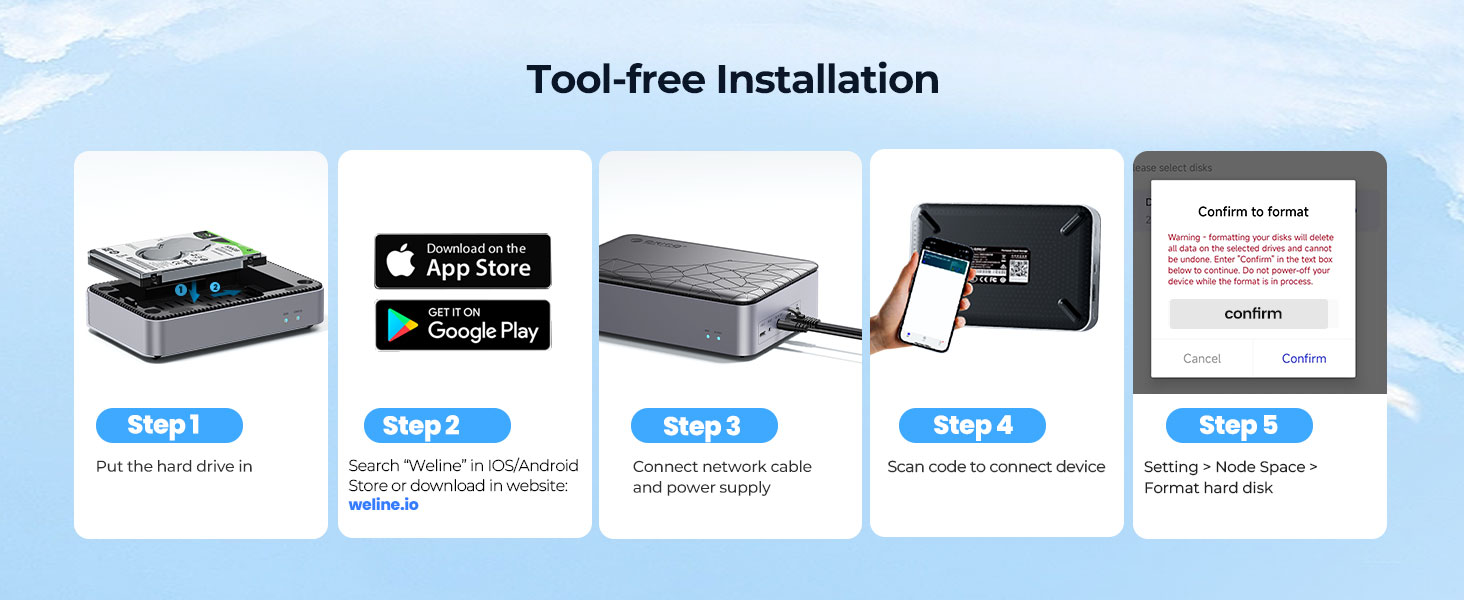
Figure 5: macOS Samba Setup Steps
This image illustrates the steps required to connect and map the ORICO CD3510 as a network drive on a macOS system via the Samba protocol.
Maintenance
To ensure optimal performance and longevity of your ORICO CD3510:
- Keep the device in a well-ventilated area to prevent overheating.
- Regularly check for firmware updates through the Weline APP to ensure the latest features and security patches.
- Avoid exposing the device to extreme temperatures, humidity, or direct sunlight.
- Clean the exterior with a soft, dry cloth. Do not use liquid cleaners.
Troubleshooting
| Issue | Possible Cause / Solution |
|---|---|
| Slow Transmission Speed | Intranet speeds can reach 60-80MB/s, cross-region 4-7MB/s. If speeds are lower, it may be related to your hard disk performance or network environment. Ensure your network connection is stable and your hard drive is healthy. Contact customer service for further assistance. |
| Device Runs Hot | Ensure adequate ventilation around the device. Avoid placing it in enclosed spaces. If using a mechanical HDD, some heat is normal, but excessive heat may indicate an issue or insufficient cooling for the drive type. |
| Cannot Connect to Weline APP / Network Access Issues |
|
| Files Not Appearing / Data Transfer Issues | Confirm the hard drive is correctly formatted and recognized by the device. Check the Weline APP for any error messages during transfer. Ensure sufficient space is available on the hard drive. |
Specifications
| Feature | Detail |
|---|---|
| Model Number | CD3510 |
| Product Dimensions | 5.7 x 3.74 x 1.36 inches |
| Item Weight | 1.92 pounds |
| Compatible Devices | MacOS, Windows, iOS, Android |
| Material | Metal |
| Color | Black 3.5" |
| CPU | Quad Core |
| Ethernet | Gigabit Ethernet |
| Interface | USB-C |
| Intranet Transmission Speed | 60-80MB/s (Gigabit Ethernet port rate: MAX 120MB/s, WiFi rate: MAX 60MB/s) |
| Cross-Region Transmission Speed | 4-7MB/s |
Warranty and Support
ORICO offers an 18-month warranty for the MetaCube Mini CD3510. Additionally, lifetime service support is provided to assist with any product-related inquiries or issues.
For technical support or warranty claims, please contact ORICO customer service through their official website or the Weline APP.
You can also refer to the official user guide PDF for more detailed information: User Guide (PDF)


