
1. Introduction
Thank you for choosing the HARFO Fingerprint Door Lock. This advanced keyless entry system provides enhanced security and convenience for your home or office. Featuring multiple unlocking methods including fingerprint, IC cards, passcode, and backup keys, this smart lock is designed for ease of use and reliable performance. Please read this manual carefully before installation and operation to ensure proper functionality and safety.

Figure 1.1: HARFO Fingerprint Door Lock with handle set and IC cards.
2. Product Overview
2.1 Key Features
- Advanced 3D Tech Fingerprint Recognition: Unlocks within 0.3 seconds with 99.99% accuracy.
- Multiple Unlocking Methods: Fingerprint, IC Cards, Passcode, and Backup Key.
- Auto-Lock & One-touch Lock: Customizable auto-lock timer (5/10/15/30 seconds) and instant one-touch locking.
- User Capacity: Supports up to 300 users.
- Security Features: One-time Passcode for temporary access, Anti-Peeping Password to prevent code exposure.
- Convenience: OLED Display with Voice Guide for easy programming, Low Battery Alarm, Mute Mode, 2000 Unlock Records, Emergency USB Power Port.
- Versatile Installation: Suitable for both left-handed and right-handed doors with adjustable settings.
2.2 Package Contents
Please verify all components are present before installation:
- Smart Deadbolt Lock (Exterior Unit with Keypad and Fingerprint Sensor)
- Interior Unit (with Battery Compartment and Rotary Knob)
- Door Lock with Handle Set
- 3 x IC Cards
- 2 x Backup Keys
- Installation Accessories Package (screws, spindle, strike plate, etc.)
- User Manual (this document)
3. Installation Guide
The HARFO Fingerprint Door Lock is designed for easy installation without the need for extra drilling, typically requiring only a screwdriver. Follow these steps carefully.
3.1 Door Compatibility
Ensure your door meets the following specifications:
- Door Thickness: 1 3/8 inch to 2 3/16 inch (35mm-55mm)
- Backset: 2-3/8 inch or 2-3/4 inch (60mm or 70mm)
- Cross Bore: 2-1/8 inch (54mm)
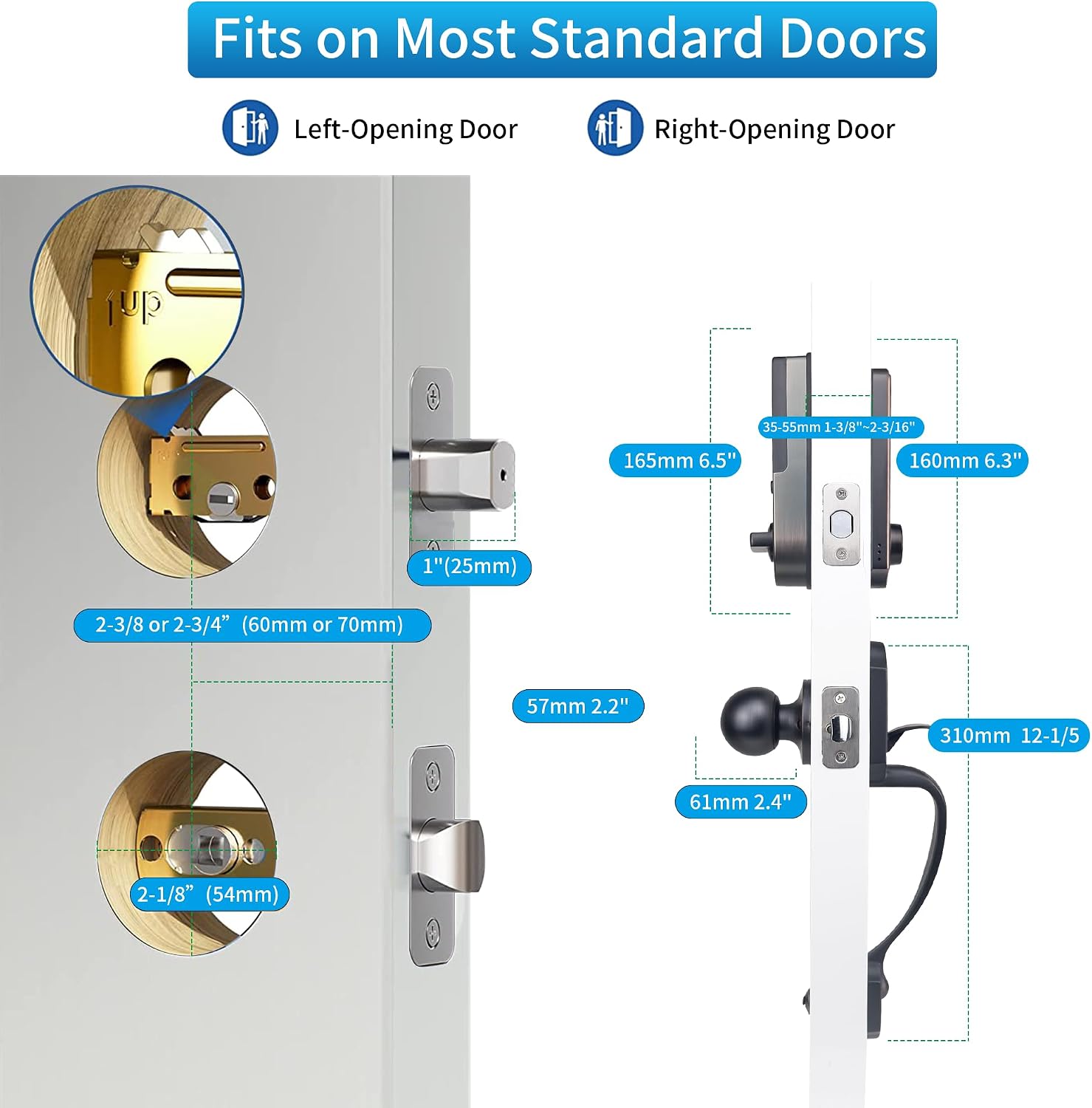
Figure 3.1: Door compatibility and dimensions for installation.
3.2 Adjusting for Left/Right Handed Doors
The lock is suitable for both left-handed and right-handed doors. Adjust the Rotary Knob and "L/R Button" on the interior unit to match your door's orientation before proceeding with the full installation.
3.3 Step-by-Step Installation
- Prepare the Door: Ensure existing holes match the required dimensions.
- Install the Latch: Insert the latch into the door edge and secure it with screws. Ensure the latch bolt faces the correct direction.
- Install the Exterior Unit: Feed the cable and spindle through the latch. Align the exterior unit with the door holes.
- Install the Interior Mounting Plate: Secure the mounting plate to the exterior unit using screws, ensuring the cable passes through the plate.
- Connect Cables and Install Interior Unit: Connect the cable from the exterior unit to the interior unit. Carefully tuck the excess cable into the door. Align the interior unit with the mounting plate and secure it with screws.
- Install Batteries: Open the battery cover on the interior unit and insert 4 x 1.5V AA dry batteries (not included). Rechargeable batteries are not recommended.
- Install Handle Set: Attach the handle set according to the instructions provided in the accessories package.
- Test Functionality: After installation, test the lock and handle to ensure smooth operation before closing the door.
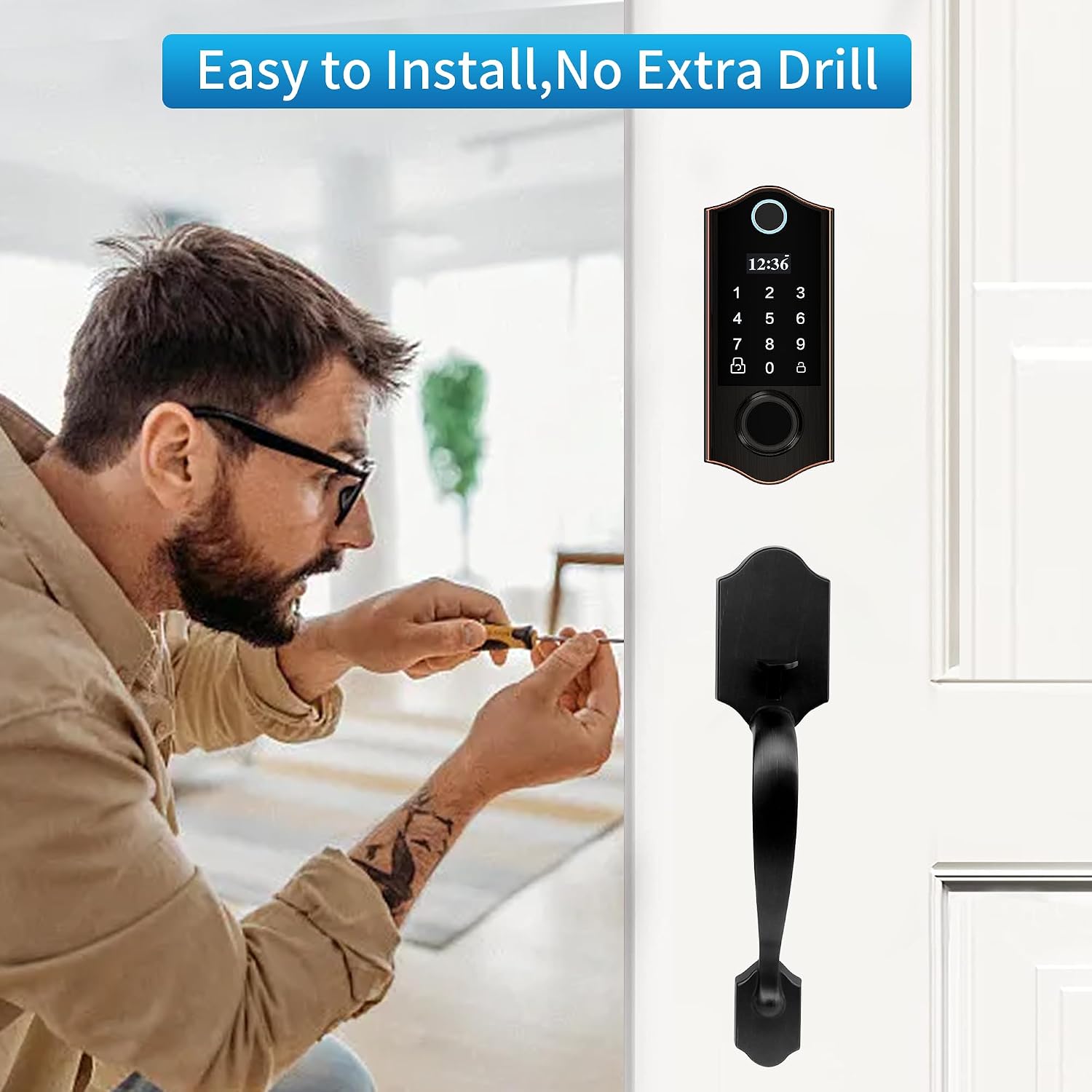
Figure 3.2: Installation is straightforward, requiring minimal tools.
4. Operating Instructions
The HARFO Fingerprint Door Lock offers multiple convenient ways to unlock your door. The OLED display and voice guide will assist you through the programming process.
4.1 Unlocking Methods
- Fingerprint Unlock: Place your registered finger on the sensor. The lock will recognize your fingerprint within 0.3 seconds and unlock.
- Passcode Unlock: Enter your registered passcode on the keypad and press the '#' key.
- IC Card Unlock: Tap a registered IC card against the card reader area on the lock.
- Backup Key Unlock: In case of emergency or battery depletion, use the physical backup key to unlock the door. The keyhole is discreetly located.

Figure 4.1: The four primary methods for unlocking your HARFO door lock.
4.2 Locking Methods
- Auto-Lock: The lock can be set to automatically lock after a specified duration (5/10/15/30 seconds) once the door is closed. This feature can be enabled or disabled in the settings.
- One-touch Lock: If auto-lock is off, simply press the lock button on the keypad to secure the door.
- Inside Locking: From the interior side, you can lock or unlock the door by turning the rotary knob or pressing the dedicated lock/unlock button.

Figure 4.2: Auto-lock and one-touch lock features for enhanced security.
4.3 Anti-Peeping Password
To prevent others from guessing your passcode, you can enter random digits before or after your actual passcode. For example, if your passcode is "123456", you can enter "90121234568765". The lock will only recognize the correct sequence within the longer string.
5. User Management and Programming
The OLED display and voice guide simplify the process of managing users and settings. The lock supports up to 300 users.
5.1 Programming Menu
To access the programming menu, press the 'M' button (or similar designated button, refer to your specific lock's physical layout if different from the image) and follow the voice prompts. The main menu options typically include:
- 1. Create User: Add new fingerprints, passcodes, or IC cards.
- 2. Delete User: Remove existing users.
- 3. System Setting: Configure lock parameters like auto-lock time, mute mode, etc.
- 4. Info Query: View unlock records and user IDs.
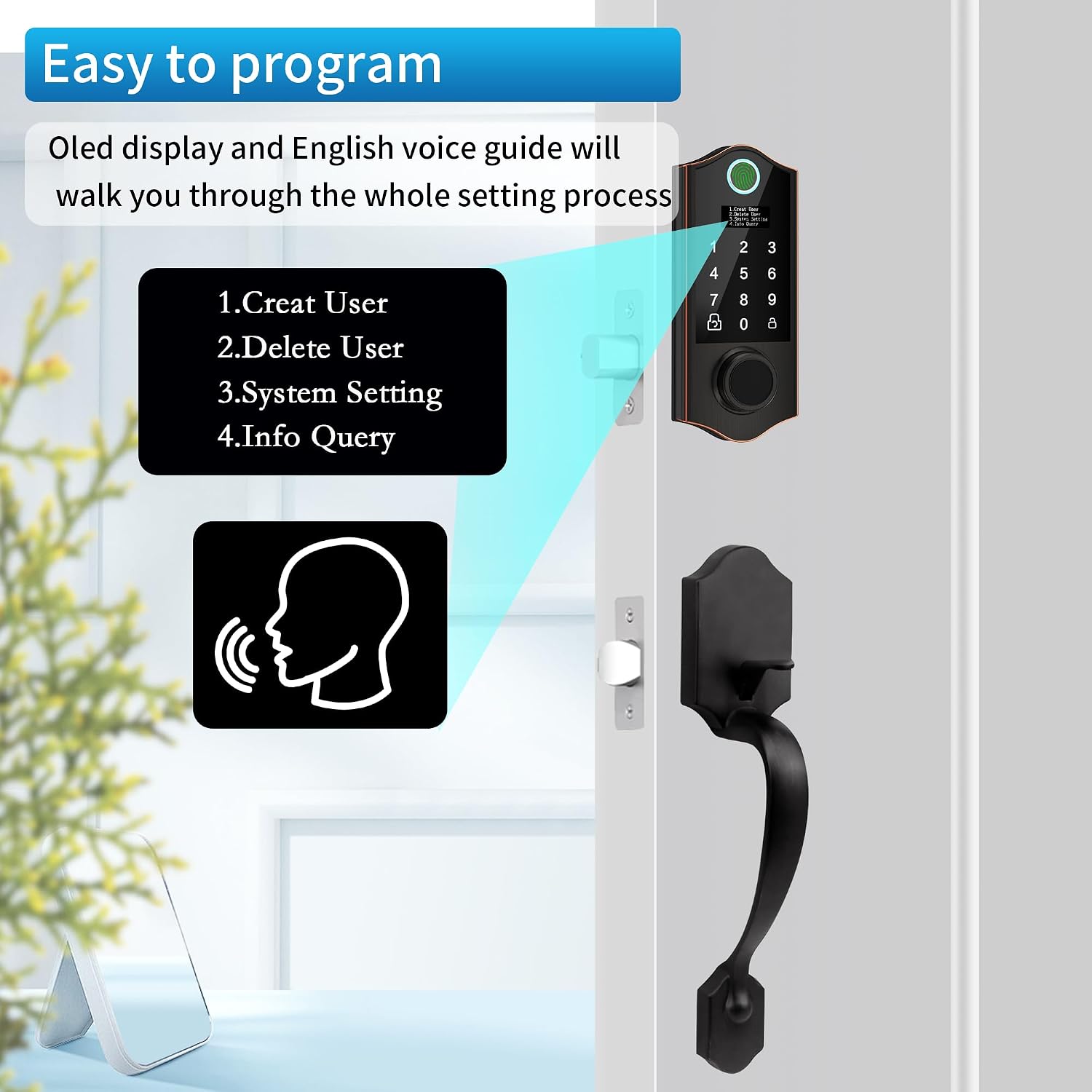
Figure 5.1: The intuitive OLED display and voice guide for programming.
5.2 Adding Users
Follow the voice prompts after selecting "Create User". You can add different types of users:
- Admin User: Has full access to programming and unlocking. It is recommended to set up at least one admin fingerprint and passcode.
- Normal User: Can unlock the door but cannot access programming settings.
- Casual User (One-time Passcode): A temporary passcode that can be used only once. Ideal for visitors or delivery personnel.

Figure 5.2: Example of using a one-time passcode for temporary access.
5.3 Deleting Users
Select "Delete User" from the menu. You can typically delete users by their ID number or delete all normal/casual users at once.
6. Maintenance
6.1 Battery Replacement
The HARFO Fingerprint Door Lock requires 4 x 1.5V AA dry batteries (not included). It is designed for long battery life, typically up to one year. When the battery level is low, the lock will provide a low battery alarm. Replace all four batteries promptly when this alarm sounds.
Note: Rechargeable batteries are not recommended as their typical voltage (1.2V) may not provide optimal performance.
6.2 Emergency Power Supply
If the batteries completely deplete and you cannot unlock the door, you can use the emergency USB power port located on the exterior unit. Connect a portable power bank to this port to temporarily power the lock and gain entry. Always keep your backup keys in a safe, accessible location outside the door.

Figure 6.1: Emergency power supply via USB and physical backup keys.
6.3 Cleaning
Clean the lock's exterior with a soft, dry cloth. Avoid using abrasive cleaners or solvents, which may damage the finish or electronic components.
7. Troubleshooting
| Problem | Possible Cause | Solution |
|---|---|---|
| Lock does not respond or power on. | Dead batteries; incorrect battery installation. | Replace all 4 AA dry batteries. Ensure correct polarity. Use emergency USB power if needed. |
| Fingerprint not recognized. | Fingerprint not registered; dirty sensor; finger not placed correctly. | Ensure fingerprint is registered. Clean the sensor. Try placing your finger in different orientations. Re-register fingerprint if issues persist. |
| Passcode not working. | Incorrect passcode entered; passcode not registered. | Verify the passcode. Ensure it is registered. Try using the Anti-Peeping Password feature correctly. |
| Lock makes unusual noises or cycles open/closed. | Mechanical obstruction; incorrect installation; internal malfunction. | Check for any obstructions around the latch or deadbolt. Re-check installation steps, especially cable connections. If problem persists, contact customer support. |
| Battery drains quickly. | Using rechargeable batteries; frequent usage; faulty batteries. | Use only 1.5V AA dry batteries. Try a different brand of batteries. If problem persists, contact customer support. |
8. Specifications
| Feature | Detail |
|---|---|
| Model Name | D02H |
| Brand | HARFO |
| Lock Type | Biometric, Deadbolt, Combination Lock, Keypad |
| Unlocking Methods | Fingerprint, IC Cards, Passcode, Backup Key |
| Material | Bronze |
| Color | Aged Bronze |
| Item Dimensions (L x W x H) | 11 x 4 x 14 inches |
| Item Weight | 4.77 pounds |
| Power Source | 4 x 1.5V AA Dry Batteries (not included) |
| Door Thickness Range | 1 3/8 inch to 2 3/16 inch (35mm-55mm) |
| User Capacity | Up to 300 users |
| Unlock Records | 2000 records |
9. Warranty and Support
9.1 Warranty Information
The HARFO Fingerprint Door Lock typically comes with a 1-year limited warranty from the date of purchase. This warranty covers manufacturing defects and malfunctions under normal use. Please retain your proof of purchase for warranty claims. Some customers have reported receiving extended warranty coverage (e.g., 3 years) directly from customer support in specific cases.
9.2 Customer Support
For technical assistance, troubleshooting, or warranty inquiries, please contact HARFO customer support. You can typically find contact information on the product packaging, the official HARFO website, or through your purchase platform.
When contacting support, please be prepared to provide your product model number (D02H), purchase date, and a detailed description of the issue.

