
1. Introduction
Thank you for choosing the DDPAI Mini Pro Dash Camera. This manual provides detailed instructions for the proper installation, operation, and maintenance of your device. Please read this manual thoroughly before use to ensure optimal performance and safety.
2. What's in the Box
- 1 x 1296P Front Camera
- 1 x Car Charger
- 1 x Charging Cable
- 1 x Car Mount
- 1 x Cable Clip
- 1 x Clip for Cable
- 1 x User Manual
3. Product Overview
The DDPAI Mini Pro is a compact dash camera designed to capture high-quality video footage of your journeys. It features a rotatable lens, high resolution recording, and smart connectivity options.

Image: DDPAI Mini Pro Dash Camera showcasing its compact design and 330-degree rotatable lens for flexible recording angles.
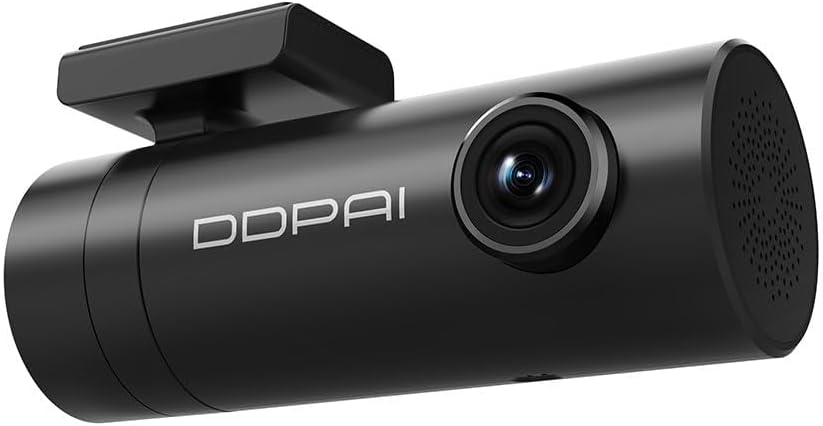
Image: A detailed close-up view of the DDPAI Mini Pro Dash Camera, highlighting its sleek black finish and lens.
4. Setup and Installation
Follow these steps to properly install your DDPAI Mini Pro Dash Camera in your vehicle.
4.1 Initial Setup
- Insert Memory Card: Ensure the dash camera is off. Insert a compatible microSD card (up to 256GB, not included) into the designated slot until it clicks.
- Connect Power: Plug the charging cable into the dash camera's power port and the car charger. Insert the car charger into your vehicle's cigarette lighter socket.
- Power On: Start your vehicle's engine. The dash camera will power on automatically and begin recording.
4.2 Mounting the Dash Camera
- Clean Windshield: Choose a suitable location on your windshield, preferably behind the rearview mirror, ensuring it does not obstruct your view. Clean the area thoroughly.
- Apply Electrostatic Sticker: Apply the electrostatic sticker to the cleaned area on the windshield. Smooth out any air bubbles.
- Attach Mount: Peel off the protective film from the 3M adhesive on the car mount. Firmly press the mount onto the electrostatic sticker.
- Attach Dash Camera: Slide the DDPAI Mini Pro Dash Camera onto the mounted bracket until it clicks securely into place.
- Adjust Angle: Adjust the lens angle to capture the desired view of the road. The 330-degree rotatable lens allows for flexible positioning.
- Route Cable: Use the provided cable clips and crowbar to neatly route the power cable along the edge of the windshield and dashboard, ensuring it does not interfere with driving or vehicle components.
4.3 Installation Videos
Video: Step-by-step guide on how to install a DDPAI dashcam in your car, covering power connection, memory card insertion, and mounting.
Video: Easy installation guide for DDPAI dashcams, demonstrating how to secure the device and manage cables for a clean setup.
5. Operating Instructions
5.1 Recording Features
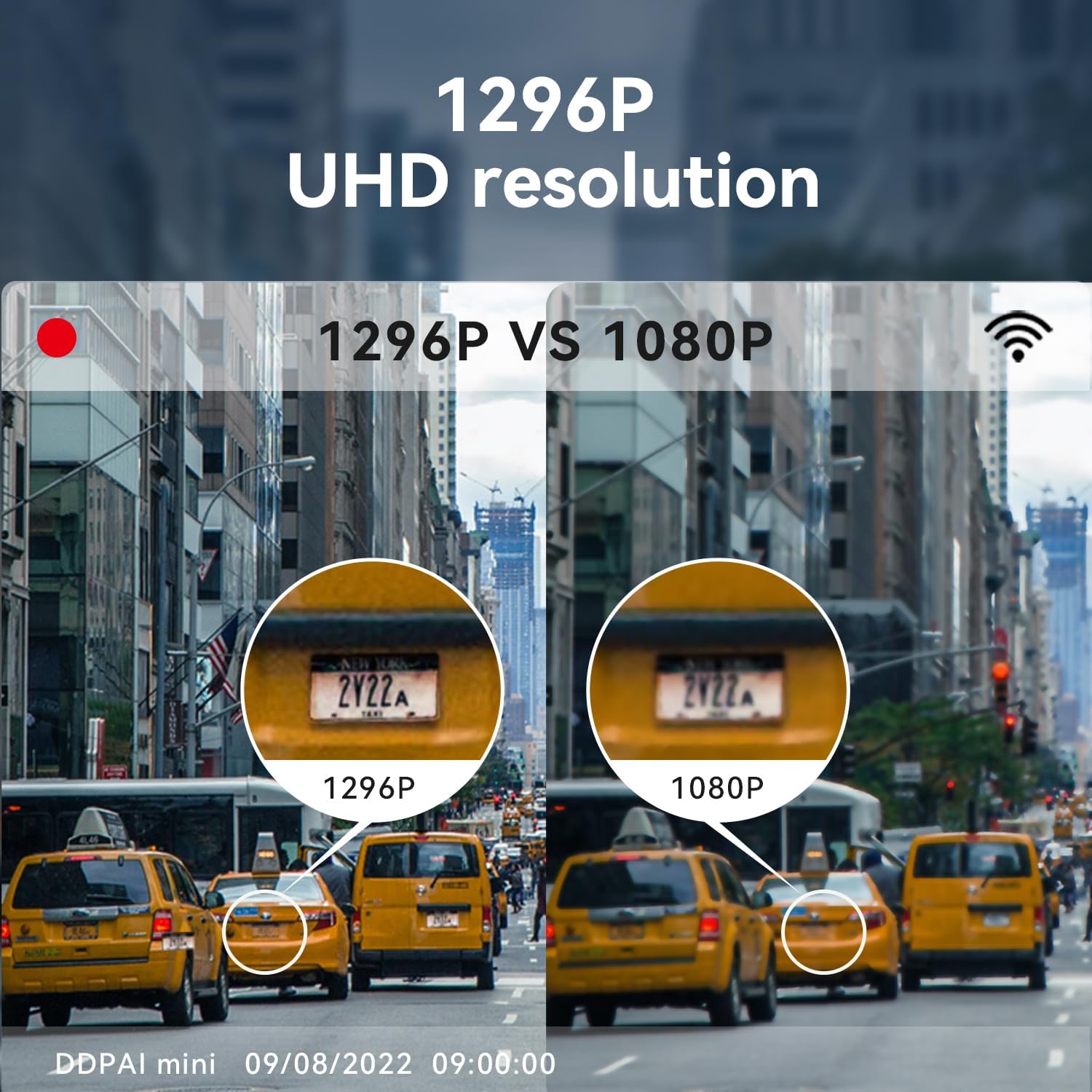
Image: Visual comparison demonstrating the superior clarity of 1296P UHD resolution versus 1080P, highlighting enhanced detail in recorded footage.
- 1296P UHD Resolution: The DDPAI Mini Pro records in 1296p resolution, providing clear and detailed video footage.
- Super Night Vision: Equipped with an F2.0 aperture and 5 sets of HD optical lenses, along with a 1/2.9" CMOS image sensor, the dash camera delivers enhanced night vision capabilities for clear recordings in low-light conditions.
- Loop Recording: Continuously records video footage in a loop, overwriting the oldest footage once the memory card or storage space becomes full. This ensures continuous recording without manual intervention.
- Emergency Lock (G-Sensor): Automatically saves and locks video footage in the event of an accident or other emergency situation detected by the built-in G-sensor, preventing it from being overwritten.

Image: Illustration of the Super Night Version technology, detailing the F2.0 aperture, HD optical lenses, and 1/2.9" CMOS image sensor for superior low-light performance.

Image: Explanations of Loop Recording, Emergency Lock, and 24/7 Parking Monitoring features, showing how they function to protect your vehicle.
5.2 Connectivity and App Usage
- Built-in WiFi: Connect your dash camera to the DDPAI app on your smartphone via built-in WiFi.
- DDPAI App: Use the DDPAI app to view live footage, playback recorded videos, download files to your phone, and adjust camera settings.

Image: A smartphone screen displaying the DDPAI app interface, showing options to preview, share, and download footage from the dash camera via WiFi.
5.3 Parking Monitoring
- 24/7 Parking Monitoring: The dash camera can remain active even when the vehicle is turned off, using motion detection or impact sensors to start recording if any movement or impact is detected. (Requires an extra hardwire kit for continuous power).
- Motion Detection & Parking Monitor: Automatically starts recording or locks video when motion or collision is detected, protecting your car while parked.

Image: Depiction of the Motion Detection and Parking Monitor feature, showing the dashcam recording a potential threat to a parked car.
6. Maintenance
- Cleaning: Regularly clean the camera lens with a soft, dry cloth to ensure clear video quality.
- Firmware Updates: Check the DDPAI app periodically for available firmware updates to ensure your dash camera has the latest features and improvements.
- Memory Card: Format your microSD card regularly (e.g., once a month) via the app to maintain optimal performance and prevent data corruption.
7. Troubleshooting
- Camera not powering on: Ensure the car charger is properly inserted into the cigarette lighter and the charging cable is securely connected to the dash camera. Check your vehicle's fuse box if necessary.
- Video footage is blurry: Clean the camera lens. Ensure the protective film has been removed from the lens. Check if the dash camera is securely mounted and not vibrating.
- WiFi connection issues: Ensure WiFi is enabled on your smartphone and the dash camera. Try restarting both devices. Make sure you are within close proximity to the dash camera.
- Memory card error: Try formatting the memory card via the DDPAI app. If the issue persists, try a different, high-quality microSD card.
- Parking monitoring not working: Ensure a hardwire kit is correctly installed and providing continuous power to the dash camera. Check parking monitoring settings in the app.
8. Specifications
| Feature | Detail |
|---|---|
| Model Name | Mini Pro |
| Video Capture Resolution | 1296p |
| Connectivity Technology | USB, WiFi |
| Special Feature | Built-in WiFi |
| Mounting Type | Windshield Mount / Dashboard Mount |
| Color | Black |
| Field of View | 330 Degrees |
| Compatible Devices | Car |
| Flash Memory Type | SD |
| Maximum Flash Memory Supported | 256 GB |
| Optical Sensor Size | 1/2.9 inches |
| Optical Sensor Technology | CMOS |
| Control Method | Application |
| Frame Rate | 30 FPS |
| Product Dimensions | 8.69 x 4.32 x 3.56 cm; 181.44 g |
9. Warranty and Support
For warranty information, technical support, or any inquiries regarding your DDPAI Mini Pro Dash Camera, please refer to the contact details provided in your product packaging or visit the official ddpai website.
You can also visit the ddpai store on Amazon for more information and support.


