
Addtam AD314
Addtam Surge Protector Power Strip User Manual
Model: AD314
Brand: Addtam
1. Introduction
Thank you for choosing the Addtam Surge Protector Power Strip. This device is designed to provide convenient power distribution and protection for your electronic devices in various settings, including home, office, and dorm rooms. It features multiple AC outlets and USB charging ports, along with essential safety features to safeguard your equipment from power surges.

Figure 1: Addtam Surge Protector Power Strip
2. Key Features
- Wide Space Outlets: Features 4 AC outlets with 2.4 inches of space between them, accommodating larger adapters without blocking adjacent outlets.
- USB-C and USB-A Ports: Includes 2 USB-C ports (up to 5V/3A) and 2 USB-A ports (up to 5V/2.4A Max) for versatile device charging.
- Right Angle Ultra Flat Plug: The 0.35-inch thin, 45-degree right-angle plug allows furniture to sit closer to the wall, saving space.
- Overload Surge Protection: Protects electrical appliances from lighting, surges, or spikes with a minimum energy-absorbing capacity of 900 Joules. Features a lighted on/off switch with an integrated circuit breaker.
- Wall Mount Capability: Unique screw fixation design on both ends allows for secure installation on walls or under desks (4 screws included).
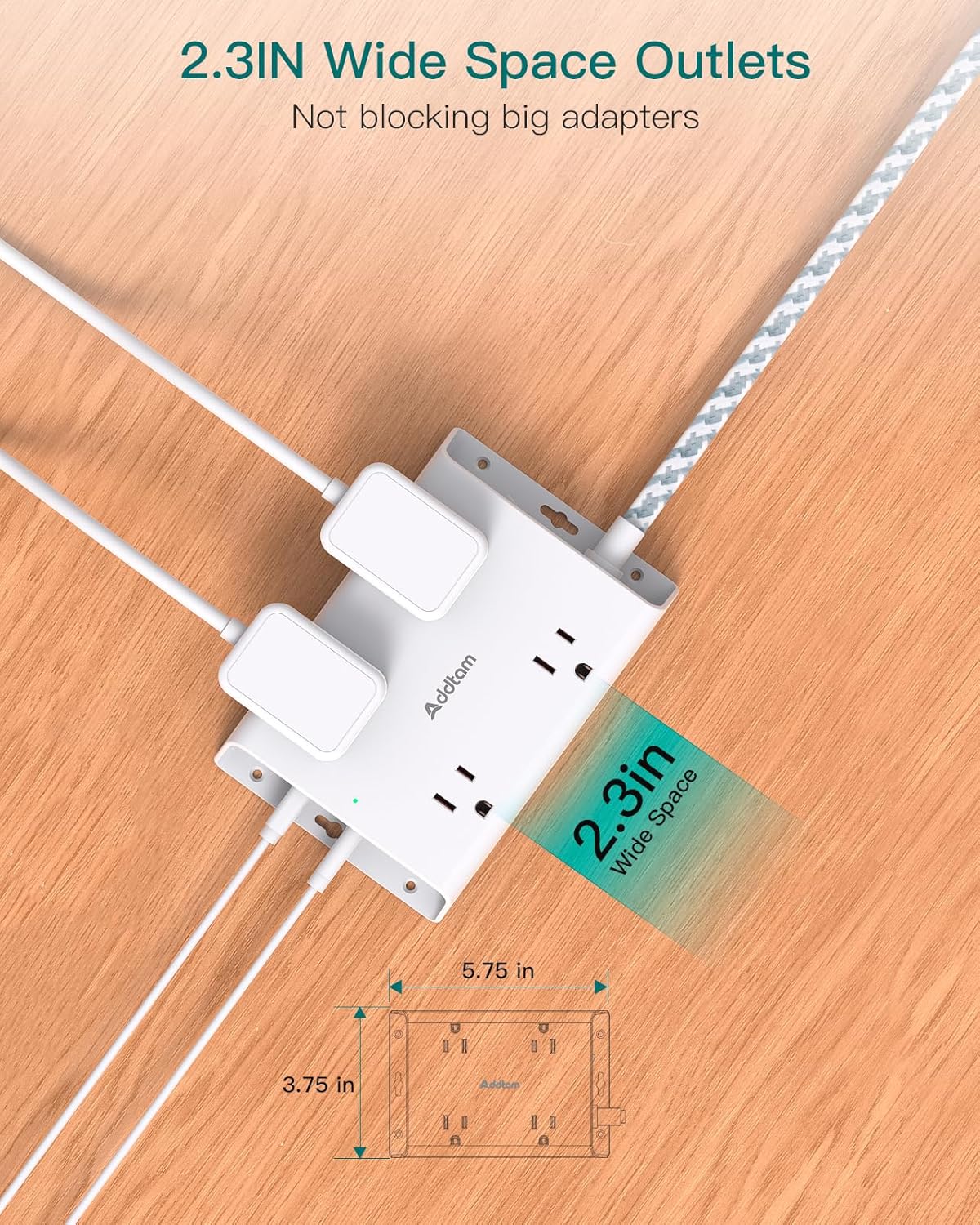
Figure 2: Wide-spaced outlets for larger plugs

Figure 3: Overview of 8-in-1 functionality

Figure 4: USB-A and USB-C charging ports in use
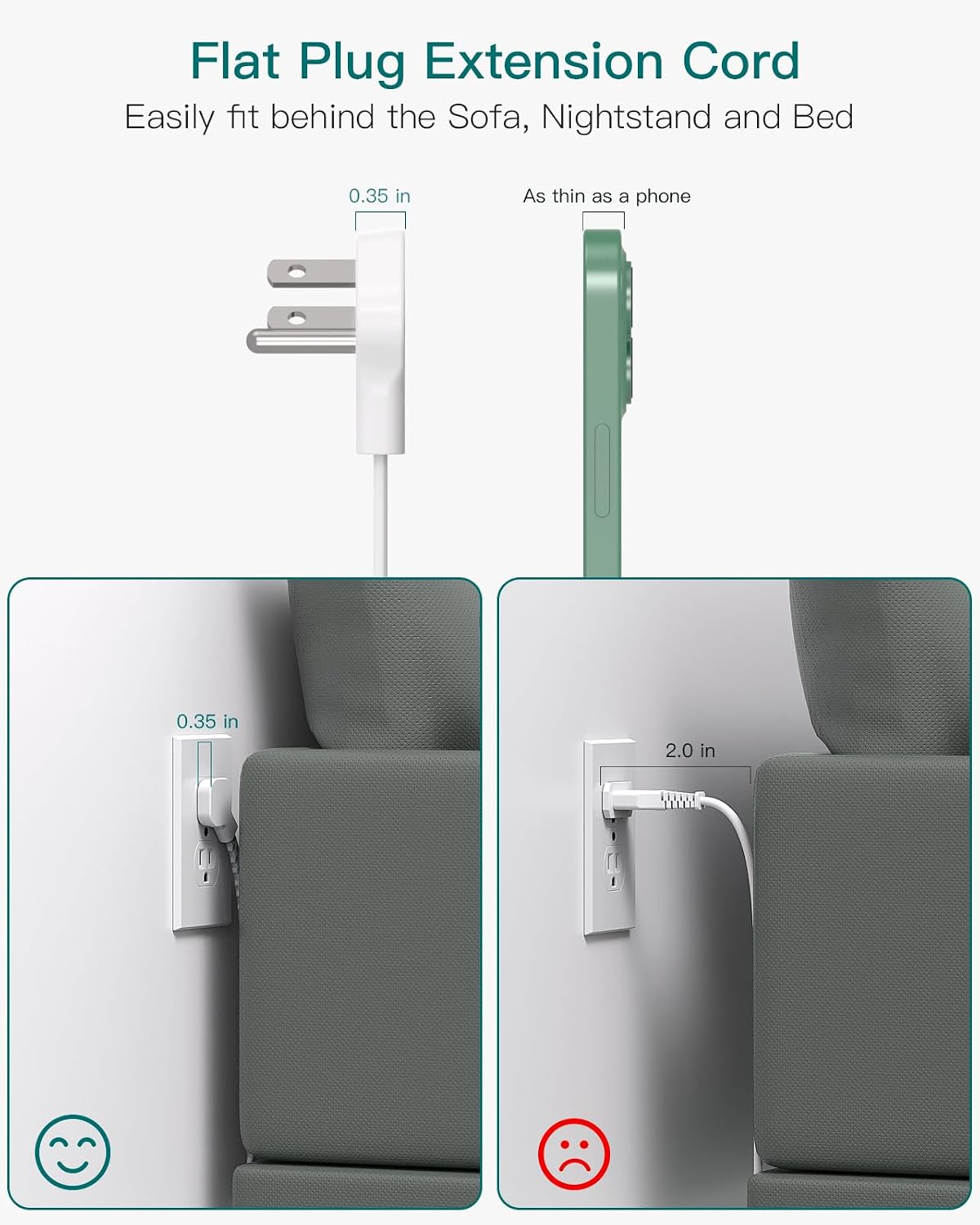
Figure 5: Space-saving flat plug design

Figure 6: Surge protection switch and rating

Figure 7: Mounting options for the power strip
3. Setup
- Unpack: Carefully remove the power strip and all accessories from the packaging.
- Placement: Choose a suitable location for the power strip. Ensure it is placed on a stable surface or mounted securely. The flat plug design is ideal for tight spaces behind furniture.
- Plug In: Insert the power strip's flat plug into a standard 125V AC wall outlet.
- Mounting (Optional): If wall-mounting or under-desk mounting is desired, use the included screws to secure the power strip through the designated holes on both ends. Ensure the mounting surface is appropriate and can support the device and connected cables.
4. Operating Instructions
- Power On/Off: Locate the lighted on/off switch on the power strip. Press the switch to the 'ON' position to supply power to the outlets and USB ports. The light will illuminate when power is active.
- Connecting AC Devices: Plug your electronic devices into any of the 4 AC outlets. The wide spacing allows for larger power adapters.
- Connecting USB Devices: Connect your USB-A or USB-C compatible devices (e.g., smartphones, tablets, smartwatches) to the corresponding USB ports for charging.
- Overload Protection: In case of an overload, the integrated circuit breaker will trip, cutting power to protect connected devices. If this occurs, unplug some devices, then press the reset button on the power strip (usually integrated with the on/off switch) to restore power.
5. Maintenance
- Cleaning: Disconnect the power strip from the wall outlet before cleaning. Use a dry, soft cloth to wipe the surface. Do not use liquid cleaners or abrasive materials.
- Inspection: Periodically inspect the power strip and its cord for any signs of damage, such as frayed wires, cracked casing, or loose connections. If damage is found, discontinue use immediately and replace the unit.
- Storage: When not in use for extended periods, store the power strip in a cool, dry place away from direct sunlight and moisture.
6. Troubleshooting
- No Power to Devices:
- Ensure the power strip is securely plugged into a working wall outlet.
- Check if the on/off switch is in the 'ON' position and illuminated.
- If the circuit breaker has tripped (power light off, switch might be recessed), unplug some devices and press the reset button.
- Test the wall outlet with another device to confirm it is functioning.
- Devices Not Charging via USB:
- Ensure the power strip is powered on.
- Verify that the USB cable is properly connected to both the power strip and your device.
- Try a different USB cable or port to rule out a faulty cable or port.
- Ensure your device is compatible with the USB-A or USB-C charging standards.
- Overheating:
- If the power strip feels excessively hot, immediately unplug it and all connected devices.
- Reduce the number of connected devices or ensure the total wattage does not exceed the power strip's maximum capacity (1875W).
- Ensure adequate ventilation around the power strip.
7. Specifications
| Feature | Value |
|---|---|
| Brand | Addtam |
| Model Number | AD314 |
| Color | White |
| Total Power Outlets | 4 AC Outlets |
| USB Ports | 2 USB-A, 2 USB-C |
| USB-C Output | Up to 5V/3A |
| USB-A Output | Up to 5V/2.4A Max |
| Voltage | 125V |
| Max Power Rating | 1875W / 15A |
| Surge Protection | 900 Joules |
| Item Weight | 12 ounces |
| Package Dimensions | 7.13 x 4.45 x 2.72 inches |
| Country of Origin | China |
| Special Features | On And Off Switch, Surge Protection, Mountable, 2 USB-C Slots, Dorm Room Essentials |
8. Warranty and Support
Addtam products are designed for reliability and performance. For information regarding warranty coverage, technical support, or customer service, please refer to the contact information provided with your product packaging or visit the official Addtam website. Please retain your purchase receipt for warranty claims.
Ask a question about this manual
Ask about setup, troubleshooting, compatibility, parts, safety, or missing instructions. Manuals+ will review the question and use this page’s manual context to help answer it.