
1. Introduction and Overview
The TP-Link Deco BE85 is a Tri-Band WiFi 7 Whole Home Mesh System designed to provide extensive and high-speed wireless coverage. This system utilizes the latest WiFi 7 technology, offering advanced features for enhanced network performance and efficiency across your home.
Key features include:
- Ultimate BE22000 Tri-Band Wi-Fi 7 Speeds: Supports Multi-Link Operation, Multi-RUs, 4K-QAM, and 320 MHz channels for speeds up to 11520 Mbps (6GHz), 8640 Mbps (5GHz), and 1376 Mbps (2.4GHz).
- Pro-Grade Dual 10G WAN/LAN Ports: Features one RJ45 port and one SFPplus Fiber/RJ45 Ethernet combo port, along with two 2.5G ports and a USB 3.0 port for flexible connectivity.
- Simultaneous Wireless plus Wired Backhaul: Connects to both wireless and wired backhaul simultaneously for improved speeds and coverage.
- AI-Driven Seamless Roaming: Creates a unified network with a single name, ensuring smooth transitions between Deco units.
- TP-Link HomeShield: Provides network security, parental controls, and quality of service features.
- VPN Clients and Server Supported: Allows devices to access remote VPN servers without individual software installations.
- Extensive Compatibility: Works with all WiFi generations and most internet service providers.

Image: Three Deco BE85 units, illustrating the compact design and connectivity options.
Video: A brief overview of the TP-Link Deco BE85 Whole Home Mesh WiFi 7 System, highlighting its design and core functionalities.
2. Setup Guide
Setting up your TP-Link Deco BE85 mesh system is a straightforward process primarily managed through the Deco mobile application.
2.1 What's in the Box
- 3 x Deco BE85 units
- 1 RJ45 Ethernet cable
- 3 Power adapters
- Quick Installation Guide
2.2 Initial Setup Steps
- Connect: Power off your modem. Connect one Deco unit to your modem using the provided Ethernet cable. Power on both the modem and the Deco unit.
- Download: Download the TP-Link Deco app from the App Store (iOS) or Google Play Store (Android).
- Configure: Open the Deco app and follow the on-screen instructions to set up your main Deco unit. The app will guide you through creating your WiFi network name and password.
- Add Additional Units: Once the main unit is configured, the app will prompt you to add the other Deco units. Place them strategically around your home for optimal coverage. The units are designed for plug-and-play integration after the initial setup.

Image: The Deco app interface guiding users through the three simple setup steps.
Video: A demonstration of the TP-Link Deco BE85 setup process using the mobile application.
2.3 Port Configuration
Each Deco BE85 unit is equipped with multiple high-speed ports:
- 2 x 10 Gbps WAN/LAN Ports (one RJ45, one SFPplus Fiber/RJ45 combo)
- 2 x 2.5 Gbps WAN/LAN Ports
- 1 x USB 3.0 Port
These ports allow for flexible connectivity, supporting both fiber and copper connections, and enabling high-speed wired backhaul or direct device connections.

Image: Detailed view of the rear panel of a Deco BE85 unit, highlighting the various high-speed ports.
Video: An animated view of the TP-Link Deco BE85's port configuration, detailing the 10G, 2.5G, and USB 3.0 ports.
3. Operating Instructions
The Deco BE85 system is designed for seamless operation, providing a unified and high-performance WiFi network throughout your home.
3.1 Seamless Roaming
The Deco Mesh system creates a single, unified network name (SSID). With built-in AI-Roaming technology, your devices will automatically connect to the Deco unit providing the strongest signal as you move around your home, ensuring uninterrupted streaming and connectivity.
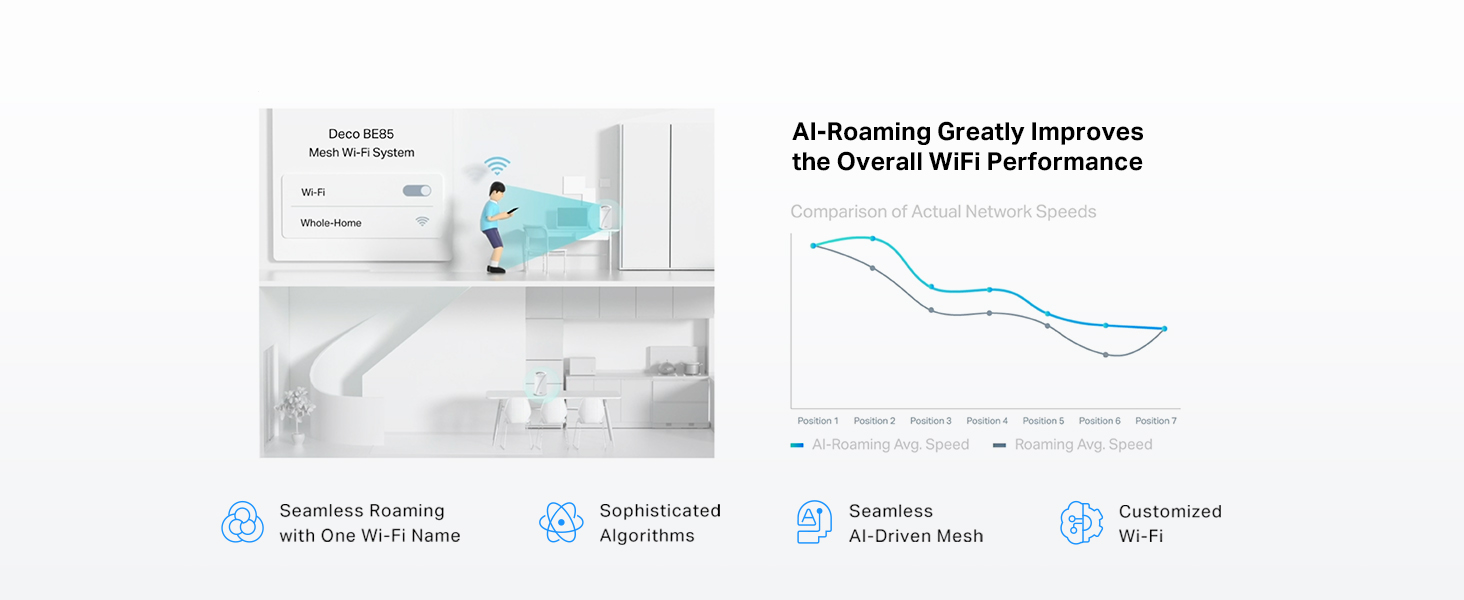
Image: A visual representation of AI-Roaming, demonstrating how devices maintain connection across the mesh network.
3.2 Backhaul Configuration
The Deco BE85 supports simultaneous wireless and wired backhaul. This means units can communicate with each other over both WiFi (6GHz, 5GHz, 2.4GHz bands) and Ethernet cables, optimizing data transfer and overall network speed. Utilizing wired backhaul, especially with the 10 Gbps ports, can significantly enhance performance and stability.

Image: Diagram illustrating the combined wireless and wired backhaul capabilities of the Deco BE85 system.

Image: WiFi speed heatmaps demonstrating coverage and performance differences between wired and wireless backhaul configurations.
3.3 VPN Support
The Deco BE85 supports both VPN client and server functionalities. This allows devices within your home network to access remote VPN servers without requiring individual VPN software installations. It also enables the Deco system to run both VPN and ordinary internet connections simultaneously, providing flexibility and security.
3.4 Voice Control
You can control your Deco BE85 system using voice commands through Amazon Alexa or Google Assistant-enabled devices. Refer to the Deco app for specific voice commands and integration instructions.
4. Maintenance
Regular maintenance helps ensure optimal performance and security for your Deco BE85 system.
4.1 TP-Link HomeShield
TP-Link HomeShield is a security service integrated into the Deco BE85. It offers comprehensive protection for your home network and connected IoT devices. Key features include:
- Network Protection: Security scans and IoT device identification.
- Parental Controls: Basic controls to manage internet access for family members.
- Quality of Service (QoS): Prioritize network traffic for specific devices or applications.
- Weekly/Monthly Reports: Basic reports on network activity.
Premium HomeShield features, such as Web Protection, Intrusion Prevention, and Antivirus Protection, may require a subscription. Visit the TP-Link website for detailed information on HomeShield services.

Image: An overview of the HomeShield smart security features for your network.
4.2 Firmware Updates
Ensure your Deco BE85 units are running the latest firmware. Firmware updates often include performance improvements, security patches, and new features. You can check for and apply updates directly through the Deco app.
5. Troubleshooting
If you encounter issues with your Deco BE85 system, consider the following troubleshooting steps:
- Check Connections: Verify that all Ethernet cables are securely connected and power adapters are properly plugged in.
- Restart Devices: Power cycle your modem, all Deco units, and any affected client devices.
- Deco App Diagnostics: Use the diagnostic tools available within the Deco app to identify potential network issues.
- Relocate Units: If you experience weak signals in certain areas, try repositioning your Deco units to improve coverage. Ensure they are not obstructed by large objects or electronic devices.
- Firmware Update: Confirm that all Deco units have the latest firmware installed.
- Factory Reset: As a last resort, you can perform a factory reset on your Deco units. Refer to the Quick Installation Guide or the Deco app for instructions on how to perform a reset. Note that this will erase all custom settings.
5.1 Expert Support
TP-Link offers free expert help for setup, optimization, and security of your product. Do not hesitate to contact support if you are unable to resolve an issue.

Image: TP-Link offers free expert support for product setup, optimization, and security.
Video: Information on how to access free expert help for your TP-Link Deco BE85 system.
6. Specifications
| Feature | Detail |
|---|---|
| Model Name | Deco BE85 (3-pack) |
| Brand | TP-Link |
| Product Dimensions | 5.04 x 5.04 x 9.29 inches |
| Item Weight | 9.66 pounds |
| Frequency Band Class | Tri-Band (2.4GHz, 5GHz, 6GHz) |
| Wireless Communication Standard | 802.11be (WiFi 7), 802.11ax (WiFi 6), 802.11ac (WiFi 5), 802.11n (WiFi 4), 802.11g |
| Connectivity Technology | Ethernet, USB, Wi-Fi |
| Ports | 2x 10G WAN/LAN (RJ45/SFP+ Combo), 2x 2.5G WAN/LAN, 1x USB 3.0 |
| Antennas | 8x High-Gain Antennas |
| Special Features | Access Point Mode, QoS, AI-Roaming, HomeShield, VPN Client/Server |
| Compatible Devices | Smartphone, Tablet, and other Wi-Fi enabled devices |
| Color | White |
Video: A detailed look at the internal components and design of the TP-Link Deco BE85 unit.
7. Warranty and Support
7.1 Warranty Information
TP-Link products typically come with a limited warranty. For specific warranty terms and conditions applicable to your Deco BE85 system, please refer to the warranty card included in your product packaging or visit the official TP-Link website.
7.2 Technical Support
For technical assistance, product inquiries, or troubleshooting help, please contact TP-Link support:
- Phone Support: (866) 225-8139
- Product Website: myproducts.tp-link.com/us
- Email Support: support.USA@tp-link.com
Additional resources, including FAQs and updated manuals, can be found on the TP-Link support website.

Image: TP-Link support contact details for assistance.


