1. Introduction
This manual provides essential instructions for the setup, operation, and maintenance of your Waveshare 7.3-inch ACeP 7-Color E-Paper Photo Frame. This device utilizes Advanced Color ePaper (ACeP) technology to display vibrant 7-color images with ultra-low power consumption. Its design features a solid wood frame, rotatable stand, and hook hanger for versatile placement. The onboard RTC chip enables timed refreshes, and its open-source nature allows for function customization.

Figure 1: Waveshare 7.3-inch ACeP 7-Color E-Paper Photo Frame displaying a festive image.
2. Package Contents
Verify that all items listed below are included in your package:

Figure 2: Illustration of the Waveshare E-Paper Photo Frame package contents.
- PhotoPainter (7.3-inch E-Paper Frame) x1
- USB Type-A to Type-C cable (~1m) x1
- 16GB TF card x1
- Hook hanger (total 2PCS, 1PCS assembled) x1
- Triangle opening tool x1
Note: Batteries are not included and must be purchased separately. Refer to the "Setup" section for battery requirements.
3. Product Features
- Advanced Color ePaper (ACeP) Technology: Supports 7-Color display for rich visual experiences.
- Ultra-Low Power Consumption: Power is primarily required only for refreshing the display, enabling ultra-long standby times.
- Onboard RTC Chip: Facilitates timing refresh for automatic image changes.
- Elegant Design: Features a simple solid wood photo frame for aesthetic appeal.
- Versatile Placement: Includes a rotatable stand and hook hanger on the back, allowing for tabletop or wall-mounted use in various orientations.
- Open Source Code: Provides flexibility for users to customize functions and integrate with other systems.

Figure 3: Key features of the E-Paper Photo Frame.
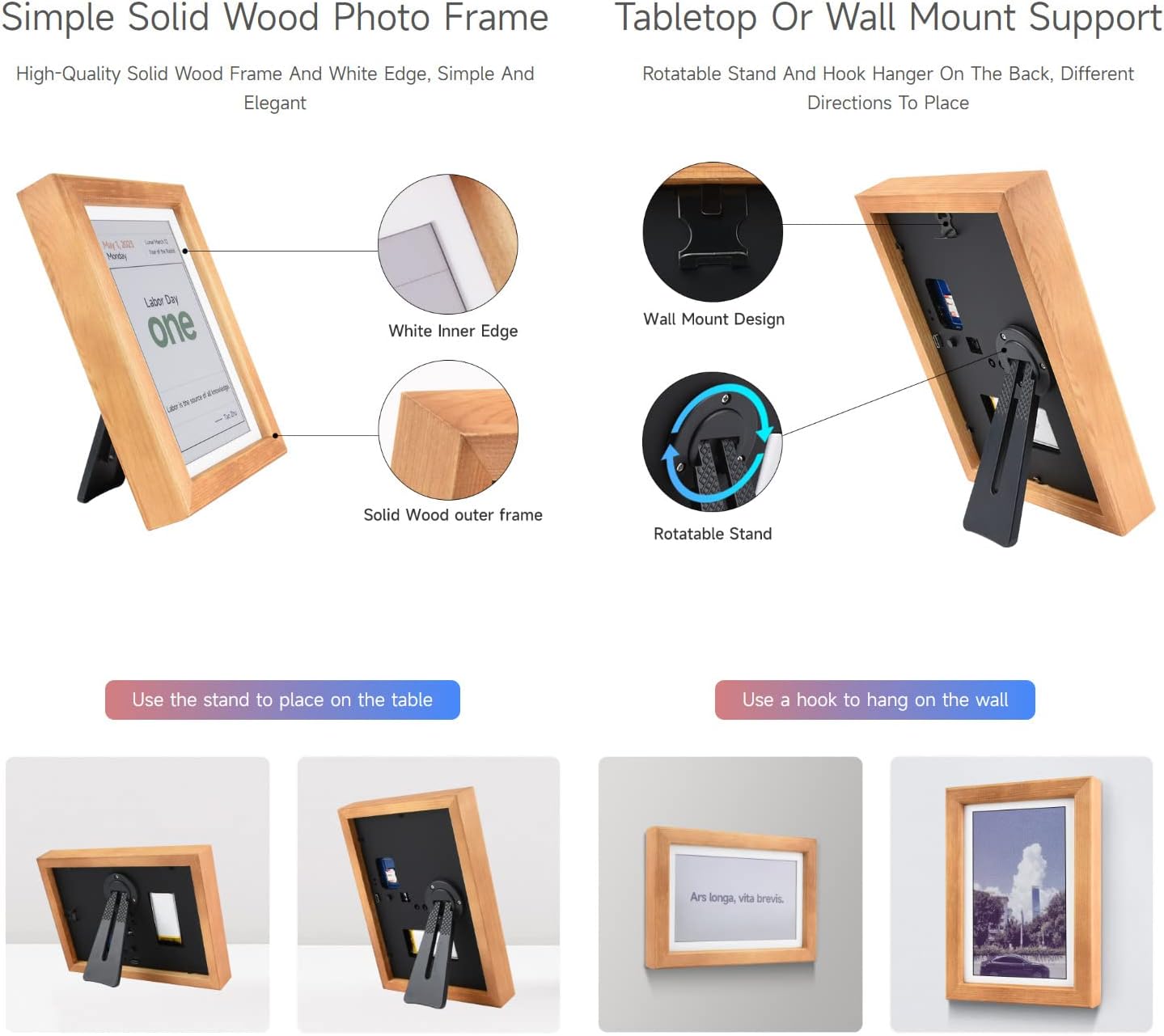
Figure 4: Flexible placement options with stand and wall mount.

Figure 5: Ultra-long standby time due to low power consumption.
4. Setup
4.1 Battery Installation
The device requires two types of batteries (not included):
- Main Battery: A 3.7V battery with a JST 1.25 plug is required to power the display and allow image changes.
- RTC Coin Battery: A CR1220 coin battery is needed for the Real-Time Clock (RTC) chip to enable automatic image changes and maintain time.
Carefully open the battery compartment using the provided triangle opening tool and insert the batteries according to polarity markings.
4.2 App Download and Installation
To control the photo frame and upload images, you need to install the companion application on your smartphone.
- For Android Users: Scan the QR code provided in the physical user manual or on the product packaging using your phone's camera or a QR code scanner app. This will direct you to a download link for the Bigme Photo Frame APK. Follow the on-screen instructions to install the application.
- For iPhone Users: Open the App Store and search for "Bigme Photo Frame". Download and install the official application.
After installation, register an account within the app. Note that one photo frame can be bound to one account, but one account can manage multiple frames.
4.3 Device Pairing (Wi-Fi Connection)
Follow these steps to connect your photo frame to your smartphone via Wi-Fi:
- Ensure your phone's location services are enabled.
- On the photo frame, press and hold the power button for approximately 3 seconds to enter pairing mode. The indicator light will alternate between red and green.
- Open the companion app on your phone. Navigate to the device binding or network configuration section.
- Select your 2.4 GHz Wi-Fi network and enter the password. The app will automatically search for and connect to the nearby photo frame.
- Once successfully paired, the green indicator light on the frame will remain solid. The bound device will appear in your app's device list.
Important: If no operation is performed for 2 minutes during pairing, the frame will automatically shut down. To restart, press and hold the power button for 8 seconds.
4.4 Image Preparation
For optimal display quality on the e-paper screen, images should be prepared according to specific requirements:
- Resolution: Resize and crop images to 800x480 pixels or 480x800 pixels, depending on the desired orientation.
- Format: Convert images to BMP format. The manufacturer may provide a specific color palette file or conversion tool on their website.
- Color Adjustment: For subtle or muted original images, consider adjusting colors to be more vivid before converting to the indexed color mode required by the e-paper display.
Copy the prepared BMP images to the included TF card. Insert the TF card into the slot on the back of the frame.
5. Operating Instructions
5.1 Uploading and Displaying Images via App
- Open the companion app and select the bound photo frame.
- Tap the "Local" or "Image" icon to select a picture from your phone's gallery.
- Adjust the image (crop, rotate, zoom) as needed within the app to fit the frame's aspect ratio.
- Confirm the selection and initiate the upload. The app will show a progress bar.
- The photo frame will refresh and display the new image once the transmission is complete.
Video 1: Demonstrates the image refresh process on the Waveshare E-Paper Photo Frame.
5.2 Manual Image Switching
To manually cycle through images stored on the TF card, press the "NEXT" button on the back of the frame (refer to Figure 6 for button location).
5.3 Automatic Image Cycling (RTC Chip)
The onboard RTC chip allows for automatic image changes at set intervals. Configuration for this feature is typically done through the companion app or by editing specific text files on the SD card, as described in the manufacturer's detailed documentation.
5.4 Displaying Text and QR Codes
The companion app may offer functionality to display custom text or QR codes on the e-paper screen.
Video 2: Demonstration of app usage for image and text/QR code transfer to an e-ink display (general functionality, not specific to this model).
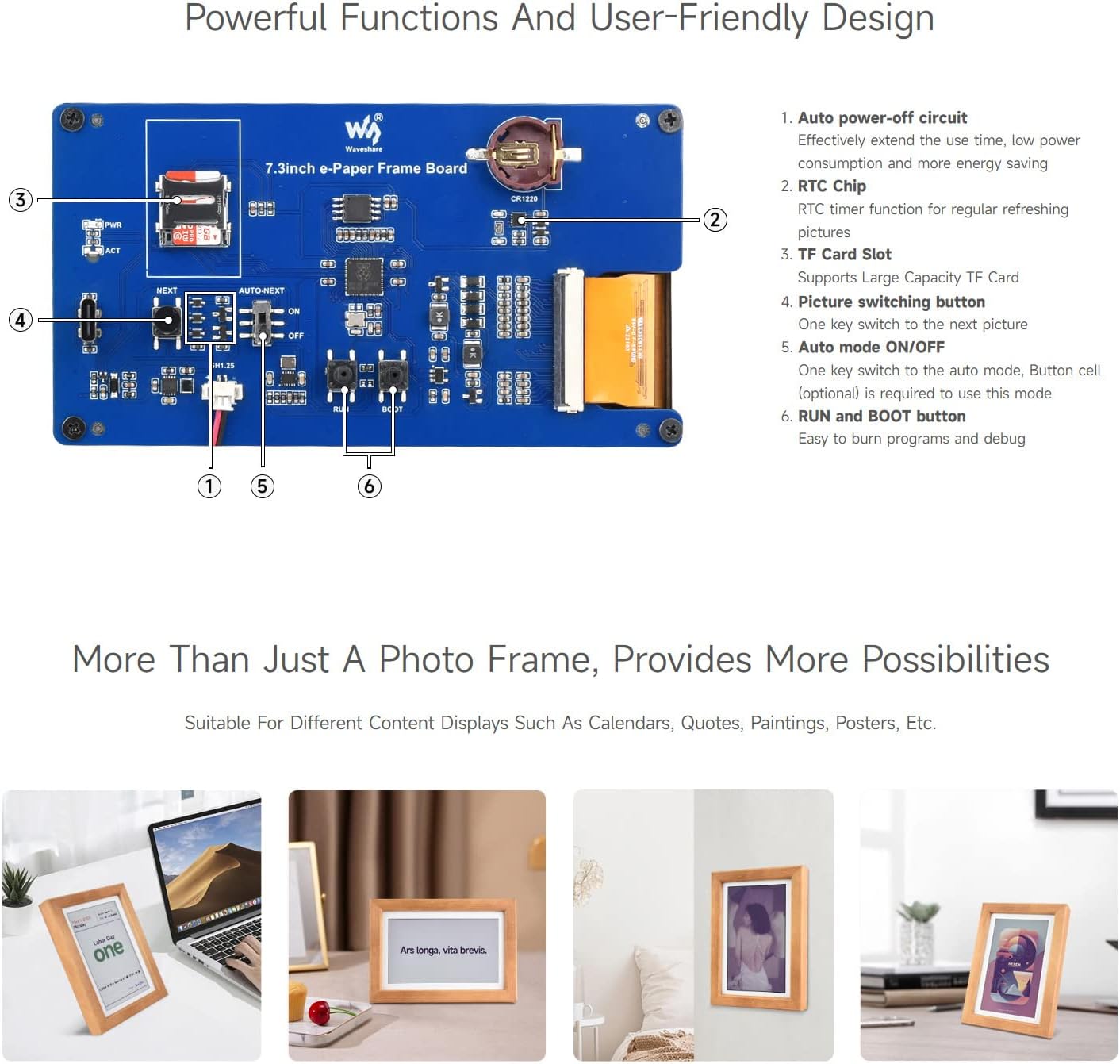
Figure 6: Internal components and control buttons on the E-Paper Frame.
6. Maintenance
6.1 Cleaning
To clean the e-paper display, use a soft, dry, lint-free cloth. Avoid using abrasive cleaners, solvents, or excessive moisture, as these can damage the screen or frame.
6.2 Battery Replacement
When the main battery or RTC coin battery needs replacement, carefully follow the instructions in Section 4.1. Ensure the device is powered off before replacing batteries.
6.3 Firmware Updates
Periodically check the manufacturer's official website for any available firmware updates. Updates can improve performance, add new features, or resolve issues. Follow the specific instructions provided by Waveshare for firmware update procedures.
7. Troubleshooting
- Device not turning on or displaying:
- Ensure both the main 3.7V battery and the CR1220 coin battery are correctly installed and charged.
- Verify the power button is pressed correctly.
- Images not updating or displaying incorrectly:
- Check if the device is properly paired with the app and connected to Wi-Fi.
- Confirm that images are in the correct 800x480/480x800 BMP format and have been processed with the appropriate color palette/tool.
- Ensure the TF card is correctly inserted and not corrupted.
- If using the app, verify the app is up-to-date and the image upload process completed successfully.
- Perform a device restart by holding the power button for 8 seconds.
- Difficulty with app pairing or Wi-Fi connection:
- Ensure your phone's Bluetooth and location services are active.
- Confirm you are connecting to a 2.4 GHz Wi-Fi network (5 GHz networks are typically not supported).
- Try restarting both your phone and the photo frame.
- If the pairing mode times out, restart the frame and try again.
- Slow image refresh:
- E-paper displays inherently have a slower refresh rate compared to LCD screens. This is normal behavior for the technology.
8. Specifications
| Feature | Specification |
|---|---|
| Brand | Waveshare |
| Model | 7.3inch ACeP 7-Color E-Paper Photo Frame |
| Screen Size | 7.3 Inches |
| Resolution | 800 x 480 |
| Display Technology | Advanced Color ePaper (ACeP) 7-Color |
| Power Consumption | Ultra-low (power only required for refreshing) |
| Battery Type (Main) | 3.7V with JST 1.25 plug (not included) |
| Battery Type (RTC) | CR1220 coin battery (not included) |
| Storage | TF Card (16GB included) |
| Connectivity | Wi-Fi (2.4 GHz only) |
| Frame Material | Solid Wood |
| Dimensions (Frame) | 240.0 ± 1.50 mm (Height) x 154.0 ± 1.50 mm (Width) x 32.0 mm (Depth) |
| Item Weight | 1.3 pounds |
Figure 7: Outline dimensions of the E-Paper Frame.

9. Warranty and Support
For warranty information, technical support, and additional resources, please refer to the official Waveshare website or contact their customer service directly. The product includes an electronics user manual, which should be consulted for further details.
This product is manufactured by Waveshare.


