
TP-Link Archer AX12
TP-Link Archer AX12 WiFi6 Router AX1500 User Manual
Model: Archer AX12
Product Overview
The TP-Link Archer AX12 is a Wi-Fi 6 router designed to provide faster speeds, reduced lag, and higher capacity for your home network. It supports simultaneous connections for multiple devices and offers enhanced coverage through its four high-performance external antennas and Beamforming technology. This router also incorporates the latest WPA3 security protocol for improved cybersecurity.

Front view of the TP-Link Archer AX12 WiFi6 Router, showcasing its four antennas and indicator lights.
What's in the Box
- Archer AX12 x1
- Power Adapter
- RJ45 Ethernet Cable
- Installation Guide

The retail packaging of the TP-Link Archer AX12, highlighting key features and contents.
Setup Guide
- Positioning the Router: Place the Archer AX12 in a central location in your home, away from obstructions and devices that may cause interference (e.g., cordless phones, microwave ovens). Ensure good ventilation around the device.
- Connect the Hardware:
- Connect your modem's Ethernet cable to the WAN port (blue) on the Archer AX12.
- Connect your computer to one of the LAN ports (yellow) on the Archer AX12 using an Ethernet cable, or connect wirelessly using the default Wi-Fi SSID and password found on the router's label.
- Connect the power adapter to the router and plug it into a power outlet. Ensure the power button is pressed if available.
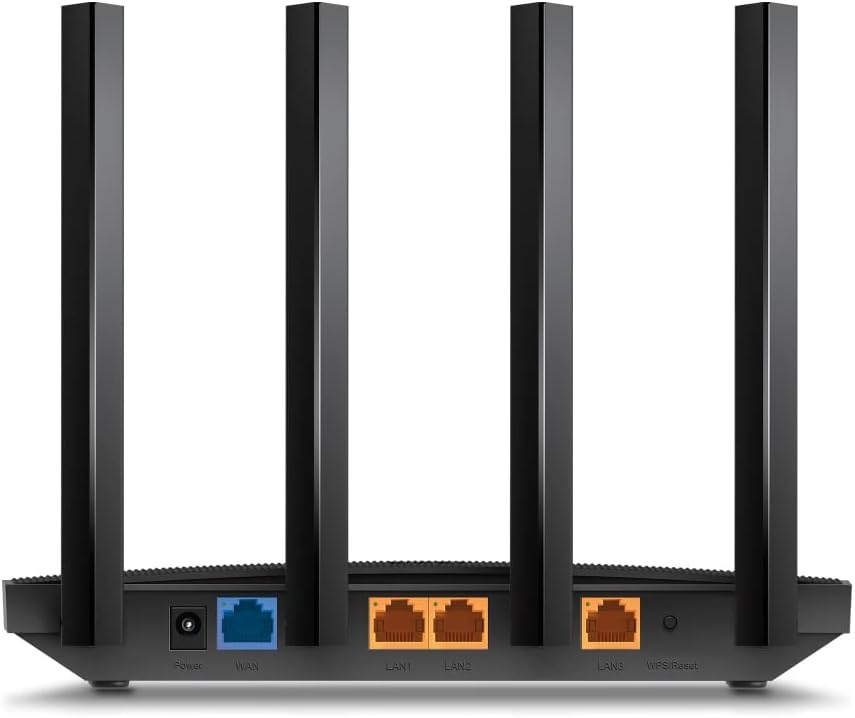
Rear view of the Archer AX12, showing the power input, WAN port (blue), and LAN ports (yellow).
- Configure the Router:
- Open a web browser on your connected computer or device and type http://tplinkwifi.net or http://192.168.0.1 into the address bar.
- Follow the on-screen instructions of the Quick Setup Wizard to set up your internet connection and Wi-Fi network. You will be prompted to create a new login password for the router.
- Alternatively, download the TP-Link Tether app on your smartphone for an easier setup process.
Operating the Router
The Archer AX12 leverages advanced Wi-Fi 6 technology to optimize your network performance.
- Next-Gen 1.5 Gbps Speeds: The dual-band router provides speeds up to 1.5 Gbps, with 1201 Mbps on the 5 GHz band and 300 Mbps on the 2.4 GHz band, ensuring smooth streaming and gaming.
- Connect More Devices: Utilizing OFDMA and MU-MIMO technology, the router efficiently communicates with multiple devices simultaneously, reducing lag and improving overall network capacity.
- More Reliable Coverage: Four high-performance external antennas combined with Beamforming technology concentrate Wi-Fi signals towards your devices, extending coverage and strengthening connections, especially in hard-to-reach areas.

Diagram illustrating enhanced Wi-Fi coverage throughout a home with the Archer AX12.
- Increased Battery Life: Target Wake Time (TWT) technology allows devices to negotiate when and how often they will wake up to send or receive data, increasing device sleep time and extending battery life for compatible devices.
- Enhanced Security: The latest Wi-Fi security protocol, WPA3, provides more secure encryption for Wi-Fi passwords and enhanced protection against brute-force attacks, safeguarding your home network.
Maintenance
Proper maintenance ensures optimal performance and longevity of your router.
- Keep the router in a well-ventilated area to prevent overheating.
- Regularly check for firmware updates through the router's web interface or the TP-Link Tether app to ensure you have the latest features and security patches.
- Clean the router's exterior with a soft, dry cloth. Avoid using liquid cleaners or aerosols.
- Periodically restart the router (unplug from power for 10 seconds, then plug back in) to refresh its connection and clear any temporary issues.
Troubleshooting
If you encounter issues with your Archer AX12 router, try the following steps:
- No Internet Connection:
- Check if your modem is working correctly.
- Ensure all cables are securely connected to the correct ports (WAN, LAN, Power).
- Restart both your modem and router.
- Verify your internet settings in the router's web interface.
- Weak Wi-Fi Signal or Dead Zones:
- Relocate the router to a more central position.
- Adjust the antennas for optimal signal direction.
- Minimize interference from other electronic devices.
- Cannot Access Router Management Page:
- Ensure your device is connected to the router's network (wired or wireless).
- Verify you are using the correct address (http://tplinkwifi.net or http://192.168.0.1).
- Clear your browser's cache or try a different browser.
- If you forgot your login password, you may need to perform a factory reset (see below).
- Factory Reset: If issues persist, you can reset the router to its factory default settings. With the router powered on, use a pin to press and hold the Reset button (usually located on the back panel) for about 5-10 seconds until the LED indicators flash. The router will then restart with default settings.
- Incorrect Power Adapter/Region: Some users have reported receiving units with power adapters incompatible with their region (e.g., European plug in the US). Ensure your power adapter is suitable for your local electrical standards. If not, contact your retailer or TP-Link support for a compatible replacement.
Specifications
| Brand | TP-Link |
| Model Name | Archer AX12 |
| Product Dimensions | 8.46 x 4.61 x 1.26 inches |
| Item Weight | 5.3 ounces |
| Connectivity Technology | Wi-Fi |
| Wireless Communication Standard | 802.11ax (Wi-Fi 6) |
| Frequency Band Class | Dual-Band (2.4 GHz & 5 GHz) |
| Max Speed | Up to 1.5 Gbps (1201 Mbps on 5 GHz, 300 Mbps on 2.4 GHz) |
| Ethernet Ports | 1x Gigabit WAN, 3x Gigabit LAN |
| Antennas | 4x External Antennas |
| Security Protocol | WPA3 |
| Compatible Devices | Gaming Console, Security Camera, Personal Computer, Tablet, Smartphone |
Warranty and Support
For warranty information and technical support, please refer to the official TP-Link website or the documentation included with your product. You can also contact TP-Link customer service directly for assistance with setup, troubleshooting, or product inquiries.
Visit the official TP-Link support page for the most up-to-date information and resources: TP-Link Support
Related documentsArcher AX12


Ask a question about this manual
Ask about setup, troubleshooting, compatibility, parts, safety, or missing instructions. Manuals+ will review the question and use this page’s manual context to help answer it.