
GEEZER B0C4PJ6VQC
GEEZER Wired USB Keyboard User Manual
Model: B0C4PJ6VQC
Introduction
This manual provides detailed instructions for the setup, operation, maintenance, and troubleshooting of your GEEZER Wired USB Keyboard. Designed for comfort and efficiency, this full-size keyboard features retro-style round keycaps and a wired USB connection for stable performance across various operating systems.
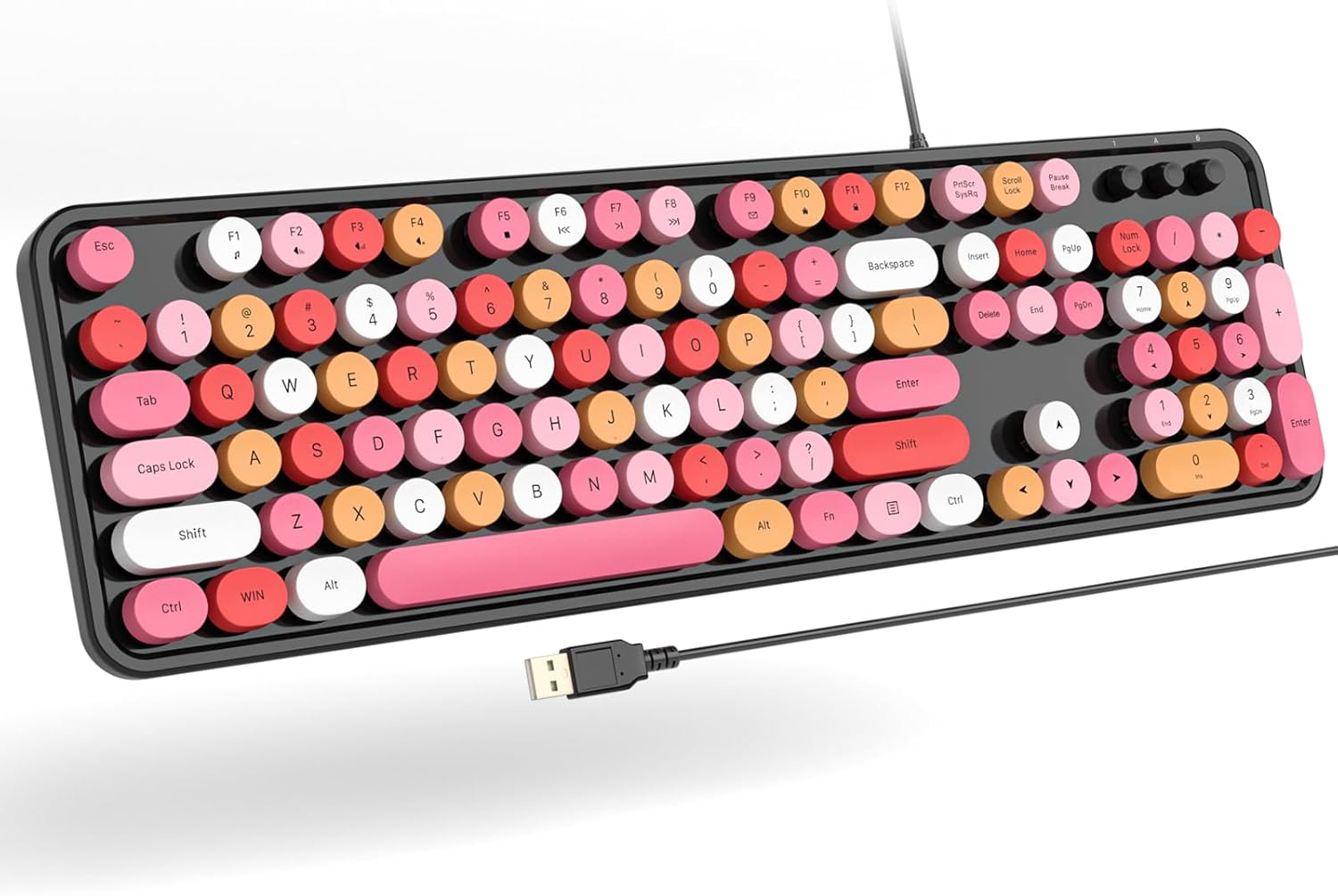
Image: Top-down view of the GEEZER Wired USB Keyboard, showcasing its black frame, colorful round keycaps (pink, orange, yellow, white), and the attached USB cable.
Package Contents
Please verify that all items are present in the package:
- GEEZER Wired USB Keyboard
- USB Cable (pre-attached)
- Keycap Puller
- User Guide (this document)
Setup Instructions
The GEEZER Wired USB Keyboard is designed for simple plug-and-play functionality, requiring no additional driver software installation.
- Unpack the Keyboard: Carefully remove the keyboard and its accessories from the packaging.
- Connect to Your Device: Locate an available USB-A port on your computer (PC, Laptop, Desktop, Mac, Chromebook, Smart TV). Insert the USB connector of the keyboard into the USB port.
- System Recognition: Your operating system (Windows XP/X/Win 7/8/10/2000/ME Vista, iOS OS, etc.) will automatically detect and configure the keyboard. This process typically takes a few seconds.
- Begin Typing: Once recognized, the keyboard is ready for immediate use. No batteries are required as it is powered directly via the USB connection.

Image: The GEEZER Wired USB Keyboard with its USB cable connected to a laptop, illustrating the simple plug-and-play setup.

Image: The GEEZER Wired USB Keyboard positioned on a desk next to a monitor and laptop, emphasizing its immediate readiness for use upon connection.
Operating Instructions
General Use
The GEEZER keyboard features a standard 104-key layout with full-size round keycaps, providing a comfortable and familiar typing experience. The floating button design contributes to a smooth touch and quiet operation.

Image: A person's hands are shown typing on the GEEZER Wired USB Keyboard, demonstrating its ergonomic design and ease of use during operation.
Function (FN) Key Combinations
The keyboard includes a Function (FN) key that, when pressed in combination with the F1-F11 keys, provides quick access to various media and system controls. Refer to the table below for specific functions:

Image: A visual guide highlighting the Function (FN) key combinations on the GEEZER Wired USB Keyboard, detailing shortcuts for media playback, volume control, and system functions.
| Key Combination | Function |
|---|---|
| FN + F1 | Media Player |
| FN + F2 | Volume Down |
| FN + F3 | Volume Up |
| FN + F4 | Mute |
| FN + F5 | Play to Suspend |
| FN + F6 | Previous Track |
| FN + F7 | Play / Pause |
| FN + F8 | Next Track |
| FN + F9 | |
| FN + F10 | Web Home |
| FN + F11 | Screen Lock |
| FN + W | W A S D and ↑↓←→ swapping |
| FN + Win | Lock WIN and APP key, unlock WIN and APP key |
Maintenance
Regular cleaning and proper care will extend the lifespan of your GEEZER keyboard.
- General Cleaning: Use a soft, dry cloth to wipe down the surface of the keyboard. For deeper cleaning, a slightly damp cloth can be used, ensuring no liquid enters the key switches.
- Keycap Cleaning: The keycaps are detachable for thorough cleaning. Use the included keycap puller to carefully remove individual keycaps. Clean the keycaps with a mild cleaning solution and a soft brush, then ensure they are completely dry before reattaching.
- Under Keycap Cleaning: Use the provided brush to remove dust, crumbs, and debris from underneath the keycaps and around the key switches.
- Storage: When not in use, store the keyboard in a clean, dry environment away from direct sunlight and extreme temperatures.

Image: The GEEZER Wired USB Keyboard with several keycaps removed, showing the included cleaning brush, which facilitates deep cleaning of the keyboard.
Troubleshooting
If you encounter issues with your GEEZER Wired USB Keyboard, please refer to the following common solutions:
| Problem | Possible Cause / Solution |
|---|---|
| Keyboard not responding |
|
| Keys are sticky or unresponsive |
|
| Lag between typing and display |
|
If the problem persists after attempting these solutions, please contact GEEZER customer support.
Specifications
| Feature | Detail |
|---|---|
| Brand | GEEZER |
| Model | B0C4PJ6VQC |
| Connectivity Technology | USB-A (Wired) |
| Number of Keys | 104 |
| Keycap Style | Round, Retro Typewriter |
| Color | Black colorful |
| Material | Plastic |
| Compatible Devices | Laptop, PC (Windows XP/X/Win 7/8/10/2000/ME Vista, iOS OS, Chrome-Book, Smart TV) |
| Recommended Uses | Business, Personal, Student |
| Item Weight | 1.81 pounds (approx. 0.82 kg) |
| Package Dimensions | 17.83 x 6.42 x 1.85 inches (approx. 45.3 x 16.3 x 4.7 cm) |
| Date First Available | May 9, 2023 |

Image: A detailed diagram illustrating the dimensions of the GEEZER Wired USB Keyboard, including length, width, and height, along with USB cable length.
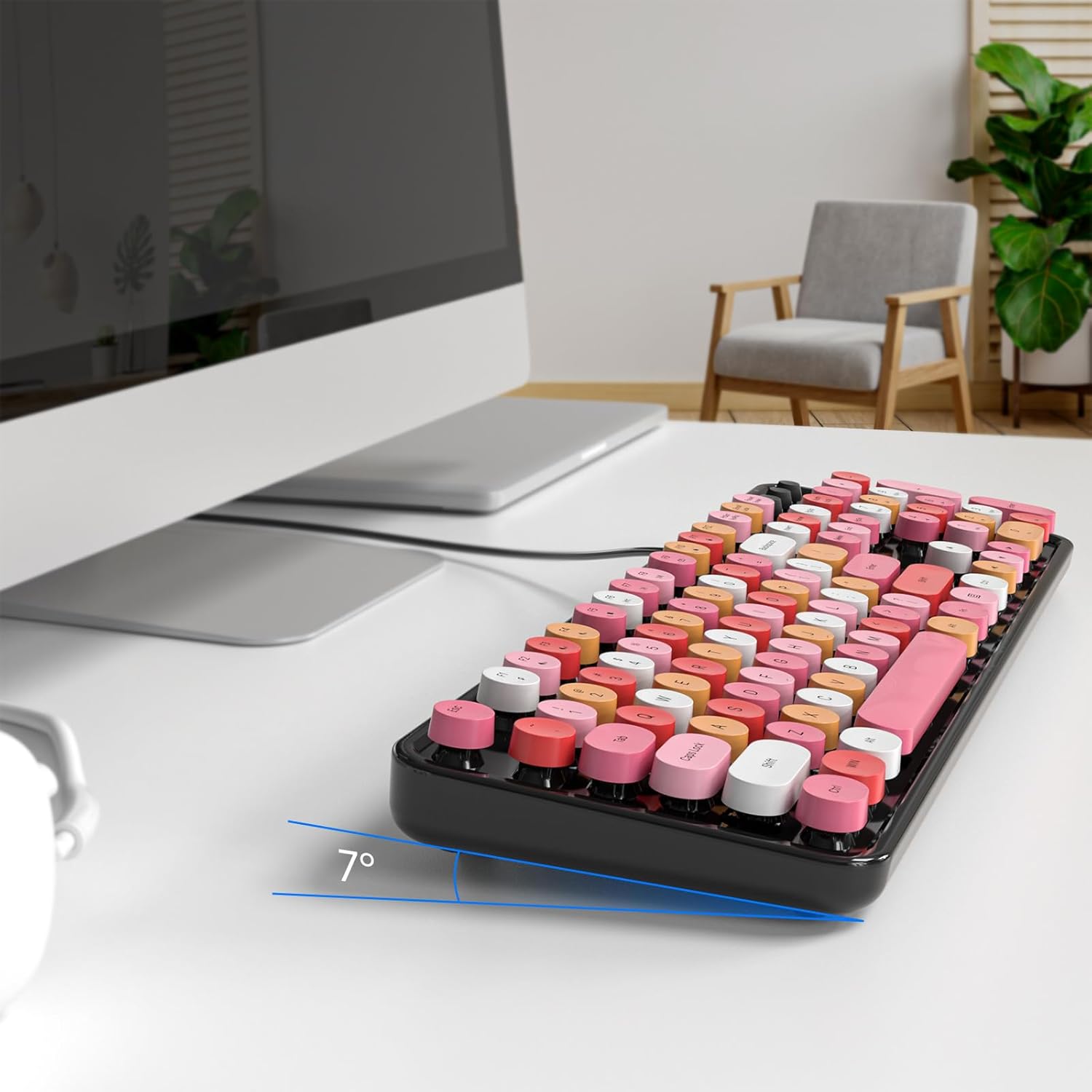
Image: A side view of the GEEZER Wired USB Keyboard, highlighting its ergonomic 7-degree tilt for comfortable typing.
Warranty and Support
GEEZER is committed to providing high-quality products and excellent customer service.
After-Sales Service
If you encounter any problems during the use of your GEEZER Wired USB Keyboard, please contact us via Amazon email. We aim to respond to all inquiries within 6 hours and provide satisfactory solutions.
For support, please visit the GEEZER Store on Amazon or contact us through the Amazon messaging system.
Ask a question about this manual
Ask about setup, troubleshooting, compatibility, parts, safety, or missing instructions. Manuals+ will review the question and use this page’s manual context to help answer it.