
1. Introduction
This instruction manual provides comprehensive guidance for the installation, operation, and maintenance of your Ctronics 660C Security Camera Metal Wall Mount. Please read this manual thoroughly before installation to ensure correct setup and optimal performance. This wall mount is specifically designed for the Ctronics 660 series security cameras, providing a secure and stable mounting solution for outdoor surveillance.
2. Specifications
| Feature | Detail |
|---|---|
| Brand | Ctronics |
| Product Model Number | 660BR |
| Package Size | 19.9 x 13.9 x 11.1 cm |
| Color | White |
| Material | Metal |
| Product Weight | 380 g |
| Recommended Use | Outdoor Security |
| Indoor/Outdoor Use | Outdoor Use |
| Number of Items | 1 |

Figure 2.1: Dimensions of the Ctronics 660C Wall Mount. The mount measures approximately 19cm in length, 12cm in width at the base, and 10.5cm in height, with a wall attachment area of 8cm.
3. Package Contents
Please check the package for the following items:
- Ctronics 660C Metal Wall Mount (1 unit)
- Mounting Screws and Wall Anchors (Quantity as required for installation)
- Installation Template (if included)
- Quick Start Guide / Instruction Manual
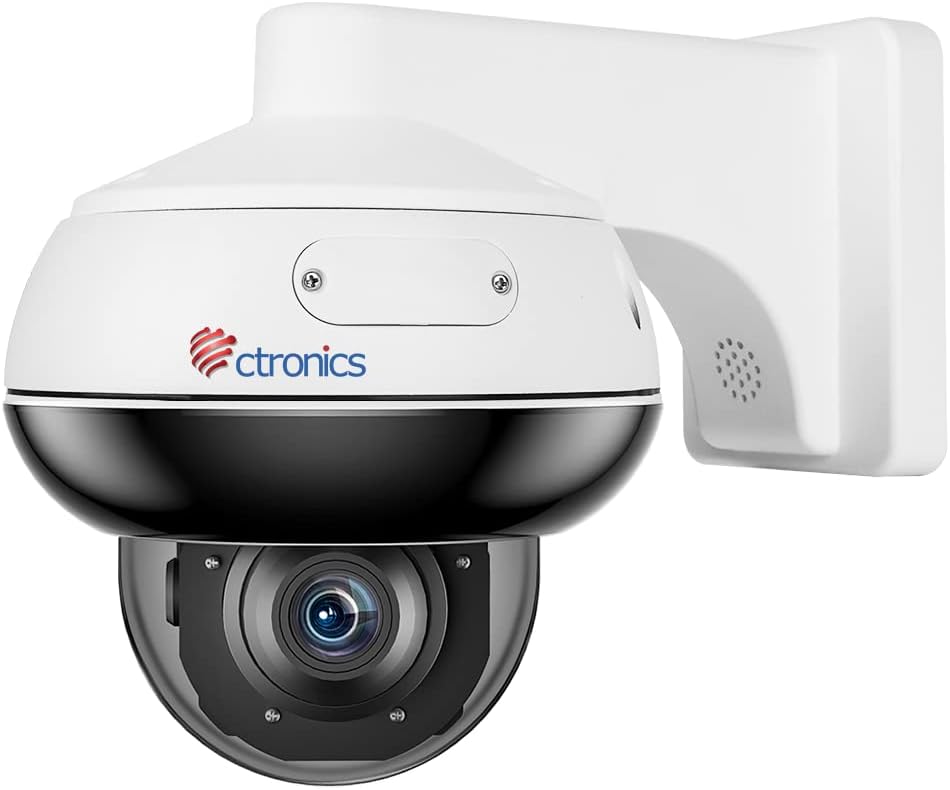
Figure 3.1: The Ctronics 660C security camera securely attached to the metal wall mount.
4. Setup & Installation
Follow these steps to properly install your Ctronics 660C metal wall mount and attach your security camera.
4.1. Mounting the Bracket
- Prepare the Mounting Surface: Choose a sturdy wall or ceiling location that can support the weight of the mount and camera. Ensure the surface is clean and free from obstructions.
- Mark Drilling Points: Use the provided installation template (if available) or the mount's base to mark the drilling points on the wall.
- Drill Holes: Drill holes at the marked locations using an appropriate drill bit size for the included wall anchors.
- Insert Wall Anchors: Insert the wall anchors into the drilled holes.
- Attach the Mounting Plate: Secure the mounting plate to the wall using the provided screws. Ensure it is firmly attached.
- Route Cables: If necessary, route the camera's power and network cables through the designated opening in the mount.
4.2. Attaching the Camera to the Mount
- Align the Camera: Carefully align the camera with the mounting plate.
- Secure the Camera: Use the camera's securing mechanism (e.g., screws, twist-lock) to firmly attach it to the wall mount. Ensure all connections are tight and secure.
- Remove Protective Film: After installation is complete, remove any protective film from the camera lens.

Figure 4.1: Step-by-step visual guide for installing the Ctronics 660C wall mount. (1) Prepare the mounting surface and mark holes. (2) Attach the mounting plate. (3) Route cables. (4) Secure the camera to the mount.

Figure 4.2: The Ctronics 660C security camera and its wall mount installed on the exterior of a house, providing surveillance over the garden area.
4.3. Installation Video Guide
For a visual demonstration of the installation process, please refer to the video below:
Video 4.1: This video demonstrates the installation method for the Ctronics security camera, including steps relevant to mounting the bracket and attaching the camera.
5. Operation
Once the wall mount and camera are securely installed, the mount itself requires no further operation. The camera's functions (e.g., pan/tilt, zoom, recording) are controlled via the Ctronics mobile application or compatible NVR/PC software. Ensure the camera is powered on and connected to your network as per its own instruction manual.
6. Maintenance
Regular maintenance helps ensure the longevity and reliability of your wall mount and camera system.
- Periodic Inspection: Regularly check the mount for any signs of loosening, corrosion, or damage. Tighten any loose screws.
- Cleaning: Clean the exterior of the mount and camera with a soft, damp cloth. Avoid using harsh chemicals or abrasive materials that could damage the finish or lens.
- Cable Management: Ensure all cables are neatly routed and secured to prevent damage from weather or tampering.
- Environmental Factors: While designed for outdoor use, extreme weather conditions (e.g., heavy snow, strong winds) may require additional checks to ensure the mount remains secure.
7. Troubleshooting
If you encounter issues with your wall mount, consider the following:
- Mount is Loose: Re-tighten all mounting screws. If the wall anchors are failing, consider using larger anchors or relocating the mount to a more secure section of the wall.
- Camera Not Secure: Ensure the camera is correctly aligned and all securing mechanisms are fully engaged. Refer to your camera's specific manual for attachment details.
- Cables Damaged: Inspect cables for cuts or fraying. Replace damaged cables immediately to prevent electrical hazards or signal loss.
- Mount Corrosion: Although made of metal, prolonged exposure to harsh elements can cause corrosion. Clean affected areas and apply a protective coating if necessary.
For camera-specific issues (e.g., no video, network problems), please refer to the Ctronics 660C security camera's dedicated instruction manual or contact Ctronics support.
8. Safety Information
Please observe the following safety precautions during installation and use:
- Professional Installation: If you are unsure about any part of the installation process, consult a qualified professional.
- Secure Mounting: Always ensure the mount is securely fastened to a surface that can adequately support the weight of both the mount and the camera.
- Electrical Safety: When handling camera power cables, ensure power is disconnected to prevent electric shock.
- Avoid Obstructions: Do not install the mount in locations where it might obstruct pathways or create a tripping hazard.
- Children and Pets: Keep small parts and tools out of reach of children and pets.
9. Warranty & Support
This Ctronics product is covered by a manufacturer's warranty. For specific warranty terms, duration, and conditions, please refer to the warranty card included with your product or visit the official Ctronics website. For technical support, troubleshooting assistance, or to inquire about replacement parts, please contact Ctronics customer service through their official channels.
Ctronics Official Website: www.ctronics.com