
1. Introduction
This document provides instructions for the AMROOLOO G12 GPS Head-Up Display. This intuitive car head-up display shows your vehicle's data and driving information on the screen, updated in real-time with accurate data. It can be installed anywhere for easy viewing, enhancing safety by reducing the need to look down at your dashboard. The AMROOLOO G12 GPS Head-Up Display supports your journey by providing essential driving information directly in your line of sight.
2. Product Overview
2.1 Key Features
- Real-time Data Display: Shows speed, driving distance, direction, and number of satellites.
- Safety Reminders: Includes speed alerts and fatigue driving reminders.
- Universal Compatibility: GPS system ensures compatibility with all vehicle types.
- Automatic Brightness Adjustment: Photosensitive aperture adjusts screen brightness for clear visibility day and night.
- Customizable Display: Adjust the screen to show one or multiple functions.
- Memory Function: Records satellite position for quick data display after parking for up to two hours.
2.2 Package Contents
- AMROOLOO G12 Head-Up Display Device
- USB Cable
- Double-sided Adhesive Tape
- Suction Cup Mount
- Instruction Manual

Image: The AMROOLOO G12 GPS Head-Up Display shown with its included accessories: USB cable, double-sided adhesive, suction cup mount, and user manual.
3. Setup
3.1 Installation
- Choose Placement: Select a location on your dashboard where the display is easily visible without obstructing your view of the road.
- Secure the Device: Use either the provided suction cup mount for adjustable placement or the double-sided adhesive tape for a more permanent fixture. Ensure the surface is clean and dry before applying adhesive.
- Connect Power: Connect the device to your car's USB port using the supplied USB cable.

Image: The AMROOLOO G12 GPS Head-Up Display positioned on a car dashboard, displaying speed and other driving data.
3.2 Initial Power-On and Satellite Acquisition
- Once connected, the device will power on and begin searching for satellite signals.
- The satellite icon on the display will flash during the search.
- When the satellite icon stops flashing, the device has acquired a signal and will start displaying data.
- If satellite acquisition is slow, move your vehicle to an open area for better signal reception.

Image: An illustration depicting satellites in orbit around Earth, symbolizing the GPS system used by the device for data acquisition.
4. Operating Instructions
4.1 Display Functions
The AMROOLOO G12 can display various driving data. Use the toggle button on the top of the device to cycle through display modes and configure settings.
- Speed: Current driving speed (KM/H or MPH).
- Driving Distance: Distance traveled during the current trip.
- Direction: Compass display indicating driving direction.
- Number of Satellites: Indicates the strength and number of connected GPS satellites.
- Time: Current time.
- Altitude: Current altitude.
- Acceleration Time: Time taken to accelerate over a certain distance.
- Travel Time: Duration of the current trip.
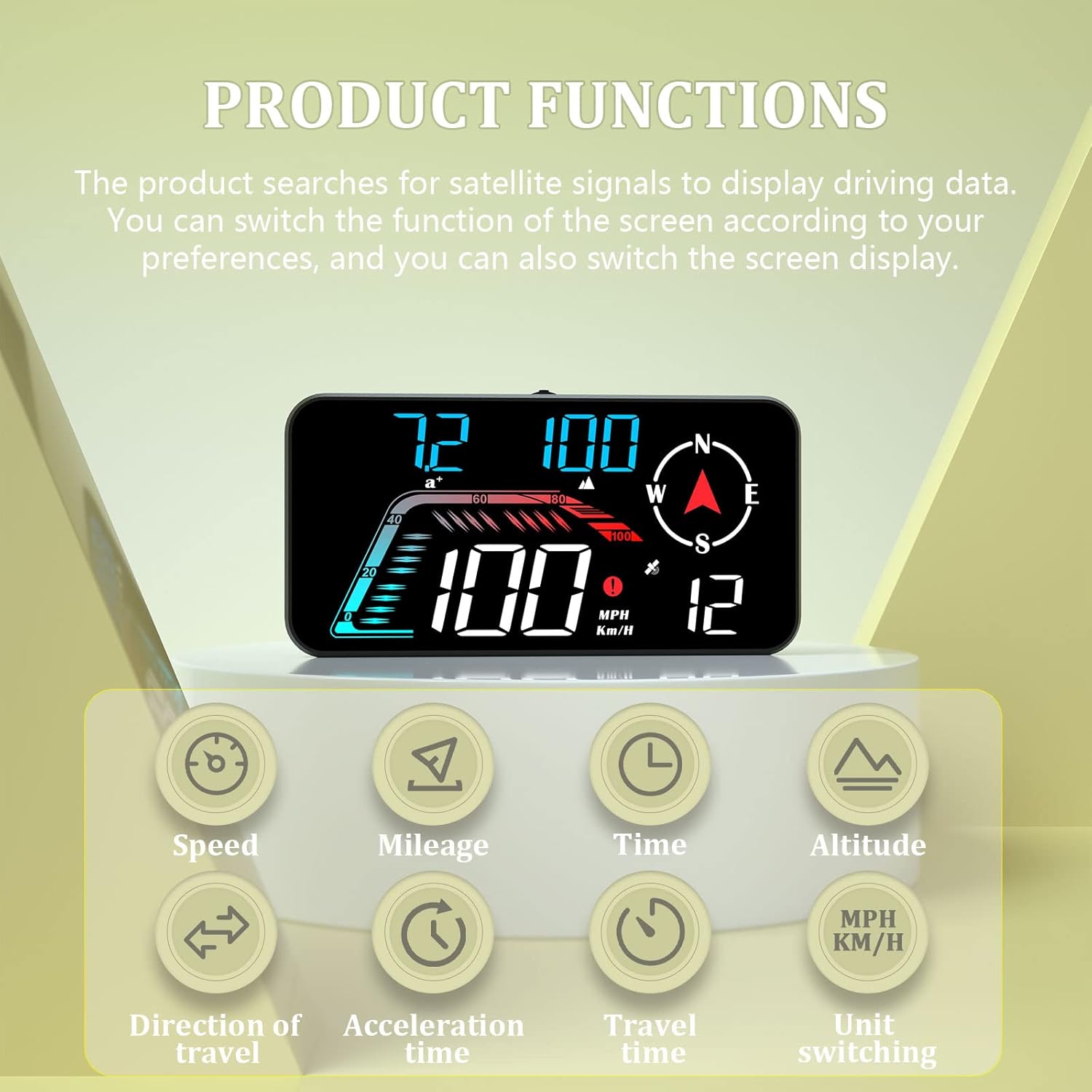
Image: The AMROOLOO G12 display illustrating its various functions, including speed, mileage, time, altitude, direction of travel, acceleration time, travel time, and unit switching.
4.2 Safety Reminders
The device includes features to enhance driving safety:
- Speed Alert: Configurable alerts for exceeding set speed limits.
- Fatigue Driving Reminder: Prompts the driver to take a break after extended driving periods.

Image: The AMROOLOO G12 display indicating prompt functions such as one, two, or three sections overspeed warnings, and a fatigue driving reminder.
4.3 Automatic Brightness
The integrated photosensitive aperture automatically adjusts the display brightness according to ambient light conditions, ensuring optimal visibility during both day and night driving.
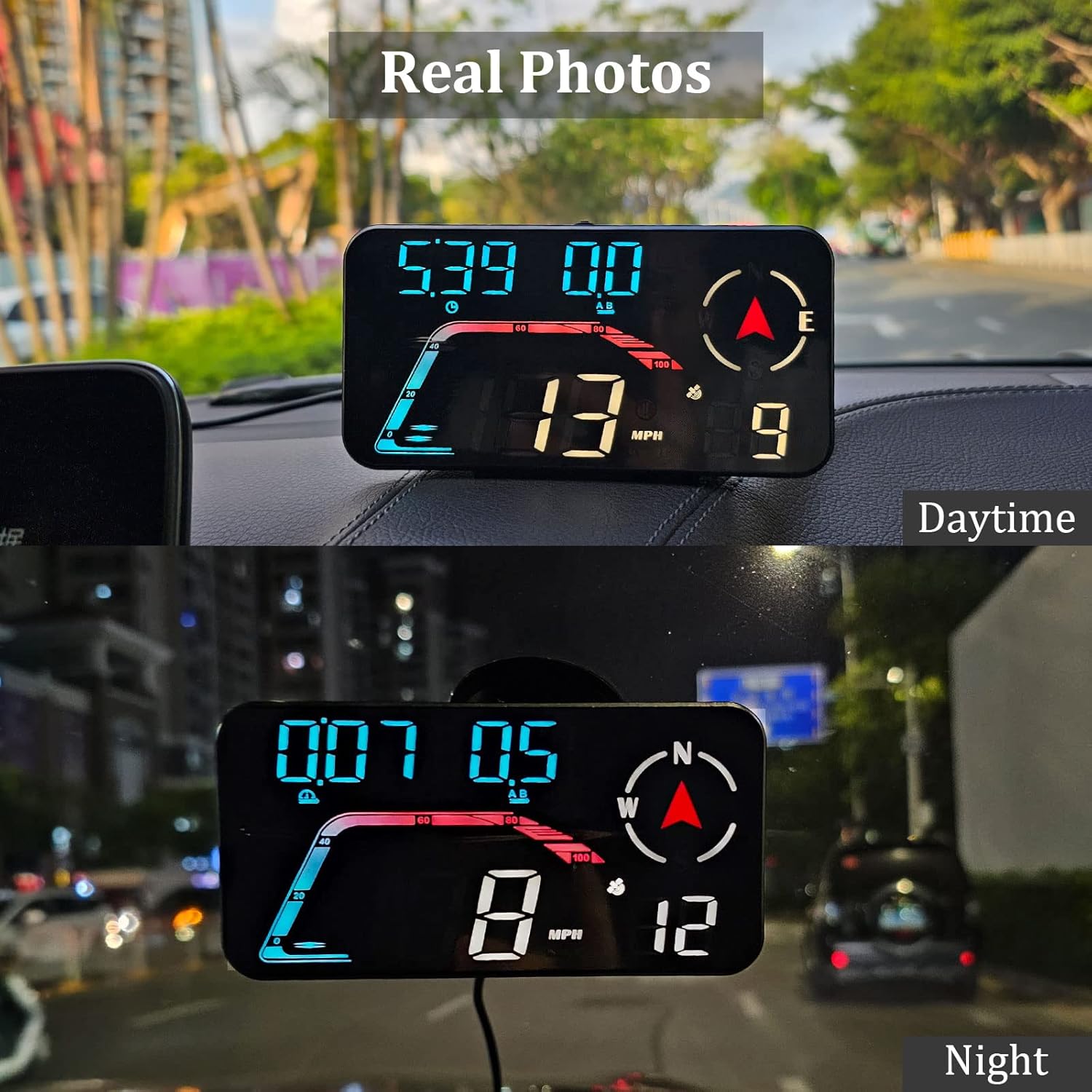
Image: Real photos of the AMROOLOO G12 display showing its clear visibility during daytime and nighttime driving due to automatic brightness adjustment.
5. Maintenance
- Cleaning: Use a soft, dry cloth to clean the display screen and device body. Avoid abrasive cleaners or solvents.
- Storage: When not in use for extended periods, store the device in a cool, dry place away from direct sunlight.
- Cable Care: Ensure the USB cable is not bent sharply or pinched, which could damage the internal wires.
6. Troubleshooting
| Problem | Possible Cause | Solution |
|---|---|---|
| Device does not power on. | No power supply or faulty USB cable. | Check USB connection. Ensure the car's USB port is active. Try a different USB cable or power source. |
| Slow satellite signal acquisition. | Obstructed view of the sky (e.g., in a garage, underpass). | Move the vehicle to an open area with a clear view of the sky. Wait a few minutes for the device to connect to satellites. |
| Inaccurate speed reading. | Weak GPS signal or initial calibration. | Ensure a strong GPS signal (satellite icon is solid). Drive for a short period to allow the device to calibrate. Refer to the manual for speed calibration settings if available. |
| Display is too dim or too bright. | Automatic brightness sensor issue or manual override. | Ensure the photosensitive aperture is not obstructed. If manual brightness adjustment is available, check settings using the toggle button. |
7. Specifications
- Model: G12
- Brand: AMROOLOO
- Dimensions (L x W x H): 9.7 x 3.19 x 5.5 cm (3.82 x 1.26 x 2.17 inches)
- Weight: 87 Grams (0.19 lbs)
- Material: Plastic
- Power Source: USB (No internal battery required)
- Special Features: Car speedometer, GPS system, speed alert, fatigue driving reminder, automatic brightness.
- Compatibility: Universal (GPS-based, suitable for all vehicles).
- ASIN: B0C4LSNWWL
- UPC: 723497757003

Image: A detailed view of the AMROOLOO G12 GPS Head-Up Display, highlighting its toggle key, photosensitive aperture, USB jack, and suction cup holder hole.
8. Customer Support
For any questions, concerns, or if you are not satisfied with your product, please contact AMROOLOO customer service. We are committed to resolving any issues you may encounter.
Thank you for choosing AMROOLOO products.


