
1. Introduction
This manual provides comprehensive instructions for the iClever MD179 Multi-Device Wireless Mouse. It covers setup, operation, maintenance, and troubleshooting to ensure optimal performance and a seamless user experience. Please read this manual thoroughly before using the product.
2. Package Contents
Verify that all items are present in your package:
- iClever MD179 Wireless Mouse
- USB 2.4GHz Receiver (stored inside the mouse)
- USB-C Charging Cable
- User Manual (this document)
3. Product Overview
Familiarize yourself with the mouse's components and controls:

Figure 1: iClever MD179 Mouse Button Layout
- Right Click Button: Standard right-click functionality.
- Left Click Button: Standard left-click functionality.
- Scroll Wheel / Middle Click Button: For scrolling and middle-click actions.
- Forward Button: Navigates forward in web browsers or file explorers (Windows only).
- Back Button: Navigates backward in web browsers or file explorers (Windows only).
- DPI Switch Button: Adjusts cursor sensitivity (DPI).
- Power ON/OFF Switch: Located on the bottom of the mouse to turn it on or off.
- 2.4GHz / Bluetooth 1 / Bluetooth 2 Channel Indicator: Displays the active connection mode.
4. Setup
4.1 Charging the Mouse
Before initial use, fully charge the mouse.
- Connect the provided USB-C cable to the charging port on the front of the mouse and to a USB power source (e.g., computer USB port, USB wall adapter).
- The charging indicator light will illuminate during charging and turn off when fully charged.
- A full charge typically provides up to 2 months of use, depending on usage.
- The mouse can be used wirelessly while it is charging.
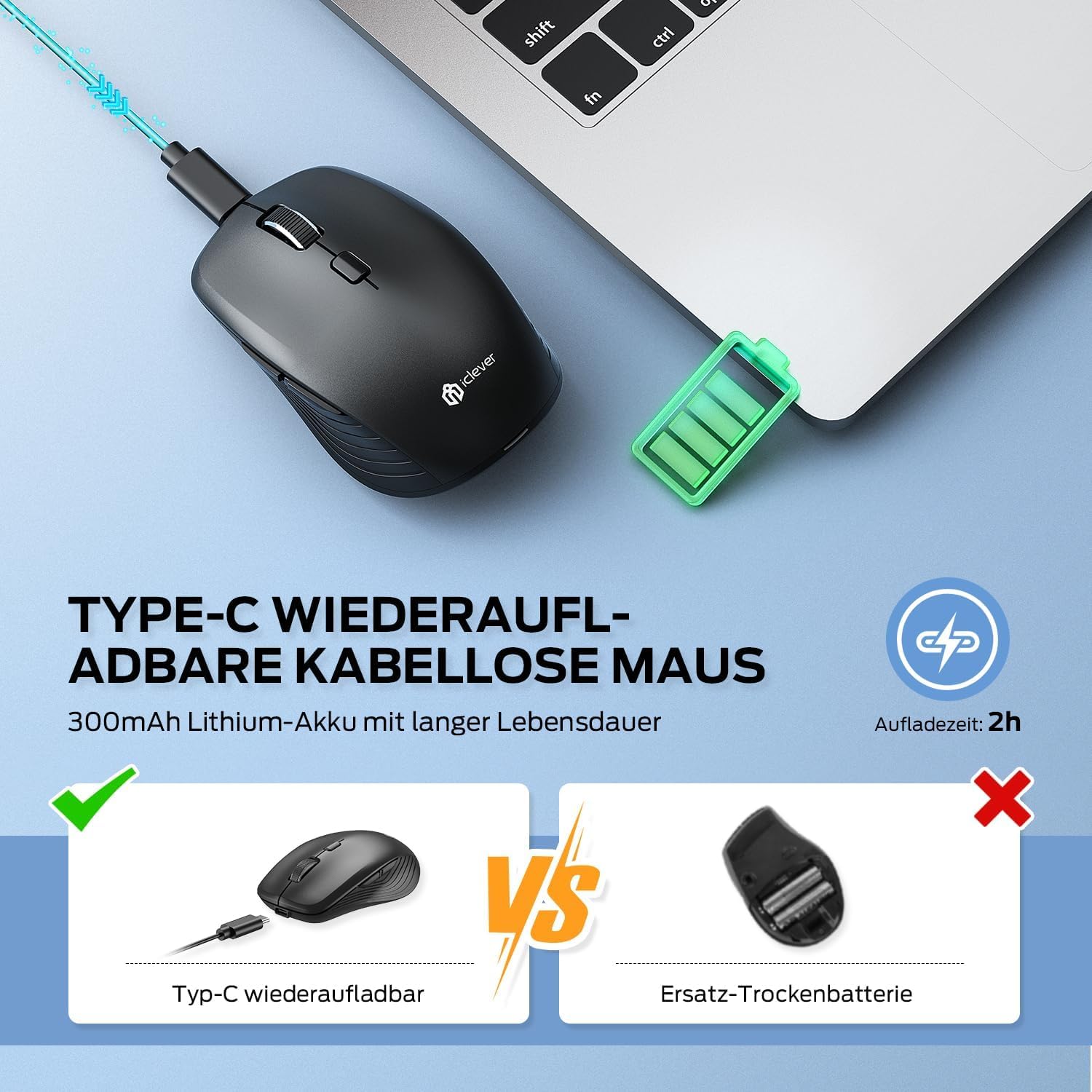
Figure 2: USB-C Rechargeable Feature
4.2 Connecting via 2.4GHz Wireless
For a stable and quick connection:
- Locate the USB 2.4GHz receiver. It is stored in a compartment under the magnetic top cover of the mouse. Gently lift the top cover to access it.
- Insert the USB receiver into an available USB port on your computer.
- Turn on the mouse using the ON/OFF switch on the bottom.
- Switch the connection mode to 2.4GHz (refer to the channel indicator on the bottom).
- The mouse should connect automatically.

Figure 3: Connection Options
4.3 Connecting via Bluetooth (BT1 / BT2)
The mouse supports two Bluetooth connections:
- Turn on the mouse using the ON/OFF switch on the bottom.
- Switch the connection mode to either Bluetooth 1 (BT1) or Bluetooth 2 (BT2) using the channel switch button on the bottom. The indicator light will confirm the selected channel.
- Press and hold the channel switch button for 3-5 seconds until the indicator light flashes rapidly. This indicates the mouse is in pairing mode.
- On your device (PC, Mac, laptop, tablet), go to Bluetooth settings.
- Search for "iClever MD179" or a similar name in the list of available devices and select it to pair.
- Repeat these steps for a second Bluetooth device using the other Bluetooth channel (BT2).

Figure 4: Multi-Device Connectivity
4.4 Switching Between Devices
To switch between connected devices:
- Use the channel switch button on the bottom of the mouse to cycle between the 2.4GHz, Bluetooth 1, and Bluetooth 2 connections.
- The indicator light will confirm the currently active channel.
5. Operating Instructions

Figure 5: Mouse in Use with Multiple Devices
5.1 DPI Adjustment
Adjust the cursor sensitivity to match your preference or task:
- Press the DPI switch button (button 6 in Product Overview) to cycle through the available DPI settings: 800, 1200, 1600, and 2400 DPI.
- The indicator light may flash briefly to confirm the DPI change.
- Higher DPI settings result in faster cursor movement across the screen.
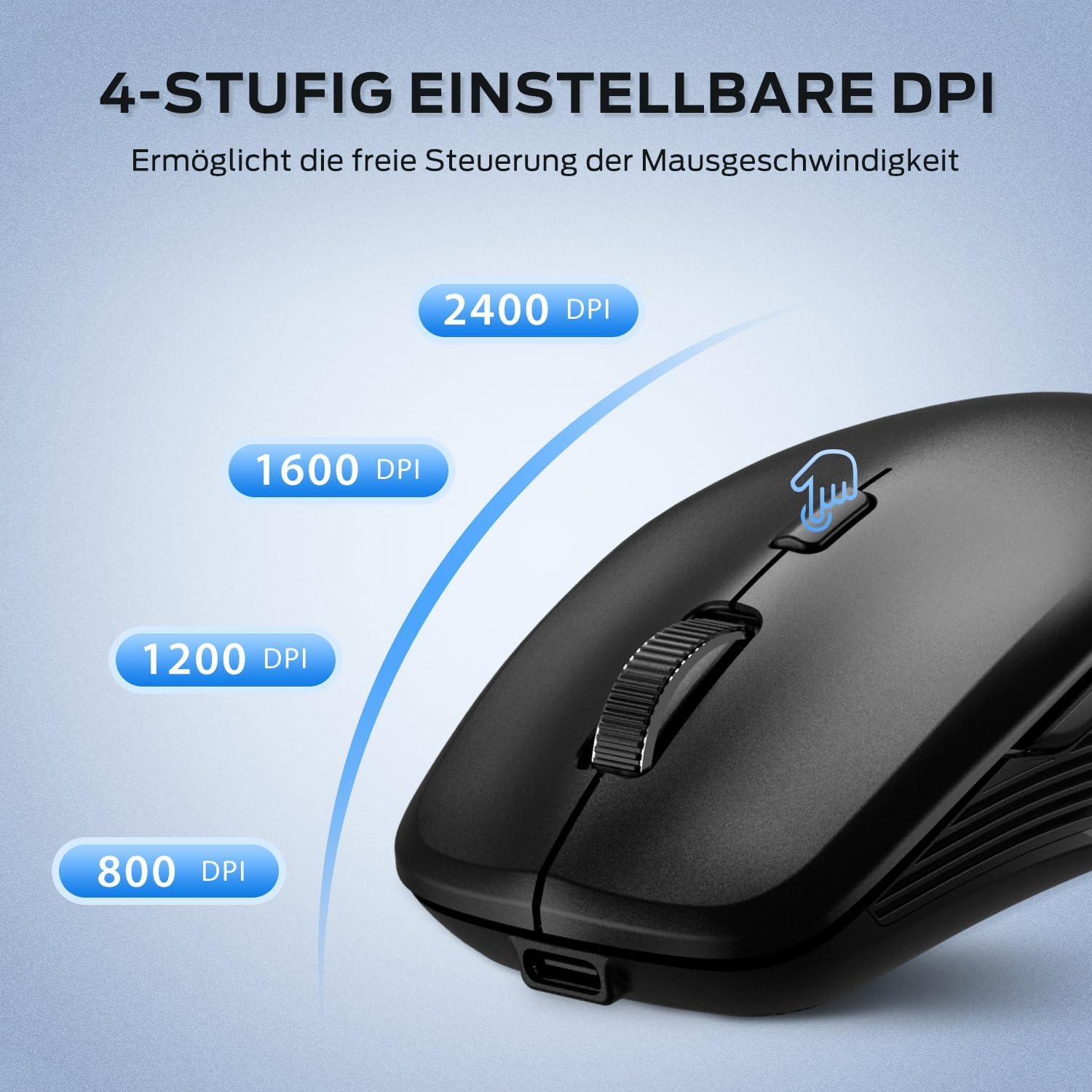
Figure 6: Adjustable DPI Settings
5.2 Silent Click Feature
The iClever MD179 mouse is designed with silent left and right click buttons to minimize noise, making it ideal for quiet environments such as libraries, offices, or late-night use at home.

Figure 7: Silent Click Benefits
5.3 Side Buttons (Forward/Back)
The forward and back buttons (buttons 4 and 5 in Product Overview) provide convenient navigation in web browsers and file explorers. Please note that these buttons are primarily functional on Windows operating systems. Their functionality may vary or require specific software configuration on macOS or other operating systems.
5.4 Power Management
The mouse incorporates features to optimize battery life:
- Automatic Sleep Mode: The mouse will enter an automatic sleep mode after a period of inactivity to conserve power. Move the mouse or click any button to wake it up.
- ON/OFF Switch: For extended periods of non-use, it is recommended to turn off the mouse completely using the ON/OFF switch (button 7 in Product Overview) located on the bottom.
6. Maintenance
6.1 Cleaning
To keep your mouse in optimal condition:
- Gently wipe the mouse surface with a soft, slightly damp cloth.
- Avoid using harsh chemicals, abrasive cleaners, or solvents, as these can damage the surface.
- Ensure no liquid enters the mouse's internal components.
- Periodically clean the optical sensor on the bottom of the mouse with a dry cotton swab to ensure accurate tracking.
6.2 Battery Care
Proper battery care extends the lifespan of your mouse:
- Charge the mouse regularly and avoid letting the battery fully deplete frequently.
- If storing the mouse for an extended period, charge it to approximately 50% and turn it off using the power switch.
- Avoid exposing the mouse to extreme temperatures, which can affect battery performance.

Figure 8: USB Receiver Storage
7. Troubleshooting
If you encounter issues with your iClever MD179 mouse, refer to the following common solutions:
- Mouse not responding:
- Ensure the mouse is powered on using the ON/OFF switch.
- Check the battery level and charge the mouse if necessary.
- For 2.4GHz connection: Verify the USB receiver is securely plugged into a working USB port and the mouse is set to 2.4GHz mode. Try a different USB port.
- For Bluetooth connection: Ensure Bluetooth is enabled on your device, the mouse is in the correct Bluetooth mode (BT1/BT2), and it is paired correctly. Try removing the mouse from your device's Bluetooth list and re-pairing it.
- Restart your computer or device.
- Cursor movement is erratic or slow:
- Clean the optical sensor on the bottom of the mouse.
- Ensure you are using the mouse on a suitable surface (non-reflective, non-transparent).
- Adjust the DPI setting to a higher value using the DPI switch button if the cursor is too slow.
- Cannot switch between devices:
- Ensure the channel switch button on the bottom of the mouse is pressed firmly.
- Verify that each device is correctly connected to its respective channel (2.4GHz, BT1, BT2).
8. Specifications
| Feature | Description |
|---|---|
| Brand | iClever |
| Model | MD179 Bluetooth Mouse |
| Product Dimensions | 10.1 x 6.1 x 3.4 cm |
| Item Weight | 70 grams |
| Operating System Compatibility | Windows, macOS, ChromeOS |
| Hardware Platform | Linux, Mac, PC |
| Compatible Devices | PC, Tablet |
| Special Features | Wireless, Silent Click, Multi-Device Connectivity |
| Power Source | Battery Powered (Rechargeable via USB-C) |
| Connectivity Technology | Bluetooth, 2.4 GHz Wireless |
| Motion Sensor Technology | Optical |
| Hand Orientation | Ambidextrous |
| DPI Settings | 800 / 1200 / 1600 / 2400 DPI |
| Battery Capacity | 300 mAh Lithium |
9. Warranty and Support
iClever products are designed for reliability and performance. For detailed warranty information, technical support, or service inquiries, please visit the official iClever website or contact their customer support directly. Keep your purchase receipt for warranty claims.

