
1. Introduction
This manual provides detailed instructions for the setup, operation, and maintenance of your LAMA Touchpad Keyboard Case. Please read this manual thoroughly before using the product to ensure optimal performance and longevity.

Image 1.1: LAMA Touchpad Keyboard Case with iPad.
2. Package Contents
- 1 x LAMA Touchpad Keyboard Case
- 1 x USB Cable
- 1 x User Manual
3. Compatibility
The LAMA Touchpad Keyboard Case is compatible with the following iPad models:
- iPad Air 7th Gen 11-inch (M3) 2025 (Models: A3266/A3267/A3270)
- iPad Air 6th Gen 11-inch (M2) 2024 (Models: A2902/A2903/A2904)
- iPad Air 5th Gen 10.9-inch 2022 (Models: A2588/A2589/A2591)
- iPad Air 4th Gen 10.9-inch 2020 (Models: A2072/A2316/A2324/A2325)
- iPad Pro 4th Gen 11-inch 2022 (Models: A2759/A2435/A2761/A2762)
- iPad Pro 3rd Gen 11-inch 2021 (Models: A2377/A2459/A2301/A2460)
- iPad Pro 2nd Gen 11-inch 2020 (Models: A2228/A2068/A2230/A2231)
- iPad Pro 1st Gen 11-inch 2018 (Models: A1980/A2013/A1934/A1979)
Note: This case is NOT suitable for iPad 10th Gen 2022 10.9-inch.
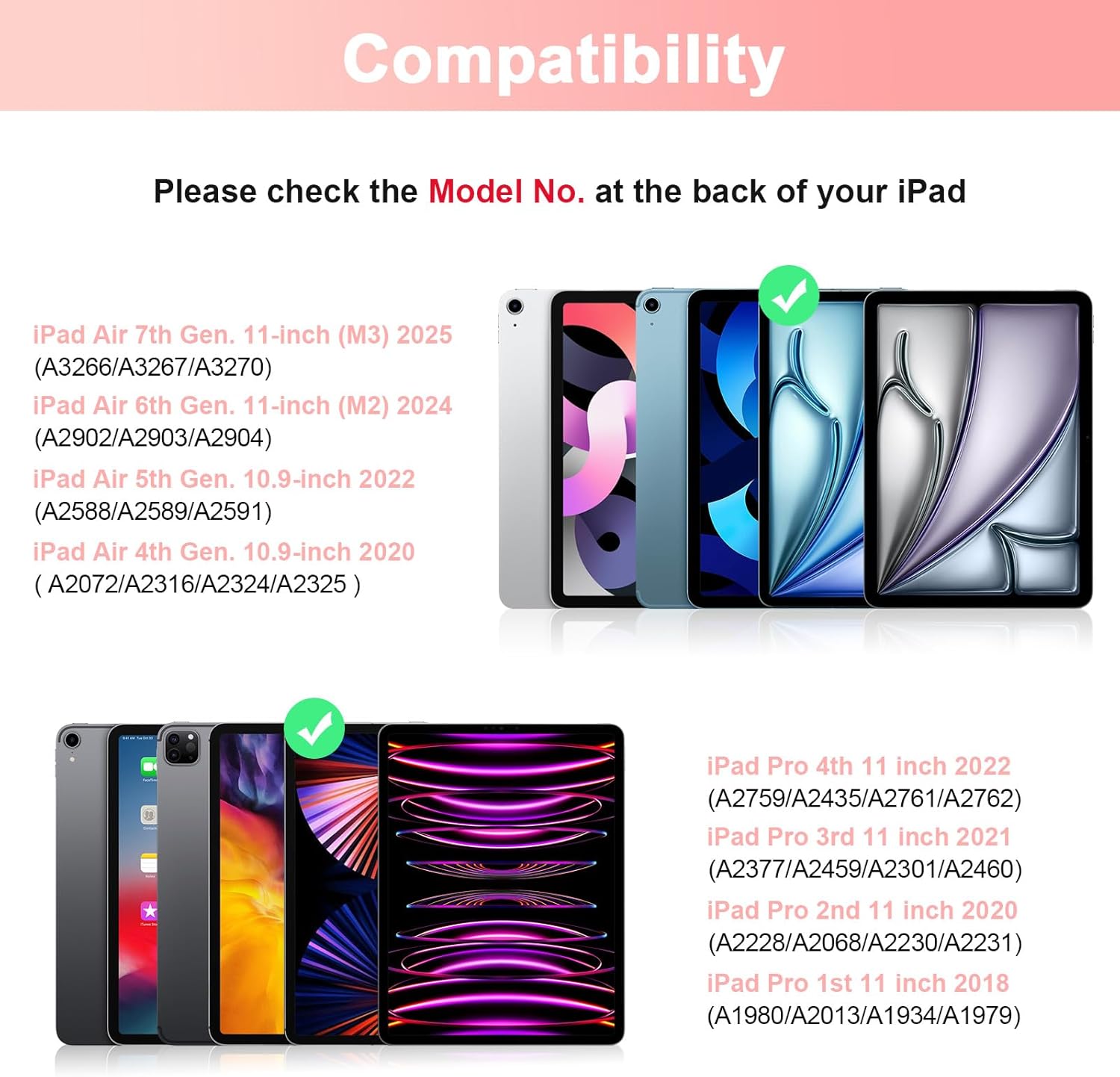
Image 3.1: iPad model compatibility chart.
4. Product Features
- Magnetic Detachable Keyboard: The keyboard can be easily attached or removed, allowing for flexible use.
- Integrated Touchpad: Features a sensitive trackpad for multi-finger gesture control, enhancing productivity.
- Full Protective Case: Constructed from premium composition leather exterior and a soft, non-slip interior to protect your iPad from drops and scratches.
- Built-in Pencil Holder: Conveniently store your Apple Pencil (not included) with the case.
- Auto Sleep/Wake Function: Automatically puts your iPad to sleep or wakes it up when the case is closed or opened, conserving battery life.
- Multiple Viewing Angles: Adjustable design allows for various viewing positions for typing, watching, or drawing.
- Long Battery Life: Built-in lithium-ion battery provides extended working and standby times.
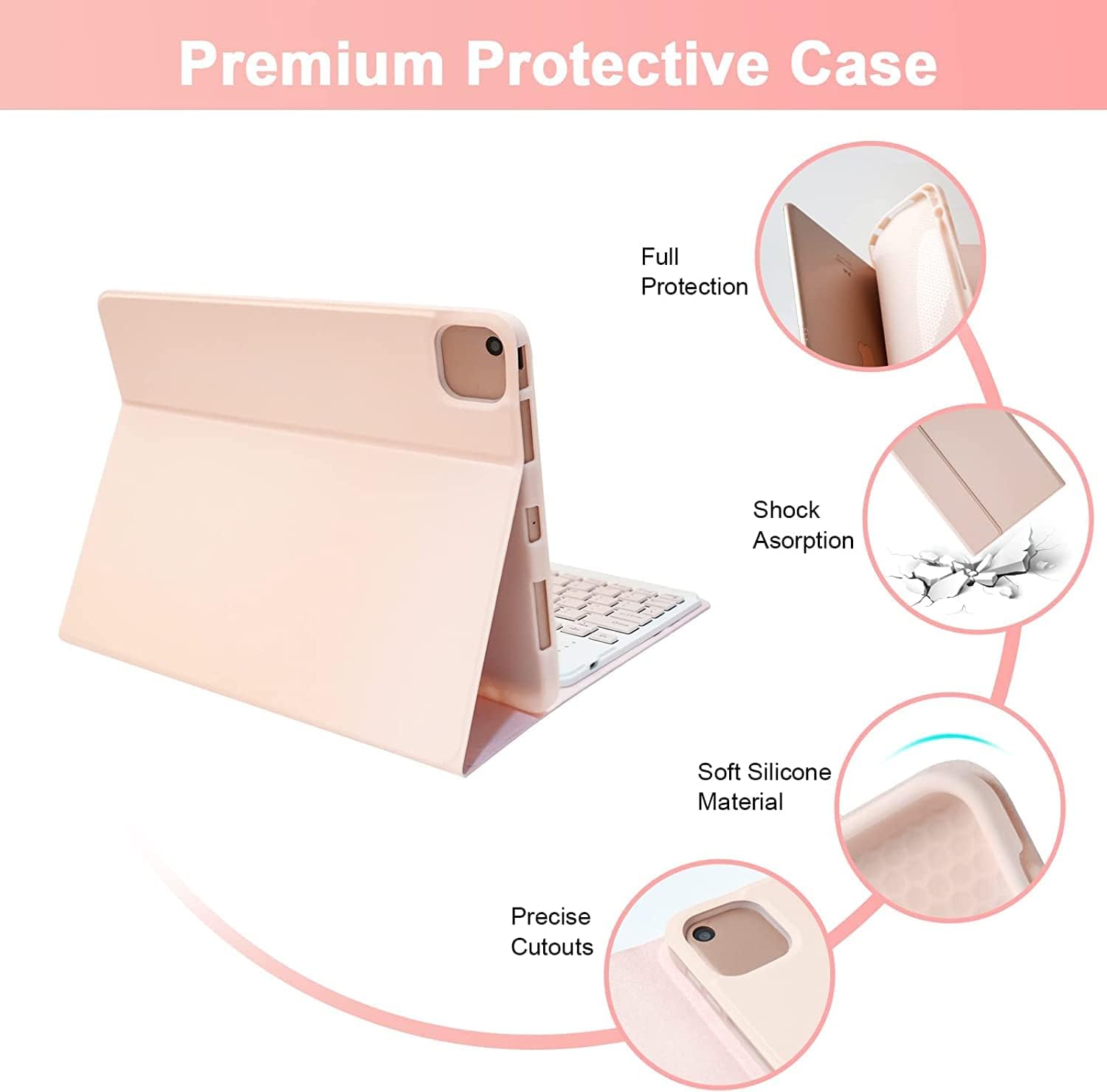
Image 4.1: Protective features of the LAMA Keyboard Case.

Image 4.2: Adjustable viewing angles of the keyboard case.
5. Setup Instructions
5.1 Installing Your iPad
- Carefully align your iPad with the protective case.
- Gently press the iPad into the case, ensuring all edges are securely fitted.
- Ensure all ports and buttons are accessible through the precise cutouts.

Video 5.1: Effortless installation of the iPad into the case and use of the built-in pencil slot.
5.2 Bluetooth Connection for Keyboard
- Ensure the keyboard is charged. (Charge for 2-3 hours before first use).
- Locate the power switch on the keyboard and slide it to the "ON" position.
- Press and hold the "Fn" key and the "C" key simultaneously on the keyboard. The Bluetooth indicator light will begin to twinkle, indicating it is in pairing mode.
- On your iPad, go to Settings > Bluetooth and turn on Bluetooth.
- In the list of "OTHER DEVICES", select "Bluetooth Keyboard".
- Once connected, the Bluetooth indicator light on the keyboard will stop twinkling. Your iPad will automatically connect to the keyboard next time.

Image 5.2: Bluetooth connection method for the keyboard.
Video 5.3: Bluetooth connection for Touchpad Keyboard Case.
5.3 Enabling Touchpad Functionality
To use the keyboard touchpad, ensure your iPad system is iOS 13.2.2 or above. Then, go to your iPad's Accessibility settings to turn on the AssistiveTouch function.
6. Operating Instructions
6.1 Touchpad Gestures
The integrated touchpad supports multi-finger gestures for enhanced navigation:
- Single Finger Click: Acts as the left mouse button.
- Double Finger Click: Acts as the right mouse button.
- Two Fingers Slide Up/Down: Scrolls content (mouse wheel function).
- Two Fingers Slide Left/Right: Navigates pages or menu switches.
- Two Fingers Pinch In/Out: Zooms in or out.
- Three Fingers Slide from Top to Bottom: Returns to the main page.
- Three Fingers Slide from Bottom to Top: Opens the multitask window.
- Three Fingers Slide Left/Right: Switches between applications.

Image 6.1: Touchpad operation instructions.

Image 6.2: Detailed touchpad gesture guide.
6.2 Typing with the Keyboard
The keyboard provides a stable and fast typing experience. Ensure the keyboard is connected via Bluetooth as described in Section 5.2.
Video 6.3: Demonstration of typing and touchpad functionality.
7. Maintenance
7.1 Charging the Keyboard
The keyboard features a built-in rechargeable battery. Connect the provided USB cable to the keyboard's charging port and a power source. The charging indicator will illuminate during charging. A full charge typically takes 2-3 hours.
7.2 Cleaning
To clean the case and keyboard, use a soft, damp cloth. Avoid using harsh chemicals or abrasive materials that could damage the surfaces. Ensure the keyboard is powered off and disconnected from any power source before cleaning.
8. Troubleshooting
- Keyboard not connecting: Ensure the keyboard is powered on and fully charged. Re-enter pairing mode by pressing Fn+C and re-select "Bluetooth Keyboard" in your iPad's Bluetooth settings.
- Touchpad not working: Verify that AssistiveTouch is enabled in your iPad's Accessibility settings (iOS 13.2.2 or above required). Ensure the keyboard is properly connected via Bluetooth.
- Keys not responding: Check the keyboard's battery level. If low, charge the keyboard. If the issue persists, try restarting both the iPad and the keyboard.
- Auto Sleep/Wake not functioning: Ensure your iPad is correctly seated in the case and the case is fully closed.
9. Specifications
| Feature | Detail |
|---|---|
| Product Dimensions | 10.12 x 7.87 x 0.67 inches |
| Item Weight | 1.07 pounds |
| Manufacturer | LAMA |
| Batteries | 1 D batteries required (included) |
| Connectivity Technology | Bluetooth |
| Keyboard Description | Trackpad, Rechargeable, Detachable, Multi Angle |
| Recommended Uses | Business |
| Special Feature | Trackpad |
| Color | Pink+Touchpad |
| Style | Modern |
| Material | Acrylonitrile Butadiene Styrene |
10. Warranty and Support
For warranty information and customer support, please refer to the product packaging or contact LAMA customer service directly. Keep your purchase receipt for warranty claims.
