
1. Setup and Connectivity
The ATTACK SHARK K6 Wireless Mechanical Keyboard offers versatile connectivity options and is compatible with multiple operating systems.
1.1 Package Contents
- ATTACK SHARK K6 Wireless Mechanical Keyboard
- Cloud Keyboard Wrist Rest
- 2-in-1 USB Cable (Type-C to USB-A)
- 2-in-1 Keycap & Switch Puller
- 2.4GHz Receiver

Image: All components included with the ATTACK SHARK K6 Wireless Mechanical Keyboard.
1.2 Connectivity Modes
The keyboard supports three connection modes: Bluetooth 5.0, 2.4GHz wireless, and USB-C wired.
- Bluetooth Mode: Press FN + 1, FN + 2, or FN + 3 to switch between three different Bluetooth devices.
- 2.4GHz Wireless Mode: Press FN + 4. Insert the 2.4GHz receiver into your device's USB port.
- USB-C Wired Mode: Press FN + 5. Connect the keyboard to your device using the provided USB-C to USB-A cable.
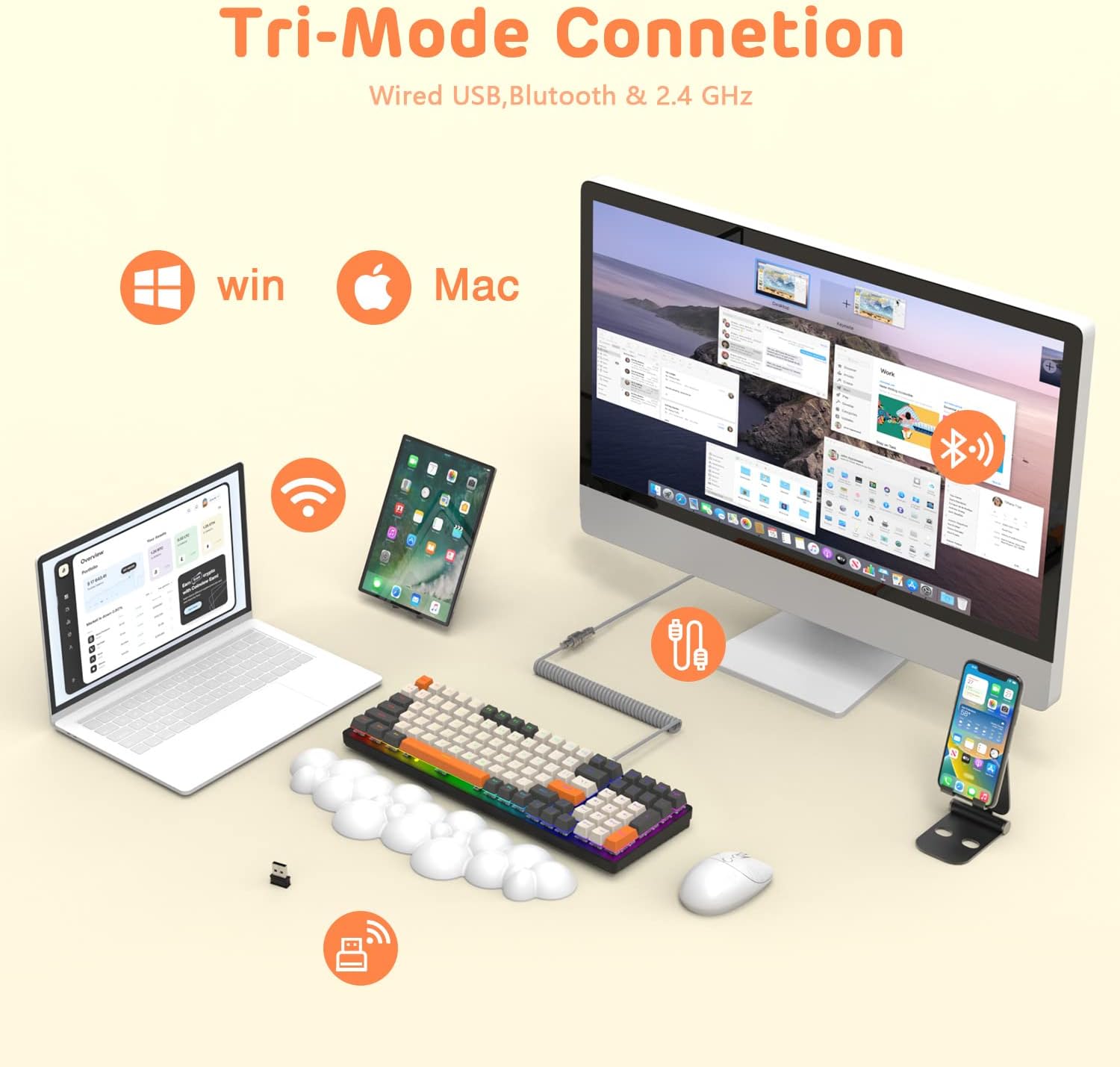
Image: The keyboard demonstrating its tri-mode connection capabilities with various devices.
1.3 Charging the Keyboard
The keyboard features a 4000mAh battery. Connect the USB-C cable to the keyboard and a power source to charge. Indicator lights (blue, purple, cyan, green) will display the charging status and low voltage warnings.

Image: Visual representation of the keyboard's 4000mAh lithium battery capacity.

Image: The custom coiled USB-C to USB-A cable for charging and wired use.
2. Operating Instructions
This section details the various functions and features of your ATTACK SHARK K6 keyboard.
2.1 Keyboard Layout and Ergonomics
The keyboard features a 96% compact layout with 100 keys, including a numpad, optimizing workspace while retaining full functionality. It also includes a cloud-shaped memory foam wrist rest for enhanced comfort.

Image: The 100-key compact layout of the K6 keyboard.

Image: Ergonomic design with adjustable two-stage tripod feet.

Image: The K6 keyboard with its ergonomic wrist rest and key features.

Image: Benefits of the ergonomic wrist rest for wrist pain relief.
2.2 RGB Lighting Customization
The keyboard features customizable RGB backlighting. You can adjust the color, brightness, and flow rate of each key to create personalized lighting effects.
- Switch Backlight Mode: Press FN + INS to cycle through 9 different RGB backlight modes.
- Adjust Brightness/Speed: Use FN + Arrow Keys (Up/Down for brightness, Left/Right for speed) to fine-tune the lighting effects.

Image: Overview of the 9 RGB rainbow backlight modes and control keys.
2.3 Hot-Swappable Switches
The K6 keyboard features a hot-swappable PCB, allowing you to easily replace 3-pin mechanical switches without soldering. This extends the lifespan of the switches and offers customization possibilities.

Image: Detail of the hot-swappable PCB and mechanical switches.
Video: A short demonstration of the K6 keyboard's retro design, PBT keycaps, and easy-to-type switches, including a close-up of a red switch.
Video: Demonstration of the K6 keyboard's RGB backlighting and typing sound, showcasing its triple-mode connectivity and mechanical switches.
3. Maintenance
Proper maintenance ensures the longevity and optimal performance of your keyboard.
3.1 Cleaning the Keyboard
- Keycaps: Use the provided keycap puller to remove keycaps. Clean them with a soft, damp cloth and mild soap if necessary. Ensure they are completely dry before reattaching.
- Keyboard Body: Wipe the keyboard surface with a soft, lint-free cloth. For stubborn dirt, slightly dampen the cloth with water or a gentle electronics cleaner.
- Under Keycaps: Use compressed air to remove dust and debris from between the switches.
3.2 Switch Replacement
Thanks to the hot-swappable design, individual switches can be replaced if they become faulty or if you wish to customize your typing experience.
- Use the switch puller to carefully grip and pull out the desired switch.
- Align the pins of the new 3-pin switch with the holes on the PCB.
- Gently press the new switch into place until it clicks securely. Ensure the pins are not bent.
3.3 Wrist Rest Care
The wrist rest is made of durable and washable PU material. Clean it with a damp cloth and mild soap as needed to maintain hygiene and appearance.
4. Troubleshooting
If you encounter issues with your keyboard, refer to the following common solutions.
4.1 Connectivity Issues
- No Connection (Wireless): Ensure the keyboard is in the correct wireless mode (Bluetooth or 2.4GHz). Check if the 2.4GHz receiver is properly inserted or if Bluetooth is enabled on your device and the keyboard is paired.
- Intermittent Connection: Move the keyboard closer to your device to reduce interference. Ensure the keyboard is sufficiently charged.
- Wired Connection Not Working: Verify the USB-C cable is securely connected to both the keyboard and your device. Try a different USB port or cable.
4.2 RGB Lighting Problems
- Lights Not On: Ensure the keyboard is powered on and charged. Adjust brightness using FN + Up Arrow.
- Incorrect Mode/Color: Cycle through modes using FN + INS.
4.3 Key Functionality Issues
- Keys Not Responding: Check for debris under the keycap or switch. If a specific switch is faulty, consider replacing it using the hot-swappable feature.
- Keys Double-Typing or Sticking: This can sometimes be resolved by cleaning the switch or replacing the affected switch. Ensure the switch is fully seated.
5. Specifications
| Feature | Detail |
|---|---|
| Model | K6 Wireless Mechanical Keyboard |
| Connectivity Technology | Bluetooth 5.0, 2.4GHz RF, USB-C Wired |
| Keyboard Description | Mechanical |
| Switch Type | Clicky Blue Switches (Hot-Swappable 3-pin) |
| Layout | 96% (100 Keys) |
| Battery Capacity | 4000mAh |
| Backlighting | RGB (9 modes) |
| Compatible Devices | Laptop, PC, Tablet (Mac/Win dual systems) |
| Special Features | Ergonomic, Hot-Swap, Custom Coiled Aviator Keyboard Cable, Backlit, Wrist Rest, Rechargeable, Keycap and Switch Puller, N-Key Rollover |
| Material | Polyurethane (PU) for wrist rest |
| Item Weight | 2.97 pounds |
| Package Dimensions | 17.09 x 6.46 x 2.68 inches |
6. Warranty Information
Please refer to the manufacturer's official website or product packaging for detailed warranty information regarding your ATTACK SHARK K6 Wireless Mechanical Keyboard.
7. Customer Support
For further assistance, technical support, or inquiries about your ATTACK SHARK K6 Wireless Mechanical Keyboard, please contact ATTACK SHARK customer support or visit their official website.


