
1. Introduction
This manual provides instructions for the CHONCHOW Gaming Keyboard and Mouse Combo. This wired peripheral set is designed for use with various gaming consoles and computers, offering RGB backlighting and ergonomic features for an enhanced user experience.
2. Package Contents
- CHONCHOW Gaming Keyboard
- CHONCHOW Gaming Mouse
- User Manual (this document)
3. Setup
The CHONCHOW Gaming Keyboard and Mouse Combo features a plug-and-play design, requiring no additional drivers or software installation for basic functionality.
- Locate an available USB port on your computer or gaming console.
- Connect the USB cable from the CHONCHOW Gaming Keyboard to the USB port.
- Connect the USB cable from the CHONCHOW Gaming Mouse to another available USB port.
- The devices should be automatically recognized by your system.

Figure 3.1: CHONCHOW Gaming Mouse with USB Plug & Play Connectivity. The image shows the gaming mouse connected via a USB cable, highlighting its simple plug-and-play setup.
Compatibility: This combo is compatible with Windows XP, Vista, Win7, Win8, Win10, MAC OS, Linux, Xbox, and PS4 operating systems.
4. Operating Instructions
4.1 Keyboard Operation
The keyboard features 104 keys, including a number pad and 12 multimedia function keys. It also supports 19 anti-ghosting keys for accurate input during gaming.

Figure 4.1.1: CHONCHOW Gaming Keyboard with Rainbow RGB Backlighting. The keyboard displays a vibrant rainbow backlighting effect across its keys.
Keyboard Backlight Control:
- Toggle Backlight: Press the FN key + Light Bulb Icon Key (usually near CTRL or ALT) to turn the backlight on/off or cycle through modes.
- Change Color Settings: The keyboard offers 10 different color settings. Press FN + "=" or "-" to adjust the color's speed or direction.
- Adjust Brightness: Press FN + PG UP or PG DN to adjust the backlight brightness.
- Change Light Direction: Use FN + Left Arrow or Right Arrow to change the direction of the lighting effect.

Figure 4.1.2: CHONCHOW RGB Keyboard Lighting Modes. This image illustrates various RGB lighting patterns and effects available on the keyboard.
4.2 Mouse Operation
The gaming mouse features an ergonomic design with a 7-color RGB breathing backlight and an anti-skid scroll wheel.
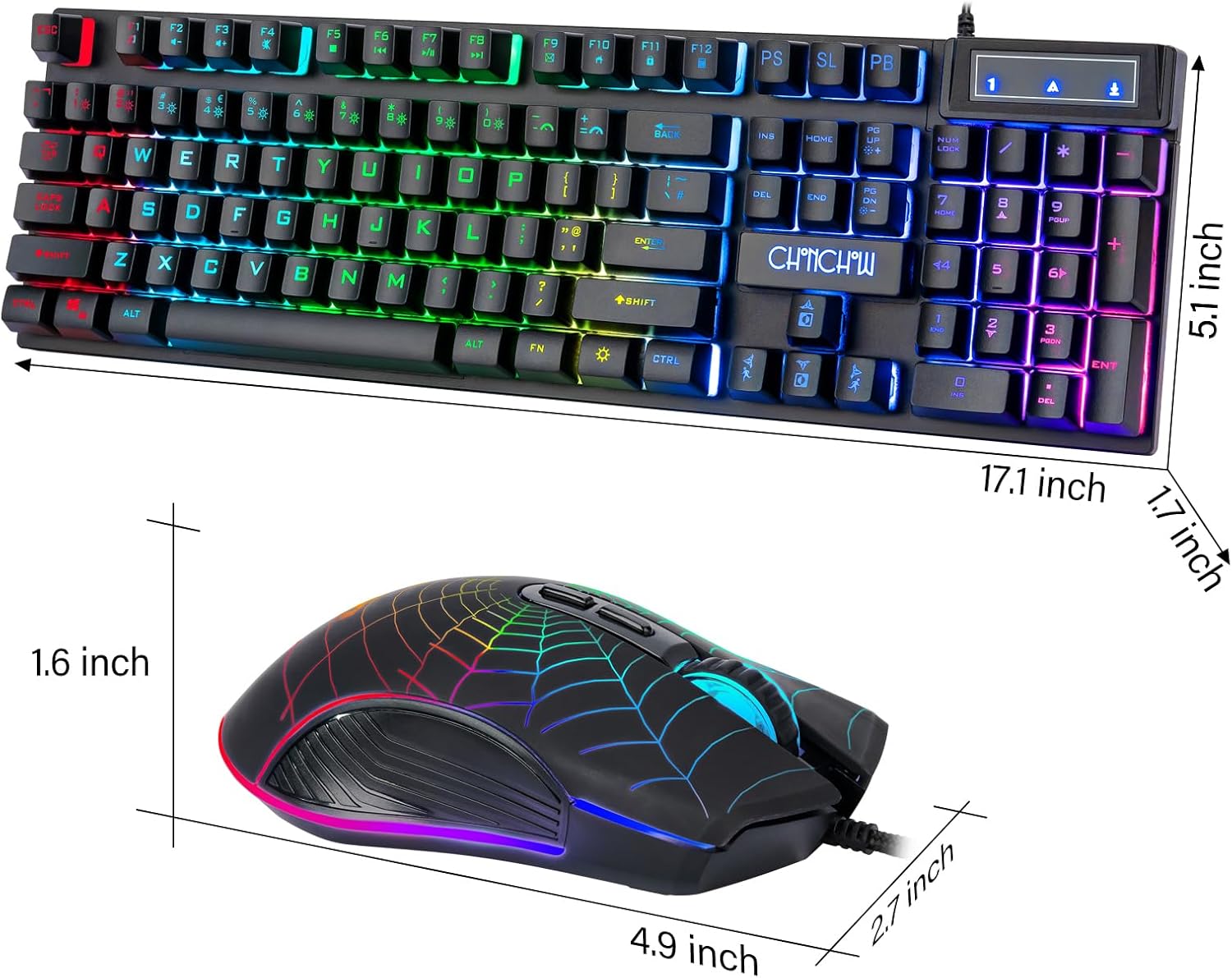
Figure 4.2.1: CHONCHOW Gaming Mouse with 7-Color Breathing Backlight. The image shows the gaming mouse with its distinct spiderweb design and glowing multi-color backlight.
Mouse DPI Adjustment:
The mouse supports 4 levels of DPI adjustment for varying cursor sensitivity:
- 1200 DPI
- 1800 DPI
- 2400 DPI
- 3600 DPI
Press the DPI button (usually located behind the scroll wheel) to cycle through these settings. The illumination of the mouse can also be completely turned off if desired.
5. Features
- Durable Construction: Crafted with premium ABS material and advanced keycap craftsmanship, ensuring characters and symbols do not wear off easily.
- Water-Resistant Keyboard: Designed to withstand minor spills.
- Multimedia Keys: 12 dedicated multimedia function keys for quick access to media controls.
- Anti-Ghosting: 19 anti-ghosting keys provide accurate and responsive input during intense gaming sessions.
- Customizable RGB Backlighting: Keyboard features 10 different color settings with adjustable speed, brightness, and direction.
- Ergonomic Design: Both keyboard and mouse are ergonomically designed for comfortable use over extended periods. The keyboard includes adjustable stands for height customization.
- High-Precision Mouse: 7-color RGB breathing backlight mouse with 4 adjustable DPI levels (1200/1800/2400/3600) for precise control.
- Plug & Play: USB wired connection for instant setup without driver installation.

Figure 5.1: CHONCHOW Keyboard Features. This image highlights the 1.8m USB waterproof cable, two hidden brackets for adjusting keyboard height, and a non-slip rubber pad design.
6. Troubleshooting
- Device Not Responding:
- Ensure both the keyboard and mouse USB cables are securely connected to your computer or console.
- Try connecting the devices to different USB ports.
- Restart your computer or console.
- Backlight Not Working:
- Press FN + Light Bulb Icon Key to ensure the backlight is toggled on.
- Adjust brightness using FN + PG UP/DN.
- Mouse Cursor Movement Issues:
- Ensure the mouse sensor is clean and free from obstructions.
- Adjust DPI settings using the mouse's DPI button.
- Test the mouse on a different surface.
7. Specifications
| Brand | CHONCHOW |
| Model | Gaming Keyboard and Mouse Combo |
| Connectivity Technology | USB (Wired) |
| Keyboard Description | Gaming, 104 Keys, Number Pad, Multimedia Keys, 19 Anti-Ghosting Keys |
| Keyboard Backlighting | RGB (10 color settings, adjustable speed, brightness, direction) |
| Mouse Backlighting | 7-Color RGB Breathing Backlight |
| Mouse DPI Settings | 1200 / 1800 / 2400 / 3600 |
| Compatible Devices | Gaming Console (PS4, PS5, Xbox One), PC (Windows XP/Vista/7/8/10, MAC OS, Linux) |
| Material | Aluminum, ABS Plastic |
| Item Weight | 2.01 pounds |
| Package Dimensions | 17.63 x 8.27 x 1.93 inches |
8. Maintenance
- Cleaning: Use a soft, dry cloth to clean the surfaces of the keyboard and mouse. For deeper cleaning, a slightly damp cloth can be used, ensuring no liquid enters the device.
- Storage: Store the devices in a cool, dry place away from direct sunlight and extreme temperatures.
- Cable Care: Avoid sharp bends or excessive pulling on the USB cables to prevent damage.
9. Warranty and Support
For any issues or questions regarding your CHONCHOW Gaming Keyboard and Mouse Combo, please contact CHONCHOW customer support. Refer to the product packaging or the CHONCHOW official website for contact information. We are committed to providing the best service and will respond to inquiries within 12 hours.


