
Introduction
This manual provides detailed instructions for the setup, operation, and maintenance of your ATTACK SHARK Wireless Bluetooth/USB Wired Gaming Mechanical Keyboard. This compact 100-key keyboard features RGB backlighting, hot-swappable switches, and multiple connectivity options for versatile use across various devices.

Image: The ATTACK SHARK Wireless Mechanical Keyboard, showcasing its 100-key layout, RGB backlighting, orange coiled USB-C cable, and a cloud-shaped wrist rest.
Package Contents
Verify that all items are present in your package:
- ATTACK SHARK Wireless Mechanical Keyboard
- Cloud Keyboard Wrist Rest
- USB-C to USB-A Data Cable (Coiled)
- Keycap and Switch Puller
- 2.4GHz USB Receiver
- Additional Switches (Red Switch type)
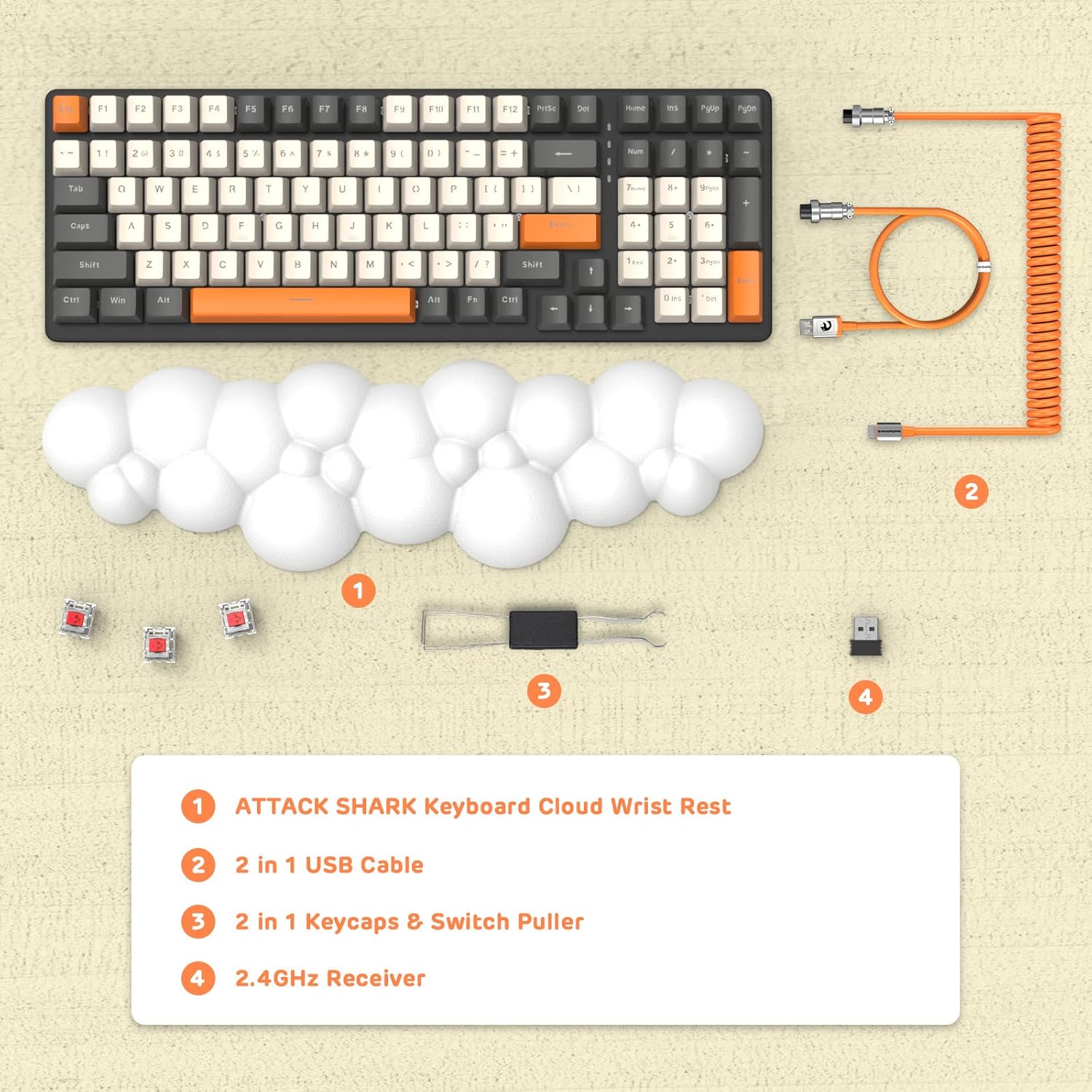
Image: An overhead view displaying the keyboard, cloud wrist rest, coiled USB cable, keycap and switch puller, and 2.4GHz USB receiver, along with spare switches.
Setup
The keyboard supports three connection modes: Bluetooth 5.0, 2.4GHz Wireless, and USB-C Wired.
1. Wired Connection (USB-C)
- Connect the USB-C end of the provided coiled cable to the keyboard's USB-C port.
- Connect the USB-A end of the cable to an available USB port on your computer.
- The keyboard will automatically switch to wired mode (indicated by FN+5).

Image: A visual representation of the keyboard connecting to various devices (laptop, tablet, desktop, smartphone) via wired USB, 2.4GHz wireless, and Bluetooth.
2. 2.4GHz Wireless Connection
- Locate the 2.4GHz USB receiver.
- Plug the USB receiver into an available USB port on your computer.
- Press FN + 4 on the keyboard to activate 2.4GHz wireless mode. The indicator light will show the connection status.
3. Bluetooth Connection
The keyboard can store up to three Bluetooth devices.
- Press and hold FN + 1, FN + 2, or FN + 3 for 3-5 seconds to enter Bluetooth pairing mode for the desired channel. The indicator light will flash rapidly.
- On your device (e.g., laptop, tablet, smartphone), navigate to Bluetooth settings and search for available devices.
- Select "ATTACK SHARK Keyboard" (or similar name) from the list to pair.
- Once paired, the indicator light will stop flashing and remain solid.
- To switch between paired Bluetooth devices, simply press FN + 1, FN + 2, or FN + 3.
Operating Instructions
RGB Backlighting Control
The keyboard features customizable RGB backlighting with multiple modes.
- Switch Backlight Mode: Press FN + INS to cycle through different RGB lighting effects.
- Adjust Brightness: Press FN + ↑ (Up Arrow) to increase brightness, FN + ↓ (Down Arrow) to decrease brightness.
- Adjust Speed: Press FN + ← (Left Arrow) to decrease effect speed, FN + → (Right Arrow) to increase effect speed.

Image: The keyboard displaying various RGB lighting patterns, with key combinations for switching modes and adjusting brightness/speed.
Hot-Swappable Switches
The keyboard's PCB supports 3-pin mechanical switches, allowing for easy replacement without soldering. This feature enables customization of typing feel and extends the keyboard's lifespan.
- Use the provided keycap puller to carefully remove the desired keycap.
- Use the switch puller to gently grasp and remove the switch from the PCB.
- Align the pins of the new 3-pin switch with the holes on the PCB and press firmly until it clicks into place.
- Replace the keycap.

Image: A detailed view of the keyboard's PCB with a switch removed, demonstrating the hot-swappable feature. Spare red switches are also shown.
Battery and Charging
The keyboard is equipped with a 4000mAh lithium battery.
- Battery Life: Up to 200 hours of use with the backlight turned off.
- Charging: Connect the keyboard via the USB-C cable to a power source. The charging indicator light will show the charging status.
- Low Voltage Indicator: The keyboard features a low voltage indicator to alert you when charging is required.

Image: The keyboard shown from the side, emphasizing its 4000mAh lithium battery capacity.
Maintenance
To ensure the longevity and optimal performance of your keyboard:
- Cleaning: Use a soft, dry cloth to wipe the keyboard surface. For deeper cleaning, remove keycaps using the provided puller and use compressed air to clear debris from between switches.
- Wrist Rest: The PU material of the wrist rest is durable and washable. Clean with a damp cloth and mild soap if necessary.
- Storage: Store the keyboard in a cool, dry place away from direct sunlight and extreme temperatures.
- Avoid Liquids: Do not expose the keyboard to liquids. In case of spills, immediately disconnect power and allow it to dry completely before use.
Troubleshooting
| Issue | Possible Cause | Solution |
|---|---|---|
| Keyboard not responding in wireless mode. | Low battery, incorrect mode selected, receiver not connected, or Bluetooth not paired. | Charge the keyboard. Ensure correct mode (FN+4 for 2.4G, FN+1/2/3 for Bluetooth) is selected. Verify 2.4G receiver is securely plugged in. Re-pair Bluetooth if necessary. |
| Keys are "sticking" or registering multiple inputs. | Debris under keycap/switch, faulty switch. | Remove keycap and switch, clean thoroughly with compressed air. If issue persists, replace the switch using the hot-swappable feature. |
| RGB backlight not working or dim. | Backlight turned off, brightness set too low, or low battery. | Press FN+INS to cycle modes. Adjust brightness with FN+↑ / FN+↓. Charge the keyboard. |
| Keyboard not recognized by device. | Driver issue, incorrect connection mode, or device compatibility. | Ensure correct connection mode is active. Try a different USB port or device. For wired mode, ensure the cable is fully inserted. Check device's operating system for necessary drivers (usually plug-and-play). |
Specifications
- Model: 3b5c1fdb-29da-409c-b4b7-12e9e72fb741
- Connectivity: Bluetooth 5.0, 2.4GHz Wireless (RF), USB-C Wired
- Layout: Compact 100 Keys (98% layout)
- Switches: Hot-Swappable 3-pin Mechanical (Red Switch variant)
- Backlighting: RGB Backlit (9 modes)
- Battery: 4000mAh Lithium Battery
- Compatible Devices: Laptop, PC, Tablet (Mac/Win Supported)
- Material: Polyurethane (PU) for wrist rest
- Dimensions: 16.97 x 6.42 x 2.52 inches (Package)
- Item Weight: 2.94 pounds
- Special Features: Ergonomic design, Custom Coiled Aviator Keyboard Cable, Keycap and Switch Puller included.
Warranty and Support
For warranty information and technical support, please refer to the documentation provided with your purchase or visit the official ATTACK SHARK website. Keep your proof of purchase for any warranty claims.
Manufacturer: ATTACK SHARK
Date First Available: May 8, 2023


