
SAFFUN Wireless for Switch/PC Gray
SAFFUN 2.4 GHz Wireless N64 Style USB Controller Instruction Manual
Model: Wireless for Switch/PC Gray
Product Overview
The SAFFUN 2.4 GHz Wireless USB Controller is designed to provide a classic N64-style gaming experience across multiple platforms. This rechargeable controller offers plug-and-play compatibility with Nintendo Switch, Windows PC, Mac, Linux, Raspberry Pi, and Retropie systems. It features a familiar button layout, a 3D analog stick, and built-in rumble functionality for immersive gameplay.

Figure 1: SAFFUN Wireless N64 Style Controller and USB Receiver.
Package Contents
- 1 x SAFFUN 2.4 GHz Wireless N64 Style Controller (Gray)
- 1 x 2.4 GHz USB Receiver
- 1 x USB Charging Cable
- 1 x Replacement Joystick
- 1 x Instruction Manual (this document)
Compatibility
This controller is compatible with a wide range of devices and operating systems, including:
- Nintendo Switch / Switch Online
- Windows PC
- Apple Mac
- Linux
- Raspberry Pi
- Retropie
- Android Tablet (OTG required)
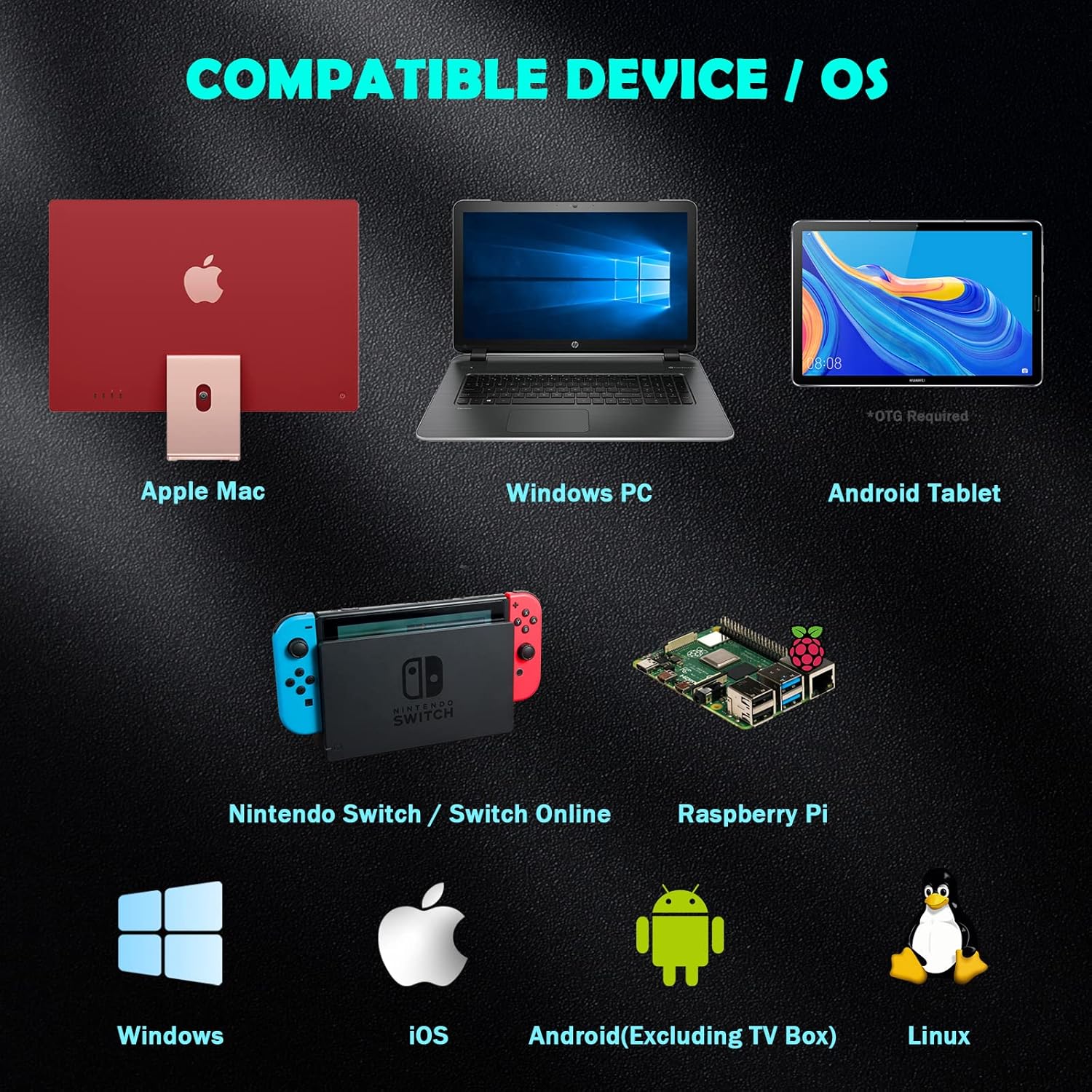
Figure 2: Compatible Devices and Operating Systems.
Controller Layout

Figure 3: Controller Button and Port Layout.
The controller features a classic N64 layout with modern additions:
- 3D Analog Stick: For precise movement control.
- A, B, C Buttons: Standard N64 face buttons.
- Start Button: Red button in the center.
- D-Pad: Directional pad.
- L, R, Z/ZL Buttons: Shoulder and trigger buttons.
- Home Button: For system menu access (e.g., Nintendo Switch).
- Select Button: Additional function button.
- LED Indicator: Shows connection status and charging.
- Type C Port: For charging the controller.
- Reset Button: Small button on the top for re-syncing.
- USB Receiver: Plugs into your device for wireless connection.
Setup and Pairing
Pairing with Nintendo Switch
Follow these steps to pair your SAFFUN wireless controller with your Nintendo Switch console:
- Enable Pro Controller Wired Communication:
Using your original Switch controller, navigate to System Settings > Controllers and Sensors > Pro Controller Wired Communication. Ensure this option is set to "ON". This allows the Switch to communicate with the USB receiver.
- Plug in the USB Receiver:
Insert the 2.4 GHz USB receiver into an available USB port on your Nintendo Switch dock. The LED on the receiver will begin flashing.
- Activate Receiver Sync Mode:
Press and hold the "SYNC" button on the USB receiver until its LED begins fast-blinking. This indicates it's ready to pair.
- Reset the Controller:
Locate the small "Reset" button on the top of the controller (near the Type C port) and press it. The LED indicator on the controller will start flashing.
- Connect the Controller:
Press the "Start" button on the controller. Wait for the LED on the controller to stay lit, indicating a successful connection. The controller is now connected and ready for use.
Video 1: Simple steps to pair and use the controller on a Switch. This video demonstrates the pairing process for the SAFFUN N64 style controller with a Nintendo Switch console, including enabling wired communication, plugging in the receiver, and syncing the controller.
Pairing with PC/Mac/Linux/Raspberry Pi
For other compatible devices, the pairing process is generally simpler:
- Plug in the USB Receiver:
Insert the 2.4 GHz USB receiver into an available USB port on your computer or device. The LED on the receiver will begin flashing.
- Reset the Controller:
Press the "Reset" button on the top of the controller. The controller's LED will flash.
- Connect the Controller:
Press the "Start" button on the controller. The LED on the controller should become solid, indicating a successful connection. Your device should recognize the controller as a standard USB gamepad.
Operating Instructions
Basic Controls
The controller functions as a standard gamepad. Refer to your game's control settings for specific button mappings. The 3D analog stick provides proportional control, while the D-pad offers digital input.
Special Modes (Nintendo Switch NSO)
For optimal experience with Nintendo Switch Online N64 games, the controller supports an "All Star Mode" which maps the C-buttons to their original N64 functionalities, including rumble pak support.
- Activating "All Star Mode": Press and hold the "Start" and "A" buttons simultaneously for 3 to 5 seconds. LED 2 and LED 4 on the controller will light up to confirm activation. This mode persists even after turning off the controller or console.

Figure 4: Controller in use with Nintendo Switch Online.
Rumble Functionality
The controller includes a built-in immersive rumble motor. Rumble support is available in compatible games, eliminating the need for a separate Rumble Pak.

Figure 5: Built-in Rumble Motor for immersive feedback.
Charging and Battery Life
The controller is equipped with a rechargeable Li-Polymer battery (Model/Type reference: 602535, Ratings: 3.7VDC, 1.85Wh (500mAh)).
- Charging Time: Approximately 2.5 hours.
- Playing Time: Up to 10 hours on a full charge.
- Stand-by Time: Up to 1000 hours.
- Charging Indicator: The LED indicator will show charging status.
Auto Shutoff Feature
To conserve battery, the controller will automatically turn off after approximately 2-5 minutes of inactivity. To wake up and reconnect, press the "Start" button twice.

Figure 6: Battery Capacity and Charging Details.
Maintenance
- Keep the controller and receiver dry. Avoid exposure to moisture or extreme temperatures.
- Clean the controller with a soft, dry cloth. Do not use harsh chemicals or abrasive materials.
- Store the controller in a safe place to prevent physical damage.
- When not in use for extended periods, ensure the controller is fully charged before storage to maintain battery health.
Troubleshooting
| Problem | Possible Cause | Solution |
|---|---|---|
| Controller does not connect/LED not solid. | Low battery, receiver not properly inserted, not in sync mode, "Pro Controller Wired Communication" off (for Switch). | Charge the controller. Ensure receiver is fully inserted. Press SYNC button on receiver until fast-blinking. Press Reset button on controller, then Start. For Switch, verify "Pro Controller Wired Communication" is ON in system settings. |
| Buttons/joystick not responding correctly. | Interference, software glitch, incorrect mode (for Switch NSO). | Move closer to the receiver. Try resetting the controller and receiver. For Switch NSO, ensure "All Star Mode" is activated (hold Start + A for 3-5 seconds). If issues persist, try on another device to isolate the problem. |
| Controller disconnects frequently. | Low battery, excessive distance from receiver, interference. | Recharge the controller. Reduce distance between controller and receiver. Minimize other 2.4 GHz wireless devices nearby. |
| Rumble not working. | Game does not support rumble, rumble disabled in game/system settings, controller not in correct mode. | Verify the game supports rumble. Check in-game or system settings for rumble options. For Switch NSO, ensure "All Star Mode" is active. |
Specifications
- Model: Wireless for Switch/PC Gray
- Connectivity: 2.4 GHz Wireless USB
- Battery: Rechargeable Li-Polymer (3.7VDC, 1.85Wh, 500mAh)
- Charging Time: Approx. 2.5 hours
- Playing Time: Up to 10 hours
- Stand-by Time: Up to 1000 hours
- Weight: 10.9 ounces (approx. 309 grams)
- Package Dimensions: 6.38 x 6.18 x 3.23 inches
- Manufacturer: SAFFUN
Warranty and Support
For warranty information and technical support, please refer to the contact details provided with your purchase or visit the official SAFFUN website. Keep your proof of purchase for any warranty claims.
Ask a question about this manual
Ask about setup, troubleshooting, compatibility, parts, safety, or missing instructions. Manuals+ will review the question and use this page’s manual context to help answer it.