
PTHTECHUS P2-Blue
PTHTECHUS Kids Smartphone P2-Blue User Manual
Model: P2-Blue
Introduction
The PTHTECHUS Kids Smartphone P2-Blue is an interactive and educational device designed for children aged 4-14. It combines entertainment with learning, featuring a touchscreen, dual camera, MP3 music player, games, habit tracker, and various educational applications. This manual provides detailed instructions for setup, operation, maintenance, and troubleshooting to ensure optimal use of the device.
What's in the Box
Please verify that all items listed below are included in your package:
- 1 x PTHTECHUS Kids Phone Toy (P2-Blue)
- 1 x Charging Cable (USB Type-C)
- 1 x User's Manual
- 1 x Hanging Rope (Lanyard)
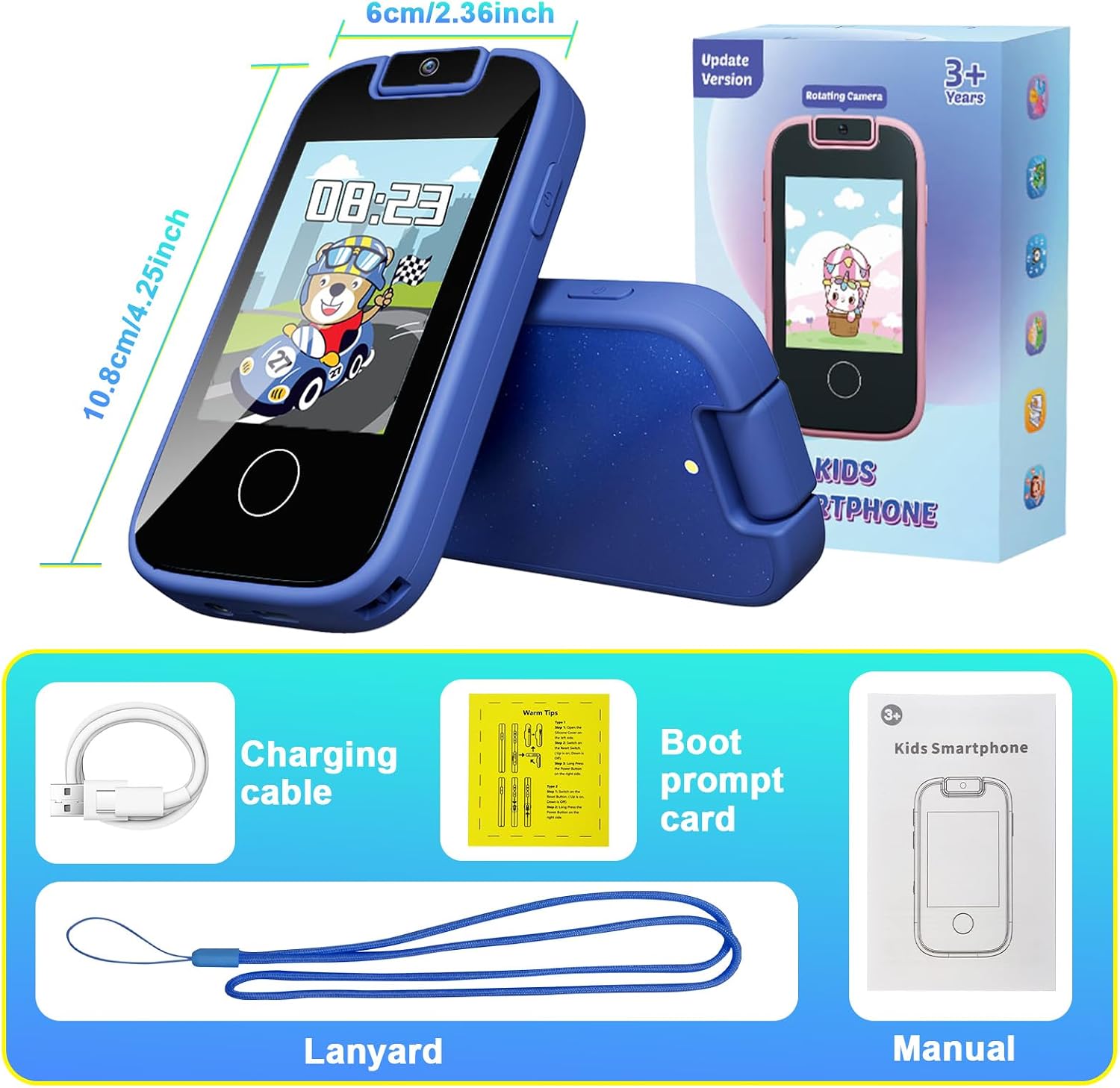
Figure 1: Contents of the PTHTECHUS Kids Smartphone P2-Blue package. The image displays the blue smartphone, a white USB charging cable, a blue lanyard, and the user manual, all neatly arranged.
Product Overview
The PTHTECHUS Kids Smartphone P2-Blue is designed with a child-friendly interface and robust features. It includes a 2.8-inch touchscreen and a unique 180-degree rotating dual camera.

Figure 2: Front view of the PTHTECHUS Kids Smartphone P2-Blue, highlighting its touchscreen display and the 180-degree rotating camera module at the top.
Key Features:
- 2.8-inch Touchscreen: Intuitive navigation and interaction.
- 180° Rotating Dual Camera: Capture photos and videos from various angles.
- MP3 Music Player: Supports MP3 format for audio playback.
- 13 Puzzle Games: Engaging and educational games.
- Habit Tracker: Helps children develop positive routines.
- Educational Learning Functions: Includes ABC alphabet learning and audio stories.
- Flashlight: Integrated utility light.
- Calculator, Alarm Clock, Timer, Stopwatch: Practical tools for daily use.
- Parental Controls: Manage screen time and access.

Figure 3: A visual representation of the P2-Blue Kids Smartphone's main screen, displaying icons for various built-in applications such as Camera, Flashlight, Music, Stopwatch, Games, and Video.
Setup
1. Initial Charging
Before first use, fully charge the device. Connect the provided USB charging cable to the charging port on the device and the other end to a compatible USB power adapter (not included) or a computer USB port. The charging indicator will illuminate during charging.
Video 1: An unboxing and initial setup guide for the PTHTECHUS P2 Kids Smartphone Toy, demonstrating how to unpack the device and connect the charging cable. This video also showcases the device's various features and settings.
2. Powering On/Off
To power on the device, press and hold the power button located on the side until the screen illuminates. To power off, press and hold the power button until a power-off option appears on the screen, then confirm your selection.
3. Attaching the Lanyard
Thread the provided hanging rope (lanyard) through the designated loop on the device to prevent accidental drops and for easy portability.
Operating Instructions
Navigation
The device features a touchscreen for navigation. Swipe left or right to browse through applications and menus. Tap on an icon to open an application or select an option.
Camera Functions
The P2-Blue features a 180° rotating dual camera. Rotate the camera module to switch between front and rear views. Tap the "Camera" icon to open the camera application.
- Taking Photos: Tap the shutter icon on the screen.
- Recording Videos: Switch to video mode and tap the record icon.
- Stickers and Filters: Explore various built-in stickers and filters to enhance photos and videos.

Figure 4: The P2-Blue Kids Smartphone in use, demonstrating its HD rotating camera for both front and rear photography, along with a selection of fun stickers that can be applied to images.
Music Playback (MP3 Player)
The device supports MP3 audio files. Connect the device to a computer using the USB cable to transfer MP3 files to the device's internal storage. Tap the "Music" icon to access the MP3 player.
- Playing Music: Select a song from the list to begin playback.
- Controls: Use the on-screen controls for play, pause, skip, and volume adjustment.
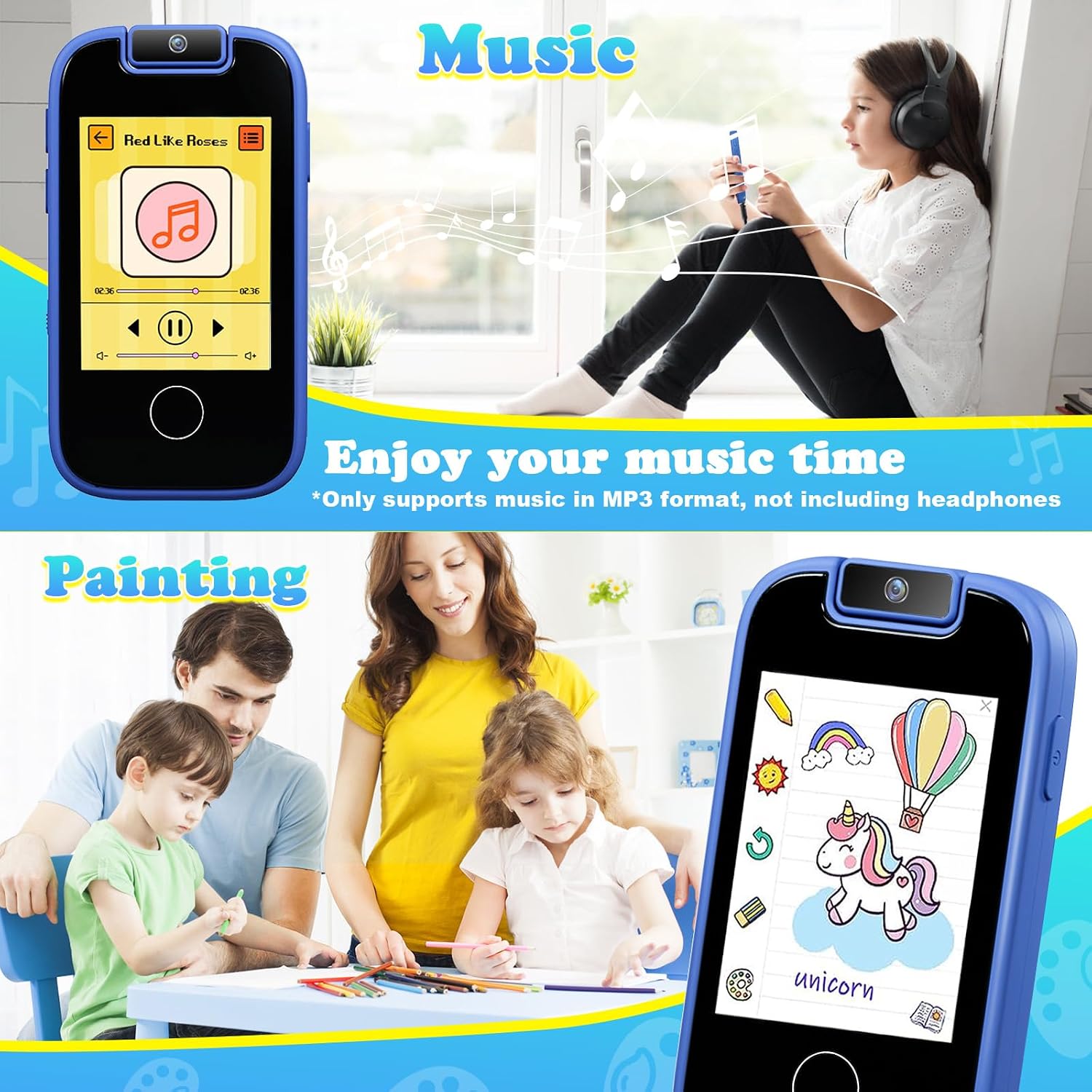
Figure 5: A child enjoying music through the P2-Blue Kids Smartphone, illustrating the device's MP3 music player functionality. Note that headphones are not included.
Games and Learning Functions
The P2-Blue comes pre-loaded with 13 puzzle games and various educational applications designed to promote cognitive development and learning.
- Games: Tap the "Games" icon to select from a variety of puzzle games.
- Funny ABC: Interactive alphabet learning.
- Habit Tracker: Set and track daily habits like brushing teeth or making the bed.
- Audio Stories: Listen to pre-recorded fables and stories.
- Buildings/Countries: Learn about famous landmarks and countries.

Figure 6: The P2-Blue Kids Smartphone displaying its educational features, including "Buildings" for learning about global landmarks, "Habit Tracker" for daily routines, and "Funny ABC" for alphabet learning. The device also offers 10 audio stories.
Parental Controls
The device includes an anti-addiction mode, allowing parents to set daily play time limits for games and other activities. Access these settings through the "School Mode" option in the device settings.

Figure 7: A visual of the parental control interface on the P2-Blue Kids Smartphone, showing options for setting daily play periods and specific days for restrictions.
Maintenance
Cleaning and Care
- Use a soft, dry cloth to clean the device screen and body.
- Avoid using abrasive cleaners or solvents.
- Keep the device away from water and excessive moisture.
- Do not expose the device to extreme temperatures.
Battery Information
The device contains a built-in Lithium Metal battery. For optimal battery life:
- Fully charge the device before first use.
- Recharge the battery when the low battery indicator appears.
- Avoid completely draining the battery frequently.
- Do not attempt to replace the battery yourself.
Troubleshooting
| Problem | Possible Cause | Solution |
|---|---|---|
| Device does not turn on. | Low battery; device frozen. | Charge the device for at least 10 minutes. If still unresponsive, perform a soft reset by pressing and holding the power button for 10-15 seconds. |
| Screen is unresponsive. | Software glitch; screen damage. | Restart the device. Ensure the screen is clean and dry. If the issue persists, contact customer support. |
| Cannot transfer music files. | Incorrect USB connection; unsupported file format. | Ensure the USB cable is securely connected. Verify that music files are in MP3 format. Try a different USB port or computer. |
| Camera not working. | Software error; camera module obstruction. | Restart the device. Ensure the camera module is fully rotated and not obstructed. |
Specifications
- Model Number: P2-Blue
- Product Dimensions: 4.13 x 2.17 x 0.59 inches
- Item Weight: 1.76 ounces
- Screen Diagonal: 2.8 inches (7.1 cm)
- Battery: 1 Lithium Metal battery (included)
- Manufacturer: yangjiangshiyangdongquzhangtongjiayuankejico.LTD
Warranty and Support
PTHTECHUS offers a warranty and lifetime friendly customer service for this product. If you encounter any issues or have questions regarding your PTHTECHUS Kids Smartphone P2-Blue, please do not hesitate to contact us. We are committed to providing support and will respond within 24 hours.
For support, please visit the official PTHTECHUS store or contact the seller directly through the platform where the purchase was made.
PTHTECHUS Store: https://www.amazon.com/stores/PTHTECHUS/page/EC00E453-ED87-4ED1-8637-3011A92106CB
Ask a question about this manual
Ask about setup, troubleshooting, compatibility, parts, safety, or missing instructions. Manuals+ will review the question and use this page’s manual context to help answer it.