
HOU A2696, A2777, A2757
HOU Keyboard Case User Manual
Model: A2696, A2777, A2757
1. Product Overview
The HOU Keyboard Case is designed to enhance your iPad experience, offering a combination of protection and functionality. It features an ultra-slim design, magnetic attachment, and a comfortable typing experience, making it ideal for various uses from productivity to entertainment.
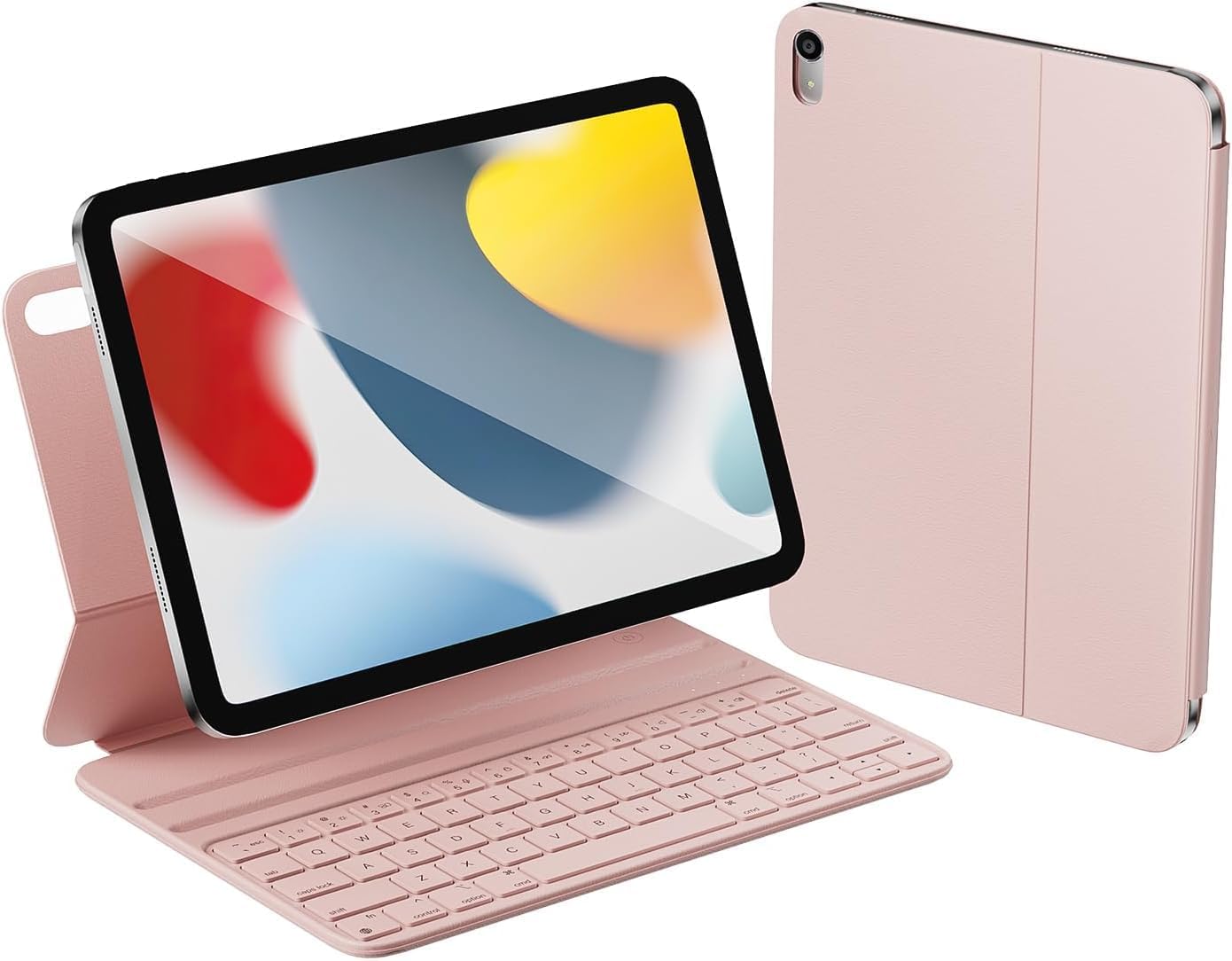
Image: HOU Keyboard Case in pink, shown with an iPad in typing mode and closed.
2. Package Contents
Please verify that all items are present in your package:
- Keyboard Case
- Magnetic Charging Cable
- Product Instruction Manual
3. Compatibility
This keyboard case is specifically designed for the following iPad models:
- 10.9-inch iPad 10th Generation 2022 (Model Numbers: A2696/A2777/A2757)
- 11-inch iPad 11th Generation A16 2025
To confirm your iPad model number, navigate to Settings > General > About on your device.

Image: Visual guide to finding your iPad's model number and a chart indicating compatibility with iPad 10th and 11th Generation models.
4. Setup and Connection
4.1 Charging the Keyboard
The keyboard features innovative magnetic charging technology for convenience. Connect the provided magnetic charging cable to the designated port on the keyboard. The keyboard power display on your iPad will show the real-time charge status.

Image: A close-up of the keyboard case showing the magnetic charging connection point.
4.2 Pairing with your iPad
Before the first connection, it is necessary to activate or reset the keyboard. Long press and hold the Fn + Control + R keys simultaneously until the red indicator light on the keyboard flashes. Once the light flashes, the keyboard is ready for pairing. Go to your iPad's Bluetooth settings, find the keyboard, and connect. Once connected, the keyboard is ready for use.
Video: Demonstrates the pairing process of the HOU Keyboard Case with an iPad, showing the keyboard in use for typing.
4.3 Attaching the iPad
The keyboard case features a smart magnetic layout on the back and bottom to firmly absorb and stabilize your iPad. Simply align your iPad with the magnetic area of the case, and it will securely attach. This design prevents deviation or shifting while typing, reading, sketching, or viewing.

Image: Illustration of the strong magnetic connection between the iPad and the keyboard case, ensuring stability.
5. Operating Instructions
5.1 Keyboard Usage
The full-size, ergonomic ABS chiclet keys provide a comfortable and responsive typing experience. The scissor foot structure ensures strong rebound and a chocolate-like touch. The keyboard also includes 12 new shortcut buttons for easy adjustment of volume, screen brightness, and other functions.

Image: Diagram highlighting the key features of the keyboard, such as magnetic charging, chiclet keys, and scissor foot structure.

Image: Detailed view of the keyboard's scissor switch mechanism, emphasizing 1.2mm key travel and silent keys.
5.2 Adjustable Viewing Angles
The case supports adjustable viewing angles of 115° and 125°, allowing you to find the most comfortable position for typing, viewing, or sketching. The magnetic grooves ensure the iPad remains stable at your chosen angle.
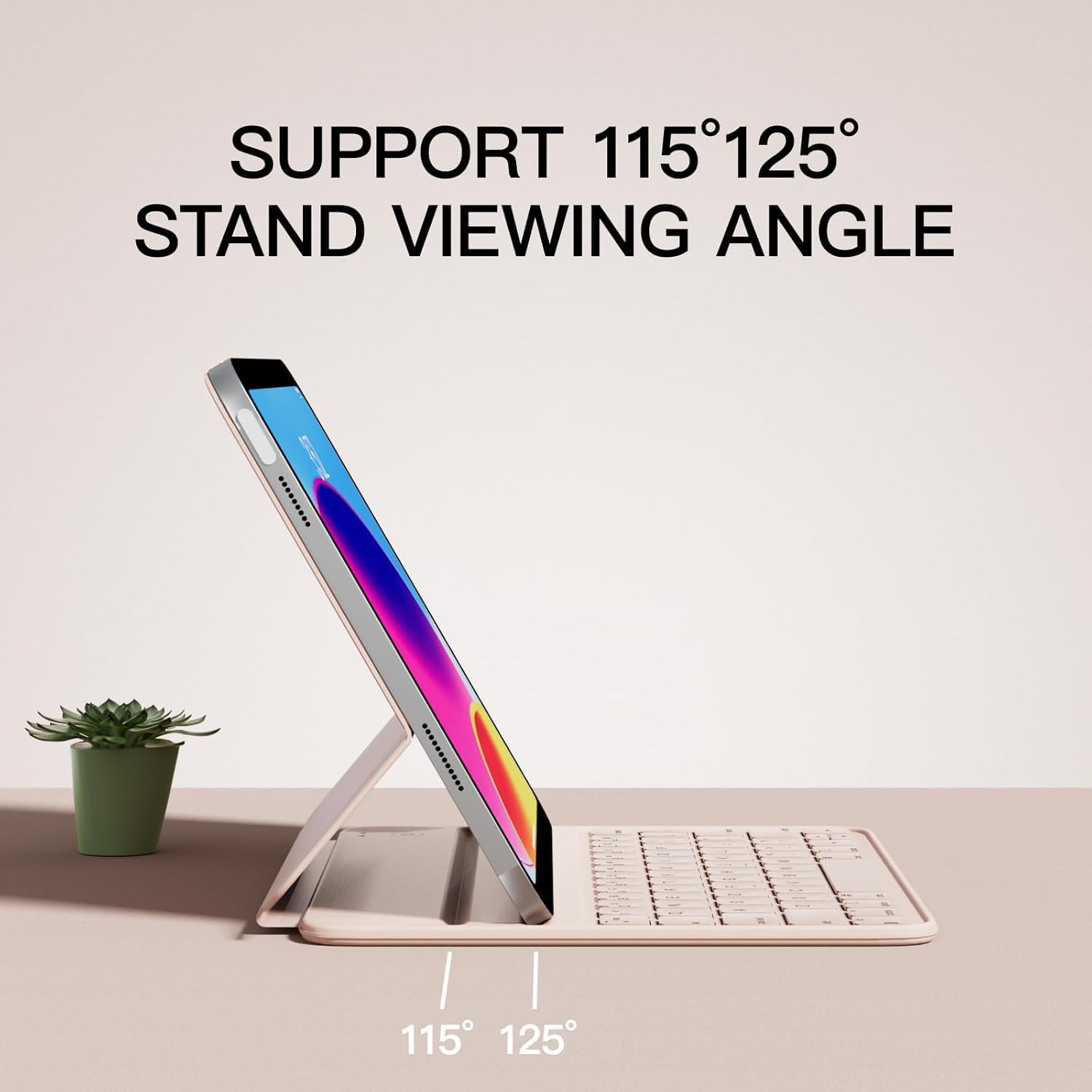
Image: The keyboard case supporting an iPad at two different viewing angles, 115 and 125 degrees.
5.3 Auto Sleep/Wake Function
The HOU Keyboard Case is equipped with an auto sleep/wake function. Opening the case will automatically wake your iPad, and closing it will put your iPad to sleep, conserving battery life.

Image: The keyboard case showing the iPad screen waking upon opening and sleeping upon closing.
5.4 Portability and Versatility
Weighing only 0.9 lbs and with a thickness of 0.3 inches, this keyboard case is ultra-portable. It's designed for convenience, allowing you to carry it anywhere for watching videos, reading documents, or performing office work, unleashing your creativity on the go.

Image: Collage showing different uses of the iPad with the keyboard case, including typing at a desk, viewing content, and reading.

Image: A woman holding the keyboard case, highlighting its thin and light design.
6. Maintenance
6.1 Cleaning
The keyboard case is made from high-quality space leather, which is resistant to scratches and dirt. For cleaning, gently wipe the surface with a soft, damp cloth. Avoid using harsh chemicals or abrasive materials.

Image: A close-up of the case material, illustrating its stain-resistant and easy-to-clean properties.
6.2 Storage
When not in use, keep the keyboard case closed to protect your iPad's screen and the keyboard. Store it in a cool, dry place away from direct sunlight and extreme temperatures.
7. Troubleshooting
7.1 Keyboard Not Connecting
- Ensure the keyboard is charged.
- Verify Bluetooth is enabled on your iPad.
- Perform the activation/reset procedure: Long press Fn + Control + R until the red indicator light flashes. Then attempt to re-pair via iPad Bluetooth settings.
- Restart your iPad and the keyboard.
7.2 Typing Issues
- Check if the keyboard is properly connected via Bluetooth.
- Ensure the iPad is securely seated in the magnetic grooves.
- If keys are unresponsive, the keyboard battery might be low. Charge the keyboard.
7.3 iPad Not Stable in Case
- Ensure the iPad is correctly aligned with the magnetic areas on the case.
- Confirm the iPad is placed firmly into one of the two magnetic grooves for stable viewing angles.
8. Specifications
| Feature | Detail |
|---|---|
| Product Dimensions | 9.8 x 3.3 x 0.3 inches |
| Item Weight | 1.56 pounds |
| Manufacturer | HOU |
| ASIN | B0C4DYG14K |
| Country of Origin | China |
| Item Model Number | A2696, A2777, A2757 |
| Batteries | 1 C battery required (included) |
| Date First Available | May 5, 2023 |
9. Warranty and Support
For warranty information or technical support, please refer to the contact details provided with your purchase or visit the official HOU website. Keep your proof of purchase for any warranty claims.
If you encounter any issues not covered in this manual, please contact HOU customer service for assistance.
Related documentsA2696, A2777, A2757


Ask a question about this manual
Ask about setup, troubleshooting, compatibility, parts, safety, or missing instructions. Manuals+ will review the question and use this page’s manual context to help answer it.