
VR-robot build-in
VR-robot MP3 Player User Manual
Model: build-in
Introduction
Thank you for purchasing the VR-robot MP3 Player. This device is designed to provide a versatile and portable entertainment experience, featuring music playback, video viewing, FM radio, voice recording, and e-book reading capabilities. With its compact design and expandable storage, it is ideal for various activities such as running, walking, or simply enjoying your favorite media on the go. This manual will guide you through the setup, operation, maintenance, and troubleshooting of your new MP3 player.
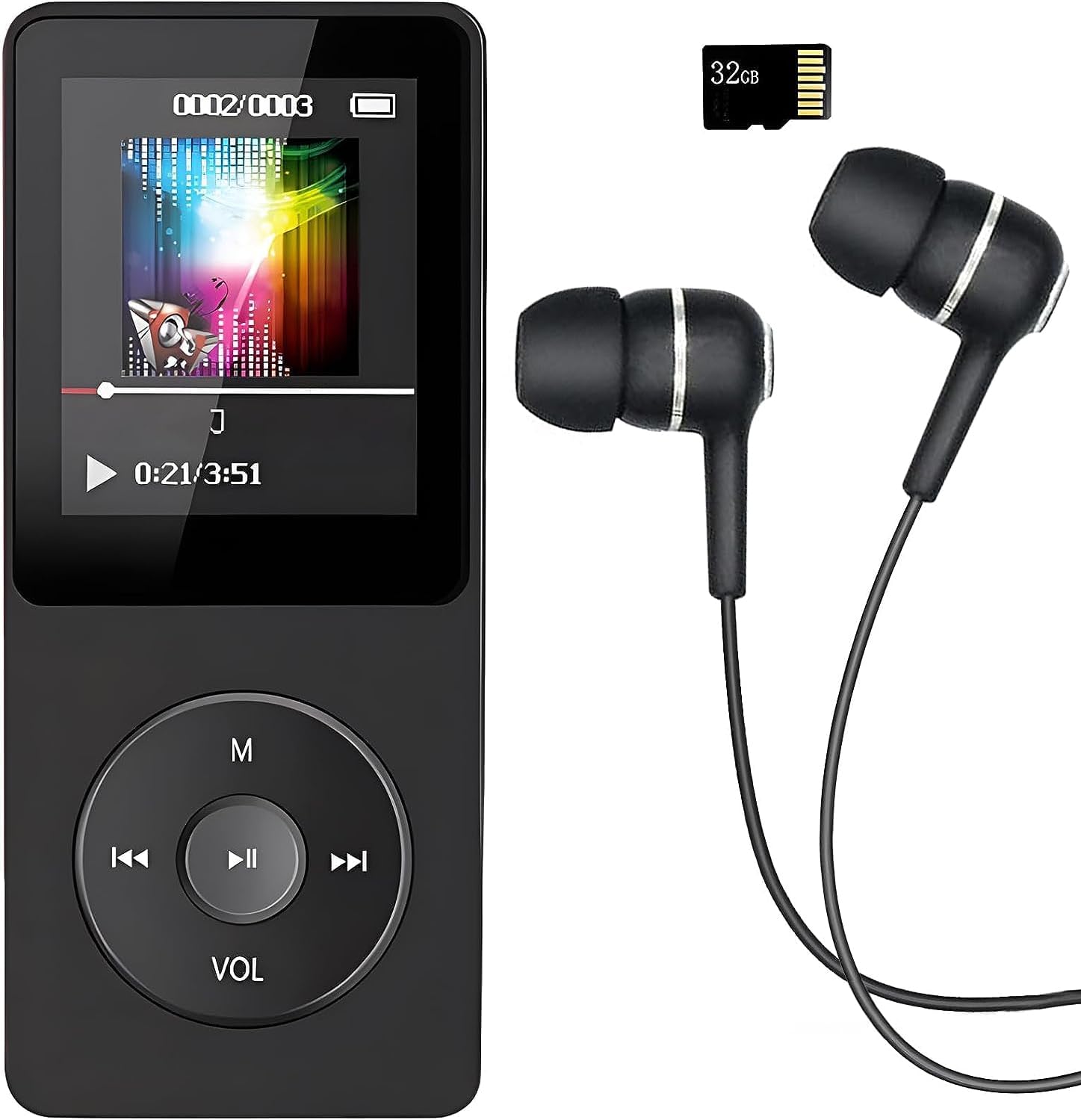
Image: The VR-robot MP3 Player, showcasing its compact design, screen, control buttons, and the included 32GB Micro SD card and wired earphones.
Setup
1. Charging the Device
Before first use, fully charge the MP3 player. Connect the device to a USB power adapter (not included) or a computer's USB port using the provided USB cable. The battery indicator on the screen will show charging progress. A full charge typically takes 2-3 hours and provides up to 10 hours of music playback.
2. Inserting the Micro SD Card
Your MP3 player comes with a 32GB Micro SD card. Locate the Micro SD card slot on the side of the device. Gently insert the Micro SD card into the slot until it clicks into place. The device supports Micro SD cards up to 128GB for expanded storage.

Image: A hand inserting a blue Micro SD card into the dedicated slot on the side of the VR-robot MP3 Player, illustrating the expandable storage feature.
3. Connecting to a Computer for File Transfer
To transfer music, videos, photos, or e-books to your MP3 player, connect it to your computer using the USB cable. The device will appear as a removable disk drive. You can then drag and drop files into the appropriate folders on the device or the inserted Micro SD card.
Operating Instructions
Basic Navigation
The MP3 player features a central control pad with directional buttons and a central play/pause button. The 'M' button typically serves as a menu or back button, while 'VOL' controls volume. Navigate through menus and select options using these buttons.
Music Playback
The player supports multiple audio formats including MP3, WMA, APE, WAV, and FLAC. For optimal sound quality, the device incorporates a professional intelligent digital noise reduction chip. Connect the included earphones or use the built-in speaker for audio output.

Image: A person wearing headphones, illustrating the high-fidelity sound experience provided by the MP3 player, with text indicating support for various audio formats.
- Playing Music: Select "Music" from the main menu, then browse by artist, album, song, or folder.
- Volume Control: Use the 'VOL' button to adjust the playback volume.
- A-B Repeat: This function allows you to loop a specific segment of an audio track. Select the start point (A) and end point (B) during playback.
Video Playback
The MP3 player supports video playback. Ensure your video files are in a compatible format for smooth playback. Refer to the device specifications for supported video formats.
FM Radio
To use the FM radio function, connect wired headphones to the device, as they serve as the antenna. Navigate to the "FM Radio" option in the main menu. You can then auto-scan for stations or manually tune to a specific frequency (87.5 MHz - 108 MHz).

Image: A person with an earphone in, surrounded by circular graphics indicating various FM radio frequencies, demonstrating the FM radio capability of the MP3 player.
Voice Recorder
The built-in voice recorder allows you to capture audio notes or lectures. Select "Record" from the main menu to start a new recording. Recordings are typically saved in WAV format.

Image: The VR-robot MP3 Player displaying a recording interface, with a child studying in the background, highlighting its use as a voice recorder.
E-Book Reader
Load compatible e-book files onto your device to read on the go. Navigate to the "E-Book" section to access your digital library.
Alarm Function
The device includes an alarm function. Set alarms through the settings menu for reminders or as a wake-up call.
Folder Browsing
Access files directly by browsing folders. This is useful for organizing different types of media or for audiobooks where tracks are separated into specific folders.

Image: The VR-robot MP3 Player screen displaying icons for E-Book, Alarm, Record, Music, Folder, FM Radio, A-B Repeat, and Video, illustrating its diverse functionalities.
Maintenance
- Cleaning: Use a soft, dry cloth to clean the device. Avoid using liquid cleaners or abrasive materials.
- Storage: Store the MP3 player in a cool, dry place away from direct sunlight and extreme temperatures.
- Battery Care: To prolong battery life, avoid fully discharging the battery frequently. Charge the device regularly, even if not in use for extended periods.
- Software Updates: Check the manufacturer's website periodically for any available firmware updates to ensure optimal performance.
Troubleshooting
| Problem | Possible Cause / Solution |
|---|---|
| Device does not turn on. | Battery is depleted. Charge the device for at least 30 minutes. If still unresponsive, try a different USB cable or charging port. |
| Cannot transfer files to the device. | Ensure the USB cable is securely connected. Try a different USB port on your computer. The device might be in charging mode; check if it needs to be set to "Media Device (MTP)" or "USB Storage" mode. |
| Music files are not playing or are corrupted. | Verify that the music files are in a supported format (MP3, WMA, APE, WAV, FLAC). Ensure files are not corrupted. Re-transfer the files if necessary. |
| FM Radio signal is weak or non-existent. | Ensure wired headphones are properly plugged in, as they act as the antenna. Try moving to an area with better signal reception. |
| Albums/folders are not separated correctly. | Ensure your music files have correct ID3 tags and are organized into distinct folders on the device's storage. Some players may combine tracks if metadata is inconsistent. |
| Voice recording not working. | Check if there is sufficient storage space. Ensure the microphone is not obstructed. |
Specifications
- Brand: VR-robot
- Model Name: build-in
- Memory Storage Capacity: 32 GB (Micro SD card included), supports up to 128 GB
- Connectivity Technology: Bluetooth, USB
- Special Features: Video Playback, Voice Recorder, FM Radio, E-Book Reader, Built-in Speaker
- Screen Size: 3.5 inches
- Color: Black
- Item Weight: 2.89 ounces
- Batteries: 1 Lithium Ion battery required (included)
- Package Dimensions: 4.84 x 2.87 x 1.42 inches
- Included Components: MP3 Player, 32GB Micro SD Card, Earphone, USB Cable
Warranty and Support
Your VR-robot MP3 Player comes with a 12-month warranty from the date of purchase. This warranty covers manufacturing defects and ensures the quality of your product.
If you encounter any problems or have questions regarding your device, please do not hesitate to contact our professional after-sales service team. You can typically find contact information on the seller's page or through your purchase platform. We are committed to providing a quick and satisfactory response to ensure your satisfaction.
For further assistance, please refer to the VR-robot store on Amazon: VR-robot Store
Related documentsbuild-in

Ask a question about this manual
Ask about setup, troubleshooting, compatibility, parts, safety, or missing instructions. Manuals+ will review the question and use this page’s manual context to help answer it.