
Introduction
The JBL Quantum TWS AIR True Wireless Gaming Earbuds are designed to provide an immersive audio experience with low-latency wireless connectivity, smart ambient technology, and clear communication features. This manual will guide you through the essential steps to maximize your earbuds' performance and longevity.
Setup
What's in the Box
- JBL Quantum TWS Air Headphones
- USB Wireless Dongle
- Charging Case
- 3 sizes of ear tips
- USB-C Charging Cable
- Warranty Card
- Quick Start Guide (QSG)
Charging the Earbuds and Case
Before first use, fully charge the earbuds and the charging case. Connect the supplied USB-C charging cable to the charging case and a power source. The LED indicators on the case will show the charging status. A full charge takes approximately 2 hours.

Image: The JBL Quantum TWS AIR charging case, showing the USB-C charging port on the front. The case is black and compact.
Initial Pairing (2.4GHz USB-C Dongle)
- Remove the USB-C wireless dongle from the charging case.
- Plug the USB-C dongle into a compatible device (PC, Steam Deck, iPad, Android device, Nintendo Switch™).
- The earbuds will automatically connect to the dongle. Ensure both earbuds are removed from the case.
- For PC, it is recommended to install the JBL QuantumENGINE software for full customization and surround sound features.
Bluetooth Pairing
- Ensure the earbuds are in the charging case with the lid open, or removed from the case.
- On your device, enable Bluetooth and search for available devices.
- Select "JBL Quantum TWS AIR" from the list to pair.
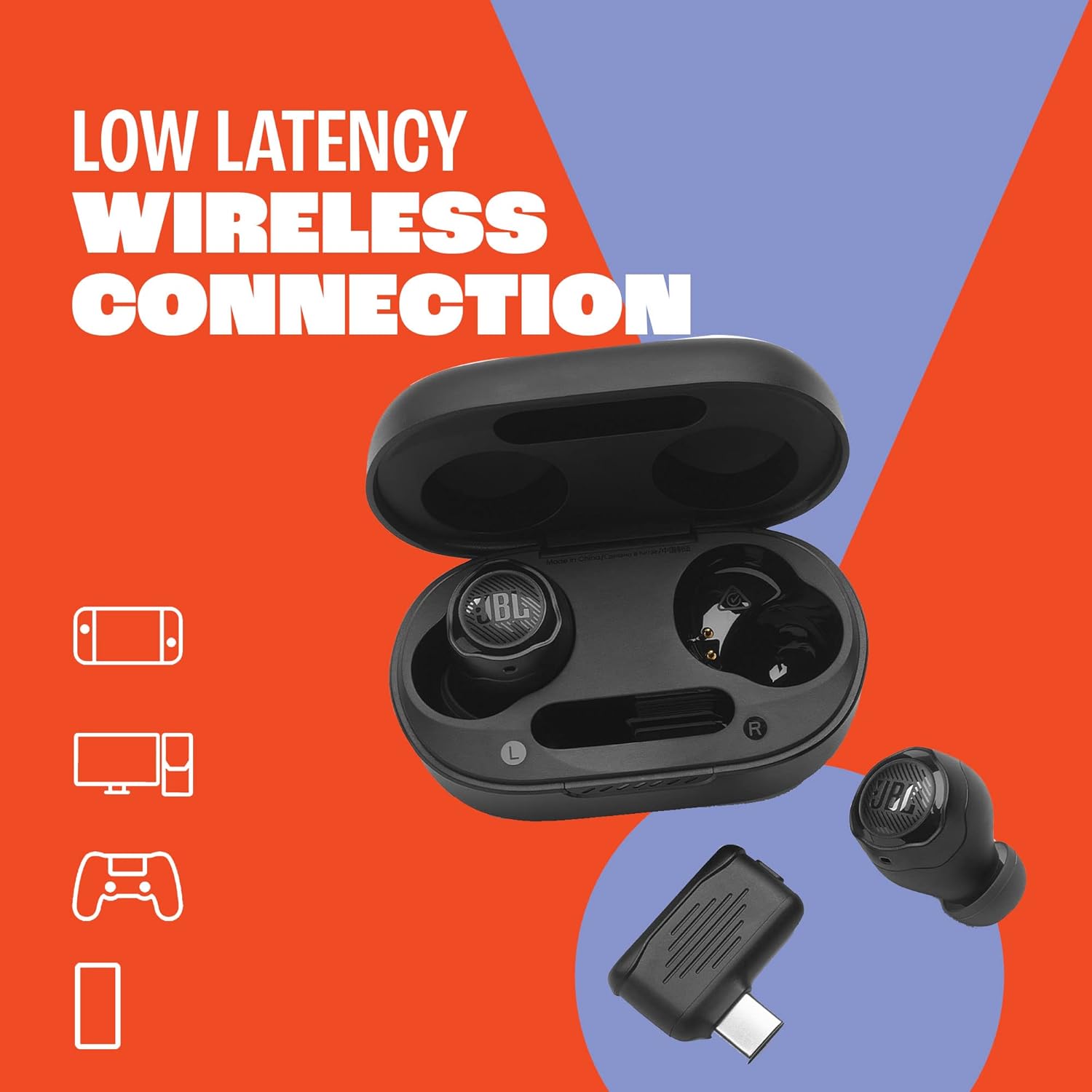
Image: The JBL Quantum TWS AIR earbuds, their charging case, and the USB-C dongle, illustrating their low-latency wireless connection capability across various devices like PCs, tablets, and gaming consoles.
Fitting the Earbuds
For optimal sound quality and comfort, ensure the earbuds are properly seated in your ears. The oval-shaped tubes are designed for a secure fit. Gently twist the earbuds into your ear canal until they feel snug and stable.

Image: A close-up view of the two JBL Quantum TWS AIR earbuds, highlighting their design and the JBL logo on each earbud.
Operating Instructions
Touch Controls
The JBL Quantum TWS AIR earbuds feature touch controls for media playback, call management, and ambient sound modes. Refer to the Quick Start Guide for specific tap sequences for various functions such as play/pause, track skipping, volume adjustment, and answering/ending calls.
Smart Ambient Technology (Ambient Aware & TalkThru)
The Smart Ambient technology allows you to stay aware of your surroundings while enjoying your audio. Ambient Aware lets you hear ambient sounds, keeping you alert to your environment. TalkThru lowers your audio volume and amplifies voices, enabling quick conversations without removing your earbuds.

Image: A person wearing the JBL Quantum TWS AIR earbuds, illustrating the use of Smart Ambient Technology to remain aware of their surroundings.
JBL Dual Source™ Technology
This feature allows you to connect your earbuds to two devices simultaneously, such as a PC and a Bluetooth-enabled smartphone. You can seamlessly switch between game audio on your PC and incoming calls on your phone without manual re-pairing.
JBL QuantumSURROUND
Experience immersive and accurate sound with JBL QuantumSURROUND, powered by 6.8mm drivers. This feature is designed to enhance your gaming experience by providing spatial audio. Note: JBL QuantumSURROUND is only available on PC in combination with the JBL QuantumENGINE software.
Microphones
The earbuds are equipped with 4 beamforming microphones, ensuring crystal-clear communication during calls or in-game chat. Your voice will be transmitted clearly, minimizing background noise.

Image: A person wearing the JBL Quantum TWS AIR earbuds, highlighting the effectiveness of the 4 beamforming microphones for clear communication during gaming or calls.
Software Integration
For advanced settings, firmware updates, and audio customization, download the JBL Headphones app for your mobile device and the JBL QuantumENGINE software for your PC. Regular firmware updates are recommended for optimal performance.
Maintenance
Cleaning
To maintain sound quality and hygiene, regularly clean your earbuds and charging case. Use a soft, dry, lint-free cloth. For ear tips, you may gently wipe them with a slightly damp cloth and mild soap, then dry thoroughly before reattaching. Do not use harsh chemicals or abrasive materials.
Storage
When not in use, store the earbuds in their charging case to protect them and ensure they remain charged. Store the case in a cool, dry place away from direct sunlight and extreme temperatures.
Water Resistance
The JBL Quantum TWS AIR earbuds are IPX4 water resistant, meaning they are protected against splashing water from any direction. This makes them suitable for light rain or sweaty workouts. They are not designed for submersion in water.
Troubleshooting
| Problem | Possible Cause | Solution |
|---|---|---|
| Earbuds not connecting via dongle | Dongle not properly inserted; Earbuds not removed from case; Firmware outdated. | Ensure dongle is fully inserted. Remove both earbuds from case. Update firmware via JBL QuantumENGINE. |
| Bluetooth pairing issues | Earbuds not in pairing mode; Device Bluetooth off; Interference. | Ensure earbuds are discoverable. Restart device's Bluetooth. Move closer to device. |
| Poor audio quality or low volume | Improper fit; Earbuds dirty; Device volume low; EQ settings. | Adjust earbud fit. Clean earbuds and ear tips. Increase device volume. Adjust EQ in JBL apps. |
| Earbuds not charging | Charging contacts dirty; Cable faulty; Case battery depleted. | Clean charging contacts on earbuds and case. Try a different USB-C cable. Charge the case. |
| Short battery life | High volume usage; Dongle usage (more power hungry); Old firmware. | Reduce volume. Note that dongle use consumes more power. Ensure firmware is updated. |
| One earbud not working | Connection issue; Earbud not charged. | Place both earbuds back in the case, close, then reopen. Ensure both are charged. Re-pair if necessary. |
Specifications
| Feature | Detail |
|---|---|
| Model Name | JBL Quantum TWS Air |
| Connectivity Technology | Wireless (2.4GHz USB-C Dongle, Bluetooth 5.2) |
| Audio Driver Size | 6.8 Millimeters (Dynamic Driver) |
| Frequency Range | 20 Hz - 20 kHz |
| Impedance | 16 Ohm |
| Sensitivity | 102 dB |
| Microphones | 4 beamforming microphones |
| Battery Life (Earbuds) | Up to 8 hours |
| Battery Life (with Charging Case) | Up to 24 hours total (16 hours additional in case) |
| Charging Time | 2 Hours |
| Water Resistance Level | IPX4 (Water Resistant) |
| Control Method | Touch |
| Weight | 5.6 ounces (approx.) |
Warranty Information
JBL products are covered by a limited warranty. The specific terms and duration of your warranty may vary by region and product. Please refer to the warranty card included in your product packaging or visit the official JBL website for detailed warranty information and registration.
Support
For further assistance, technical support, or to download the latest software and firmware updates, please visit the official JBL support website. You can also find FAQs and contact customer service there.
Official JBL Website: www.jbl.com


