
TCL TCL RayNeo Adapter
TCL Portable Adapter Instruction Manual
Model: TCL RayNeo Adapter | Brand: TCL
1. Introduction
The TCL Portable Adapter is designed to enhance the connectivity and battery life of your TCL NXTWEAR S XR Glasses and RayNeo AR glasses. This device ensures seamless compatibility with both Android and iPhone mobile phones, providing an extended power source and versatile connection options for an uninterrupted augmented reality experience. With its compact and lightweight design, it is an ideal companion for on-the-go usage.
2. Product Overview
The TCL Portable Adapter features a robust design with intuitive controls and essential indicators. Below is a detailed look at its components and their functions.

Figure 1: Front view of the TCL Portable Adapter, showcasing its sleek, dark grey design and central circular control element.
2.1. Key Features
- Universal Compatibility: Ensures seamless connectivity with TCL NXTWEAR S XR Glasses and RayNeo AR glasses, supporting both Android and iPhone users.
- Extended Battery Life: Equipped with a 4500mAh built-in battery, it prolongs the operational time of your glasses and can also serve as a power bank for other devices.
- Versatile Connectivity: Works with iOS and non-DisplayPort (non-DP) devices, ensuring uninterrupted use of your glasses' features.
- Compact & Lightweight: Weighing approximately 135g (4.76 ounces), its portable design enhances convenience for travel and daily use.
- Enhanced Experience: Designed to eliminate connectivity issues and battery concerns, providing a seamless and enjoyable experience with your AR glasses.
2.2. Product Components and Controls

Figure 2: Top-down view of the adapter with key components labeled. Features include the Battery Level Indicator (green LEDs), Brightness Control wheel, Power-on Indicator, and ports to Connect XR glasses.

Figure 3: Side view of the adapter highlighting the XR Glasses Speaker Switch (Turn on/off audio through glasses/phone) and XR Glasses Volume Control.
3. Setup and Connection
Follow these steps to set up your TCL Portable Adapter and connect it to your devices.
- Charge the Adapter: Before first use, fully charge the portable adapter using the provided USB-C charging cable. Connect the cable to the USB-C charging interface on the adapter and a compatible power source (e.g., 5V=3A max charger). The battery power indicator lights will show charging progress.
- Connect XR Glasses: Plug your TCL NXTWEAR S XR Glasses or RayNeo AR glasses into the designated glasses interface on the adapter. The adapter automatically turns on when the glasses are connected.
- Connect to Mobile Phone (iPhone & Non-DP Android): Use the appropriate cable (Lightning or Micro USB, depending on your phone) to connect your mobile phone to the adapter. This enables video output from your phone to the AR glasses via the adapter.
- Power-on Indicator: Observe the power-on indicator light to confirm the adapter is active and ready for use.
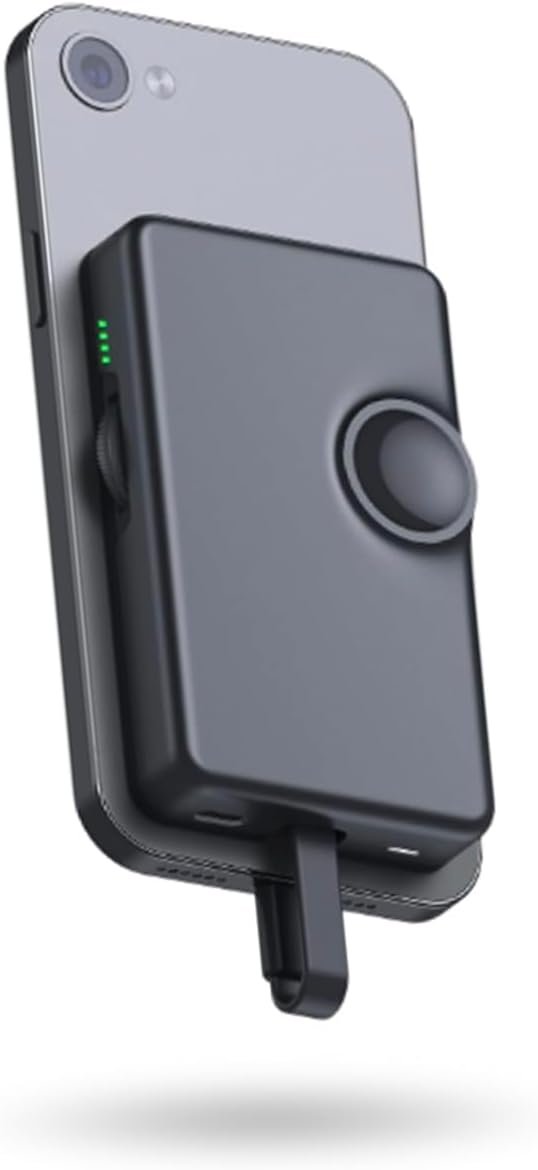
Figure 4: The TCL Portable Adapter connected to a mobile phone, demonstrating its compact integration.
4. Operating Instructions
Utilize the function keys on the adapter to control your AR glasses experience.
- Brightness Control: Use the brightness control wheel to adjust the display brightness of your connected AR glasses.
- Volume Control: Use the volume control wheel to adjust the audio output volume of your connected AR glasses.
- Glasses Speaker Switch: This switch controls where the audio plays:
- Turn On: Audio plays through the AR glasses' built-in speakers.
- Turn Off: Audio plays through the connected phone's speaker or other audio devices connected to the phone.
- Power Bank Functionality: The 4500mAh battery can also be used to charge other devices via the USB-C output port.
5. Maintenance and Care
To ensure the longevity and optimal performance of your TCL Portable Adapter, please follow these maintenance guidelines:
- Keep the adapter clean by wiping it with a soft, dry cloth. Avoid using abrasive cleaners or solvents.
- Store the adapter in a cool, dry place away from direct sunlight and extreme temperatures.
- Avoid dropping or subjecting the adapter to strong impacts, as this may damage internal components.
- Do not attempt to disassemble or repair the adapter yourself. Refer to authorized service personnel for any repairs.
- Ensure all ports are free from dust and debris before connecting cables.
6. Troubleshooting
If you encounter issues with your TCL Portable Adapter, refer to the following common troubleshooting tips:
- No Power: Ensure the adapter is sufficiently charged. Connect it to a power source and check the battery indicator lights.
- Glasses Not Connecting/No Display: Verify that the AR glasses are securely plugged into the adapter's glasses interface. Ensure the adapter is powered on. Check the connection cable for any damage.
- No Audio: Check the volume control wheel on the adapter. Ensure the glasses speaker switch is set to the desired output (glasses or phone). Verify audio settings on your connected mobile phone.
- Phone Not Charging (Power Bank Function): Ensure the charging cable is correctly connected to both the adapter and your phone. Check if the adapter has sufficient battery charge.
- Intermittent Connection: Try using different cables to rule out cable issues. Ensure all connections are firm.
If the problem persists after trying these steps, please contact TCL customer support for further assistance.
7. Specifications
| Parameter | Value |
|---|---|
| Product Name | Portable Adapter |
| Size | 108.5mm*64.6mm*17.3mm (4.27 x 2.54 x 0.68 inches) |
| Weight | 135g (4.76 ounces) |
| Function Keys | Glasses speaker switch, Brightness control wheel, Volume control wheel |
| Indicator Light | Battery power indicator, Power-on indicator |
| Interface | Charging interface (USB-C), Adapter, Glasses interface |
| Input | 5V=3A max |
| Battery Capacity | 4500mAh (3.85V/17.33Wh) |
| Rated Capacity | 4360mAh (3.85V/16.79Wh) |
| Endurance (Video Playback) | Up to 3.5 hours |
| Color | Black |
| Compatible Devices | TCL NXTWEAR S XR Glasses, RayNeo AR Glasses, Mobile Phones (iPhone & Non-DP Android) |
8. Warranty and Support
TCL provides a limited warranty for this product. For detailed warranty information, including terms, conditions, and duration, please refer to the warranty card included in your product packaging or visit the official TCL support website. For technical support, troubleshooting assistance, or service inquiries, please contact TCL customer support through their official channels.
You can find more information and support resources on the TCL Store on Amazon.
Related documentsTCL RayNeo Adapter


Ask a question about this manual
Ask about setup, troubleshooting, compatibility, parts, safety, or missing instructions. Manuals+ will review the question and use this page’s manual context to help answer it.