
Introduction
This manual provides detailed instructions for the setup, operation, maintenance, and troubleshooting of your Tera HW0009 1D 2D QR Barcode Scanner. The HW0009 is a versatile scanning device equipped with a digital display, keyboard control, and multiple connectivity options including Bluetooth, 2.4G wireless, and USB wired. It is designed for efficient and accurate barcode reading in various environments.

The Tera HW0009 barcode scanner, shown in its charging cradle, features an ergonomic design and a clear digital display for easy operation.
Setup Guide
1. Package Contents
- 1 x Tera HW0009 Barcode Scanner
- 1 x USB Charging Cable
- 1 x Charging Station (also functions as 2.4G wireless receiver)
- 1 x User Manual
2. Charging the Scanner
Before initial use, fully charge the scanner. Place the scanner into the charging station or connect it directly via the USB cable to a power source (e.g., computer USB port, USB wall adapter). The scanner is equipped with a 2500mAh battery, providing extended operational time. A full charge typically takes several hours.

The included charging cradle ensures the Tera HW0009 scanner is always ready for use. It houses a powerful 2500mAh battery, providing extended operational time.
3. Connectivity Options
The Tera HW0009 offers three connection modes:
- USB Wired Connection: Connect the scanner directly to your computer using the provided USB cable. This mode is plug-and-play and typically requires no additional setup.
- 2.4G Wireless Connection: Insert the 2.4G USB dongle (integrated into the charging station) into your computer's USB port. The scanner will automatically pair with the dongle. This mode offers a transmission distance of up to 114 feet in obstructed environments.
- Bluetooth Connection:
- Turn on the scanner.
- Navigate to the 'Connection' setting on the scanner's display.
- Select 'Bluetooth Pairing Mode'. The display may flash to indicate pairing mode.
- On your host device (smartphone, tablet, computer), enable Bluetooth and search for available devices.
- Select 'Tera HW0009' from the list to pair.

The Tera HW0009 offers versatile connectivity with Bluetooth, 2.4G wireless, and USB wired options, ensuring compatibility with a broad range of devices including PCs, smartphones, and POS systems.
Operating Instructions
1. Basic Scanning
Point the scanner's red light at the barcode you wish to scan. Press the trigger button. A successful scan will be indicated by an audible beep (if enabled) and/or vibration, and the barcode data will appear on the display and be transmitted to your connected device.

Equipped with a superior global shutter scan engine, the Tera HW0009 can accurately read a wide range of 1D and 2D barcodes, including those that are colorful, damaged, or reflective.
2. Display Navigation and Settings
The digital display and navigation buttons allow you to adjust various settings directly on the scanner:
- Up/Down Buttons: Navigate through menu options.
- Confirm Button: Select an option or confirm a setting.
- Return Button: Go back to the previous menu or exit a setting.
You can adjust settings such as language, volume, connection options, and view stored barcode data.

The scanner's digital display provides real-time information including connection status, current time, battery level, and allows navigation through settings using the integrated buttons.
3. Scanning Modes
- Normal Mode: Scans and transmits data immediately.
- Storage Mode: Scans and stores data internally when offline. Data can be uploaded later to a connected device. Refer to the scanner's display menu for options to enter and exit storage mode and to upload stored data.
4. Language Settings
To change the display language or keyboard layout:
- Navigate to the 'Language' option in the scanner's menu.
- Select your desired language (e.g., English, Italian, German, Japanese, Spanish, French).
- Confirm your selection.
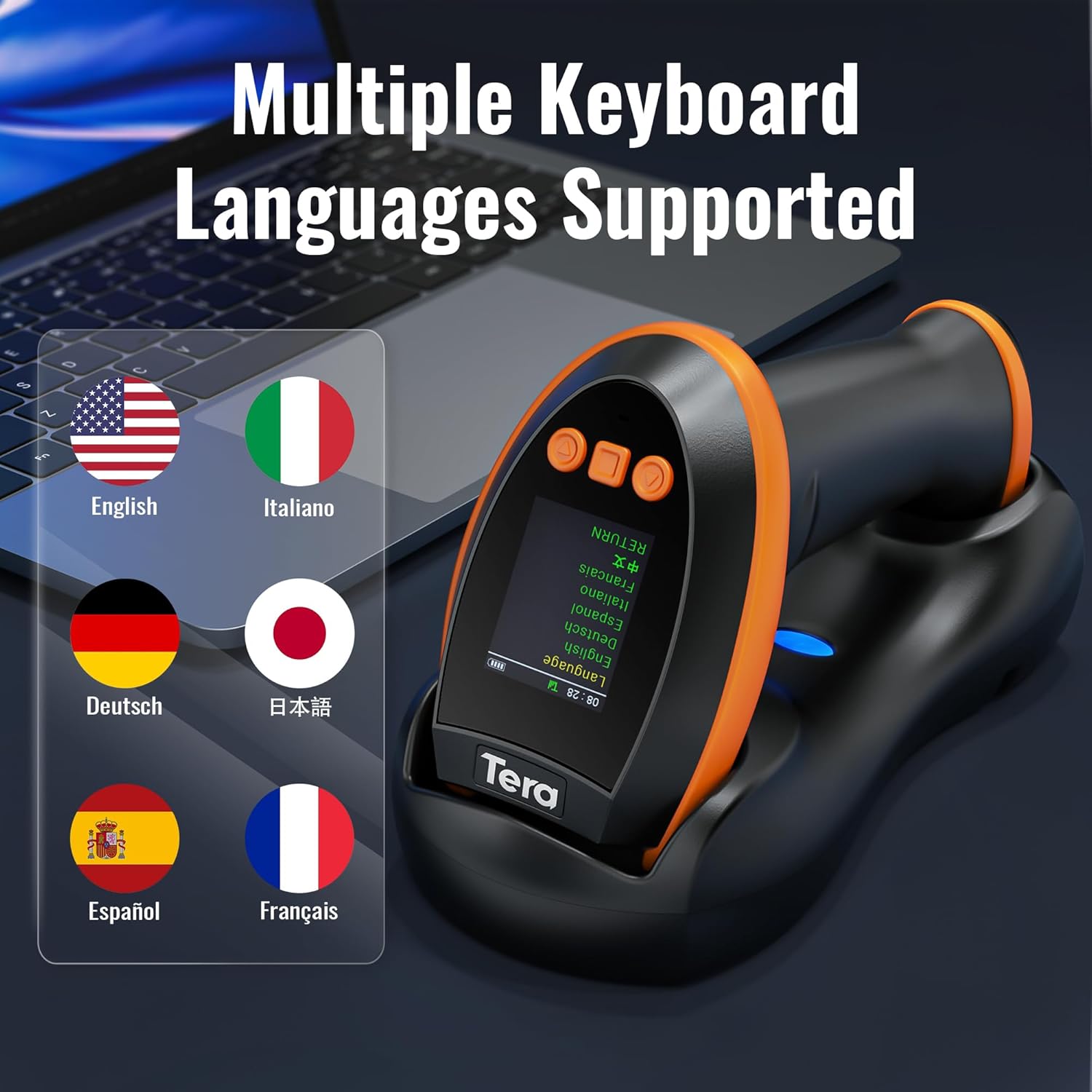
The scanner supports multiple keyboard languages, allowing users to configure the output to match their regional settings for seamless data entry.
5. Date & Time Prefix/Suffix
The scanner can append the current date and time to scanned data. To configure this feature:
- Access the 'Date & Time' settings in the scanner's menu.
- Choose whether to add the date and time as a prefix (before the barcode data) or a suffix (after the barcode data).
- Save your settings.

The Tera HW0009 can be configured to add the current date and time as either a prefix or suffix to the scanned barcode data, useful for timestamping inventory or transactions.
6. Sound and Vibration Settings
You can adjust the scanner's sound volume or mute it, and enable/disable vibration feedback through the display menu. Navigate to 'Sounds' or 'Vibration' settings to make your adjustments.
Maintenance
1. Cleaning
To ensure optimal performance, keep the scanner's scanning window clean. Use a soft, lint-free cloth lightly dampened with water or a mild cleaning solution. Avoid abrasive materials or harsh chemicals that could scratch the lens or damage the device.
2. Battery Care
- Avoid fully discharging the battery frequently.
- Store the scanner in a cool, dry place when not in use for extended periods.
- If the scanner will not be used for a long time, charge it to about 50% before storage.
Troubleshooting
Common Issues and Solutions:
- Scanner not connecting to device:
- Ensure the scanner is charged.
- Verify the correct connection mode (Bluetooth, 2.4G, or USB) is selected on the scanner and the host device.
- For Bluetooth, ensure the scanner is in pairing mode and visible to your device.
- For 2.4G, ensure the dongle is securely inserted and recognized by the computer.
- Try restarting both the scanner and the host device.
- Barcode not reading:
- Ensure the barcode is clean, undamaged, and within the scanner's reading range.
- Check if the barcode type is supported by the scanner (refer to specifications).
- Adjust the distance and angle between the scanner and the barcode.
- Clean the scanner's reading window.
- Incorrect characters or output:
- Verify that the keyboard language setting on the scanner matches the keyboard layout of your host device.
- Ensure no conflicting software is running on the host device.
- Display issues:
- If the display is dim or unresponsive, ensure the battery is charged.
- Try restarting the scanner.
- Firmware Update: If experiencing persistent issues or to access new features, a firmware update may be required. Contact Tera customer support for instructions and files.
Product Specifications
| Feature | Detail |
|---|---|
| Brand | Tera |
| Model Number | FUN-HW0009-Scanner |
| Color | Orange |
| Connectivity Technology | Bluetooth, 2.4G Wireless, USB |
| Compatible Devices | Smartphone, Computer, POS systems, iPhone, iPad |
| Operating System Support | Windows 11/10/8/7/XP, Mac OS, iOS, Android, Linux |
| Power Source | Cable Electric (USB), 2500mAh Battery |
| Barcode Types (2D) | QR Code, Data Matrix, PDF417 (including on driver's licenses), Aztec, Maxicode, Micro QR, Micro PDF417 |
| Barcode Types (1D) | UPC/EAN, Code 128/EAN128, GS1-128, ISBT-128, Standard 2 of 5, Matrix 2 of 5, Code 39, Code 32, Code 93, Code 11, Codabar, PLESSEY, MSI, GSI Databar, ITF-14, GS1 |
| Wireless Transmission Distance | Up to 328 feet (barrier-free), up to 114 feet (with obstacles via 2.4G dongle) |
Warranty Information
For detailed warranty information, please refer to the documentation included with your product packaging or visit the official Tera website. Warranty terms and conditions may vary by region and retailer.
Customer Support
If you encounter any issues or have questions regarding your Tera HW0009 barcode scanner that are not covered in this manual, please contact Tera customer support. Contact information can typically be found on the product packaging, the official Tera website, or through your point of purchase.

Tera customer support is available to assist with any product-related inquiries.


