
SUPERJARE 53 inch L-Shaped Desk
SUPERJARE 53 inch Reversible L Shaped Desk User Manual
Model: 53 inch L-Shaped Desk (Rustic Brown)
Introduction
Thank you for choosing the SUPERJARE 53 inch Reversible L Shaped Desk. This desk is designed to provide a versatile and functional workspace, featuring integrated LED lighting, power outlets, and ample storage. This manual provides detailed instructions for assembly, operation, maintenance, and troubleshooting to ensure optimal use and longevity of your desk.
Safety Information
WARNING: This desk has a maximum weight recommendation of 150 pounds (68 kg). Do not exceed this limit to prevent tipping or damage. Ensure the desk is stable and not overloaded.
- Keep all small parts and packaging materials away from children.
- Assemble the desk on a soft, clean surface to prevent scratches.
- Ensure all screws and fasteners are tightened securely before use. Periodically check and re-tighten as needed.
- Do not stand or sit on the desk.
- Avoid exposing the desk to excessive moisture or direct sunlight.
- Use only the provided power cord and avoid overloading the integrated power strip.
Package Contents
Please verify that all components are present before beginning assembly. If any parts are missing or damaged, please contact SUPERJARE customer support.
- Desk Panels (P2 Particle Board)
- Metal Frame Components (Powder Coated Steel)
- Fabric Drawer
- Integrated Power Strip (4 AC Outlets, 2 USB Ports, 1 Type-C Port)
- LED Light Strip with Smart Controller
- Monitor Stand
- Adjustable Feet
- Assembly Hardware (Screws, Allen Wrench, etc.)
- Instruction Manual
Setup and Assembly
The SUPERJARE L-shaped desk is designed for easy assembly. All parts are clearly labeled. Follow the steps below carefully.
1. Unpacking and Preparation
Carefully unpack all components and lay them out on a clean, soft surface to prevent damage. Identify each part using the provided parts list in the instruction manual.
2. Reversible L-Shape Configuration
This desk features a reversible design, allowing you to configure the L-shape to either the left or right side to best suit your space. Refer to the assembly diagrams for both configurations before starting.
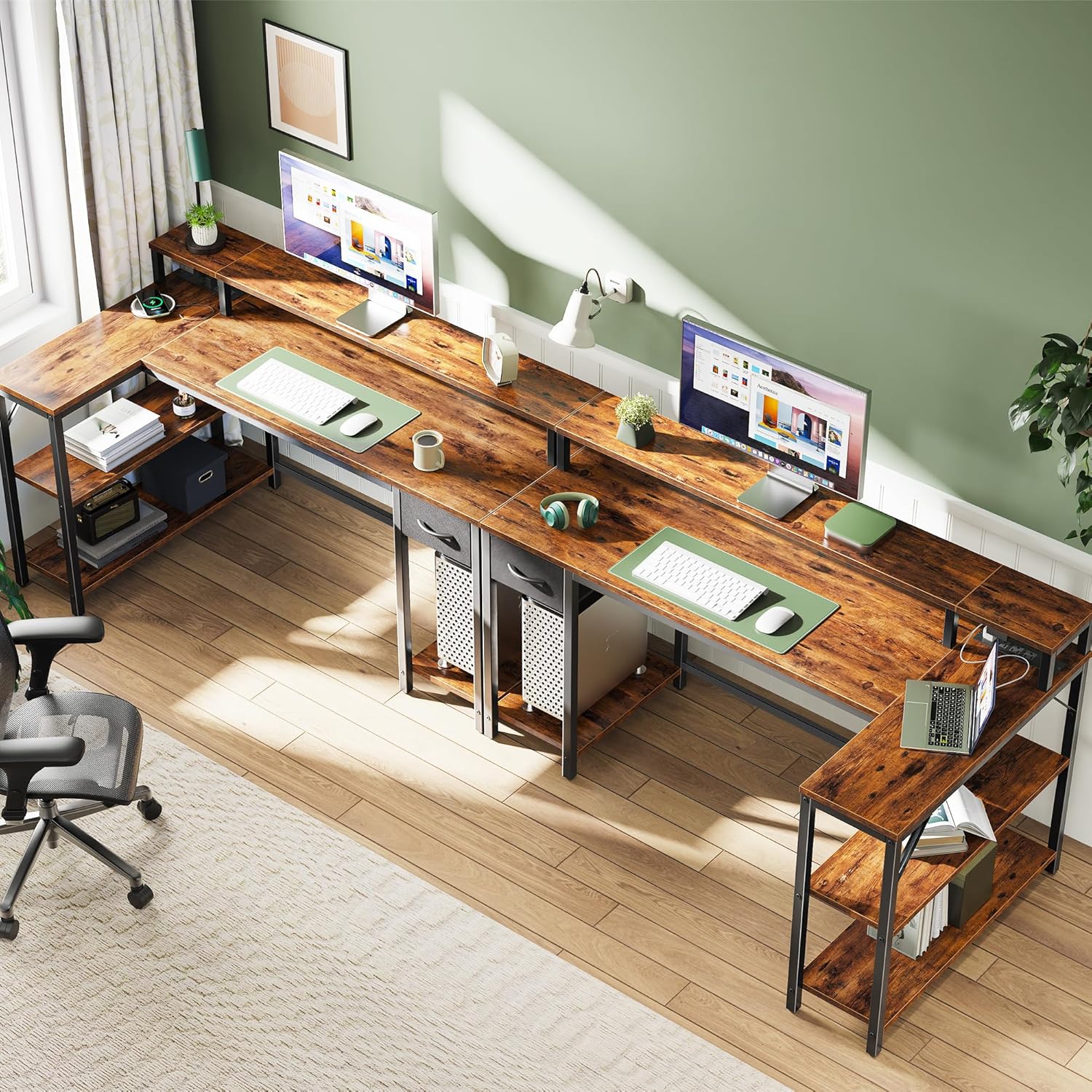
Image: The reversible design of the L-shaped desk, allowing for left or right side configuration.
3. Frame Assembly
Attach the metal frame components together using the provided screws. Ensure all connections are firm but do not fully tighten screws until all parts are aligned.
4. Attaching Desk Panels and Shelves
Secure the P2 particle board desk panels and storage shelves to the assembled metal frame. The desk includes two storage shelves on the side and a dedicated shelf for a PC tower.
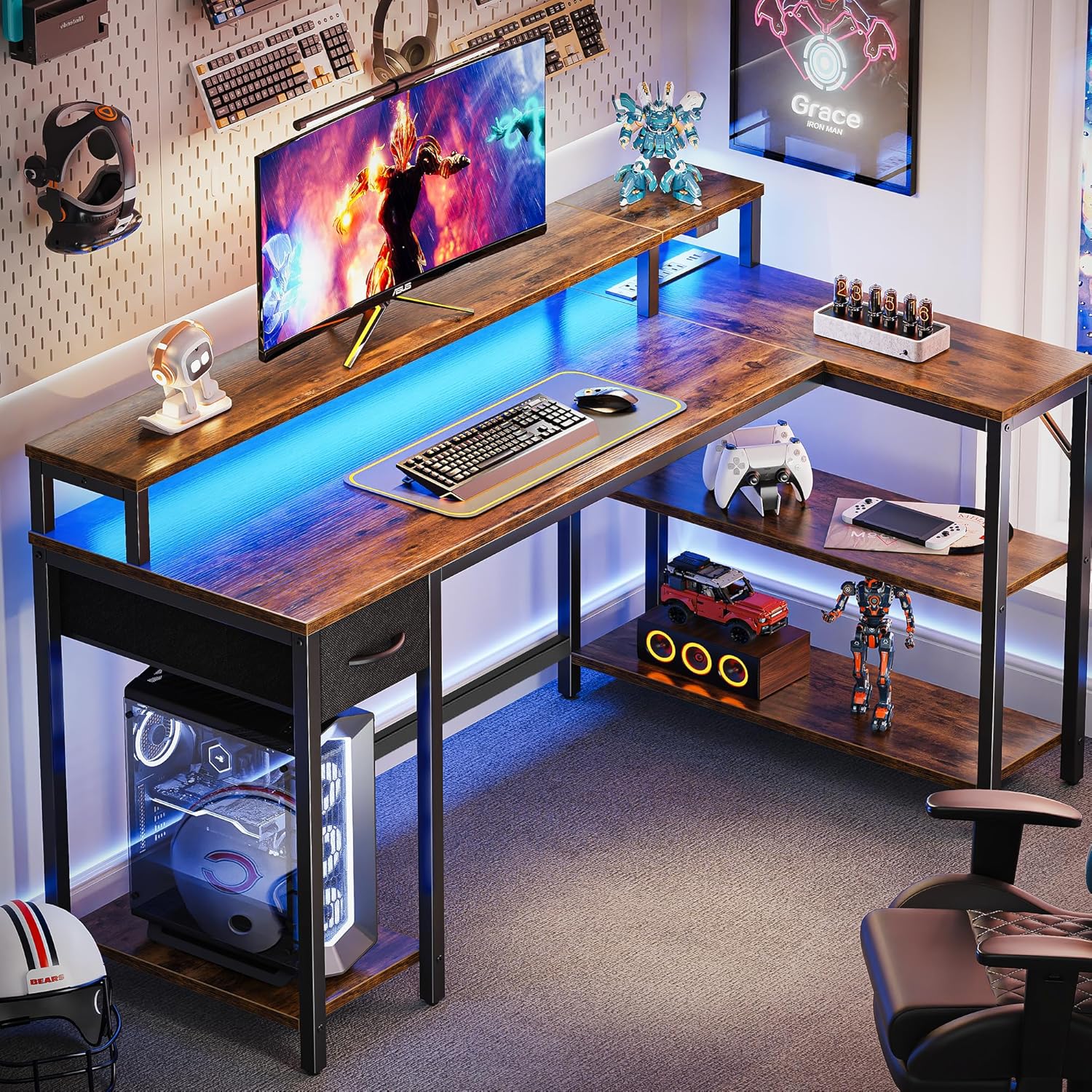
Image: The assembled desk with a typical computer setup, highlighting the monitor stand and storage shelves.
5. Installing the Fabric Drawer
Insert the fabric drawer into its designated slot. The drawer provides convenient storage for stationery and other personal items.

Image: A close-up of the fabric drawer, illustrating its size and use for organizing small items.
6. Attaching the Monitor Stand
Secure the monitor stand to the main desk surface. This elevated stand helps improve posture by raising your monitor to an ergonomic viewing height.
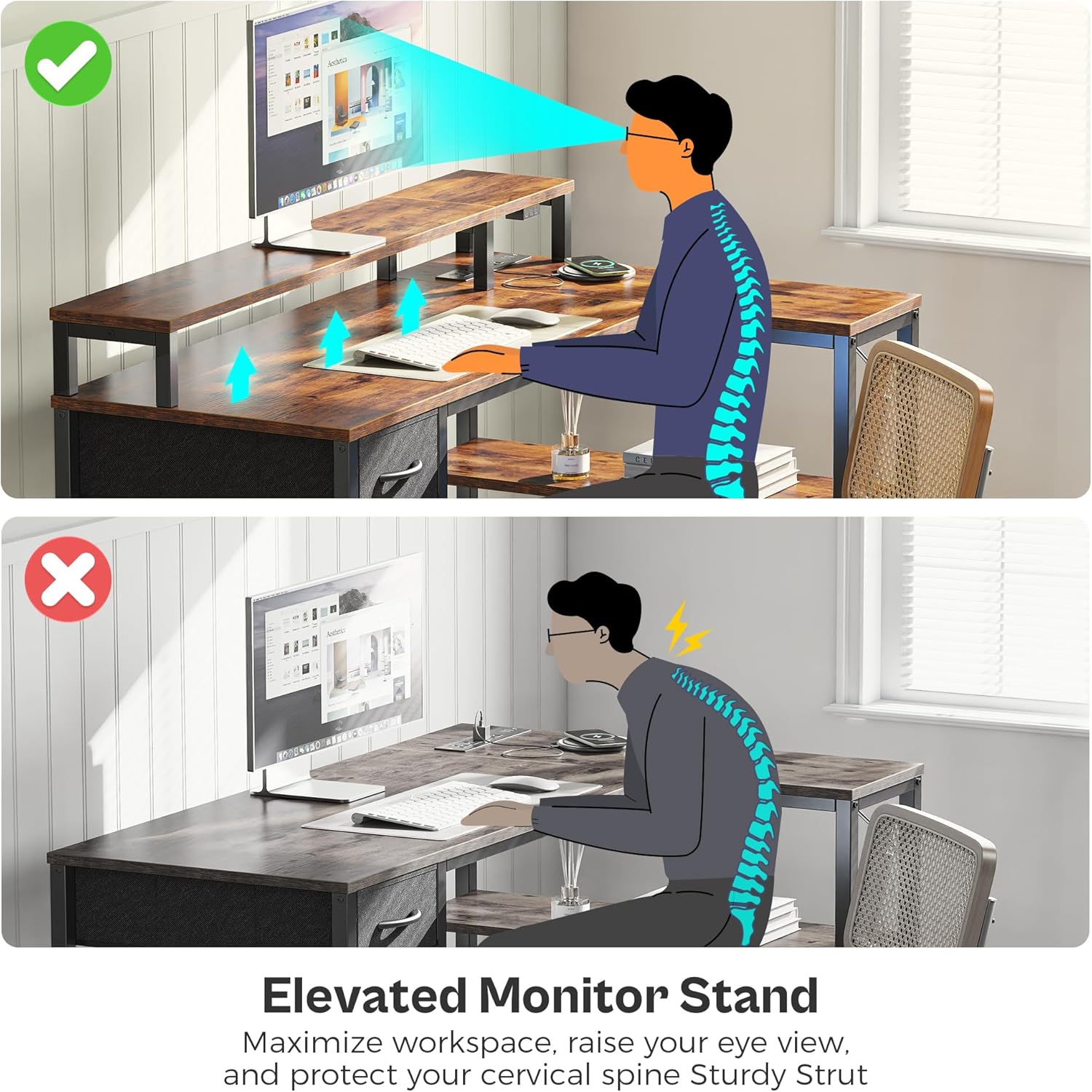
Image: An illustration demonstrating how the elevated monitor stand promotes better posture.
7. Installing the Power Strip and LED Lights
Integrate the power strip into its designated slot on the desk. Attach the LED light strip according to the instructions, typically along the underside of the monitor stand or main desk surface. Connect the power strip and LED lights to a wall outlet.

Image: The integrated power strip with various outlets for charging devices.

Image: The smart controller for the LED lights, detailing its various functions.
8. Final Tightening
Once all components are in place and aligned, fully tighten all screws. Ensure the desk is stable and level. Adjust the feet as necessary to compensate for uneven flooring.
Operating Instructions
LED Lights Operation
The LED lights can be controlled via a dedicated app or the smart controller located on the desk.
- App Control: Download the specified app (refer to the LED light manual for details). The app allows access to over 60,000 colors, timing mode, mic mode, and music mode.
- Smart Controller: Use the physical controller to switch between 12 scene modes, adjust speed levels, and set 3 brightness levels.
Power Outlets Usage
The integrated power strip provides convenient access to power for your devices.
- AC Outlets: 4 standard 125V/12A outlets for laptops, monitors, and other AC-powered devices.
- USB Ports: 2 USB-A ports (5V-3A) for charging phones, tablets, and other USB-powered accessories.
- Type-C Port: 1 Type-C port (5V-3A) for modern devices requiring USB-C charging.
- Do not exceed the maximum power rating of the strip.
Maintenance
Regular maintenance will help preserve the appearance and functionality of your desk.
- Cleaning: Wipe surfaces with a soft, damp cloth. Avoid harsh chemicals or abrasive cleaners that may damage the finish.
- Dusting: Regularly dust the desk surfaces and LED lights to maintain optimal performance and appearance.
- Fasteners: Periodically check all screws and connections to ensure they remain tight. Re-tighten if any looseness is detected.
- Power Strip: Keep the power strip free from dust and debris. Do not spill liquids on or near the power outlets.
Troubleshooting
If you encounter issues with your SUPERJARE desk, refer to the following common problems and solutions:
| Problem | Possible Cause | Solution |
|---|---|---|
| Desk is wobbly or unstable. | Loose fasteners; uneven floor. | Ensure all screws are fully tightened. Adjust the desk's leveling feet to stabilize on uneven surfaces. |
| LED lights are not turning on. | Power cord disconnected; controller issue; light strip damage. | Check if the power cord is securely plugged into the wall and the desk. Ensure the smart controller is connected. Test with the app if possible. Inspect the light strip for visible damage. |
| Power outlets are not working. | Power cord disconnected; circuit overload. | Verify the desk's power cord is firmly plugged in. Unplug some devices to check for overload. Test the outlet with another device. |
| Fabric drawer sticks or is difficult to open/close. | Drawer not properly aligned; obstruction. | Remove the drawer and re-insert it, ensuring it is correctly aligned with the slides. Check for any items obstructing the drawer's path. |
Specifications
| Feature | Detail |
|---|---|
| Brand | SUPERJARE |
| Model | 53 inch L-Shaped Desk |
| Color | Rustic Brown |
| Dimensions (L x W x H) | 53.1"D x 18.9"W x 29.5"H (Main Desk) / 30.7"L (L-extension) |
| Material | P2 Particle Board (Top), Powder Coated Steel (Frame) |
| Weight Capacity | 150 Pounds (68 kg) |
| Power Outlets | 4 Standard AC Outlets (125V/12A) |
| USB Ports | 2 USB-A Ports (5V-3A) |
| Type-C Port | 1 Type-C Port (5V-3A) |
| LED Lights | App control (60,000+ colors, timing, mic, music modes), Smart controller (12 scene modes, speed, 3 brightness levels) |
| Storage Options | 1 Fabric Drawer, 3 Shelves (including PC tower shelf) |
| Special Features | Reversible L-shape, Elevated Monitor Stand, Adjustable Feet |
Warranty and Support
SUPERJARE is committed to providing high-quality products. For specific warranty information, product support, or to order replacement parts, please refer to the warranty card included with your purchase or visit the official SUPERJARE website. Please have your model number and purchase date ready when contacting support.
For further assistance, you may also contact the retailer where the product was purchased.
Ask a question about this manual
Ask about setup, troubleshooting, compatibility, parts, safety, or missing instructions. Manuals+ will review the question and use this page’s manual context to help answer it.