
1. Product Overview
The TODAAIR Outdoor Smart AC1200 WiFi Extender is a high-performance dual-band wireless repeater designed to significantly boost and amplify your existing internet signal. Engineered for outdoor use, it extends network coverage to large areas, ensuring stable connectivity for multiple devices even in challenging environments.
Key Features:
- Strong Weather Resistance: Features an IP65 waterproof shell, providing protection against dust, freezing temperatures, high heat, and corrosion. Designed for stable operation in harsh outdoor conditions, withstanding temperatures from -30°C to 65°C and humidity from 10% to 90% (non-condensing).
- Enhanced Security: Supports WPA-PSK/WPA2-PSK and WPA/WPA2 wireless security protocols to maximize network security and protect personal data from unauthorized access.
- AC1200 Dual Frequency: Utilizes IEEE 802.11AC-Wave2 wireless protocol, offering a maximum speed of 867Mbps on the 5GHz band and 300Mbps on the 2.4GHz band. This improves wireless connection stability and reduces signal attenuation caused by physical barriers.
- Extensive Coverage: Extends WiFi coverage up to 3,440 square feet and can connect up to 30 devices simultaneously, including laptops, smartphones, speakers, IP cameras, tablets, and IoT devices. Eliminates Wi-Fi dead zones in basements, upstairs areas, or backyards.
- Broad Compatibility: Compatible with all mainstream routers on the market. Supports Repeater mode, allowing both wired and wireless connections, with network ports for computers and televisions.

Image: The TODAAIR Outdoor WiFi Extender is built for strong weather resistance, featuring IP65 protection against snow, rain, lightning, sun, and dust.

Image: The extender supports 1.2Gbps dual-band WiFi, providing 867Mbps on 5.8GHz and 300Mbps on 2.4GHz for various internet activities.
2. What's in the Box
Upon unboxing your TODAAIR Outdoor Smart AC1200 WiFi Extender, please ensure all the following components are present:
- 1 x TODAAIR Outdoor WiFi Extender Unit
- 1 x User Manual
- 1 x Power Supply Adapter
- Installation Accessories (e.g., cable ties, mounting screws)
Video: This video provides an unboxing of the TODAAIR outdoor repeater, showing all included components such as the extender unit, power supply, user manual, and installation accessories.
3. Setup and Installation
Follow these steps to set up your TODAAIR Outdoor Smart AC1200 WiFi Extender:
3.1 Physical Installation
- Choose a Location: Select an outdoor location that is within range of your main router's WiFi signal and close to the area where you need extended coverage. Ensure it's protected from direct heavy impact if possible.
- Mount the Extender: Use the provided installation accessories to securely mount the extender on a wall or pole.
- Connect Power: Open the protective cover on the extender to access the ports. Connect the DC power supply to the extender.
- Power On: Plug the power supply into an electrical outlet. The indicator lights on the extender will begin to flash as the device powers on and starts detection. Wait approximately 40 seconds for the device to start up and the indicator lights to flash, signaling it's ready for pairing.
- Secure Cover: Carefully close the protective cover to ensure the power supply connection is protected from outdoor elements.
Image: Detail of the extender's ports, showing the DC power input, LAN port, and reset button, located under a protective cover.
Video: This video demonstrates the initial power-on sequence for the TODAAIR WiFi Extender, including opening the protective cover, connecting the DC power supply, and observing the indicator lights during startup.
3.2 Configuration via Mobile App
- Connect to Extender's WiFi: On your mobile device, go to WiFi settings and connect to the extender's default WiFi network (e.g., "TDAirNetwork" or "SmartLife_XXXX").
- Open App: Download and open the "Tuya Smart" or "Smart Life" app. Select "Gateway Control" then "Repeater (Wi-Fi)".
- Enter Router Password: The app will prompt you to enter the password for your main router's WiFi network.
- Configure Extender Network: You may be given the option to set a new SSID and password for the extended network or use the same as your main router with an "_EXT" suffix. Confirm your settings.
- Connect to Extended Network: Once configured, connect your mobile device to the newly created extended WiFi network.
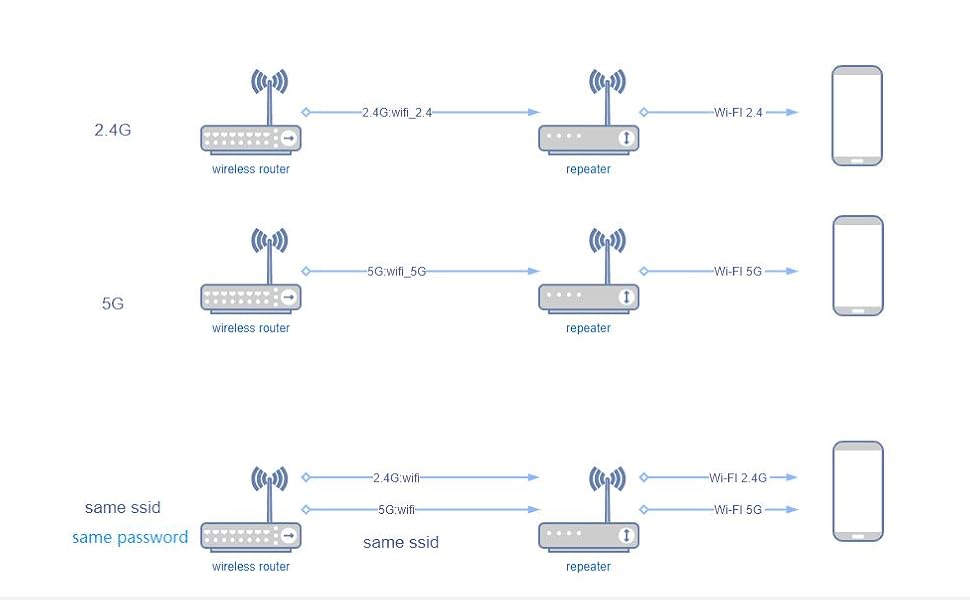
Image: Visual guide showing the mobile app setup process for the WiFi extender, from connecting to the extender's network to configuring the extended WiFi.
Video: This tutorial demonstrates how to connect a device to the TODAAIR WiFi Extender using a network cable, which is useful for devices without WiFi capabilities or for initial setup.
4. Operating the WiFi Extender
Once successfully set up, your TODAAIR WiFi Extender will automatically extend your existing WiFi network. Here’s how to ensure optimal operation:
4.1 Connecting Devices
- Wireless Connection: Search for the extended WiFi network (e.g., "YourNetworkName_EXT" or the new SSID you configured) on your devices and connect using the password you set during setup.
- Wired Connection: For devices like smart TVs, gaming consoles, or PCs, you can connect them directly to the extender's LAN port using an Ethernet cable for a stable wired connection.
4.2 Optimal Placement
The placement of your extender is crucial for performance. Ensure it is:
- Within a good signal range of your main router.
- Positioned between your router and the area where you need extended coverage.
- Free from major obstructions like thick walls or large metal objects.

Image: The extender provides extensive coverage for various outdoor scenarios, including pools, yards, parks, and farms, ensuring seamless connectivity.
Video: This video demonstrates the actual rate testing of the Wi-Fi Extender's transmission distance, showcasing its performance in extending network range.
5. Maintenance
To ensure the longevity and optimal performance of your outdoor WiFi extender, regular maintenance is recommended:
- Regular Cleaning: Periodically wipe the exterior of the device with a soft, damp cloth to remove dust and dirt. Ensure the protective cover for the ports is always securely closed.
- Firmware Updates: Check the manufacturer's website or the mobile app for any available firmware updates. Keeping the firmware updated ensures you have the latest features and security enhancements.
- Inspect Cables: Occasionally inspect the power cable and any connected Ethernet cables for signs of wear or damage. Replace any damaged cables immediately.
- Environmental Checks: Ensure the device remains within its specified operating temperature and humidity ranges. While designed for outdoor use, extreme conditions beyond its rating can affect performance.
6. Troubleshooting
If you encounter issues with your TODAAIR WiFi Extender, try the following troubleshooting steps:
| Problem | Solution |
|---|---|
| No Power/Indicator Lights Off | Ensure the power adapter is securely connected to both the extender and a working electrical outlet. Check if the outlet is functional. |
| Weak or No Extended WiFi Signal | Relocate the extender closer to your main router. Ensure there are no major physical obstructions between the extender and your devices. Check the signal strength indicator on the extender (if available) to confirm it's receiving a strong signal from the main router. |
| Cannot Connect to Extended Network | Verify the extended network's SSID and password. Ensure your device is within the extender's coverage area. Try restarting both your main router and the extender. |
| Slow Internet Speed on Extended Network | Ensure the extender is placed in an optimal location (not too far from the router, not too close to the dead zone). Reduce the number of connected devices or bandwidth-intensive activities. Consider using the 5GHz band for faster speeds if your devices support it. |
| Frequent Disconnections | Check for interference from other electronic devices. Ensure the extender's firmware is up to date. Try resetting the extender to factory settings and reconfiguring it. |
| Resetting to Factory Settings: | With the extender powered on, use a pin to press and hold the reset button (located under the protective cover) for approximately 10 seconds until the indicator lights flash. The device will then restart with factory default settings. |
7. Technical Specifications
| Feature | Specification |
|---|---|
| Model Number | Outdoor Smart AC1200 |
| Wireless Communication Standard | 802.11a/b/g/n/ac |
| Data Transfer Rate | 1200 Megabytes Per Second (Mbps) |
| Frequency Band Class | Dual-Band (2.4GHz and 5GHz) |
| Product Dimensions | 3.5 x 4.41 x 9.02 inches |
| Item Weight | 14 ounces |
| Special Feature | Dustproof, IP65 Weather Resistance |
| Manufacturer | TODAAIR |
8. Warranty and Support
For warranty information, technical support, or any product-related inquiries, please refer to the contact details provided in the product packaging or visit the official TODAAIR website. Keep your purchase receipt for warranty claims.
