
1. Introduction
The FOXWELL NT680 OBD2 Scanner is a professional diagnostic tool designed for comprehensive vehicle system analysis. It provides advanced functions such as all-systems scanning, live data display, Auto VIN identification, and various reset services including Oil Reset and Electronic Parking Brake (EPB) Reset. This manual will guide you through the setup, operation, and maintenance of your NT680 scanner to ensure optimal performance and accurate vehicle diagnostics.
2. Key Features
- OE-Level All Systems Scan: Capable of checking and clearing codes for major vehicle systems including ABS, SRS, ESP, Suspension, Headlamp, Battery, and Brake. It effectively turns off warning lights.
- Live Data Display: Allows for real-time monitoring of vehicle parameters. Data such as oil temperature, pressure, transmission temperature, engine speed, engine coolant temperature, and short-term fuel trim can be displayed in text or graphical format, aiding in identifying abnormal component behavior.
- Auto VIN Capability: Automatically identifies specific vehicle information, streamlining the diagnostic process by eliminating manual VIN input. Supports over 10,000 car makes and most vehicles manufactured after 1996.
- Free Updates: Provides complimentary software updates without subscription fees, ensuring the scanner remains current with the latest vehicle models and diagnostic protocols.
- Special Functions: Includes essential reset services such as Oil Reset and Electronic Parking Brake (EPB) Reset.
3. Package Contents
Upon opening the package, verify that all items listed below are present and in good condition.
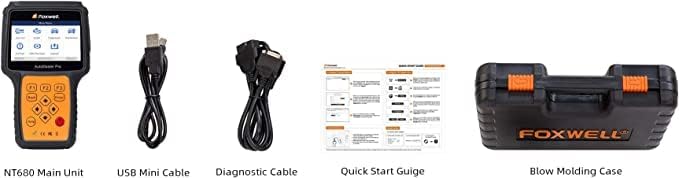
Figure 3.1: Overview of the FOXWELL NT680 package contents, including the main unit, cables, and documentation.
- FOXWELL NT680 Main Unit
- USB Mini Cable (for connecting to a computer for updates)
- Diagnostic Cable (OBD-II connector for vehicle connection)
- Quick Start Guide
- User Manual (this document)
- Blow Molding Case (for storage and transport)
4. Setup Guide
Follow these steps to prepare your FOXWELL NT680 scanner for first use.
- Charge the Device: While the device is primarily powered by the vehicle's OBD-II port, it is recommended to ensure it has sufficient charge for initial setup and updates. Connect the USB Mini Cable to the scanner and a computer or USB power adapter.
- Power On: Press the power button located on the device. The main menu should appear on the LCD display.
- Language and Unit Settings: Navigate to the "Settings" menu to select your preferred language and measurement units (e.g., Metric or Imperial).
- Software Update: It is crucial to update the software to the latest version before first use.
- Connect the scanner to a computer using the USB Mini Cable.
- Visit the official FOXWELL website and download the update client software.
- Install the client software on your computer and follow the on-screen instructions to register your device and download the latest software updates.
- Once updates are complete, safely disconnect the scanner from the computer.
- Connect to Vehicle: Locate the OBD-II port in your vehicle (typically under the dashboard on the driver's side). Connect the diagnostic cable from the NT680 scanner to the vehicle's OBD-II port. The scanner will power on automatically once connected to the vehicle.

Figure 4.1: The main menu interface of the FOXWELL NT680 scanner, showing options like Auto VIN, EOBD, Diagnostic, and Special Functions.
5. Operating Instructions
This section details the primary functions and how to use them.
5.1. All Systems Diagnostic Scan
The NT680 can access and diagnose all available electronic control modules in your vehicle.
- From the Main Menu, select "Diagnostic".
- Choose your vehicle's make, model, and year. The scanner supports a wide range of vehicles, including American, Asian, and European models.
- Select "Auto Scan" or manually choose the system you wish to diagnose (e.g., Engine, ABS, SRS, Transmission).
- The scanner will read Diagnostic Trouble Codes (DTCs) and display them. You can then view code definitions and clear codes if necessary.

Figure 5.1: The FOXWELL NT680 displaying available diagnostic systems and reset functions.
5.2. Live Data Display
Monitor real-time sensor data to identify performance issues.
- After selecting a system (e.g., Engine), choose "Live Data".
- Select the data parameters you wish to view.
- Data can be displayed in text, graph, or merged graph format for easier analysis.
5.3. Auto VIN Function
Quickly identify vehicle information without manual input.
- From the Main Menu, select "Auto VIN".
- The scanner will automatically detect and display the vehicle's VIN and other relevant information.
- Confirm the vehicle information to proceed with diagnostics.
5.4. Special Functions (Reset Services)
Perform common maintenance resets.
- From the Main Menu, select "Special Functions" or "Maintenance".
- Choose the desired reset service, such as "Oil Reset" or "EPB Reset".
- Follow the on-screen prompts to complete the reset procedure. Ensure all safety precautions are observed as per your vehicle's service manual.

Figure 5.2: The FOXWELL NT680 supports a wide range of vehicle makes across American, Asian, and European markets.
6. Maintenance
Proper maintenance ensures the longevity and reliability of your NT680 scanner.
- Cleaning: Use a soft, dry cloth to clean the scanner's screen and casing. Avoid using abrasive cleaners or solvents.
- Storage: Store the scanner in its protective case in a dry, cool environment, away from direct sunlight and extreme temperatures.
- Software Updates: Regularly check for and install software updates via the FOXWELL update client. This ensures compatibility with new vehicle models and access to the latest diagnostic features.
- Cable Care: Inspect the diagnostic and USB cables periodically for any signs of damage. Replace damaged cables immediately to prevent electrical issues or improper communication.
7. Troubleshooting
This section addresses common issues you might encounter.
| Problem | Possible Cause | Solution |
|---|---|---|
| Scanner does not power on. | No power from OBD-II port; damaged cable; low internal battery. |
|
| Communication error with vehicle. | Incorrect vehicle protocol; loose connection; damaged OBD-II port. |
|
| Software update fails. | Unstable internet connection; outdated update client; firewall issues. |
|
8. Specifications
| Attribute | Detail |
|---|---|
| Model | NT680 |
| Manufacturer | Foxwell Tech Inc |
| Item Weight | 3.12 pounds |
| Package Dimensions | 14.17 x 12.13 x 3.5 inches |
| Manufacturer Part Number | NT680Scan |
| Operating System (for update client) | Windows XP (and newer compatible systems) |
| UPC | 644637401085 |
| Vehicle Coverage | Most vehicles after 1996 (American, Asian, European) |
9. Warranty and Support
The FOXWELL NT680 scanner comes with a commitment to quality and ongoing support.
- Free Lifetime Updates: Enjoy complimentary software updates for the lifetime of the product, ensuring your scanner remains up-to-date with the latest vehicle models and diagnostic capabilities.
- Technical Support: For technical assistance, troubleshooting, or warranty inquiries, please visit the official FOXWELL website or contact their customer service department. Refer to the product packaging or official website for the most current contact information.

Figure 9.1: The FOXWELL NT680 scanner, user manual, and USB cable, essential for setup and updates.


