
1. Introduction
The Redragon K616 is a compact 60% mini mechanical gaming keyboard designed for efficiency and portability. It features low-profile blue switches for tactile feedback and quick response, along with 18 pre-set LED backlight effects for enhanced visibility and personalization. This manual provides essential information for setting up, operating, and maintaining your keyboard.

Figure 1: Redragon K616 60% Mini Mechanical Gaming Keyboard with included low-profile blue switches.
2. Package Contents
Ensure all items are present in the package:
- 1 x Redragon K616 Mini Compact Keyboard
- 1 x USB Cable (Type-C to USB-A)
- 1 x Keycap Puller
- 1 x User Manual (this document)
3. Setup
3.1 Connecting the Keyboard
The Redragon K616 keyboard uses a wired USB-C connection. Follow these steps to connect it to your computer:
- Locate the USB-C port on the left side of the keyboard.
- Connect the smaller end of the provided USB cable (Type-C) into the keyboard's USB-C port.
- Connect the larger end of the USB cable (USB-A) into an available USB port on your computer.
- The keyboard is plug-and-play and should be automatically recognized by your operating system (Windows 7/8/10/Vista/XP, Mac).
Video 1: Overview of the Redragon K615 Low Profile Mechanical Keyboard, demonstrating its compact size and features. This video is provided by the seller.
4. Operating Instructions
4.1 Basic Key Functions
The K616 is a 60% layout keyboard, meaning some functions are accessed via the Fn (Function) key in combination with other keys. Refer to the keyboard layout for specific Fn key combinations.
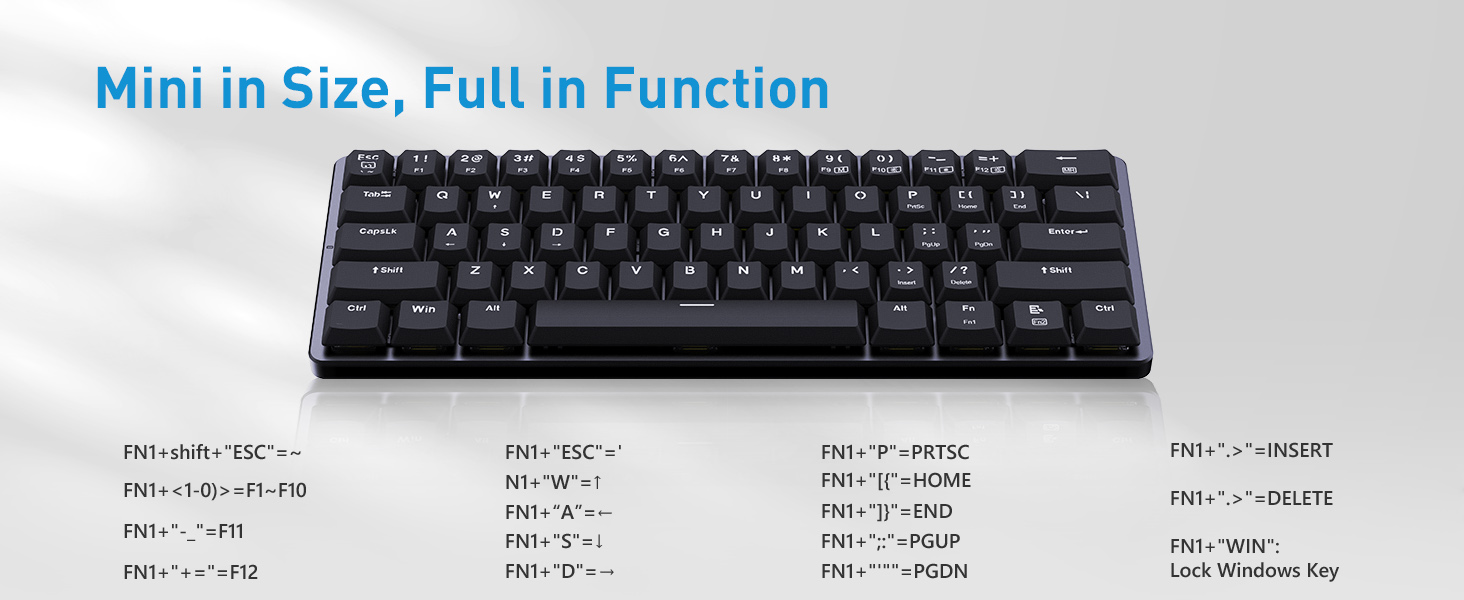
Figure 2: Redragon K616 keyboard layout illustrating Fn key combinations for accessing various functions, including F1-F12, navigation keys, and Windows key lock.
4.2 Backlight Control
The keyboard features 18 pre-set LED backlight effects. You can customize the backlighting using the following Fn key combinations:
- Fn + [key]: Cycle through 18 pre-set LED backlight modes.
- Fn + [key]: Adjust backlight brightness (5 levels).
- Fn + [key]: Adjust backlight speed.
- Fn + [key]: Turn backlight On/Off.
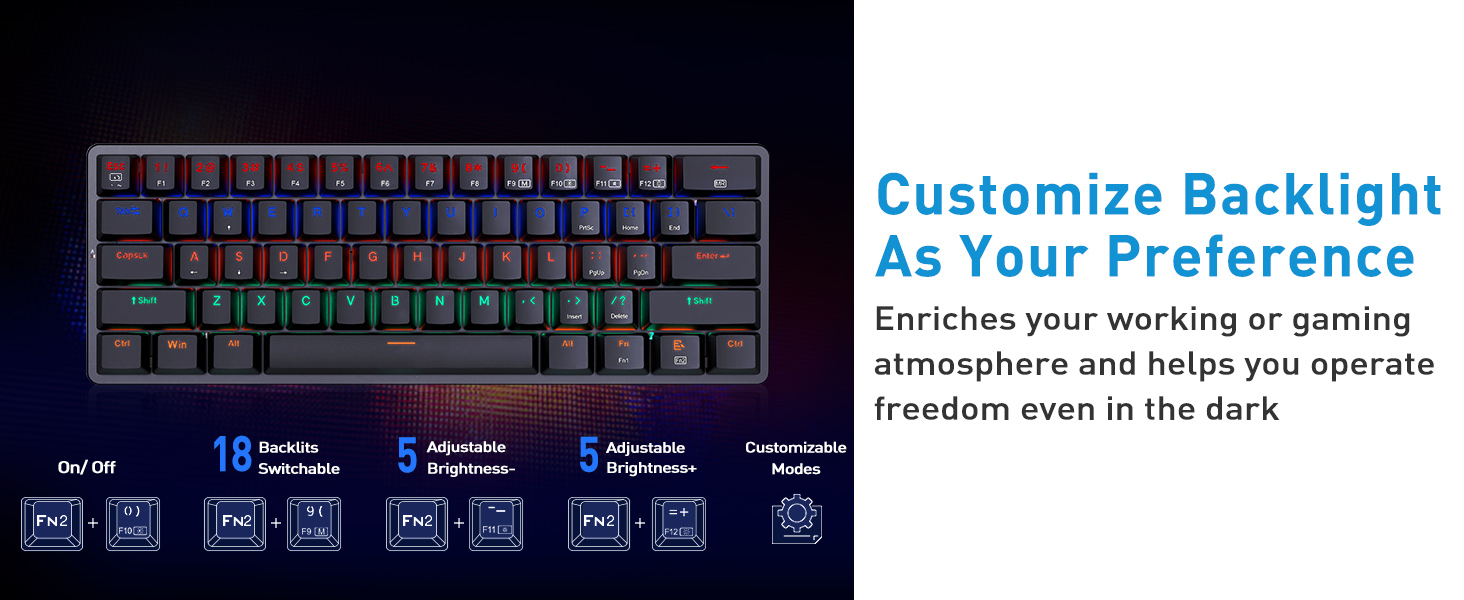
Figure 3: Backlight customization options on the Redragon K616, detailing Fn key combinations for mode selection, brightness adjustment, and speed control.
5. Key Features
5.1 Compact 60% Design
The K616 features a 60% compact layout, significantly reducing its footprint on your desk. Weighing only 1.08 pounds (322g), it is highly portable, making it ideal for travel, business trips, or smaller workspaces without sacrificing essential functionality.
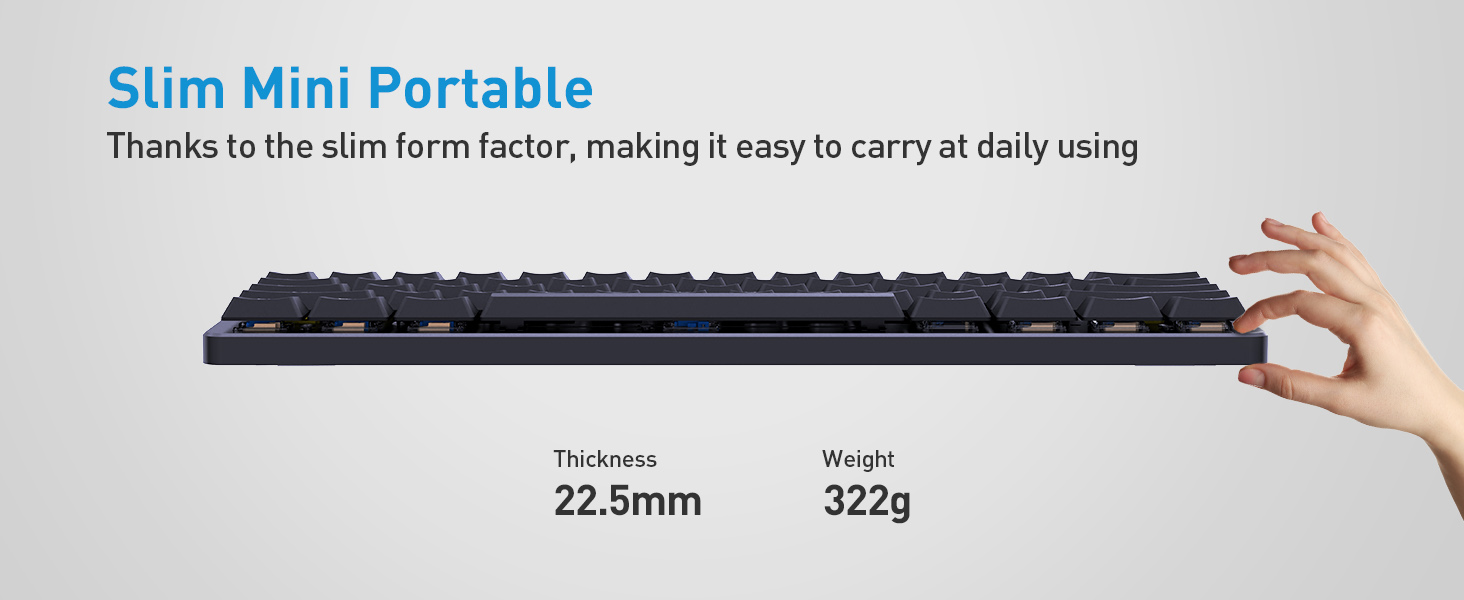
Figure 4: The slim and portable design of the Redragon K616, showing its dimensions and light weight for easy transport.
5.2 Low-Profile Blue Mechanical Switches
Equipped with tactile low-profile blue switches, the K616 offers a distinct clicky sound and a noticeable tactile bump with each keystroke. These switches are designed for higher accuracy and quicker response, providing an efficient typing and gaming experience. The low-profile design contributes to a more ergonomic feel.
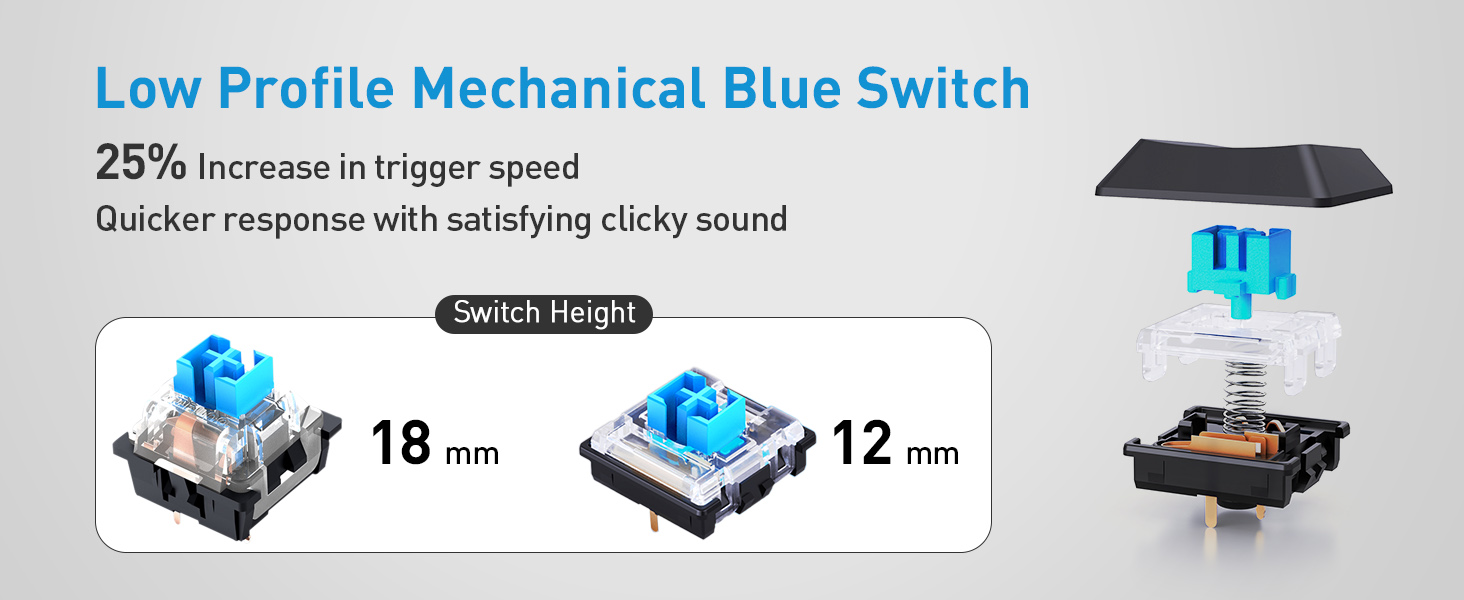
Figure 5: Detailed comparison of low-profile blue switches with standard blue switches, illustrating the reduced travel and actuation point for faster response on the K616.
5.3 Durable Construction
The keyboard is constructed with premium and durable materials, including a metal panel on the upper cover that is anti-rust and resistant to sweat and corrosion. All keys are rated for 50 million clicks, ensuring long-term reliability. The double-shot keycaps are designed to retain their texture even after extensive use.
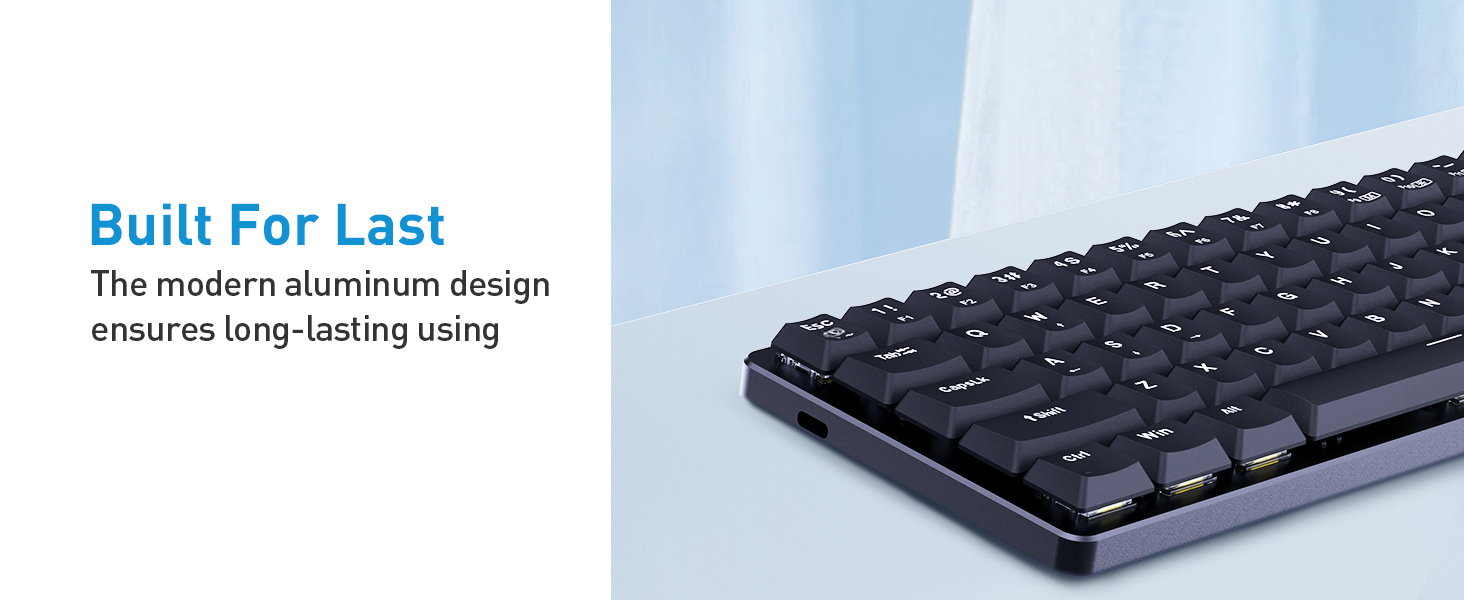
Figure 6: The robust build quality of the Redragon K616, featuring an aluminum design for enhanced durability.
6. Maintenance
6.1 Cleaning the Keyboard
To ensure optimal performance and longevity, regular cleaning is recommended:
- Disconnect the keyboard from your computer before cleaning.
- Use the provided keycap puller to carefully remove keycaps for deeper cleaning.
- Use a can of compressed air to blow away dust and debris from between the keys.
- Wipe keycaps with a soft, damp cloth and mild soap solution if necessary. Ensure keycaps are completely dry before reattaching.
- Wipe the keyboard surface with a soft, dry cloth.
6.2 Replacing Keycaps and Switches
The K616 features hot-swappable switches, allowing for easy replacement without soldering. Use the provided tools:
- Use the keycap puller to gently remove the desired keycap.
- Use the switch puller (if provided separately, otherwise the keycap puller might have a switch pulling function) to carefully extract the switch from the PCB.
- Align the pins of the new switch with the holes on the PCB and press firmly until it clicks into place.
- Reattach the keycap.
Video 2: A demonstration of the K615 Portable Mini Mechanical Gaming Keyboard, including keycap and switch removal for maintenance or customization. This video is provided by the seller.
7. Troubleshooting
| Issue | Possible Solution |
|---|---|
| Keyboard not responding |
|
| Backlight not working or incorrect |
|
| Keys not registering or double-typing |
|
8. Specifications
| Feature | Detail |
|---|---|
| Model | K616 |
| Layout | 60% Compact |
| Switch Type | Low Profile Blue Mechanical Switches |
| Connectivity | Wired USB-C |
| Backlight | 18 Pre-set LED Backlight Modes (Single Color) |
| Keycap Material | Double-shot |
| Dimensions (L x W x H) | 11.4 x 4 x 1.5 inches |
| Weight | 1.08 pounds (approx. 490g) |
| Compatibility | Windows 7/8/10/Vista/XP, Mac |
9. Warranty and Support
For warranty information, technical support, or to inquire about replacement parts, please visit the official Redragon website or contact their customer service directly. Keep your purchase receipt for warranty claims.
Official Redragon Store: Redragon Zone
10. Additional Resources
Explore more about the Redragon K616 and other products:
Video 3: A comprehensive review of a Redragon 60% keyboard, offering insights into its features and performance. This video is provided by the seller.


