
1. Introduction
This manual provides essential information for the proper use and maintenance of your CUPEISI Android 15 Tablet. Please read this guide thoroughly before operating the device to ensure optimal performance and longevity. Keep this manual for future reference.
2. Package Contents
Verify that all items listed below are present in your product package:
- CUPEISI Android 15 Tablet
- Wireless Keyboard
- Bluetooth Mouse
- Foldable Protective Cover
- Stylus
- Type-C Cable

Image 2.1: CUPEISI Android 15 Tablet and its complete accessory kit.
3. Product Components
Familiarize yourself with the main components of your tablet:
- 10.1-inch IPS HD Screen: Main display area with 1280x800 resolution.
- Front Camera: Located above the screen, typically 2MP.
- Rear Camera: Located on the back of the tablet, typically 8MP.
- Power Button: Used to turn the tablet on/off or put it to sleep.
- Volume Buttons: Adjust audio levels.
- Type-C Port: For charging and data transfer.
- Speaker Grilles: For audio output.
- MicroSD Card Slot: For memory expansion up to 1TB.

Image 3.1: Rear view of the tablet showing the camera.

Image 3.2: Tablet screen showcasing its 1280x800 resolution.
4. Setup
4.1 Initial Power On
- Press and hold the Power Button until the screen lights up.
- Follow the on-screen prompts to select your language, connect to a Wi-Fi network, and set up your Google account.
4.2 Connecting Accessories
Your tablet comes with a wireless keyboard, Bluetooth mouse, and stylus for enhanced productivity.
4.2.1 Wireless Keyboard
- Ensure the keyboard is charged and powered on.
- On your tablet, go to Settings > Connected devices > Bluetooth.
- Enable Bluetooth and scan for available devices.
- Select the keyboard from the list and follow any pairing instructions.
4.2.2 Bluetooth Mouse
- Ensure the mouse has batteries and is powered on.
- Repeat steps 2-4 from the Wireless Keyboard instructions to pair the mouse.
4.2.3 Stylus
The stylus is typically passive and does not require pairing. Simply use it directly on the tablet screen for navigation or writing.
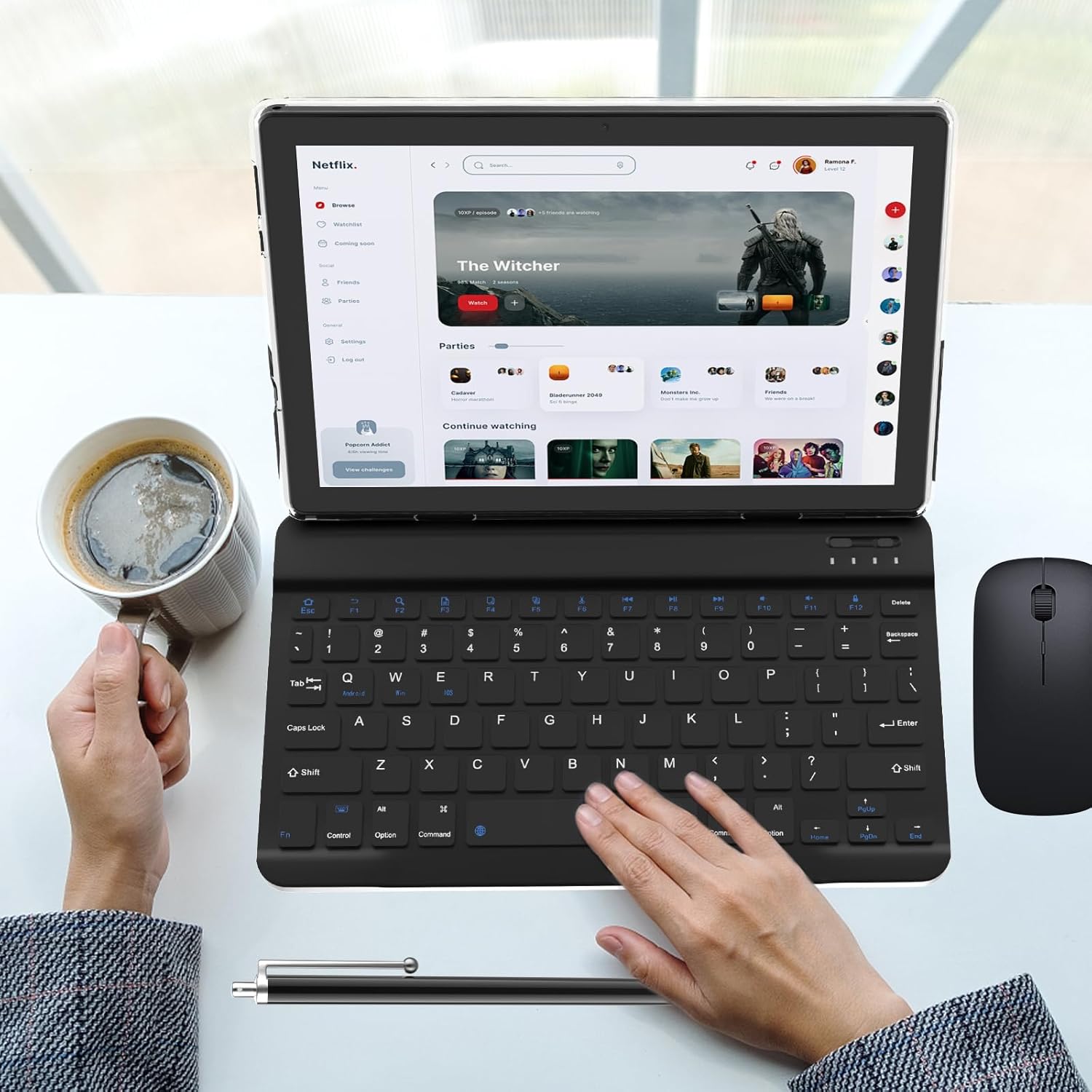
Image 4.1: Tablet with connected keyboard, mouse, and stylus.
5. Operating Instructions
5.1 Basic Navigation
- Touch Gestures: Tap to select, swipe to scroll, pinch to zoom.
- Home Screen: Access apps, widgets, and notifications.
- Notification Panel: Swipe down from the top of the screen to view notifications and quick settings.
5.2 Using Keyboard and Mouse
Once paired, the keyboard and mouse function similarly to a desktop computer. The keyboard allows for efficient typing, and the mouse provides precise cursor control for navigation and interaction with applications.

Image 5.1: User operating the tablet with the keyboard.

Image 5.2: User interacting with the tablet in its protective case.
6. Connectivity
6.1 Wi-Fi Connection
The tablet supports dual-band Wi-Fi (2.4GHz and 5GHz) for stable internet access.
- Go to Settings > Network & internet > Wi-Fi.
- Toggle Wi-Fi on.
- Select your desired network from the list and enter the password if prompted.
6.2 Bluetooth Connection
Bluetooth 5.0 allows connection to various peripherals like headphones, speakers, and the included mouse and keyboard.
- Go to Settings > Connected devices > Bluetooth.
- Toggle Bluetooth on.
- Ensure the device you wish to connect is in pairing mode.
- Select the device from the list and confirm pairing.

Image 6.1: Tablet highlighting its connectivity features.
7. Battery Management
The tablet is equipped with a 6000mAh battery.
- Charging: Use the provided Type-C cable and a 5V2A charger. Connect the cable to the tablet's Type-C port and the charger to a power outlet.
- Battery Life: The tablet offers approximately 6-8 hours of continuous use and up to 360 hours of standby time, depending on usage patterns.
- Optimization: To extend battery life, reduce screen brightness, disable unused connectivity features (Wi-Fi, Bluetooth), and close background applications.
8. Maintenance and Care
- Cleaning: Use a soft, lint-free cloth to clean the screen and body. Avoid abrasive cleaners or solvents.
- Storage: Store the tablet in a cool, dry place away from direct sunlight and extreme temperatures.
- Protection: Use the provided protective cover to guard against scratches and minor impacts.
- Water Exposure: This tablet is not waterproof. Avoid exposure to liquids.
9. Troubleshooting
This section addresses common issues you might encounter.
9.1 Tablet Does Not Power On
- Ensure the battery is charged. Connect the tablet to its charger for at least 30 minutes before attempting to power it on again.
- Press and hold the Power Button for 10-15 seconds to perform a forced restart.
9.2 Slow Performance or Apps Crashing
- Close unused background applications.
- Clear cache for problematic apps (Settings > Apps > [App Name] > Storage & cache > Clear cache).
- Ensure sufficient storage space is available. Delete unnecessary files or move them to an external SD card.
- Restart the tablet.
9.3 Charging Issues
- Verify that the Type-C cable is securely connected to both the tablet and the power adapter.
- Ensure the power adapter is functioning correctly and the outlet has power.
- Try using a different compatible Type-C cable and 5V2A charger.
- Inspect the charging port for any debris or damage.
9.4 Wi-Fi or Bluetooth Connectivity Problems
- Toggle Wi-Fi or Bluetooth off and then on again.
- Restart your Wi-Fi router or the Bluetooth device you are trying to connect to.
- Forget the network/device in tablet settings and attempt to reconnect.
10. Technical Specifications
Detailed specifications for the CUPEISI Android 15 Tablet:

Image 10.1: Visual summary of tablet specifications.
| Feature | Specification |
|---|---|
| Model Name | CP20PRO |
| Operating System | Android 15 |
| Screen Size | 10.1 Inches |
| Screen Resolution | 1280 x 800 IPS HD |
| Processor | 1.8 GHz Quad-core |
| RAM | 4GB Physical + 8GB Virtual (12GB Total) |
| Internal Storage (ROM) | 64GB |
| Expandable Storage | Up to 1TB via MicroSD card |
| Rear Camera | 8 MP |
| Front Camera | 2 MP |
| Battery Capacity | 6000mAh |
| Average Battery Life | 6-8 Hours (continuous use) |
| Wireless Connectivity | 5G/2.4G Wi-Fi (802.11n), Bluetooth 5.0 |
| Charging Port | Type-C (5V2A) |
| Dimensions (LxWxH) | 9.7 x 6.3 x 0.32 inches |
| Item Weight | 2.66 pounds |
11. Warranty and Support
For warranty information and customer support, please refer to the documentation provided at the time of purchase or contact the seller directly. Keep your proof of purchase for any warranty claims.
For further assistance, you may also visit the CUPEISI official website or contact their customer service department.