
BIGASUO 102KZ
BIGASUO 10.1 Inch WiFi Digital Picture Frame User Manual
Model: 102KZ
Introduction
The BIGASUO 10.1 Inch WiFi Digital Picture Frame provides a modern and convenient way to display your cherished photos and videos. With its IPS HD touch screen, built-in memory, and Wi-Fi connectivity, you can easily share moments with loved ones from anywhere using the 'Uhale' app. This manual provides detailed instructions for setting up, operating, and maintaining your digital picture frame.
What's in the Box
Please check the contents of your package to ensure all items are present:
- Digital Picture Frame (x2 for 2-Pack)
- AC Adapter (x2 for 2-Pack)
- Stand (x2 for 2-Pack)
- User Manual (x2 for 2-Pack)

Image: Contents of the BIGASUO 2-Pack digital picture frame box, showing two frames, two AC adapters, two stands, and two user manuals.
Product Features
The BIGASUO Digital Picture Frame offers a range of features designed for ease of use and versatile media display:
Private & Safe Sharing of Pictures
The frame utilizes a secure network encryption channel for transmitting photos and videos, ensuring personal privacy. Connect the frame to Wi-Fi and use the 'Uhale' app to share photos or videos (up to 2 minutes) instantly from anywhere. Unlimited friends can be invited to share, and multiple frames can be connected. Photos can also be uploaded from a computer via 'Uhale' Web.

Image: Instant and wireless sharing of photos and videos via the Uhale app.

Image: Privacy and security features of the BIGASUO WiFi frame, highlighting secure data transmission.
10.1 Inch IPS HD Touch Screen
The frame features a 10.1-inch high-definition full-view display with a resolution of 1280x800. It offers a 180-degree ultra-wide viewing angle and accurate color reproduction. The touchscreen interface allows for easy navigation, viewing/deleting photos, adjusting brightness/sound, and selecting playback order.

Image: The 10.1-inch HD digital photo frame with icons indicating its features.

Image: Visual representation of the 1280x800 HD quality and IPS display of the frame.
Auto Rotation & Large Memory
The electronic photo frame automatically rotates photos horizontally or vertically based on its position, allowing for flexible placement on a desktop or wall. It includes a built-in 32GB memory, capable of storing over 50,000 pictures (300KB/pc), and supports storage expansion via micro SD card (up to 32GB). You can directly play media from an external micro SD card without importing. Note: Ensure the micro SD card is in "FAT32" format before use.
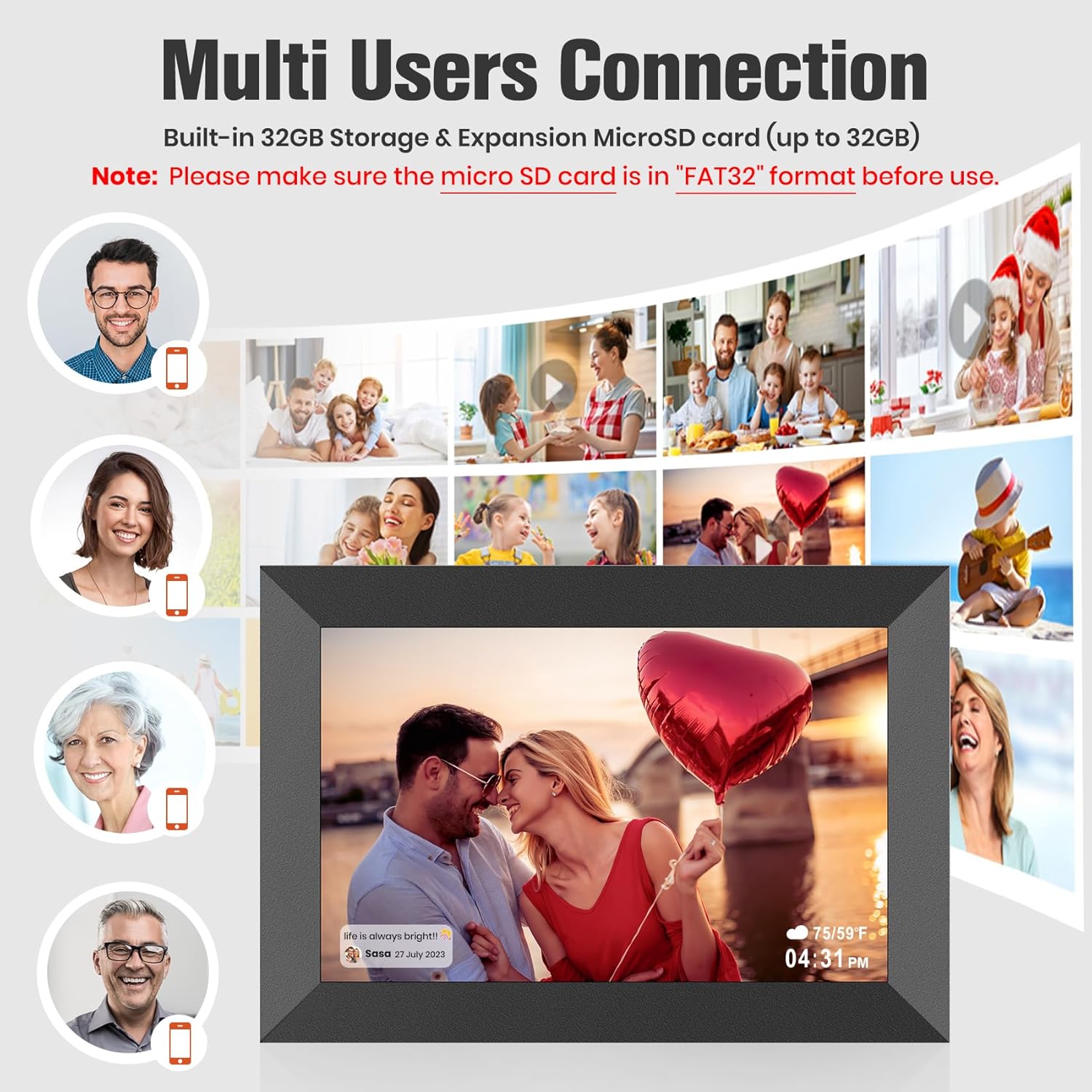
Image: The frame demonstrating its auto-rotate and wall-mountable features.

Image: Illustration of the built-in 32GB memory and support for 32GB extended memory via SD card.
Video Presentation of Wonderful Moments
The digital frame supports smooth video playback, bringing memories to life. Videos can be played directly from an inserted SD card (no time limit) or imported from the SD card to the frame. Videos can also be transferred via the 'Uhale' app (up to 2 minutes in length).

Image: The frame displaying a video with sound, emphasizing lively memory playback.
Multi-User Connection
Share the unique ID code of your frame with friends and family to invite them to join your frame. The digital photo frame supports unlimited user connections, allowing multiple people to send photos and videos to one or more frames.

Image: Illustration of multiple users connecting and sharing content to the digital frame.
PC Web Transfer
You can easily upload photos from your computer to the electronic photo frame by logging into the 'Uhale' URL on your computer. This method allows transferring up to 500 photos at a time without needing to download any software.

Image: Demonstrating PC web transfer of photos to the digital frame.
Upload Photos/Videos via SD Card
To upload content via an SD card: 1. Download photos/videos to a micro SD card (up to 32GB). 2. Insert the micro SD card into the frame's slot. 3. Select photos/videos to play directly or copy them to the digital frame's internal memory.

Image: Steps for uploading photos and videos to the frame using an SD card.
Sleep Mode & Clock
The frame can be set to a sleep mode, turning off the display during specified hours, or configured to show a clock. This feature helps conserve energy and provides a useful display when not actively showing photos.

Image: The frame illustrating its sleep mode and clock display capabilities.
Organize Photos Easily
The frame provides various options to manage your media, including hiding, deleting, or rotating photos. You can also select different slideshow modes, and choose to hide or show favorite photos and captions.

Image: Icons representing various photo organization features available on the frame.
Quickly Adjust Volume & Brightness
Adjusting the frame's volume and brightness is intuitive. Swipe up and down on the right side of the screen to quickly adjust volume, and swipe up and down on the left side of the screen to adjust brightness.

Image: A hand demonstrating how to quickly adjust volume and brightness on the frame's touch screen.
Wide Viewing Angle
The IPS display technology provides a wide viewing angle of 178 degrees, ensuring that pictures are clearly visible from almost any position in the room.

Image: Two frames illustrating the wide 178-degree viewing angle.
Setup
- Unpack the Frame: Carefully remove the digital picture frame and all accessories from the packaging.
- Attach the Stand: Securely attach the included stand to the back of the frame for desktop placement, or prepare for wall mounting if desired.
- Power On: Connect the AC adapter to the frame's power port and plug it into a power outlet. The frame will automatically power on.
- Connect to Wi-Fi: Follow the on-screen prompts to connect your frame to a stable Wi-Fi network. This is essential for cloud sharing features.
- Download the 'Uhale' App: On your smartphone or tablet, download the 'Uhale' app from your device's app store (available for iOS and Android).
- Pair Your Frame: Open the 'Uhale' app and follow the instructions to pair your device with the digital picture frame using the unique code displayed on the frame's screen.

Image: Visual guide for connecting and sharing content via the Uhale app.
Operating Instructions
Sharing Photos and Videos via Uhale App
- Ensure your frame is connected to Wi-Fi and paired with the 'Uhale' app.
- Open the 'Uhale' app on your smartphone.
- Select the photos or videos you wish to share from your device's gallery.
- Choose the target digital frame(s) to send the media to.
- Add an optional caption for your media.
- Tap 'Send' to upload the content to the frame.
Using an SD Card
- Insert a FAT32 formatted micro SD card (up to 32GB) into the designated slot on the frame.
- Navigate to the 'Gallery' or 'Files' section on the frame's touch screen.
- Select the SD card option to browse its contents.
- You can play photos and videos directly from the SD card or choose to import them to the frame's internal memory.
Using PC Web Transfer
- On your computer, open a web browser and go to the 'Uhale' web transfer URL (refer to the app or frame settings for the exact address).
- Log in using your 'Uhale' account credentials.
- Select and upload photos from your computer. You can transfer up to 500 photos at a time.
Adjusting Settings
- Brightness: Swipe up or down on the left side of the screen to adjust display brightness.
- Volume: Swipe up or down on the right side of the screen to adjust audio volume.
- Slideshow Mode: Access settings to choose different slideshow transitions and intervals.
- Sleep Mode: Configure automatic on/off times for the frame's display.
- Clock Mode: Enable clock display during sleep mode or as a primary display option.
Maintenance
- Cleaning the Screen: Use a soft, lint-free cloth to gently wipe the screen. For stubborn smudges, slightly dampen the cloth with water or a screen-cleaning solution. Avoid harsh chemicals or abrasive materials.
- Software Updates: Periodically check for software updates through the frame's settings menu to ensure optimal performance and access to new features.
- Power Off Properly: When not in use for extended periods, power off the frame by unplugging the adapter or using the designated power-off option in the settings.
Troubleshooting
| Issue | Possible Cause | Solution |
|---|---|---|
| Frame won't power on | Power adapter not connected or faulty. | Ensure the AC adapter is securely plugged into the frame and a working power outlet. Try a different outlet. |
| Cannot connect to Wi-Fi | Incorrect Wi-Fi password; weak signal; network issues. | Double-check the Wi-Fi password. Move the frame closer to the router. Restart your router and the frame. |
| Photos not uploading via app | Frame not paired; app not updated; internet connection issues. | Verify the frame is paired in the 'Uhale' app. Ensure both the frame and phone have stable internet. Update the 'Uhale' app to the latest version. |
| SD card not recognized | Incorrect format; card inserted improperly; faulty card. | Ensure the SD card is FAT32 formatted. Reinsert the card correctly. Try a different SD card. |
| Screen is unresponsive | Temporary software glitch. | Restart the frame by unplugging and re-plugging the power adapter. |
Specifications
| Feature | Detail |
|---|---|
| Model Number | 102KZ |
| Screen Size | 10.1 Inches |
| Resolution | 1280x800 HD |
| Display Type | IPS Touch Screen |
| Internal Memory | 32GB |
| External Storage | Micro SD Card (up to 32GB, FAT32 format) |
| Connectivity | WiFi |
| Compatible Devices | Smartphone (via Uhale App) |
| Color | Black |
| Product Dimensions | 2.87 x 4.13 x 0.99 inches |
| Item Weight | 3.63 pounds |
Warranty and Support
BIGASUO products are designed for reliability and performance. For any questions, technical support, or warranty claims, please contact BIGASUO customer service through the contact information provided with your purchase or on the official BIGASUO website. Please retain your proof of purchase for warranty purposes.
Related documents102KZ

Ask a question about this manual
Ask about setup, troubleshooting, compatibility, parts, safety, or missing instructions. Manuals+ will review the question and use this page’s manual context to help answer it.