
Yoidesu Yoidesuokxmfc943r-13
Yoidesu MP3 Player with Bluetooth 5.0 (Model Yoidesuokxmfc943r-13) User Manual
Comprehensive instructions for setup, operation, and maintenance.
1. Introduction
This manual provides detailed instructions for using your Yoidesu MP3 Player with Bluetooth 5.0. Please read this manual carefully before using the device to ensure proper operation and to maximize its features. Keep this manual for future reference.
The Yoidesu MP3 Player is a portable multimedia device featuring an 8GB internal storage, Bluetooth 5.0 connectivity, FM radio, voice recorder, speaker, e-book reader, and pedometer function. It supports various audio and video formats and offers HiFi lossless sound quality.
2. Product Overview
2.1 Package Contents
- Yoidesu MP3 Player
- USB Charging Cable
- Earphones
- User Manual (this document)
 Image: The Yoidesu MP3 Player shown alongside its USB charging cable and a pair of white earphones, indicating the standard package contents.
2.2 Device Layout
The Yoidesu MP3 Player features a 1.8-inch screen and a compact design. Key controls and ports are located on its sides and front.
 Image: A direct front view of the Yoidesu MP3 Player, highlighting its 1.8-inch display which shows a music note icon and basic interface elements.
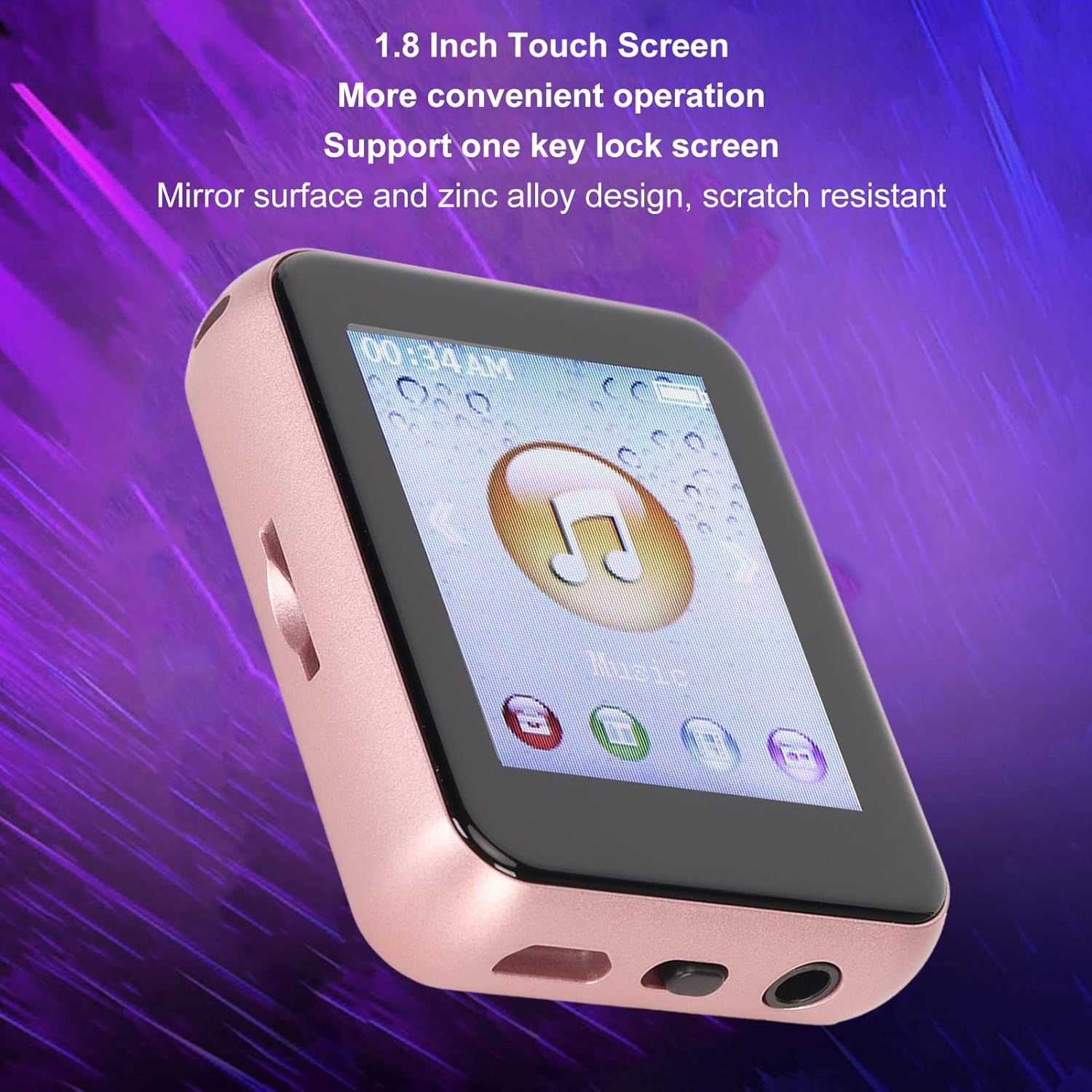 Image: An angled view of the Yoidesu MP3 Player, showcasing its 1.8-inch screen and the physical buttons located on its right side, designed for easy navigation.
 Image: A close-up side view of the Yoidesu MP3 Player, focusing on the three distinct control buttons positioned along its right edge, used for various functions.
Specific button functions will be detailed in the Operating section.
3. Setup
3.1 Charging the Device
Before first use, fully charge the MP3 player. Connect the provided USB cable to the player's charging port and the other end to a USB power adapter (not included) or a computer's USB port. The battery indicator on the screen will show charging status. A full charge typically takes approximately 2-3 hours.
 Image: The Yoidesu MP3 Player's screen showing a stylized lightning bolt, representing its 400mAh high-capacity battery and long battery life.
3.2 Transferring Files
To transfer music, videos, or e-books to your MP3 player:
- Connect the MP3 player to your computer using the USB cable.
- The player will appear as a removable disk drive on your computer.
- Drag and drop your desired files (MP3, WMA, APE, FLAC, WAV, ACELP for audio; AMV, AVI for video; TXT for e-books) into the appropriate folders on the player.
- Safely eject the device from your computer before disconnecting the USB cable.
3.3 Expanding Storage (Optional)
The device supports memory card expansion up to 128GB. Insert a compatible TF (microSD) card into the designated slot on the player to increase storage capacity for more music, videos, and other files.
 Image: The Yoidesu MP3 Player displayed next to a TF (microSD) card, illustrating its support for up to 128GB memory card expansion for storing various media files.
4. Operating Instructions
4.1 Power On/Off and Screen Lock
- Power On: Press and hold the Power button (usually on the side) for a few seconds.
- Power Off: Press and hold the Power button until the power-off option appears, then confirm.
- Screen Lock: The player supports a one-key lock screen function to prevent accidental touches during use. Refer to the device's interface for the specific lock icon or button.
4.2 Navigating the Interface
Use the physical buttons on the side of the device to navigate through menus and select options on the 1.8-inch screen.
4.3 Music Playback
The player supports MP3, WMA, APE, FLAC, WAV, and ACELP audio formats, offering HiFi lossless sound quality.
- Select "Music" from the main menu.
- Browse your music library by artist, album, genre, or all songs.
- Select a song to begin playback.
- Use the side buttons for volume control, play/pause, and track skipping.
- Equalizer Settings: Access equalizer settings to customize sound profiles or choose from presets like Rock, Funk, Hip Hop, Jazz, or Classical.
 Image: Two Yoidesu MP3 Players displayed side-by-side, illustrating the loud external playback feature, allowing users to listen to music without headphones.
4.4 Bluetooth Connectivity
The player features Bluetooth 5.0 for stable and interference-free wireless audio transmission.
- Go to the "Bluetooth" menu.
- Turn Bluetooth on.
- The player will search for nearby Bluetooth devices (headphones, speakers).
- Select your desired device from the list to pair.
- Once paired, audio will be routed through the connected Bluetooth device.
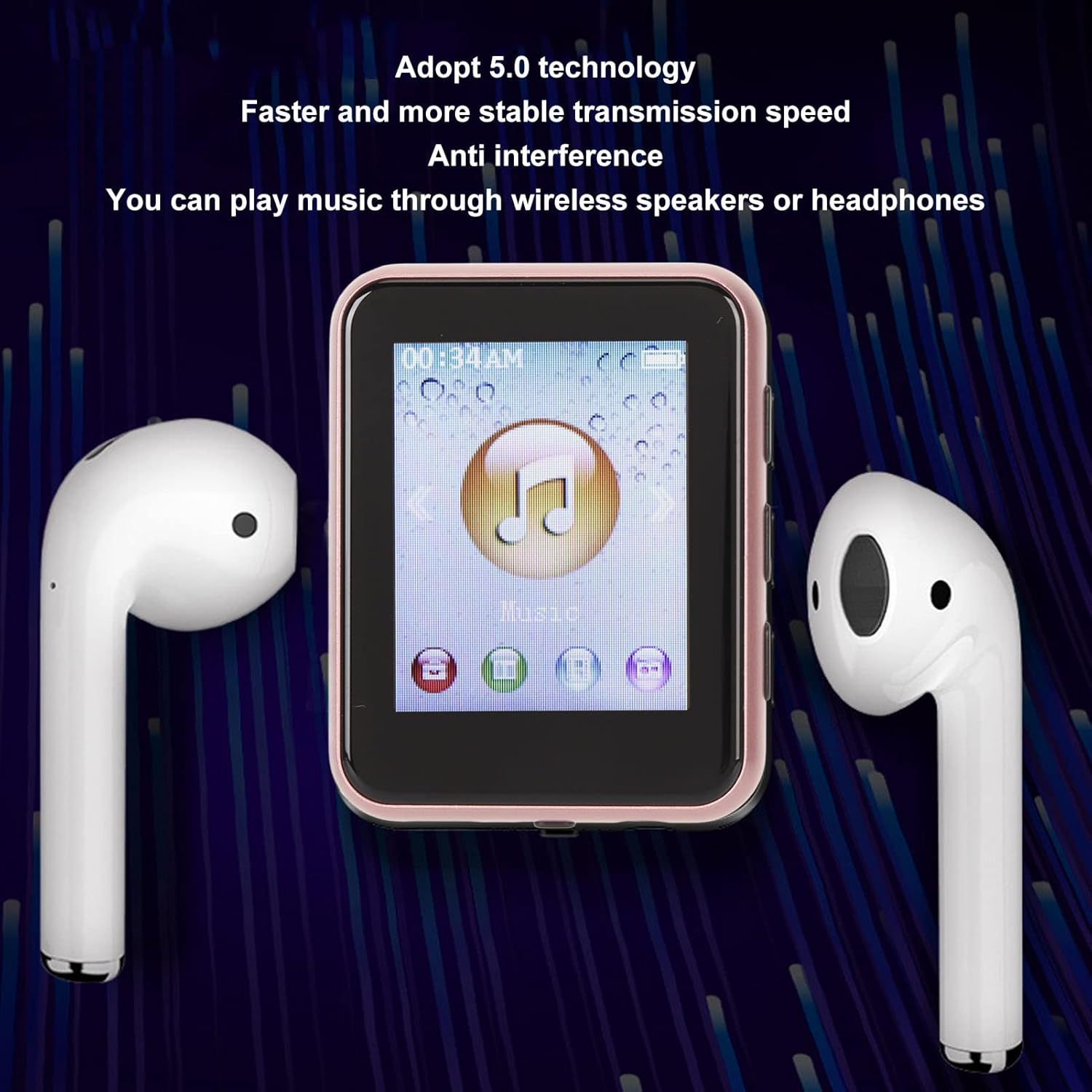 Image: The Yoidesu MP3 Player positioned between two wireless earbuds, symbolizing its Bluetooth 5.0 technology for connecting to wireless speakers or headphones.
4.5 FM Radio
- Select "FM Radio" from the main menu.
- Plug in the earphones (they act as an antenna for better reception).
- Use the scan function to find available radio stations.
- Save your favorite stations for quick access.
4.6 Voice Recorder
- Select "Recorder" from the main menu.
- Choose to start a new recording.
- Press the appropriate button to stop and save the recording.
- Recordings are typically saved in a dedicated folder on the device.
4.7 E-Book Reader
The player supports TXT format e-books.
- Select "E-Book" from the main menu.
- Browse and select your TXT files to read.
- Use navigation buttons to turn pages.
4.8 Pedometer
The built-in pedometer function tracks your steps, making it suitable for sports and travel.
- Activate the "Pedometer" function from the menu.
- Carry the device with you during your activity.
- View your step count and other related data.
4.9 Video Playback and Picture Browsing
The player supports AMV and AVI video formats, and allows for picture browsing.
- Select "Video" or "Pictures" from the main menu.
- Browse your files and select to view.
- The device features hardware-accelerated video playback for smooth viewing.
 Image: The Yoidesu MP3 Player's screen showing a vibrant landscape video, demonstrating its multi-format video playback capability without screen jamming.
5. Maintenance
- Cleaning: Use a soft, dry cloth to clean the device. Avoid liquid cleaners or abrasive materials.
- Storage: Store the player in a cool, dry place away from direct sunlight and extreme temperatures.
- Battery Care: To prolong battery life, avoid fully discharging the battery frequently. Charge it regularly, even if not in use for extended periods.
- Protection: The device features a mirror and zinc alloy design with scratch resistance, but handle it with care to prevent damage.
6. Troubleshooting
| Problem | Solution |
|---|---|
| Device does not power on. | Ensure the battery is charged. Connect to a power source and try again. If unresponsive, perform a hard reset (refer to device specific instructions if available, or hold power button for 10-15 seconds). |
| Cannot transfer files. | Check USB cable connection. Ensure the device is properly recognized by the computer. Try a different USB port or cable. Safely eject the device before disconnecting. |
| No sound during playback. | Check volume level. Ensure headphones are properly plugged in or Bluetooth device is correctly paired and connected. Verify audio file format compatibility. |
| Bluetooth connection issues. | Ensure Bluetooth is enabled on both the player and the receiving device. Keep devices within range. Try unpairing and re-pairing the devices. |
| Screen is unresponsive or frozen. | Perform a soft reset by holding the power button until the device restarts. If persistent, ensure the screen is clean and dry. |
7. Specifications
- Model: Yoidesuokxmfc943r-13
- Display: 1.8-inch screen
- Internal Storage: 8GB
- Expandable Storage: Up to 128GB (TF/microSD card)
- Connectivity: Bluetooth 5.0, USB, Aux
- Audio Formats: MP3, WMA, APE, FLAC, WAV, ACELP
- Video Formats: AMV, AVI
- E-Book Format: TXT
- Battery: 400mAh high capacity
- Additional Features: FM Radio, Voice Recorder, Speaker, Pedometer, Picture Browsing, One-key Lock Screen
- Material: Mirror and Zinc Alloy design
- Dimensions: Approximately 5.24 x 4.02 x 1.69 inches (Package Dimensions)
- Weight: Approximately 3.84 ounces
8. Warranty and Support
For warranty information or technical support, please refer to the purchase documentation or contact Yoidesu customer service through the retailer where the product was purchased. Keep your proof of purchase for warranty claims.
For further assistance, visit the official Yoidesu store on Amazon: Yoidesu Store
Ask a question about this manual
Ask about setup, troubleshooting, compatibility, parts, safety, or missing instructions. Manuals+ will review the question and use this page’s manual context to help answer it.