
LUME CUBE Panel Pro 2.0
Lume Cube Panel Pro 2.0 RGB Camera Light User Manual
Model: Panel Pro 2.0 | Brand: LUME CUBE
1. Introduction
The Lume Cube Panel Pro 2.0 is a versatile RGB camera light designed for photography and videography. It offers extensive color options, adjustable brightness, and color temperature, along with convenient Bluetooth app control. This manual provides instructions for setting up, operating, maintaining, and troubleshooting your device to ensure optimal performance.
2. What's in the Box
Carefully unpack your Lume Cube Panel Pro 2.0 and ensure all components are present:
- RGB Panel Pro 2.0 Light
- Softening Diffuser
- DSLR Camera Mount
- USB-C to USB-A Cable
- Travel Pouch

Image: All items included with the Lume Cube Panel Pro 2.0.
3. Product Overview
The Panel Pro 2.0 features a compact design with powerful illumination capabilities. Key components include the LED panel, control buttons, an LCD screen, and a USB-C charging port.

Image: Front and back of the Panel Pro 2.0.

Image: Detailed view of the LCD screen.
The device is equipped with an extra-large LCD screen for enhanced control, displaying critical information such as battery life, brightness, color temperature, scene settings, strobe speed, and hue.

Image: LCD Screen Information Diagram.
Physical controls include a Power/Mode button, an adjustment dial, and a USB-C recharge port, conveniently located for easy access.

Image: Side controls and USB-C port.
4. Setup
4.1. Charging the Device
Before first use, fully charge the Panel Pro 2.0 using the provided USB-C to USB-A cable. Connect the USB-C end to the light's port and the USB-A end to a compatible power source (e.g., wall adapter, computer USB port). The battery indicator on the LCD screen will show charging status.
4.2. Attaching the Softening Diffuser
The included softening diffuser can be snapped onto the front of the LED panel to soften the light output, reducing harsh shadows and creating a more even illumination.
4.3. Mounting to a Camera or Stand
The Panel Pro 2.0 includes a DSLR camera mount (cold shoe mount) and features three 1/4"-20 mounting options for versatile attachment to cameras, tripods, or light stands.

Image: Mounting the light to a camera.
5. Operating Instructions
5.1. Power On/Off
Press and hold the Power/Mode button located on the side of the unit to turn the light on or off.
5.2. Adjusting Brightness
Rotate the adjustment dial to increase or decrease the brightness from 1% to 100%. The current brightness level is displayed on the LCD screen.
5.3. Adjusting Color Temperature
The Panel Pro 2.0 allows adjustment of color temperature from 2700K (warm) to 7500K (cool). Use the adjustment dial to cycle through color temperature settings. The selected temperature is shown on the LCD screen.
5.4. Selecting RGB Colors
Access millions of color options to match any creative need. Use the controls on the device or the Lume Cube App to select specific RGB values or preset colors.

Image: Examples of RGB color options.
5.5. Wireless Control via Bluetooth App
Download the Lume Cube App on your smartphone to wirelessly control the Panel Pro 2.0. The app provides comprehensive control over brightness, color temperature, RGB colors, and special effects.
- Download the 'Lume Cube' app from your device's app store.
- Ensure Bluetooth is enabled on your smartphone.
- Open the Lume Cube App and follow the on-screen instructions to pair with your Panel Pro 2.0.
- Once connected, use the app interface to adjust settings remotely.
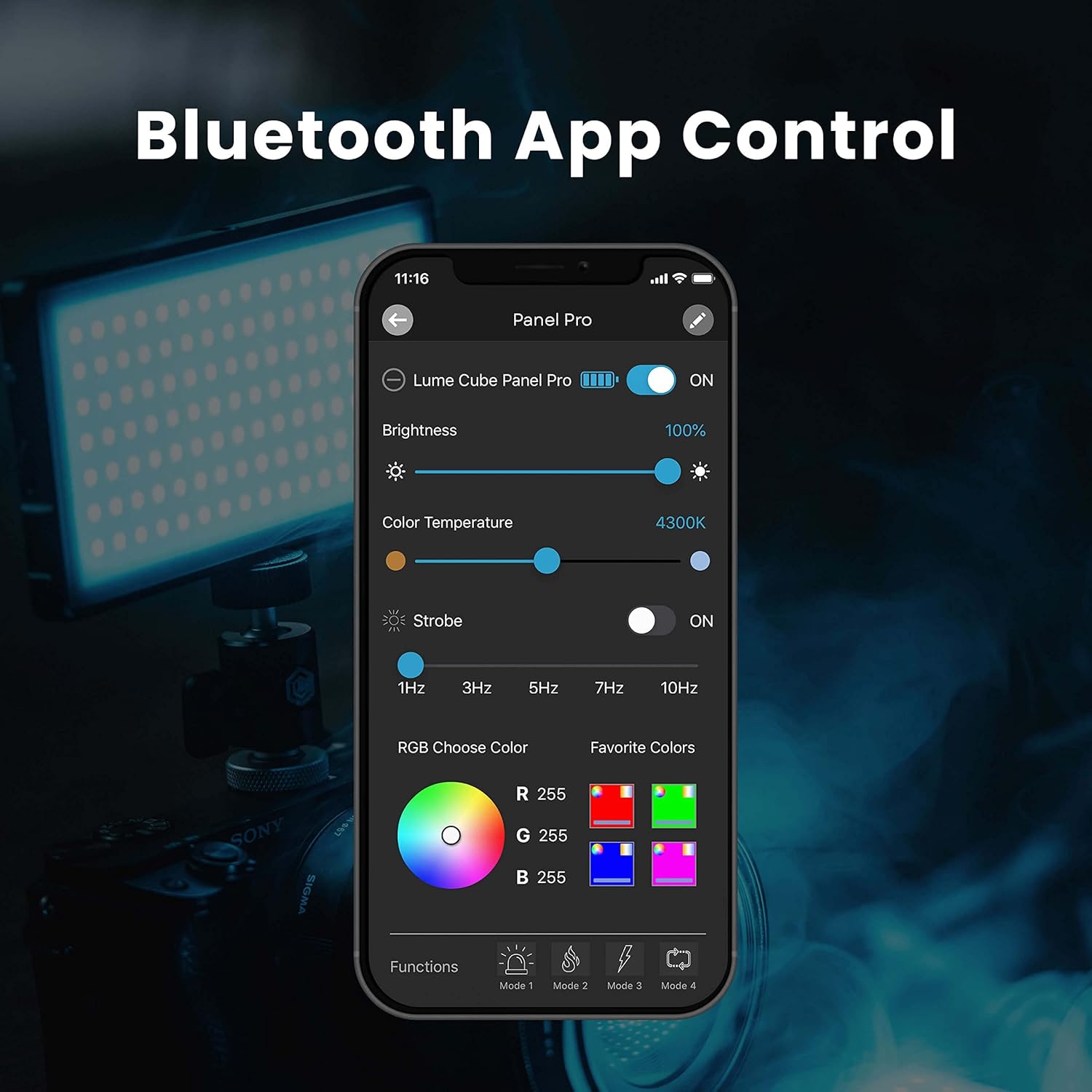
Image: Lume Cube App interface for wireless control.
6. Maintenance
To ensure the longevity and optimal performance of your Lume Cube Panel Pro 2.0, follow these maintenance guidelines:
- Cleaning: Use a soft, dry cloth to clean the exterior of the light. Avoid abrasive cleaners or solvents.
- Storage: Store the device in a cool, dry place away from direct sunlight and extreme temperatures. Use the provided travel pouch for protection.
- Battery Care: For extended storage, charge the battery to approximately 50% every few months to maintain battery health. Avoid fully discharging the battery for prolonged periods.
7. Troubleshooting
If you encounter issues with your Panel Pro 2.0, refer to the following common solutions:
- Light Not Turning On: Ensure the battery is charged. Connect the device to a power source using the USB-C cable and allow it to charge for at least 30 minutes before attempting to power on again.
- Cannot Connect via Bluetooth App:
- Verify Bluetooth is enabled on your smartphone.
- Ensure the Panel Pro 2.0 is powered on and within range.
- Close and reopen the Lume Cube App.
- Restart both the light and your smartphone.
- Inconsistent Brightness/Color: Check the battery level. Low battery can affect performance. Ensure no physical obstructions are blocking the light output.
- Charging Issues: Try a different USB-C cable or power adapter to rule out faulty accessories. Ensure the charging port is clean and free of debris.
If problems persist, contact Lume Cube customer support for further assistance.
8. Specifications
| Feature | Detail |
|---|---|
| Product Dimensions | 8.4 x 6.8 x 1.6 inches |
| Item Weight | 1.08 pounds |
| Battery Type | 1 Lithium Ion battery (included) |
| Battery Life | Approximately 3.66 Hours (at 100% brightness) |
| Connectivity Technology | Bluetooth |
| Color Temperature Range | 2700K to 7500K |
| Brightness Adjustment | 1% to 100% |
| CRI | > 96 |
| Lumen Output | 1000 Lumens |
| Lux Output | 1500 Lux at 1.5 Feet |
| UPC | 810019501463 |

Image: Premium Output details.
9. Warranty and Support
Lume Cube products are designed for durability and performance. For information regarding warranty coverage, product registration, or technical support, please visit the official Lume Cube website or contact their customer service department. Keep your proof of purchase for warranty claims.
Online Resources: www.lumecube.com
Related documentsPanel Pro 2.0


Ask a question about this manual
Ask about setup, troubleshooting, compatibility, parts, safety, or missing instructions. Manuals+ will review the question and use this page’s manual context to help answer it.