
Introduction
This manual provides detailed instructions for the safe and effective use of your Yoidesu Yoidesunxbdy09aqg-11 Digital Video Camera Camcorder. Please read this manual thoroughly before operating the device and retain it for future reference.
Product Overview
Package Contents
- 1 x Yoidesu Yoidesunxbdy09aqg-11 Digital Video Camera Camcorder
- 1 x Battery
- 1 x USB Cable
- User Manual (this document)
The camcorder and its accessories are designed for ease of use and portability.

Image: The Yoidesu Digital Video Camera Camcorder shown with its included battery and USB cable.
Key Features
- 1080P Video Resolution: Records high-definition video.
- 16MP Effective Still Resolution: Captures clear still images.
- 2.7-inch TFT Rotatable Screen: Offers flexible viewing angles, ideal for self-recording.
- 16x Digital Zoom: Allows for magnification of subjects.
- Built-in Fill Light: Provides additional illumination for photos and videos in low-light conditions.
- USB Connectivity: Connects to a computer for file transfer and can function as a PC camera.
- Self-Timer Function: Includes 2-second and 10-second delay options for photos and videos.
- Compact and Lightweight Design: Easy to carry and handle.
- Supports up to 32GB SD Card: Expandable storage for recordings (SD card not included).
Setup
1. Charging the Battery
Before first use, fully charge the included battery. Connect the camcorder to a power source using the provided USB cable. The charging indicator will typically show the charging status and turn off or change color when fully charged.
2. Inserting an SD Card
The camcorder requires an SD card (up to 32GB, not included) to store photos and videos. Locate the SD card slot, usually on the side or bottom of the device. Insert the SD card with the metal contacts facing the correct direction until it clicks into place. Ensure the card is properly formatted if prompted by the camera.
3. Powering On/Off
Press and hold the power button (usually marked with a power symbol) for a few seconds to turn the camcorder on or off. The 2.7-inch TFT screen will illuminate upon startup.
Operating Instructions
1. Basic Operation
Once powered on, the camcorder will typically be in video recording mode or photo capture mode. Use the mode button (if available) or navigate through the on-screen menu to select your desired function.

Image: The camcorder is suitable for capturing moments at events and gatherings.
2. Recording Video
In video mode, press the record button (often marked with a red dot or "REC") to start recording. Press it again to stop. The camcorder supports 1080P video resolution.
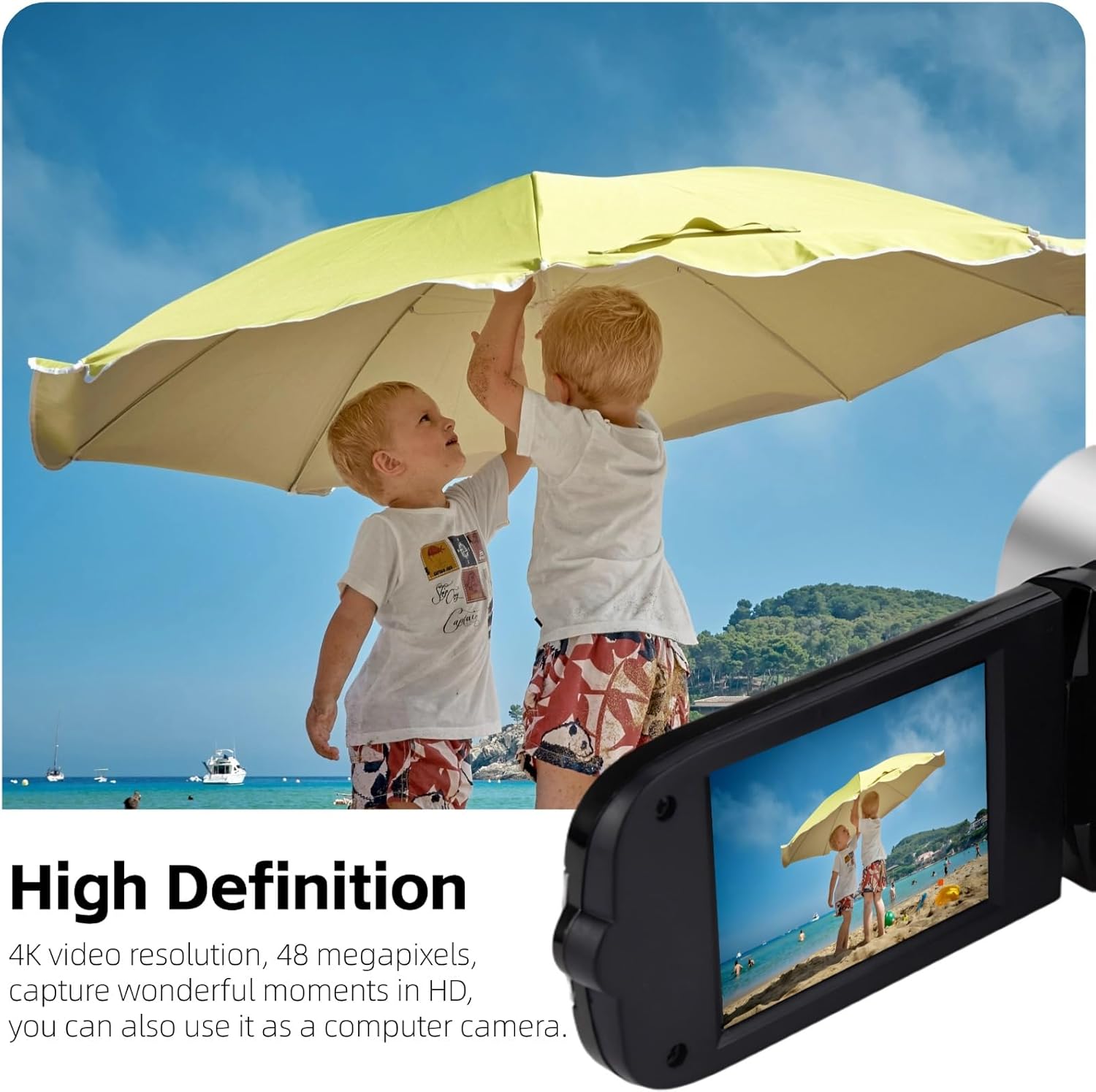
Image: The camcorder captures high-definition video, suitable for recording outdoor activities.
3. Taking Photos
Switch to photo mode. Frame your shot using the screen, then press the shutter button (usually a separate button or the record button in photo mode) to capture a 16MP still image.
4. Using the Rotatable Screen
The 2.7-inch TFT screen can be rotated up to 270 degrees. This allows for flexible viewing angles, making it convenient for self-recording (vlogging) or shooting from difficult positions.

Image: The 2.7-inch rotatable screen facilitates self-recording and group selfies.
5. Digital Zoom
Utilize the zoom controls (often marked with 'W' for wide and 'T' for telephoto) to adjust the 16x digital zoom. This feature allows you to magnify subjects in your frame. Note that digital zoom may reduce image quality compared to optical zoom.

Image: The 16x digital zoom allows for closer views of distant subjects.
6. Using the Fill Light
The camcorder features a built-in fill light on the front. Activate this light in low-light conditions to improve illumination for your subjects. This is particularly useful for close-up shots or when recording in dimly lit environments.

Image: The built-in fill light enhances visibility in darker settings.
7. Connecting to a Computer
Use the provided USB cable to connect the camcorder to your computer. The device will typically appear as a removable drive, allowing you to transfer photos and videos. You can also select a "PC Camera" mode on the camcorder to use it as a webcam.
Maintenance
- Cleaning: Use a soft, dry cloth to clean the camcorder body. For the lens and screen, use a specialized lens cleaning cloth and solution to avoid scratches.
- Storage: Store the camcorder in a cool, dry place away from direct sunlight and extreme temperatures. Remove the battery if storing for extended periods.
- Battery Care: Avoid fully discharging the battery frequently. Recharge it regularly, even if not in use, to maintain battery health.
- SD Card: Always safely eject the SD card from the camcorder and computer to prevent data corruption.
Troubleshooting
| Problem | Possible Cause | Solution |
|---|---|---|
| Camcorder does not power on. | Battery is not charged or incorrectly inserted. | Ensure the battery is fully charged and correctly inserted. |
| Screen freezes or shows static during recording. | SD card issue or software glitch. | Remove and reinsert the battery to reset the device. Try a different SD card. Ensure the SD card is compatible and properly formatted. |
| Cannot record or save files. | No SD card, full SD card, or corrupted SD card. | Insert a compatible SD card. Delete unnecessary files or use a new SD card. Format the SD card (this will erase all data). |
| Short battery life. | Battery not fully charged, old battery, or heavy usage. | Ensure battery is fully charged. Consider purchasing a new battery if it's old. Reduce usage of power-intensive features like the fill light. |
| Poor image/video quality. | Low light, dirty lens, or digital zoom artifacts. | Use the fill light in low light. Clean the lens. Avoid excessive use of digital zoom. |
Specifications
| Brand | Yoidesu |
| Model Number | Yoidesunxbdy09aqg-11 |
| Video Capture Resolution | 1080p |
| Effective Still Resolution | 16 MP |
| Screen Size | 2.7 Inches (TFT Rotatable) |
| Digital Zoom | 16x |
| Photo Sensor Technology | CMOS |
| Flash Memory Type | SD (supports up to 32GB, not included) |
| Connectivity Technology | USB |
| Special Features | Anti-Shake, Lightweight, Built-in Fill Light |
| Item Weight | 0.2 Kilograms |
| Video Capture Format | AVI |
| Supported Image Format | JPG |
| Built-In Media | Battery, USB Cable |
Warranty and Support
For warranty information, please refer to the documentation provided at the time of purchase or contact the retailer. For technical support or further assistance, please reach out to Yoidesu customer service through their official channels.
You can often find support contact details on the manufacturer's website or on the product packaging.