
Dell OptiPlex 7410
Dell OptiPlex 7410 All-in-One Plus Desktop User Manual
Model: OptiPlex 7410 | Brand: Dell
Introduction
This manual provides essential information for setting up, operating, and maintaining your Dell OptiPlex 7410 All-in-One Plus Desktop. This system integrates a 23.8-inch Full HD display with a powerful 13th Gen Intel Core i5-13400T processor, 16GB DDR4 RAM, and a 512GB PCIe M.2 SSD, running on Windows 11 Pro. It is designed for efficient performance in various computing tasks.
What's in the Box
Your Dell OptiPlex 7410 All-in-One Plus Desktop package includes the following components:
- Dell OptiPlex 7410 All-in-One Plus Desktop Unit
- Keyboard
- Mouse
- Power Adapter and Cable
Setup
Follow these steps to set up your Dell OptiPlex 7410 All-in-One Plus Desktop:
- Unpack the System: Carefully remove all components from the packaging.
- Position the Desktop: Place the All-in-One unit on a stable, flat surface.
- Connect Keyboard and Mouse: Connect the included keyboard and mouse to the available USB ports on the back of the unit.
- Connect Power: Connect the power adapter to the power port on the back of the All-in-One unit, then plug the power cable into an electrical outlet.
- Power On: Press the power button, usually located on the side or bottom bezel of the display, to turn on the system.
- Initial Setup: Follow the on-screen instructions to complete the Windows 11 Pro setup, including language, network connection, and user account creation.
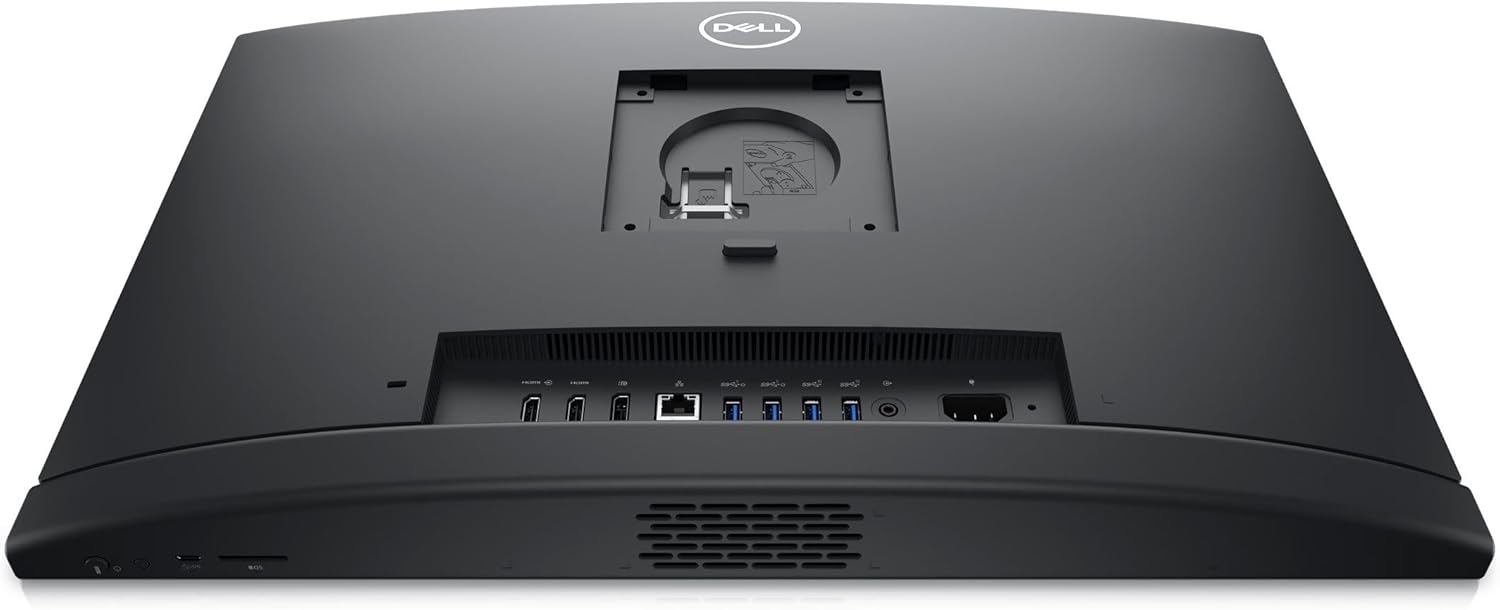
Figure 1: Front view of the Dell OptiPlex 7410 All-in-One Desktop with connected keyboard and mouse.

Figure 2: Rear view of the Dell OptiPlex 7410 All-in-One Desktop, highlighting the various input/output ports.
Operating Instructions
Your Dell OptiPlex 7410 is designed for intuitive use with Windows 11 Pro. Here are some key operational aspects:
- Power Button: Located on the bottom right bezel of the display. Press once to turn on, or press and hold to force shutdown.
- Webcam: The integrated FHD pop-up camera is located at the top center of the display. Gently press it to extend or retract for privacy.
- Display: The 23.8-inch FHD (1920 x 1080) Wide View Angle Anti-Glare Non-Touch Display provides clear visuals.
- Connectivity: Utilize the integrated Intel Wi-Fi 6E (6GHz) AX211 2x2 and Bluetooth 5.2 for wireless connections. Ethernet port is also available for wired network access.
- USB Ports: Connect peripherals such as external drives, printers, and other devices to the available USB ports.
- HDMI Ports: Use the HDMI ports to connect to external monitors or projectors for extended display options.
Key Features
- Processor: Intel Core 13th Generation i5-13400T Processor (14 Core, Up to 4.60GHz, 24MB Cache, 35W) for robust performance.
- Memory: 16GB DDR4 RAM for smooth multitasking.
- Storage: 512GB PCIe M.2 SSD for fast boot times and application loading.
- Display: 23.8-inch FHD (1920 x 1080) Wide View Angle Anti-Glare Non-Touch Display.
- Graphics: Integrated Intel UHD Graphics for clear visuals.
- Operating System: Pre-installed with Windows 11 Pro.
- Wireless Connectivity: Intel Wi-Fi 6E (6GHz) AX211 2x2 and Bluetooth 5.2.
- Webcam: FHD Pop-Up Camera and Microphone for video conferencing.
- Included Peripherals: Dell MS116 Optical Black Mouse and US English Keyboard.
Maintenance
Regular maintenance helps ensure the longevity and optimal performance of your Dell OptiPlex 7410:
- Software Updates: Regularly check for and install Windows updates and driver updates to ensure system stability and security.
- Cleaning: Use a soft, lint-free cloth to clean the display and exterior surfaces. For the screen, use a specialized screen cleaner if necessary. Avoid harsh chemicals.
- Ventilation: Ensure that the ventilation slots on the unit are not blocked to prevent overheating.
- Data Backup: Periodically back up important data to an external drive or cloud storage to prevent data loss.
- Antivirus Software: Keep your antivirus software updated and run regular scans to protect against malware.
Troubleshooting
If you encounter issues with your Dell OptiPlex 7410, try the following basic troubleshooting steps:
- No Power: Ensure the power cable is securely connected to both the desktop and the electrical outlet. Try a different outlet.
- No Display: Check if the system is powered on. If connected to an external monitor, ensure the correct input source is selected on the monitor.
- Peripheral Issues (Keyboard/Mouse): Ensure USB connections are secure. Try connecting the peripherals to different USB ports.
- No Internet Connection: Verify Wi-Fi is enabled and connected to the correct network, or check the Ethernet cable connection. Restart your router/modem.
- System Unresponsive: Press and hold the power button for 10-15 seconds to force a shutdown, then restart the system.
For more complex issues, refer to the Dell support website or contact Dell technical support.
Specifications
| Feature | Detail |
|---|---|
| Brand | Dell |
| Model Name | OptiPlex 7410 |
| Operating System | Windows 11 Pro |
| CPU Model | Intel Core i5-13400T (13th Gen) |
| CPU Speed | Up to 4.6 GHz |
| Processor Count | 14 Cores |
| RAM Memory Installed | 16 GB DDR4 |
| Storage | 512 GB PCIe M.2 SSD |
| Screen Size | 23.8 Inches |
| Display Resolution Maximum | 1920x1080 Pixels (FHD) |
| Display Type | LED, Wide View Angle, Anti-Glare, Non-Touch |
| Graphics Card | Integrated Intel UHD Graphics |
| Wireless Connectivity | Wi-Fi 6E (6GHz) AX211 2x2, Bluetooth 5.2 |
| Webcam | FHD Pop-Up Camera and Microphone |
| USB Ports | 5 Total USB Ports |
| Video Output | HDMI |
| Included Peripherals | Dell MS116 Optical Black Mouse, US English Keyboard |
| Item Dimensions | 2.07 x 21.27 x 13.54 inches |
| Color | Black |
Warranty and Support
Your Dell OptiPlex 7410 All-in-One Plus Desktop comes with a 5 Years ProSupport + ADP Service (Accidental Damage Service). This comprehensive service provides advanced support and protection for your device.
For detailed information regarding your warranty, technical support, or to report an issue, please visit the official Dell support website or contact Dell customer service directly. Ensure you have your product's service tag available for faster assistance.
Related documentsOptiPlex 7410


Ask a question about this manual
Ask about setup, troubleshooting, compatibility, parts, safety, or missing instructions. Manuals+ will review the question and use this page’s manual context to help answer it.