
TP-Link ER707-M2
TP-Link ER707-M2 Omada Multi-Gigabit VPN Router User Manual
Model: ER707-M2
1. Introduction
The TP-Link ER707-M2 Omada Multi-Gigabit VPN Router is designed for robust and secure network solutions, offering high-speed connectivity and advanced management capabilities. This manual provides detailed instructions for setting up, operating, maintaining, and troubleshooting your device.
2. Key Features
- Multi-Gigabit Connectivity: Equipped with 2.5G WAN ports, Gigabit WAN/LAN ports, and an SFP port for flexible high-speed connections.
- Omada Centralized Management: Seamless integration with the Omada SDN platform for cloud access and convenient management via the Omada app.
- Advanced Security: Comprehensive security features including advanced firewall policies, Denial of Service (DoS) defense, IP/MAC/URL filtering, IP-MAC binding, and One-Click ALG activation.
- VPN Support: Supports IPSec VPN for secure remote access and site-to-site connections.
3. Package Contents
Verify that your package contains the following items:
- TP-Link ER707-M2 Router
- Power Adapter
- Ethernet Cable
- Quick Installation Guide
4. Hardware Overview
4.1 Front Panel

Figure 1: Front Panel of the ER707-M2 Router. This image displays the front of the router, showing the LED indicators for Power (PWR), System (SYS), and USB, along with the USB port, two 2.5G WAN ports, five Gigabit WAN/LAN ports, one SFP port, and the Reset button.
The front panel includes LED indicators, various network ports, a USB port, and a reset button. Refer to Figure 1 for a visual representation.
- LED Indicators: PWR (Power), SYS (System), USB.
- USB Port: For connecting USB devices.
- WAN Ports (1-2): Two 2.5G Ethernet ports for Wide Area Network connections.
- WAN/LAN Ports (3-6): Four Gigabit Ethernet ports configurable as either WAN or LAN.
- SFP Port (7): One SFP port for fiber optic connections.
- Reset Button: Used to restore factory default settings.
4.2 Rear Panel
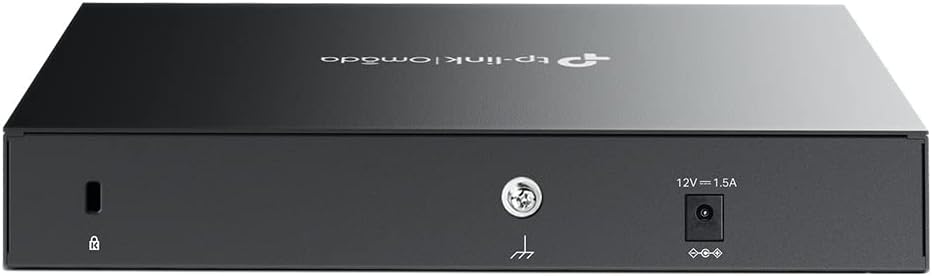
Figure 2: Rear Panel of the ER707-M2 Router. This image shows the rear of the router, featuring the Kensington security slot, a grounding terminal, and the 12V DC power input.
The rear panel contains the power input, a grounding terminal, and a security slot. Refer to Figure 2 for a visual representation.
- Power Input: Connects to the provided power adapter (12V = 1.5A).
- Grounding Terminal: For grounding the device.
- Kensington Security Slot: For attaching a security cable.
5. Setup
5.1 Physical Installation
- Power Connection: Connect the power adapter to the router's power input and then to a power outlet.
- WAN Connection: Connect your modem or internet service provider's (ISP) device to one of the 2.5G WAN ports (Port 1 or 2) or a Gigabit WAN/LAN port (Port 3-6) using an Ethernet cable.
- LAN Connection: Connect your local network devices (e.g., computer, switch) to the remaining LAN ports (Port 3-6) using Ethernet cables.
- SFP Connection (Optional): If using a fiber optic connection, insert an SFP module into the SFP port (Port 7) and connect the fiber cable.
5.2 Initial Configuration
The ER707-M2 can be configured via its web-based management interface or through the Omada SDN Controller.
- Web Interface:
- Ensure your computer is connected to a LAN port of the router.
- Open a web browser and enter the default IP address (usually
192.168.0.1or192.168.1.1) in the address bar. Refer to the Quick Installation Guide for the exact default IP. - Log in using the default username and password (typically
adminfor both). You will be prompted to change these for security. - Follow the on-screen wizard for initial setup, including WAN connection type and basic network settings.
- Omada SDN Controller:
- For centralized management, integrate the router with an Omada SDN Controller (hardware controller, software controller, or cloud-based controller).
- Ensure the controller is running and accessible on your network.
- Adopt the ER707-M2 router within the Omada Controller interface.
- Configure network settings, VPNs, and security policies through the Omada Controller.
6. Operation
6.1 Network Configuration
Access the router's web interface or Omada Controller to configure various network settings:
- WAN Settings: Configure your internet connection type (e.g., Dynamic IP, Static IP, PPPoE).
- LAN Settings: Adjust the local IP address range, DHCP server settings, and VLAN configurations.
- Port Configuration: Reconfigure WAN/LAN ports as needed for specific network requirements.
6.2 VPN Configuration
The ER707-M2 supports IPSec VPN for secure communication. This allows for site-to-site connections between offices or remote access for individual users.

Figure 3: IPSec VPN Diagram. This image illustrates how IPSec VPN can establish a secure connection between a headquarters and a subsidiary, managed via an Omada Controller in the cloud.
Detailed VPN setup instructions are available in the router's online help or the Omada Controller documentation. Key steps typically include:
- Defining VPN policies (e.g., Site-to-Site VPN, Client-to-Site VPN).
- Configuring IP addresses, authentication methods, and encryption protocols.
- Enabling the VPN connection.
6.3 Security Features
The router provides extensive security functionalities to protect your network:
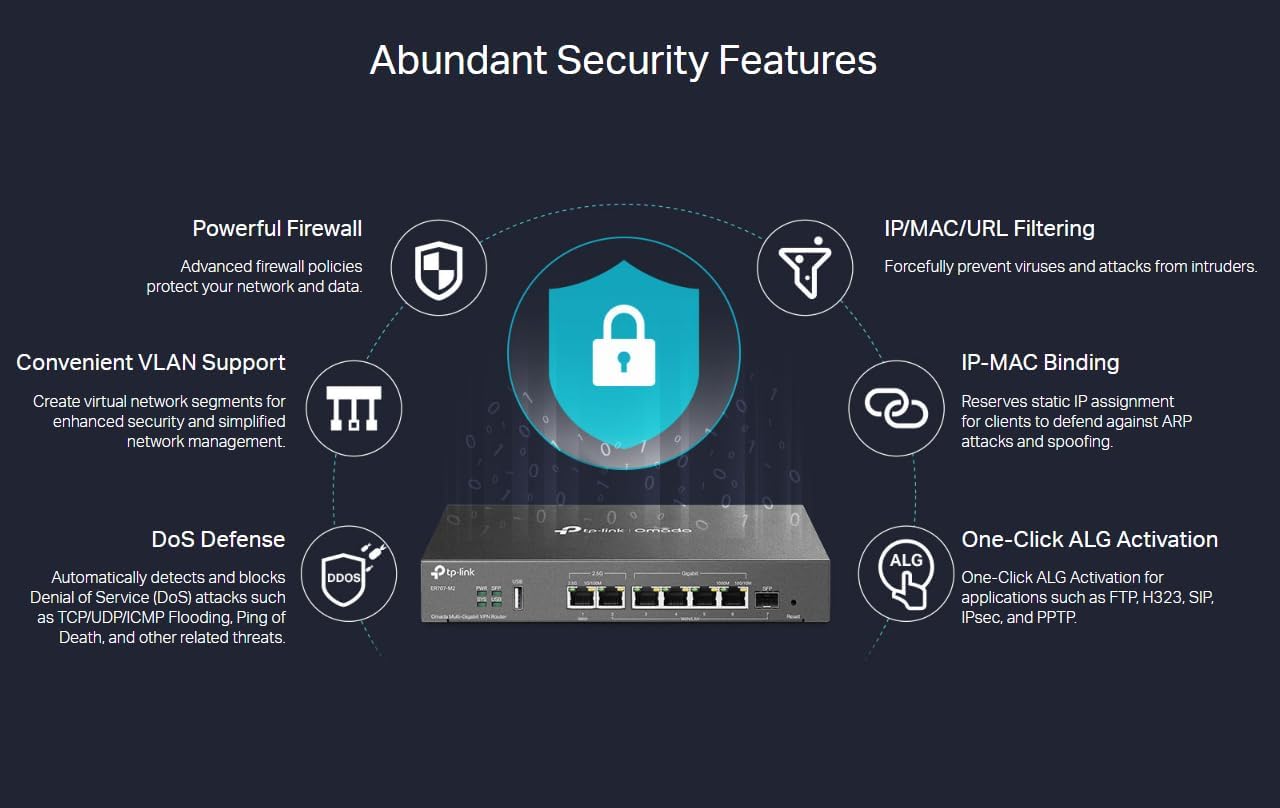
Figure 4: Abundant Security Features. This diagram highlights various security functions of the router, including Powerful Firewall, IP/MAC/URL Filtering, IP-MAC Binding, One-Click ALG Activation, DoS Defense, and Convenient VLAN Support.
- Powerful Firewall: Configure advanced firewall policies to control network traffic and protect against unauthorized access.
- DoS Defense: Automatic detection and blocking of Denial of Service attacks such as TCP/UDP/ICMP Flooding and Ping of Death.
- IP/MAC/URL Filtering: Prevent unwanted access by filtering based on IP addresses, MAC addresses, or specific URLs.
- IP-MAC Binding: Reserve static IP assignments for clients to defend against ARP attacks and spoofing.
- One-Click ALG Activation: Enable Application Layer Gateway (ALG) for applications like FTP, H323, SIP, IPSec, and PPTP with a single click.
- VLAN Support: Create virtual network segments for enhanced security and simplified network management.
7. Maintenance
- Firmware Updates: Regularly check the TP-Link official website for the latest firmware versions. Updating firmware can improve performance, add new features, and enhance security.
- Backup and Restore: It is recommended to back up your router's configuration settings before making significant changes or performing firmware updates. This allows you to restore settings if needed.
- Factory Reset: If the router is not functioning correctly or you forget the login credentials, you can perform a factory reset by pressing and holding the Reset button on the front panel for approximately 5-10 seconds until the SYS LED blinks rapidly. This will erase all custom configurations.
8. Troubleshooting
- No Internet Access:
- Check all cable connections (WAN, LAN).
- Verify the status of the WAN LED indicator.
- Ensure your WAN settings are correctly configured in the router's interface.
- Restart your modem and router.
- Cannot Access Web Management Page:
- Ensure your computer is connected to a LAN port and has an IP address from the router's DHCP server.
- Verify the router's IP address and ensure you are entering it correctly in the browser.
- Try clearing your browser's cache or using a different browser.
- If all else fails, perform a factory reset (see Maintenance section).
- Slow Network Speed:
- Check your internet service provider's speed.
- Ensure all cables are in good condition and properly connected.
- Monitor network traffic to identify any bandwidth-intensive applications.
- Consider updating the router's firmware.
9. Specifications
| Feature | Detail |
|---|---|
| Brand | TP-Link |
| Model Number | ER707-M2 |
| Ports | 2x 2.5G WAN, 4x Gigabit WAN/LAN, 1x SFP Port, 1x USB Port |
| Dimensions (L x W x H) | 32.5 x 24.5 x 7 cm |
| Operating System | OpenWRT (underlying system, user interacts with Omada/TP-Link firmware) |
| Wireless Technology Type | 802.11a (Note: This router is primarily wired; this spec may refer to compatibility or internal components.) |
| Connectivity Technology | Wi-Fi (This is a wired router, but it's listed in specs, likely for compatibility with Wi-Fi networks it connects to) |
| Special Feature | QoS (Quality of Service) |
| Compatible Devices | Laptop, Personal Computer, Smartphone, Tablet |
| Color | Grey |
10. Warranty and Technical Support
TP-Link provides industry-leading support for its products:
- Warranty: The TP-Link ER707-M2 router comes with a 5-year warranty.
- Technical Support: 24/7 technical support is available. For assistance, please visit the official TP-Link support website or contact their customer service.
Related documentsER707-M2


Ask a question about this manual
Ask about setup, troubleshooting, compatibility, parts, safety, or missing instructions. Manuals+ will review the question and use this page’s manual context to help answer it.