
PTHTECHUS S80K
PTHTECHUS Smart Watch for Kids S80K
Instruction Manual
Model: S80K
Introduction
Welcome to the PTHTECHUS Smart Watch for Kids S80K instruction manual. This guide provides essential information for setting up, operating, maintaining, and troubleshooting your new smartwatch. Please read this manual thoroughly to ensure proper use and to maximize the features of your device.

Image: The PTHTECHUS S80K Smart Watch, highlighting its vibrant display and customizable interface.
Setup
What's in the Box
- 1 x PTHTECHUS S80K Smart Watch
- 1 x Charging Cable
- 1 x User's Manual (this document)
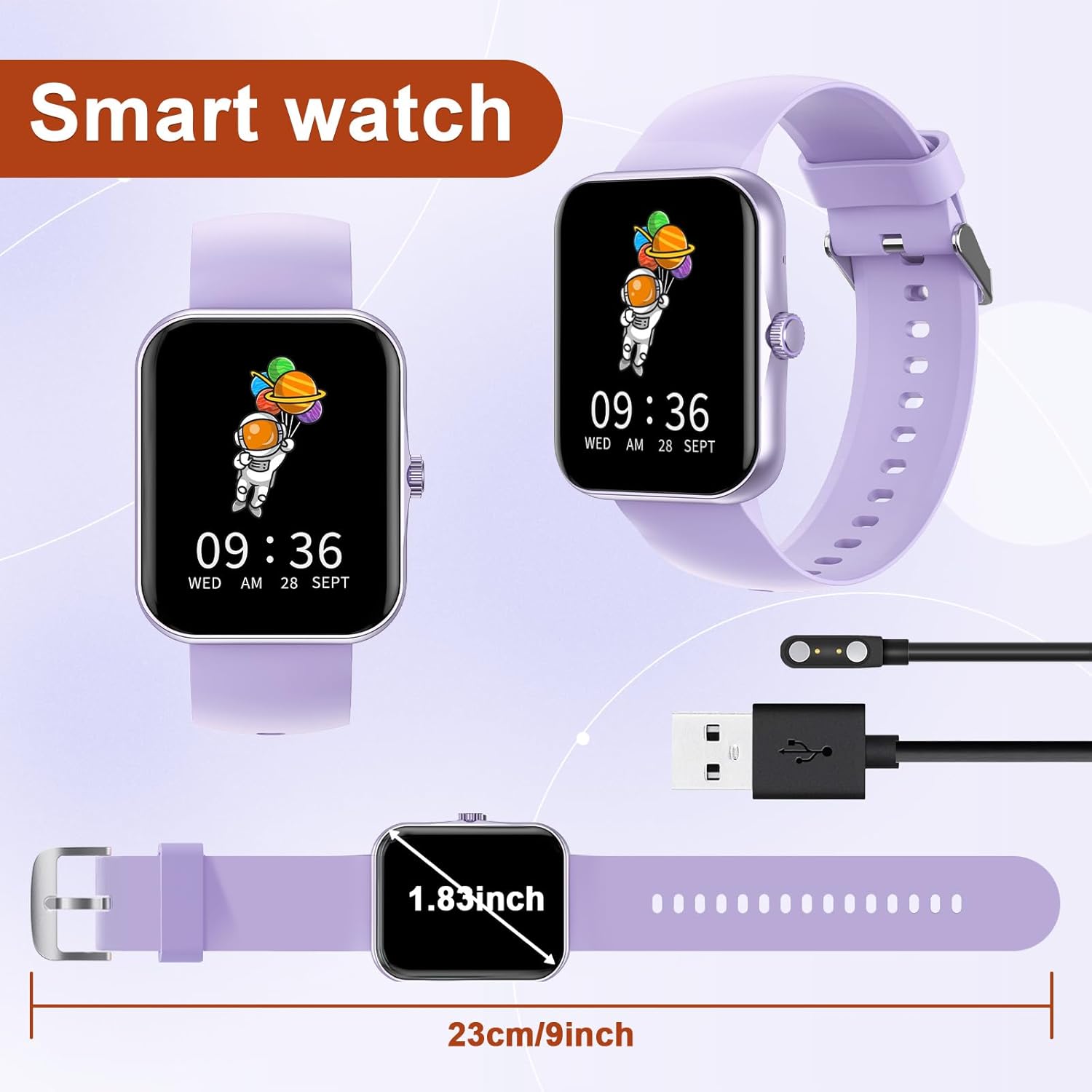
Image: Contents of the PTHTECHUS S80K Smart Watch package, including the watch and its magnetic charging cable.
Initial Charging
Before first use, fully charge your smartwatch. Connect the magnetic charging cable to the charging points on the back of the watch and plug the USB end into a compatible power source (e.g., computer USB port, USB wall adapter). A full charge typically takes approximately 2 hours.
Video: Demonstrates the charging process and various features of the S80K Smart Watch.
Pairing with Your Smartphone
To unlock the full potential of your S80K Smart Watch, pair it with your smartphone using the dedicated app. The watch is compatible with Android 4.4 and above, and iOS 8.0 and above smartphones. Download the CO-FIT app from your device's app store.
- Ensure your smartwatch is charged and powered on.
- Enable Bluetooth on your smartphone.
- Open the CO-FIT app and follow the on-screen instructions to add your device.
- Select "S80K" from the list of available devices to establish the connection.
Operating Your Smartwatch
Basic Navigation
The S80K Smart Watch features a 1.83-inch high-definition full touchscreen display for intuitive navigation. Swipe left, right, up, or down to access different functions and menus. The side button can be used to return to the home screen or power the device on/off.
Making and Receiving Calls
Once connected via Bluetooth, you can make and answer calls directly from your smartwatch. The built-in microphone and speaker allow for hands-free communication. You can also view call logs and synchronize contacts through the smartwatch interface.

Image: The smartwatch displaying an incoming call, demonstrating its call handling capability.

Image: Visual representation of the smartwatch's call making and answering functions.
Notifications
Receive SMS and app notifications (e.g., WhatsApp, Facebook, Instagram) directly on your smartwatch. This feature keeps you informed without needing to check your phone constantly. Note: Replying to messages is not supported.

Image: The smartwatch showing incoming notifications from messaging and social media applications.

Image: Smart notifications displayed on the watch, keeping users updated.
Health Monitoring
The S80K Smart Watch offers 24-hour health monitoring features, including heart rate, blood oxygen saturation (SpO2), and sleep tracking. These functions provide insights into your health and help promote healthier habits. Please note: This data is for reference only and cannot be used for medical diagnosis or treatment.
- Heart Rate Monitoring: Continuously tracks your heart rate throughout the day.
- Blood Oxygen Monitoring: Measures your blood oxygen levels.
- Sleep Tracking: Analyzes your sleep patterns, including deep sleep, light sleep, and awake times, to help improve sleep quality.

Image: The smartwatch showing real-time heart rate monitoring.

Image: The smartwatch displaying blood oxygen saturation (SpO2) levels.

Image: The smartwatch providing detailed sleep tracking analysis.
Sports Modes
The smartwatch supports 37 sports modes, accurately recording your daily activities such as steps, distance, and calorie consumption. This helps you track your fitness progress and achieve your exercise goals.

Image: Overview of the 37 supported sports modes for comprehensive activity tracking.

Image: The smartwatch displaying a selection of its 37 sports modes.
Video: Showcases various intelligent sports watch display features, including activity tracking.
Customizing Watch Faces
Personalize your smartwatch with over 120 pre-designed watch face styles available through the CO-FIT app. You can also create custom dials using your own photos of family, friends, or pets.

Image: A selection of over 100 watch faces and options for custom photo dials.

Image: A wide variety of watch faces and custom dial options for personalization.
Music and Camera Control
Control your smartphone's music playback and camera shutter directly from your smartwatch. This allows for convenient remote control during activities or when taking group photos.

Image: The smartwatch's capabilities for controlling music playback and remotely triggering your phone's camera.
Voice Assistant
Utilize the built-in voice assistant for hands-free control. You can make phone calls, search for information, play music, and more using voice commands.

Image: The smartwatch's voice assistant feature, ready for commands.
Weather Display
Stay updated with real-time weather information directly on your smartwatch. The weather display provides current conditions and forecasts.
Image: The smartwatch displaying current weather conditions and forecasts.
Maintenance
Cleaning Your Smartwatch
To keep your smartwatch clean and in good condition, wipe it regularly with a soft, dry, lint-free cloth. For stubborn smudges, slightly dampen the cloth with water. Avoid using harsh chemicals, abrasive cleaners, or solvents as they may damage the device.
Water Resistance
The PTHTECHUS S80K Smart Watch is designed to be water-resistant for daily use, such as hand washing or light rain. However, it is not recommended for swimming, showering, or prolonged submersion in water, as this may compromise its functionality and void the warranty. Avoid exposing the watch to hot water, steam, or high-velocity water.
Battery Care
To prolong battery life, avoid fully discharging the battery frequently. Charge the watch when the battery level is low. Store the watch in a cool, dry place when not in use for extended periods. The battery is not user-replaceable.
Troubleshooting
Common Issues and Solutions
- Watch not turning on or charging:
Ensure the charging cable is securely connected to both the watch and the power source. Try a different USB port or power adapter. If the battery is completely drained, it may take a few minutes for the charging indicator to appear.
- Bluetooth connectivity issues:
Make sure Bluetooth is enabled on your smartphone and the watch is within range. Restart both your watch and smartphone. Try unpairing and re-pairing the device through the CO-FIT app. Ensure the app has necessary permissions.
- Inaccurate health data (Heart Rate, SpO2, Sleep):
Ensure the watch is worn snugly on your wrist, not too tight or too loose. Clean the sensors on the back of the watch. Environmental factors or movement during measurement can affect accuracy. Remember, this data is for general wellness and fitness purposes, not medical use.
- Notifications not appearing:
Verify that the watch is successfully paired with your phone. Check notification settings within the CO-FIT app and your phone's system settings to ensure app notifications are enabled for the smartwatch.
Specifications
| Feature | Detail |
|---|---|
| Model Name | S80K |
| Brand | PTHTECHUS |
| Screen Size | 1.83 Inches |
| Display Technology | LCD |
| Resolution | 240 x 284 |
| Connectivity | Bluetooth |
| Operating System | AsteroidOS |
| Battery Composition | Lithium Polymer |
| Item Weight | 1.76 ounces (50 grams) |
| Product Dimensions | 8.66 x 1.57 x 0.79 inches |
| Special Features | Activity Tracker, Phone Call, Oxymeter (SpO2), Notifications, Heart Rate Monitor |
| Human Interface Input | Touchscreen, Dial, Buttons |
Warranty and Support
Warranty Information
For specific warranty details regarding your PTHTECHUS S80K Smart Watch, please refer to the warranty card included in your product packaging or visit the official PTHTECHUS website. The warranty typically covers manufacturing defects under normal use conditions.
Customer Support
If you encounter any issues or have questions not covered in this manual, please contact PTHTECHUS customer support. You can usually find contact information (email, phone, or support portal) on the official PTHTECHUS website or through your purchase platform.
For more information, visit the PTHTECHUS Store on Amazon.
Related documentsS80K


Ask a question about this manual
Ask about setup, troubleshooting, compatibility, parts, safety, or missing instructions. Manuals+ will review the question and use this page’s manual context to help answer it.