
1. Introduction
This manual provides detailed instructions for the PTHTECHUS S80K Smart Watch. Please read this manual thoroughly before using the device to ensure proper operation and to maximize its features. This smartwatch is designed to assist in activity tracking, communication, and health monitoring for young users.

Image 1.1: The PTHTECHUS S80K Smart Watch, showcasing its display and pink strap.
2. What's in the Box
Upon unpacking your PTHTECHUS S80K Smart Watch, please verify that all the following items are included:
- 1 x PTHTECHUS S80K Smart Watch
- 1 x Charging Cable
- 1 x User Manual (this document)

Image 2.1: Contents of the PTHTECHUS S80K Smart Watch package, including the watch and its charging cable, with dimensions.
3. Setup
3.1. Charging the Smart Watch
Before initial use, fully charge the smartwatch. Connect the magnetic charging cable to the charging contacts on the back of the watch and plug the USB end into a compatible power adapter (not included) or a computer's USB port. The watch display will indicate charging status.
3.2. App Installation
To utilize all features of your smartwatch, download and install the companion application, CO-FIT, on your smartphone. The app is compatible with Android 4.4 and above, and iOS 8.0 and above.
- Scan the QR code provided in the quick start guide or search for "CO-FIT" in your smartphone's app store (Google Play Store for Android, Apple App Store for iOS).
- Download and install the application.
- Follow the on-screen instructions to create an account and set up your profile.
3.3. Device Pairing
Pair your smartwatch with the CO-FIT app via Bluetooth:
- Ensure Bluetooth is enabled on your smartphone.
- Open the CO-FIT app and navigate to the "Device" or "Add Device" section.
- The app will search for available devices. Select "S80K" or the corresponding device name from the list.
- Confirm the pairing request on both your smartphone and the smartwatch.
- Once paired, the watch will synchronize data with the app.
4. Operating Instructions
4.1. Basic Navigation
- Touchscreen: Swipe left, right, up, or down to navigate through menus and features. Tap to select an option.
- Side Button: Press to return to the home screen or wake the device.
4.2. Making and Receiving Calls
After connecting the smartwatch to your phone via Bluetooth, you can manage calls directly from your wrist.
- Making Calls: Access the dial pad or synchronized contacts on the watch to initiate a call.
- Receiving Calls: When a call comes in, the watch will display the caller ID. Tap the green icon to answer or the red icon to decline.
- The built-in microphone and speaker allow for hands-free communication.

Image 4.1: The smartwatch displaying an incoming call, demonstrating its communication capabilities.

Image 4.2: Visual representation of making and answering calls directly from the smartwatch interface.
4.3. Notifications
Receive SMS and app notifications directly on your smartwatch. Ensure notification permissions are granted in the CO-FIT app and your phone's settings.
- The watch supports notifications from various applications such as WhatsApp, Facebook, Instagram, Twitter, and more.
- Note: Replying to messages directly from the watch is not supported.

Image 4.3: The smartwatch showing incoming message notifications and the voice assistant interface.

Image 4.4: Illustration of smart notifications being displayed on the watch, keeping the user informed.
4.4. Health Monitoring
The smartwatch offers 24-hour health monitoring features to help track well-being. Note: This data is for reference only and cannot be used for medical diagnosis or treatment.
- Heart Rate Monitoring: The watch continuously monitors your heart rate. View real-time data on the watch or in the CO-FIT app.
- Blood Oxygen (SpO2) Monitoring: Measure your blood oxygen saturation levels.
- Sleep Monitoring: Tracks sleep patterns, including deep sleep, light sleep, and awake times, providing a comprehensive analysis of sleep quality.
- Blood Pressure Monitoring: Provides estimated blood pressure readings.

Image 4.5: The smartwatch interface showing continuous heart rate monitoring.

Image 4.6: The smartwatch displaying blood oxygen monitoring results.

Image 4.7: The smartwatch showing sleep tracking data, encouraging healthy sleep habits.
4.5. Sports Modes
The watch supports 37 different sports modes to track various physical activities. It records steps, distance, and calorie consumption.
- Select your desired sport mode (e.g., mountaineering, running, cycling, yoga) from the watch menu.
- The watch will display real-time statistics during your workout.
- Review your activity data in the CO-FIT app for detailed analysis.

Image 4.8: Visual representation of the 37 available sport modes, including skiing, running, and cycling.

Image 4.9: The smartwatch interface showing a list of sports modes for selection.
4.6. Customizing Watch Faces
Personalize your smartwatch with over 120 available watch face styles or create custom dials using your own photos.
- Access the watch face gallery through the CO-FIT app.
- Select from various online styles or upload a personal photo to create a unique watch face.
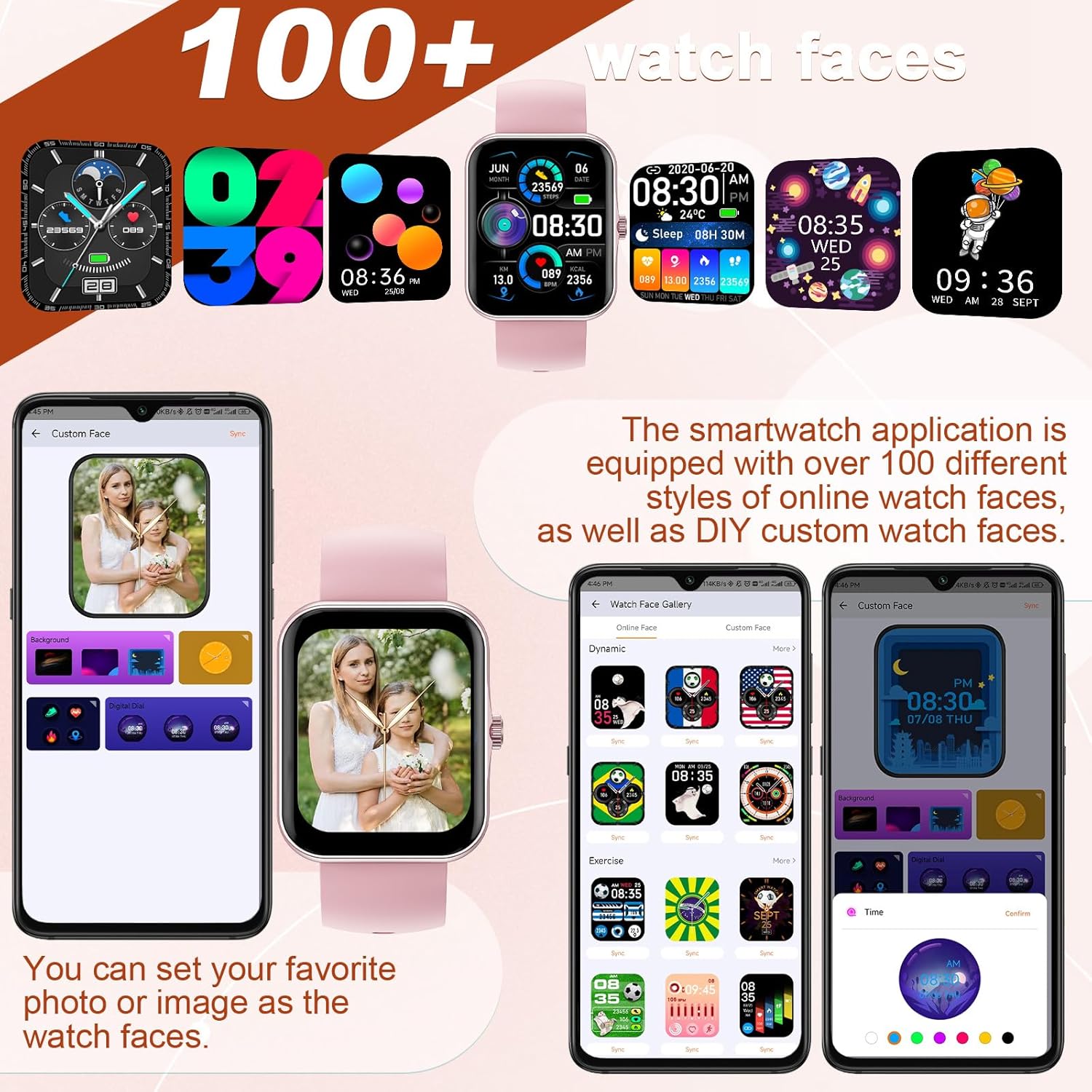
Image 4.10: A selection of watch faces and the interface for customizing them with personal photos.

Image 4.11: A collage of diverse watch faces and custom dial options available for the smartwatch.
4.7. Music Control
Control your smartphone's music playback directly from the smartwatch.
- Play, pause, skip tracks, and adjust volume without needing to access your phone.

Image 4.12: The smartwatch interface for music control and remote camera operation.
4.8. Camera Control
Use your smartwatch as a remote shutter for your smartphone's camera.
- Open the camera function in the CO-FIT app and then use the watch to trigger photos.
4.9. Voice Assistant
The integrated voice assistant allows for hands-free control and information retrieval.
- Activate the voice assistant on the watch to make calls, check weather forecasts, play music, and more.

Image 4.13: A user engaging with the AI voice assistant feature on the smartwatch.
4.10. Weather Display
View current weather conditions and forecasts directly on your watch.
- Ensure the watch is connected to your smartphone and location services are enabled for accurate weather updates.

Image 4.14: The smartwatch showing a multi-day weather forecast.
5. Maintenance
5.1. Cleaning
- Wipe the watch screen and strap regularly with a soft, dry cloth.
- For stubborn dirt, use a slightly damp cloth and then dry thoroughly.
- Avoid using harsh chemicals or abrasive materials, as these can damage the watch.
5.2. Battery Care
- Charge the watch regularly, even if not in frequent use, to maintain battery health.
- Avoid extreme temperatures, as they can affect battery performance and lifespan.
5.3. Water Resistance
Important: This smartwatch is NOT waterproof. It is not suitable for swimming, showering, or submersion in water. Exposure to water may cause damage not covered by warranty.
6. Troubleshooting
If you encounter issues with your PTHTECHUS S80K Smart Watch, please refer to the following common solutions:
- Watch not turning on: Ensure the watch is fully charged. Connect it to the charger for at least 30 minutes.
- Unable to pair with phone:
- Ensure Bluetooth is enabled on your phone and the watch.
- Make sure the watch is within the Bluetooth range of your phone (typically 10 meters).
- Restart both your phone and the watch.
- Clear the Bluetooth cache on your phone and try pairing again.
- Notifications not appearing:
- Check notification permissions in the CO-FIT app and your phone's system settings.
- Ensure the watch is properly connected to the app.
- Inaccurate health data: Ensure the watch is worn snugly on your wrist, not too tight or too loose. Clean the sensor on the back of the watch. Remember that health data is for reference and not medical use.
- Short battery life: Reduce screen brightness, disable unnecessary notifications, and close background apps on the watch if available.
If the problem persists, please contact customer support for further assistance.
7. Specifications
| Feature | Detail |
|---|---|
| Model Name | S80K |
| Brand | PTHTECHUS |
| Screen Size | 1.83 Inches |
| Display Technology | LCD |
| Resolution | 240 x 284 |
| Connectivity | Bluetooth |
| Operating System | AsteroidOS |
| Battery Type | Lithium Polymer (1 included) |
| Product Dimensions | 8.66 x 1.57 x 0.79 inches |
| Item Weight | 1.76 ounces (50 Grams) |
| Special Features | Activity Tracker, Heart Rate Monitor, Notifications, Oxymeter (SpO2), Phone Call |
| Human Interface Input | Buttons, Dial, Touchscreen |
8. Warranty and Support
For warranty information and customer support, please refer to the documentation provided with your purchase or visit the official PTHTECHUS website. If you require technical assistance or have questions regarding your S80K Smart Watch, please contact the seller or manufacturer directly.


