
1. Introduction
This manual provides essential instructions for setting up, operating, and maintaining your Tibuta Android 13 Tablet. Please read this guide thoroughly to ensure proper use and to maximize your device's performance.
The Tibuta 10-inch tablet features the Android 13 operating system, an Octa-Core processor, 8GB RAM, 64GB internal storage (expandable up to 1TB), a 7000mAh battery, and a 1280x800 IPS display. It supports Wi-Fi 6, Bluetooth 5.2, and Widevine L1 for enhanced streaming.

Image 1.1: Tibuta Android 13 Tablet overview, highlighting its 8GB+64GB configuration, Android 13 OS, Wi-Fi 6, 7000mAh battery, and Widevine L1 support.
2. Device Layout
Familiarize yourself with the physical components and ports of your tablet.

Image 2.1: Front and side view of the tablet with numbered components and dimensions.
Component Identification:
- Power Button: Used to turn the device on/off or wake/sleep the screen.
- Type-C Port: For charging the tablet and data transfer.
- Volume Buttons: Adjust the audio volume.
- Micro SD Card Slot: Insert a Micro SD card for expanded storage.
- Camera: Rear-facing camera.
- Reset Button: A small pinhole button to force restart the device if unresponsive.
- Headphone Terminal: 3.5mm audio jack for headphones.
- Speakers: Audio output.

Image 2.2: Detailed view of the tablet's ports and buttons, including front and rear cameras, speakers, and the 3.5mm headphone jack.
3. Getting Started
3.1. Charging the Battery
Before first use, fully charge the tablet's 7000mAh lithium polymer battery. Connect the provided Type-C cable to the tablet's Type-C port and the other end to the power adapter, then plug the adapter into a wall outlet. The charging indicator will show the charging status.

Image 3.1: Visual representation of the tablet's 7000mAh battery capacity and Type-C charging port.
3.2. Powering On/Off
- To Power On: Press and hold the Power Button until the Tibuta logo appears on the screen.
- To Power Off: Press and hold the Power Button until the power options menu appears, then select 'Power off'.
- To Sleep/Wake: Briefly press the Power Button to put the tablet into sleep mode or wake it up.
3.3. Initial Setup
Upon first power-on, the tablet will guide you through an initial setup process. This includes selecting your language, connecting to a Wi-Fi network, and setting up your Google account. Follow the on-screen prompts to complete the setup.
4. Basic Operations
4.1. Touchscreen Gestures
The tablet's 10.1-inch IPS touchscreen responds to various gestures:
- Tap: Select an item or activate a button.
- Touch and Hold: Access contextual menus or drag items.
- Swipe: Navigate through screens or scroll lists.
- Pinch-to-Zoom: Zoom in or out on images and web pages.
4.2. Wi-Fi Connection
To connect to a Wi-Fi network:
- Go to Settings > Network & internet > Internet.
- Turn on Wi-Fi.
- Select your desired network from the list and enter the password if prompted.
The tablet supports 2.4G/5G dual-band Wi-Fi 6 for stable and fast connections.
4.3. Bluetooth Pairing
To pair with a Bluetooth device:
- Go to Settings > Connected devices > Connection preferences > Bluetooth.
- Turn on Bluetooth.
- Ensure your Bluetooth device is in pairing mode.
- Select the device from the 'Available devices' list and follow any on-screen prompts.
4.4. Camera Usage
The tablet is equipped with an 8MP rear camera and a 5MP front camera. Open the Camera application to capture photos and videos.

Image 4.1: Examples of camera usage and the split-screen function for multitasking.
4.5. Storage Management
The tablet comes with 64GB of internal storage. You can expand this by inserting a Micro SD card (up to 1TB) into the dedicated slot.
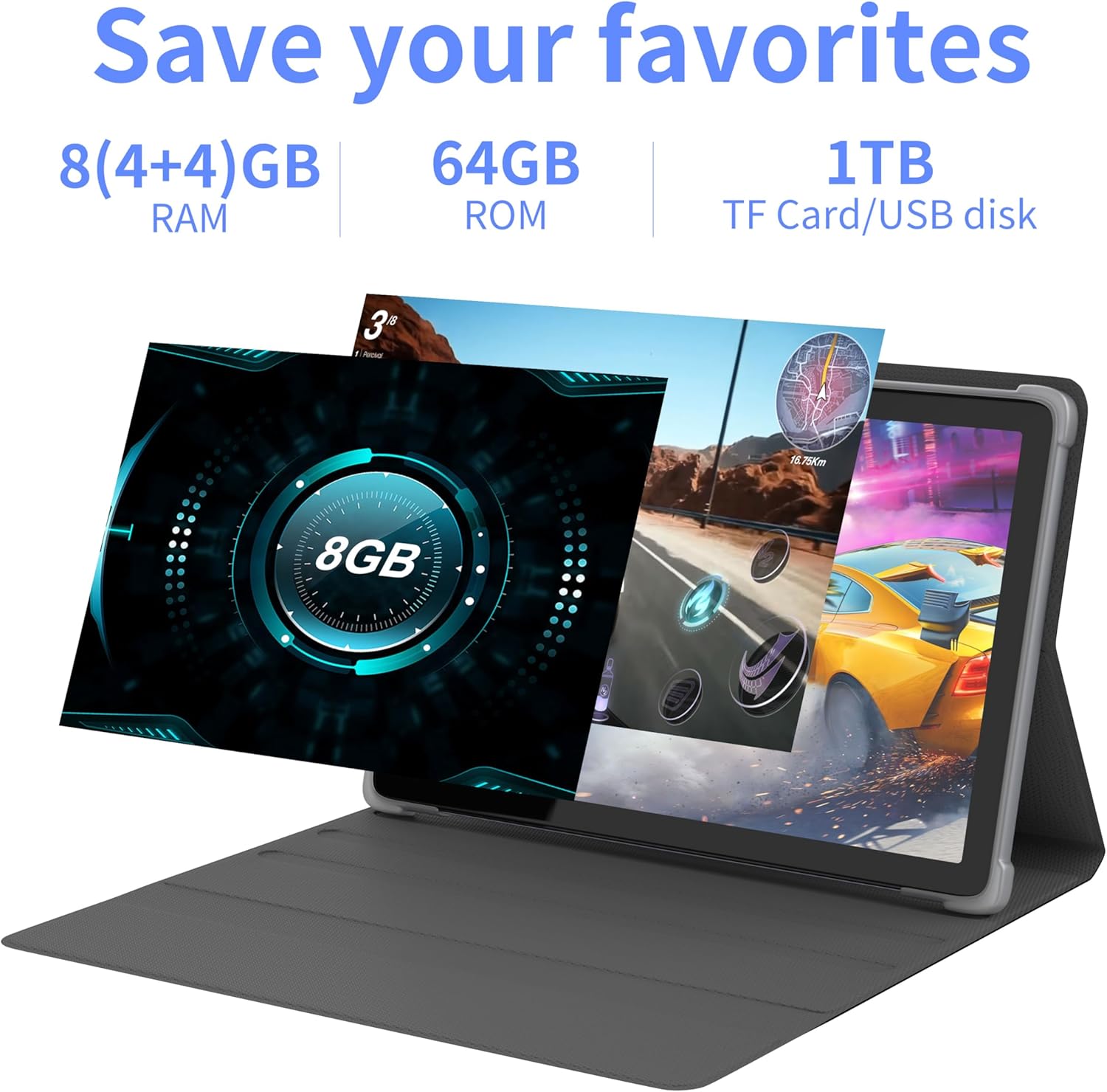
Image 4.2: Overview of the tablet's memory and storage capabilities, including RAM, ROM, and expansion options.
4.6. Split-Screen Function
Android 13 allows for split-screen multitasking. To activate, open an app, then swipe up from the bottom of the screen to view recent apps. Touch and hold the app icon at the top of the app's card, then select 'Split screen'. Choose a second app to use simultaneously.
5. Display Features
The tablet features a 10.1-inch IPS display with a resolution of 1280 x 800 pixels, providing clear visuals and wide viewing angles.

Image 5.1: The tablet's 10.1-inch HD IPS display, showcasing its resolution and wide-angle viewing capabilities.
5.1. Widevine L1 Support
The tablet supports Widevine L1, enabling high-definition streaming content from compatible services.
6. Maintenance
6.1. Cleaning the Device
Use a soft, lint-free cloth to clean the screen and body of the tablet. Avoid using harsh chemicals or abrasive materials.
6.2. Software Updates
Regularly check for and install system updates to ensure optimal performance and security. Go to Settings > System > System update.
6.3. Storage Optimization
To maintain performance, periodically clear unnecessary files and applications. Go to Settings > Storage to manage your device's storage.
7. Troubleshooting
This section addresses common issues you might encounter.
| Problem | Solution |
|---|---|
| Tablet does not power on. | Ensure the battery is charged. Connect the tablet to the charger for at least 30 minutes before attempting to power on again. |
| Tablet is unresponsive. | Use a thin pin or paperclip to press the Reset Button (refer to Device Layout section) to force a restart. |
| Cannot connect to Wi-Fi. | Check if Wi-Fi is enabled in Settings. Ensure the Wi-Fi password is correct. Restart your router and the tablet. |
| Slow performance. | Close unused applications. Clear cache and temporary files. Consider performing a factory reset if the issue persists (backup data first). |
8. Specifications
Detailed technical specifications for the Tibuta Android 13 Tablet (Model: 8GB+64GB).
| Feature | Detail |
|---|---|
| Brand | Tibuta |
| Model Number | 8GB+64GB |
| Operating System | Android 13 |
| Processor | Octa-Core (Allwinner A523) |
| RAM | 8 GB (4GB + 4GB virtual) |
| Internal Storage | 64 GB |
| Expandable Storage | Up to 1TB (Micro SD card) |
| Screen Size | 10.1 Inches |
| Screen Resolution | 1280 x 800 Pixels (IPS) |
| Rear Camera | 8 MP |
| Front Camera | 5 MP |
| Battery Capacity | 7000 mAh Lithium Polymer |
| Average Battery Life | Up to 8 hours (usage dependent) |
| Connectivity | Wi-Fi 6 (802.11ac, b, g, n), Bluetooth 5.2 |
| Dimensions | 24.8 x 16.7 x 1.2 cm |
| Weight | 539 g |
| Color | Gray |
| Special Features | Widevine L1, GMS Certified |
9. Support
For technical assistance or if you encounter any issues with your Tibuta tablet, please contact our customer service team. Refer to your purchase documentation or the retailer's website for specific contact details.